What Is Audio Gain and How Does It Boost Sound
You max out your browser volume, your laptop speakers, and the video player — yet the audio still sounds thin, distant, or buried under room noise. Audio gain solves this differently. Instead of just pushing the volume dial, gain amplifies the audio signal itself before it reaches your speakers. The Volume Booster Chrome Extension applies this principle locally inside your browser — no uploads, no accounts, no external processing.
- What audio gain actually means and how it differs from simple volume
- Why browser audio often sounds quiet even at 100 percent
- How Volume Booster uses local gain processing to safely amplify HTML5 media
- When to reach for gain instead of just turning up your external speakers
What Is Audio Gain and How Is It Different from Volume?
Audio gain is the amplification applied to an audio signal at its source — before it ever reaches your speakers or headphones. Think of it as adjusting the strength of the signal itself, not just how loudly your speakers play it back.
Volume, by contrast, controls the output level at the very end of the audio chain. When you turn up your speaker knob or drag the YouTube slider to 100 percent, you are adjusting volume — the final playback loudness. If the original signal is weak, cranking volume alone often results in thin, noisy sound.
Key differences between gain and volume:
- Gain works at the input stage. It strengthens the audio signal before any other processing or output happens.
- Volume works at the output stage. It controls how loudly your speakers or headphones reproduce the already-processed signal.
- Gain changes signal amplitude. A well-applied gain boost makes quiet audio fuller and more present without simply making everything louder indiscriminately.
- Volume scales playback level. It raises or lowers what you hear but cannot recover information already lost in a weak signal.
In practical terms: if a podcast recording is inherently quiet, turning your laptop volume to maximum still leaves you straining. But applying audio gain lifts the signal itself, making the speech clearer before your speakers even touch it. That is the fundamental value gain brings to browser listening.
Read more about HTML5 audio and video volume limits to understand why browser media often starts with a handicap.
Why Does Browser Audio Sometimes Sound Too Quiet Even at 100%?
You have probably experienced this: every volume slider you can find is maxed out, yet the dialogue in a streaming movie remains muddy, or a webinar speaker sounds like they are whispering from across the room. This is not your hardware failing — it is a combination of browser design choices and media production realities.
Common reasons browser audio stays quiet:
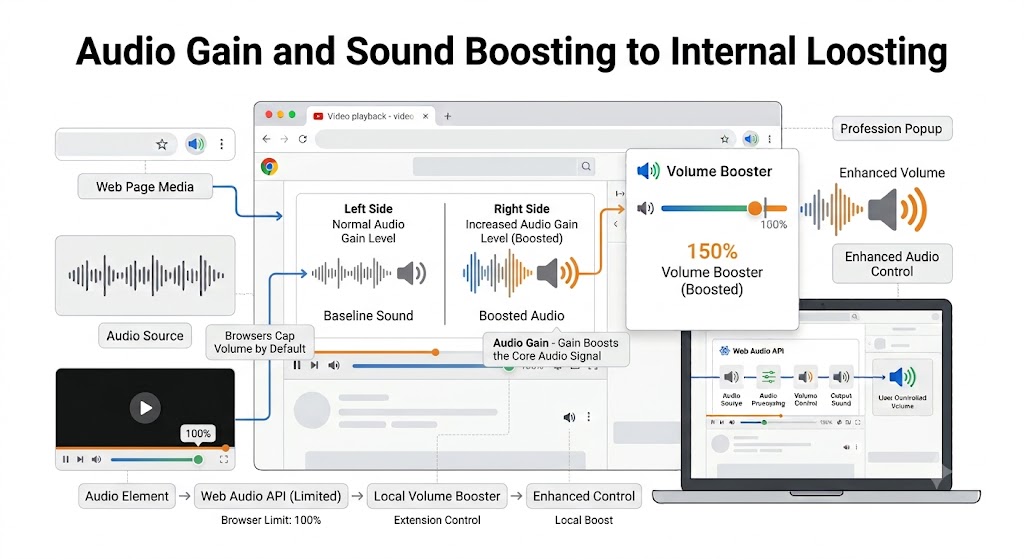
- Browsers cap audio at 100 percent by design. Chrome, like most modern browsers, sets a hard ceiling on how loud HTML5 media elements can play. This is a safety and consistency measure — but it leaves no headroom for genuinely quiet content. Learn more about why browsers cap audio at 100 percent volume.
- Media files are mastered at low levels. Many videos, podcasts, and online courses are recorded with conservative audio levels to avoid clipping during production. The result is a signal that barely uses the available dynamic range.
- Laptop and mobile speakers have physical limits. Built-in speakers are small and power-constrained. Even at 100 percent volume, they cannot move enough air to fill a room — especially with thin, un-amplified source audio.
- Streaming platforms apply loudness normalization. Services like YouTube and Netflix often normalize audio to a target loudness level, which can flatten peaks and make quieter passages even harder to hear.
When all these factors stack, the browser's default volume ceiling becomes a real barrier. You need something that works before the output stage — and that is exactly where audio gain steps in.
How Does Audio Gain Work Inside a Web Browser?
Modern browsers expose powerful audio processing capabilities through the Web Audio API. This API lets developers interact with audio signals programmatically — including applying gain — entirely inside the browser sandbox.
The core mechanism behind browser-based audio gain is straightforward:
- A media element — an HTML5
<audio>or<video>tag — produces an audio stream as you watch or listen. - That stream can be routed through an audio processing graph, where a gain node applies multiplication to the signal's amplitude.
- A gain value of 1.0 means no change. A value of 2.0 doubles the amplitude. A value of 0.5 halves it.
- The processed signal then continues to your system's audio output — speakers, headphones, or Bluetooth device.
All of this happens locally in real time. The browser never sends audio anywhere; it simply processes the existing stream before playback. There is no recording, no uploading, and no external server involvement.
Because the gain adjustment occurs at the signal level — not at the speaker-output level — it can push perceived loudness beyond what the browser's default volume slider allows. And because it is applied digitally within the browser's audio pipeline, the latency is imperceptible: you hear the change instantly as you adjust.
How Does Volume Booster Use Audio Gain to Increase Browser Sound?
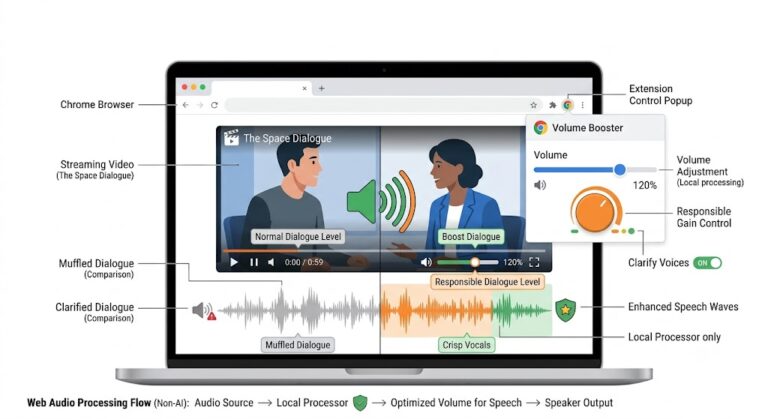
Volume Booster brings browser-native audio gain into a simple, one-click extension popup. You do not need to understand signal processing or the Web Audio API — the extension handles everything behind the scenes while keeping all processing local to your device.
What happens when you use Volume Booster:
- Automatic media detection. When you open the extension popup on any tab, Volume Booster scans for active HTML5 audio or video elements. It identifies what is currently playing or available to play.
- Gain application. As you drag the volume slider above 100 percent, the extension applies gain to the detected media stream. The signal amplitude increases proportionally — a 150 percent setting corresponds to 1.5x gain, 200 percent to 2.0x gain, and so on.
- Real-time updates. Every slider movement takes effect immediately. There is no lag, no buffering, and no page reload required. You hear the difference as you adjust.
- Per-tab isolation. Each tab's gain setting is independent. You can boost a quiet podcast in one tab while keeping a music stream at normal levels in another — no cross-tab interference.
- Reset on demand. The reset button returns gain to 100 percent — the browser's native level — instantly. This is useful when you switch to content that is already loud enough.
The volume percentage display in the popup shows your current gain level at a glance. It is a transparent, predictable control — no hidden processing, no AI guesses, just straightforward signal amplification.
Explore the Volume Booster homepage to see how the full extension fits into your daily browsing workflow.
Is Increasing Audio Gain Safe for Your Speakers and Ears?
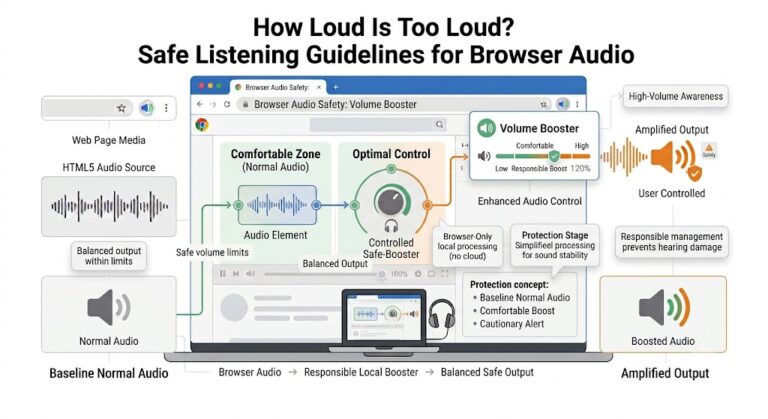
Safety is a legitimate concern any time you push audio beyond its default limits. The good news: browser-based gain processing, when used responsibly, is safe for both your hardware and your hearing. But understanding the boundaries matters.
What you should know:
- Digital gain does not damage speakers by itself. Your speakers are driven by your system's output amplifier, not by the browser's internal signal. Applying gain in the browser simply sends a stronger signal to that amplifier. If the combined level — browser gain plus system volume — is reasonable, your speakers operate within their normal range.
- Excessive combined gain can cause distortion. If you set browser gain to 300 percent and your system volume to maximum, the signal may clip digitally before it even reaches your speakers. Clipping sounds harsh and fatiguing. The fix is simple: back off the gain slightly until the audio cleans up.
- Hearing safety depends on total loudness, not on gain alone. Gain is just one stage in the chain. What reaches your ears is the sum of browser gain, system volume, and headphone or speaker sensitivity. Keep total listening levels moderate, especially with headphones.
- Volume Booster applies gain transparently. You always see the exact percentage. There are no hidden boosts or automatic adjustments — you are in full control of how much amplification is applied.
Best practice: start with small gain increases — 120 to 150 percent — and only push higher if the content genuinely needs it. If you hear crackling, fuzz, or harshness, reduce the gain slightly. Your ears are the best meter.
When Should You Reach for Audio Gain Instead of Just Turning Up Your Speakers?
Not every quiet-listening situation calls for gain. Sometimes the fix is as simple as adjusting your system volume or moving closer to your laptop. But specific scenarios genuinely benefit from signal-level amplification — and recognizing them saves you frustration.
Reach for audio gain when:
- The source audio itself is quiet. If a video was recorded with low levels, no amount of speaker volume will recover clarity. Gain lifts the signal first, giving your speakers something fuller to work with.
- You are on a laptop with weak built-in speakers. Many laptops have small, downward-firing speakers that struggle even at 100 percent. Gain gives them a stronger signal to project.
- Dialogue is hard to understand. Movies and shows often bury speech under music and effects. Gain can bring vocal frequencies forward without needing a full equalizer — just a cleaner, louder signal.
- You are in a noisy environment. Coffee shops, airports, and open offices add ambient noise that competes with your audio. Gain helps your content cut through without maxing out every volume knob available.
- You are using Bluetooth headphones with low output. Some Bluetooth devices have conservative volume ceilings. Applying gain before the signal leaves the browser can compensate effectively.
If you frequently struggle with quiet streaming content, check out our guides on fixing low volume on Netflix in Chrome and boosting Prime Video volume without distortion for platform-specific tips.
How Real Listeners Use Audio Gain in Everyday Browsing
Here is how audio gain — applied through Volume Booster — makes a tangible difference in common browser audio situations.
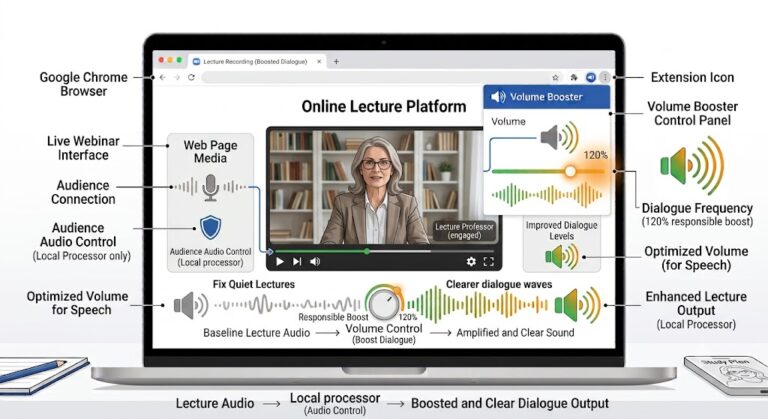
Example 1: The Online Student Following a Recorded Lecture
- Situation: A university student is watching a recorded lecture in Chrome. The professor's microphone was set low during recording, and even with laptop speakers at 100 percent, every sentence requires intense concentration.
- Action: She opens the Volume Booster popup on the lecture tab. The slider shows 100 percent. She drags it to 180 percent. The extension applies gain to the HTML5 video element instantly.
- Result: The professor's voice becomes clear and present. She can take notes without constantly rewinding to catch missed words. After the lecture, she clicks reset — and the tab returns to normal volume for her next browsing session.
Example 2: The Remote Worker on a Video Call with Quiet Colleagues
- Situation: A remote worker joins a team call via a browser-based conferencing tool. One colleague has a poor microphone, and their audio is consistently quieter than everyone else. Turning up system volume makes other speakers uncomfortably loud.
- Action: He uses Volume Booster to apply a moderate 140 percent gain on the call tab. Because the gain is per-tab, his music streaming in another tab remains unaffected.
- Result: The quiet colleague's audio becomes audible without blasting the rest of the team. The worker stays engaged without constant volume adjustments, and his Spotify web player volume in the background stays exactly where he left it.
Example 3: The Movie Fan Watching an Indie Film with Low Mastering Levels
- Situation: A viewer is streaming an independent film on a niche platform through Chrome. The audio mastering is conservative — dialogue scenes are barely audible, and even action sequences feel restrained at full volume.
- Action: She sets Volume Booster to 165 percent for the film tab. The gain lifts the entire audio track without introducing noticeable distortion because the source signal is clean — just quiet.
- Result: The film becomes immersive. She hears subtle background details and quiet dialogue that were previously lost. She also bookmarks our guide on improving Disney audio quality in your browser for family movie nights with similarly quiet streams.
Frequently Asked Questions
Does audio gain reduce sound quality?
When applied moderately, gain does not reduce quality — it amplifies the existing signal cleanly. Pushing gain too high on an already-peaking signal can cause digital clipping, which sounds harsh. Start at 120–150 percent and increase gradually. If you hear distortion, back off slightly.
Can I use audio gain on any website?
Volume Booster works on any site that uses standard HTML5 audio or video elements. This covers the vast majority of modern websites, including YouTube, Netflix, Spotify Web Player, Twitch, and most online learning platforms. Sites using custom or DRM-restricted playback methods may have limited support.
Does audio gain affect all tabs at once?
No. Volume Booster applies gain per tab. Each tab has its own independent gain setting. Boosting a quiet Twitch stream in one tab will not change the volume of your music playing in another.
Is the gain processing really local — no data sent anywhere?
Yes. All audio processing happens inside your browser using Chrome's built-in audio capabilities. Volume Booster never records, uploads, or transmits any audio. There are no external servers, no accounts, and no analytics. Everything stays on your device.
What happens when I click the reset button?
The reset button returns the gain to 100 percent — the browser's native level — instantly. The audio signal passes through unchanged, exactly as the website originally delivered it. This is useful when switching from quiet content to normally-mastered audio.
Will audio gain drain my laptop battery faster?
The additional processing is minimal. Volume Booster is designed to be lightweight — low memory usage, low CPU footprint, and no background activity when you are not actively adjusting gain. You should not notice any meaningful impact on battery life.
Audio Gain Gives You Control Beyond the Browser's Default Ceiling
Audio gain is not a gimmick — it is a practical, signal-level solution to a problem every browser user has faced: content that is simply too quiet, even with every volume slider maxed out. By understanding the difference between gain and volume, you can make smarter choices about how you amplify your listening experience.
Key takeaways:
- Gain strengthens the audio signal before it reaches your speakers; volume only controls final output loudness.
- Browsers intentionally cap volume at 100 percent, leaving quiet content underserved — gain bridges that gap.
- Volume Booster applies gain locally, per tab, in real time — with no accounts, no uploads, and no external processing.
- Safe gain usage means starting small, watching for distortion, and letting your ears guide the right level.
Because Volume Booster runs entirely inside Chrome, you can experiment freely with zero privacy risk. No browsing data leaves your device. No audio is ever recorded or analyzed. It is just you, your browser, and a stronger, clearer signal.
Start by opening the extension on a tab where the audio feels thin or distant. Drag the slider to 130 percent. Listen. Adjust. You will quickly develop an instinct for when audio gain helps — and when the default level is enough. Then explore the Volume Booster blog for more guides on getting the best sound from every website you visit.