How to Boost Audio for Video Tutorials
Video tutorials are a lifeline for learning, but too often the instructor’s voice is buried under room noise, cheap microphones, or aggressive platform compression. Boosting audio for video tutorials with the Volume Booster Chrome extension lets you push the volume past the browser’s built‑in maximum — without touching your system mixer, installing heavy audio suites, or compromising your privacy.
- Why most tutorial videos sound too quiet even at 100% volume
- How a per‑tab volume slider gives you precise control over every tutorial
- The real‑time, local audio processing that never uploads or records your media
- When to adjust volume safely across laptops, desktops, and headphones
What Causes Low Audio in Video Tutorials?
Video tutorials often suffer from quiet, uneven sound — not because your hearing or speakers are failing, but because of how the content is created and delivered.
- Recording environment: Many instructors use built‑in laptop microphones or basic headsets. They may be far from the mic, in untreated rooms, or speaking softly. The resulting raw track is low in level and lacking presence.
- Post‑production choices: Creators rarely apply professional loudness normalization. A tutorial exported straight from a screen recorder often sits well below the broadcast loudness standards that streaming platforms expect.
- Platform processing: YouTube, Vimeo, and learning management systems apply their own dynamic range compression and loudness normalization. If a video is uploaded with already‑low volume, these systems won’t push it to a comfortable level — they simply preserve the quiet.
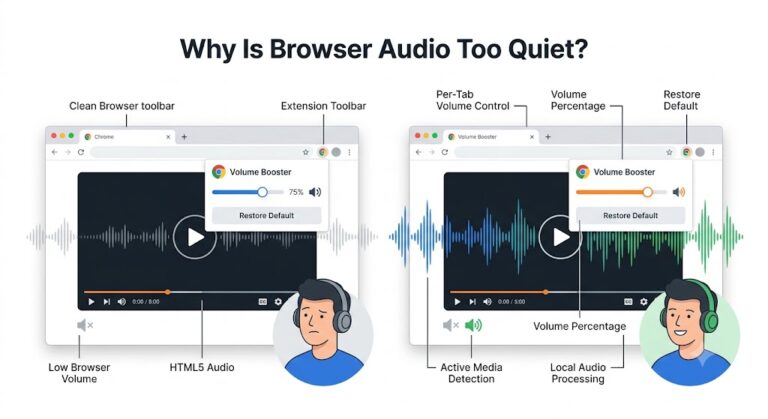
- Browser limitations: Chrome’s native volume controls cap HTML5 media at 100% of the decoded signal. There is no built‑in way to amplify beyond that point, even if the source audio is extremely quiet.
This combination means you often crank your system volume to maximum, only to find the instructor’s voice still lacks clarity. Boosting audio for video tutorials requires a tool that works inside the browser, after the platform’s playback engine, to give you that extra headroom.
How Does Volume Booster Boost Audio for Video Tutorials?
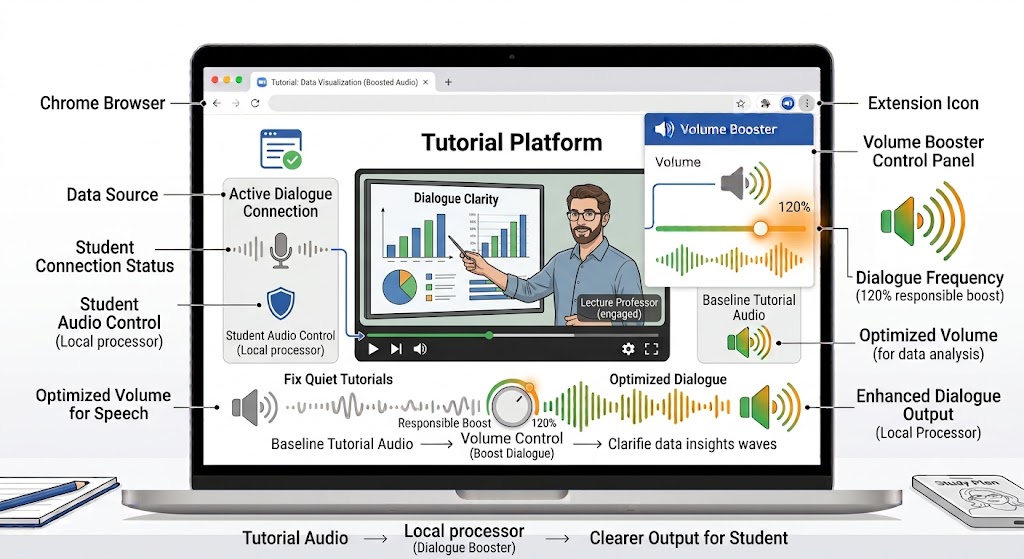
Volume Booster is a lightweight Chrome extension that intercepts the audio pipeline of HTML5 video and audio elements and applies a clean, real‑time volume gain. It never replaces the original audio — it simply amplifies what is already playing.
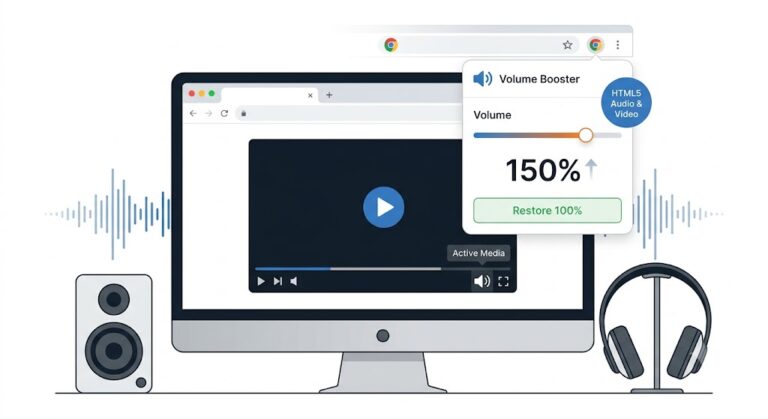
When you open a video tutorial and click the extension icon, the popup immediately detects the active tab. The interface shows a large slider and the current volume percentage. As you drag the slider upward, the extension increases the audio output of that specific tab.
The internal flow is simple and transparent:
- Chrome reports the active tab and its media elements via standard extension APIs. Volume Booster reads this locally — no browsing data ever leaves your device.
- Using Chrome’s scripting capabilities, the extension attaches a gain node (or equivalent browser‑supported audio processing) to the media element’s audio context. Everything conforms to Manifest V3, so the code runs in isolated, sandboxed environments.
- The slider value — displayed as a percentage — directly controls the gain factor. Moving it above 100% applies clean amplification; moving it below 100% reduces volume below the default level.
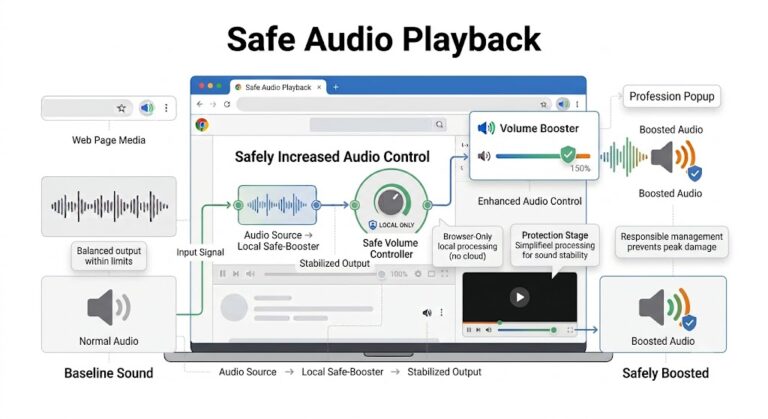
- All audio processing happens inside your browser, on your device. There are no external servers, no cloud synchronisation, and no audio recordings.
The extension also includes a Reset button that instantly returns the tab to its original browser volume. You can switch between tutorials, pause and resume, and the volume setting persists for each tab independently — more on that later.
For a deeper look at how the extension works with HTML5 media, read about browser audio amplification and the technical decisions that keep processing fast and local.
How to Use Volume Booster to Boost Audio for Any Video Tutorial
Using the extension is designed to be immediate — no configuration files, no audio engineering knowledge required. Here’s the workflow I follow daily when a tutorial sounds too quiet.
- Open the video tutorial in any Chrome tab. It can be on YouTube, Udemy, Coursera, an internal company LMS, or even a raw MP4 file played directly in the browser. Volume Booster works on any page that uses HTML5 audio or video elements.
- Click the Volume Booster icon in the Chrome toolbar. The popup opens and automatically identifies the current tab’s audio source. You’ll see the slider sitting at 100% (the browser’s default).
- Drag the slider to the right until the instructor’s voice becomes clear and comfortable. The volume percentage updates in real time. There is no delay, no buffering — the change is immediate because processing happens on the decoded audio stream.
- If you need to go back to the original level, press the Reset button. The slider jumps to 100% and the tab returns to its unmodified state.
That’s it. No sign‑up, no account, no prompts to upload anything. The extension remains invisible except for the tiny icon, and it only affects tabs you explicitly adjust.
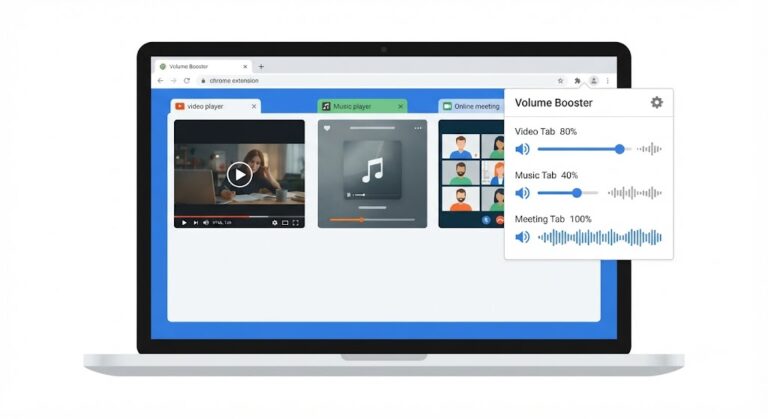
Because every tab remembers its own volume setting, you can boost one tutorial while a music player or a video conference stays at its native level. This per‑tab isolation is crucial for multitaskers and for anyone who follows several tutorials in parallel.
What Makes Volume Booster Different from Other Audio Tools?
Many audio utilities install system‑wide drivers, add equalizers, or promise “bass boost” and “surround sound.” Volume Booster takes the opposite approach. It does one thing — cleanly increase or decrease the volume of browser media — and does it with as little overhead as possible.
Key principles that shape the extension:
- Simplicity: A single slider. No hidden menus, no sound profiles, no complicated routing. I built it so that anyone, regardless of technical skill, can boost audio for video tutorials in seconds.
- Privacy: The extension never sends your audio, URLs, or browsing habits anywhere. There is no telemetry, no analytics, no user profiling. It works entirely offline once installed. Learn more about safe listening guidelines and how the extension protects your data.
- Performance: The code is minimal — a service worker, a content script, and a popup. Memory and CPU usage stay low because there is no persistent audio graph running in the background. Each tab’s gain is applied only when media is actively playing, and Chrome’s built‑in garbage collection reclaims resources when you close a tab.
- Local processing: All amplification happens directly on your device using the browser’s own media engine. No external server ever sees your tutorial stream, and you never need an internet connection beyond what’s required to load the video itself.
While some advanced tools include speech enhancement or AI‑powered noise removal, Volume Booster intentionally avoids such features. Those processes would require capturing and analysing audio — a privacy trade‑off I’m not willing to make. The extension remains a straightforward, trustworthy volume knob for the browser.
How Volume Booster Protects Your Privacy While Boosting Audio
Privacy isn’t an afterthought — it’s the foundation of the extension. When you boost audio for video tutorials, you are often watching sensitive content: internal training, personal skill development, or private recordings. I designed Volume Booster so you never have to worry about who might be listening.
These are the concrete privacy measures built into every version:
- No audio uploads. The extension does not capture, record, or stream your audio. The gain adjustment is applied directly to the browser’s audio pipeline; no copy of the sound ever leaves your device.
- No user accounts. There is no login, no registration, and no cloud synchronisation. Your settings stay in Chrome’s local storage and never leave your machine.
- No tracking or analytics. The extension makes no external requests. It does not collect browsing history, tab titles, or usage patterns. I have no server to receive such data — even if I wanted to.
- Minimal permissions. Volume Booster requests only the permissions strictly needed to detect and adjust HTML5 media in the active tab. It never asks for microphone, camera, or file system access.
When you adjust the slider for a tutorial, you’re using a local, self‑contained tool. This is especially important when handling private lecture recordings or proprietary training material. The extension is also compliant with Manifest V3, which enforces stricter sandboxing and limits the capabilities of background scripts — exactly the kind of architecture I want for a privacy‑first tool.
For more on how to safely increase volume without speaker damage, the privacy model remains the same: everything stays on your device.
Why Adjusting Volume Per Tab Matters for Tutorials
One of the most practical features of Volume Booster is its per‑tab volume memory. When you boost audio for a coding tutorial in one tab, that adjustment doesn’t spill over into the music you’re playing in another, or into a video call you might join later.
Here’s why this isolation makes a real difference in daily learning:
- Multiple tutorials at once: A student following a series might keep several tabs open — one for the main lecture, another for a supplementary demo, a third for documentation. Each can have its own optimal volume level, because the recording quality and loudness varies between sources.
- Background audio stays separate: You might listen to lo‑fi beats while studying. Boosting a tutorial tab should never blast that ambient track. Volume Booster keeps the two completely independent.
- Video meetings remain untouched: If you pause a tutorial to jump into a Google Meet or Zoom call, the meeting tab runs at its default volume, unaffected by your earlier amplification. When you return to the tutorial, the boosted level is still exactly where you left it.
- No need to constantly readjust: The extension remembers the volume for each tab as long as it stays open. Close the tab and the setting is discarded — so you never come back to an unexpectedly loud tab days later.
This design choice — simple, local, per‑tab state — comes from real usage patterns. I found that global volume boosters quickly become annoying when switching contexts. By scoping the boost to the tab, Volume Booster respects your browser workflow.
How Real‑World Scenarios Benefit from Boosting Audio for Video Tutorials
Here’s what boosting audio for video tutorials looks like in three common situations.
Example 1: The University Student Watching a Recorded Lecture
- Situation: A lecture recording uploaded to the university portal was captured with the built‑in microphone of a classroom PC. The professor’s voice is distant, and turning the laptop speakers to maximum still leaves the speech unintelligible, especially in the back rows.
- Action: The student opens the lecture in a Chrome tab, clicks Volume Booster, and slides the gain to about 250%. The slider updates immediately; the professor’s voice becomes clear and present, without distortion because the original recording isn’t clipping.
- Result: They can follow every word without straining, even with other household noise. After the lecture, they press Reset to return to normal levels before switching to music. Privacy remains intact — no one, including the university, knows any audio processing took place.
Example 2: The Developer Following a Code‑Along Tutorial
- Situation: A screen‑share tutorial on YouTube walks through a new JavaScript framework. The instructor’s microphone gain is low, and the screen‑recording software compressed the audio further. Even at 100%, the voice is barely louder than the background hum.
- Action: The developer opens the tutorial on one monitor, with an IDE on the other. They click the extension icon, push the slider to 200%, and the voice instantly cuts through. Because the boost is per‑tab, the terminal‑based music player in another Chrome tab remains unchanged.
- Result: They code along without constantly reaching for the system volume keys. When they later open a conference call, that tab starts at its default volume — no accidental shouting into a meeting. The boost stays with the tutorial tab until it’s closed.
Example 3: The Language Learner Practising with Native‑Speaker Videos
- Situation: Short dialogue clips on a language‑learning site are recorded with varying audio quality. Some clips are barely audible, making it impossible to hear subtle pronunciation differences. The site itself has no built‑in volume control beyond the standard HTML5 slider.
- Action: The learner opens several clips in separate tabs, each adjusted via Volume Booster to a different level depending on the recording. One tab might be at 180%, another at 120%. The fine‑grained slider allows them to tune each clip individually.
- Result: They can accurately hear aspiration, vowel length, and intonation — details that would otherwise be lost. The per‑tab volume memory means they can revisit a clip later in the same session without readjusting. The extension’s local processing ensures no audio from private study sessions ever leaves their device.
In every case, the workflow is the same: click, slide, learn. Nothing else to install, no settings to save, no cloud to trust. For related listening improvements, you might also explore how to improve speech clarity while watching videos — another everyday use case where clean amplification makes all the difference.
Frequently Asked Questions
Will boosting audio for video tutorials damage my speakers or headphones?
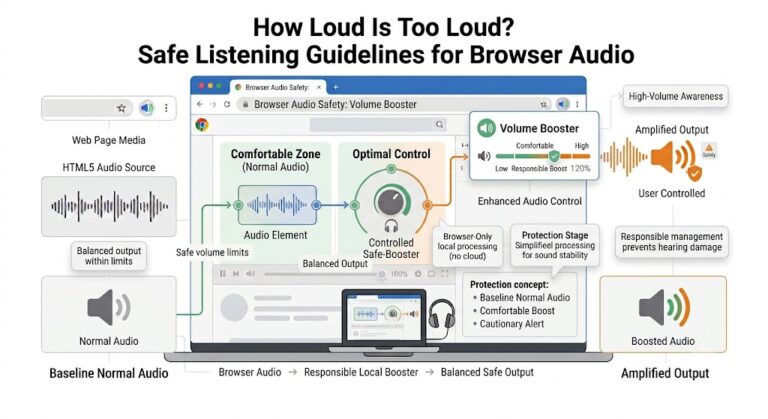
Boosting audio itself does not harm hardware if you listen at reasonable levels. The risk comes from excessive volume over long periods. Start at a low slider position and increase gradually until speech is clear but not painful. The extension includes a Reset button so you can instantly return to safe defaults. Read our safe listening guidelines for detailed advice.
Does Volume Booster work on all video platforms?
It works on any website that uses standard HTML5 video or audio elements. This includes YouTube, Vimeo, Udemy, Coursera, most learning management systems, and pages with embedded MP4/MP3 files. The extension detects media in the active tab automatically. If a site uses a proprietary player that bypasses HTML5, it may not be compatible, but such cases are rare.
Can I boost audio for video tutorials without affecting my microphone or system sounds?
Absolutely. Volume Booster only adjusts the volume of browser‑based media in the tab you select. It does not touch your operating system’s overall volume, your microphone input, or audio from other applications. Your system mixer and hardware controls remain completely separate.
Is there any audio quality loss when I increase the volume?
Clean digital gain does not degrade audio quality by itself. The extension simply multiplies the digital samples by a gain factor. However, if the original recording is already distorted or you boost it to the point where your output device clips, you may hear unpleasant artifacts. Keep the slider at a level where speech sounds natural and you’ll avoid any issues.
Does the extension store my volume settings permanently?
Volume Booster stores your current tab volume in memory for as long as the tab remains open. When you close the tab, that setting is discarded. The extension does not keep a permanent history of your volume adjustments, nor does it sync them anywhere. This matches our local‑first, no‑cloud philosophy.
Why does Volume Booster need the “activeTab” permission?
The “activeTab” permission is the most restrictive way to allow the extension to read and modify media elements only on the tab you are currently viewing and only after you click the extension icon. It grants zero access to background tabs, and it does not let the extension read your browsing history. This permission is essential for detecting media and applying the volume boost, and it aligns with our privacy‑first design. For more on how the extension handles permissions, see how we keep amplification safe.
Boost Audio for Video Tutorials — and Stay in Control of Your Listening
Quiet video tutorials don’t have to be a barrier. With Volume Booster, you can raise the volume far beyond the browser’s built‑in limits without sacrificing privacy, performance, or simplicity. The extension gives you a clean, per‑tab slider that works instantly on any HTML5 video, helping you hear every word — whether you’re in a noisy environment, using low‑output headphones, or simply dealing with a poorly mastered recording.
Key takeaways:
- Most quiet tutorials result from recording limitations and platform compression, not your hearing.
- Volume Booster amplifies audio locally, using Chrome’s own media engine — no uploads, no accounts, no telemetry.
- Per‑tab control lets you boost a tutorial while leaving music, meetings, and other tabs at their original level.
- A simple slider and Reset button make it safe and easy to experiment without permanent changes.
- Because everything stays on your device, you can confidently use it with private, proprietary, or sensitive training materials.
Start by opening your next video tutorial, clicking the Volume Booster icon, and sliding the control just enough to make the instructor’s voice feel natural and effortless. Then explore how improving audio quality during online classes can further enhance your learning setup. Whether you’re a student, a professional, or a lifelong learner, boosting audio for video tutorials can turn a frustrating, muffled experience into a clear, focused session — all with a lightweight extension that respects your privacy.