How to Boost Podcast Audio Directly in Your Browser
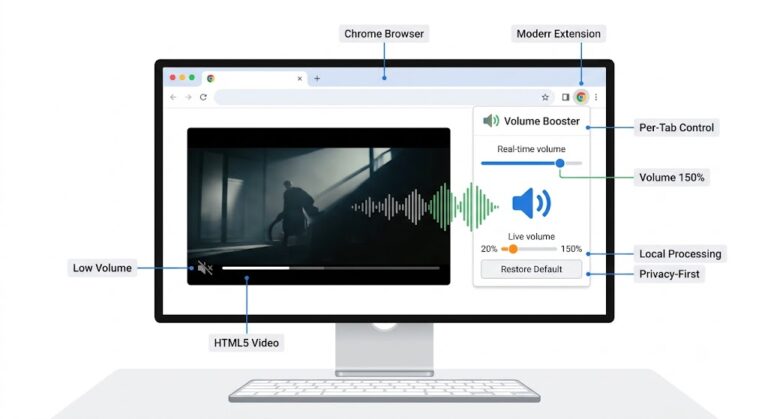
You click play on a podcast episode, but the host’s voice barely rises above a whisper. Your system volume is already maxed out, and still the dialogue feels buried. Boosting podcast audio directly in your browser — without installing bulky desktop apps or risking your privacy — is exactly what Volume Booster was built for. With a single slider, you increase the volume of any HTML5 audio or video right inside Chrome, per tab, in real time. Everything stays on your device.
- Why the default browser volume ceiling isn’t enough for many podcasts
- How per‑tab audio gain works without affecting other sites
- What happens when you push the volume slider — from HTML5 media detection to instant output
- When to use the reset button and how to combine safe listening practices
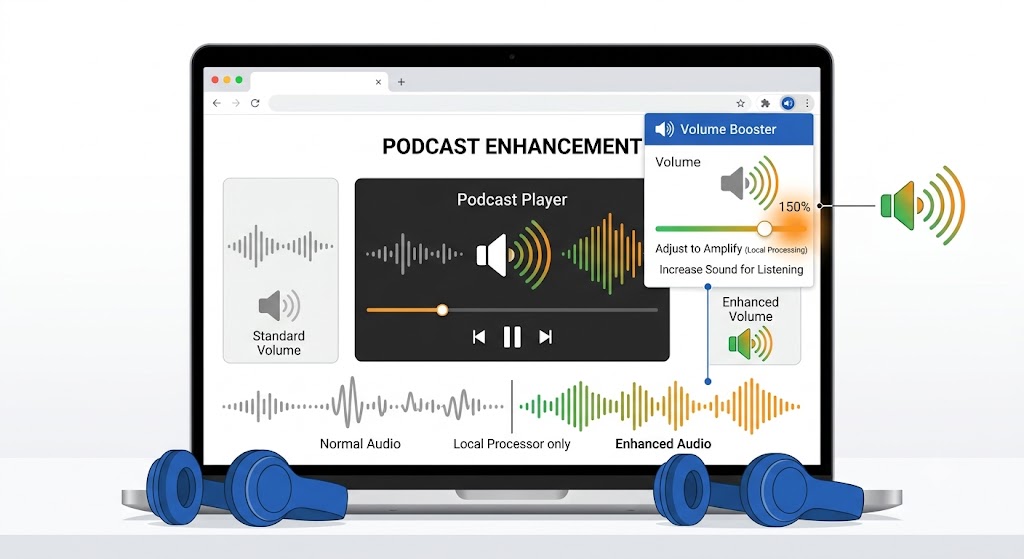
What Does It Mean to Boost Podcast Audio in the Browser?
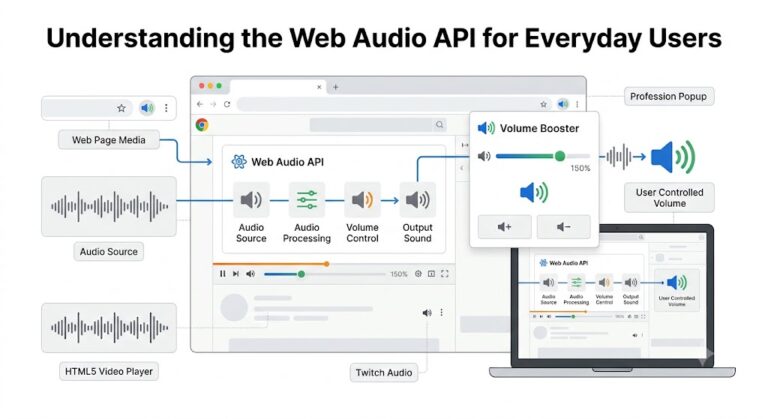
When you boost podcast audio in browser, you’re increasing the loudness of the audio stream that Chrome sends to your speakers or headphones. It’s not the same as turning up the system volume knob. System volume controls the final output level, but many podcast players and web apps already deliver a quiet signal — the waveform itself has low energy.
Volume Booster intercepts that signal at the browser level before it reaches the speakers. By applying a controlled amount of gain, it amplifies the podcast’s original audio, making quiet speech clearer and reducing the need to crank your device to 100%.
- The extension only affects HTML5
<audio>and<video>elements, which virtually all modern podcast web players rely on. - It does not touch system sound settings, other applications, or browser UI sounds.
- Because the boost is applied per tab, you can have one podcast playing at 180% volume while a video call in another tab stays at default.
This approach gives you precise control over exactly the audio that matters, without disrupting your entire computer setup. For a deeper look at how audio gain works inside a browser, see our guide on audio gain.
Why Is Podcast Audio Sometimes Too Quiet in Chrome?
Many podcast listeners assume the problem is their headphones or speakers. More often, the issue starts at the source — the podcast file itself or the hosting platform’s audio processing chain.
Common reasons podcasts sound quiet:
- Low recording levels: Independent podcasters often record with modest equipment, resulting in waveforms that peak far below 0 dB. The audio is clean but undynamic.
- Platform compression: Spotify, Pocket Casts, and other web players may apply loudness normalization that pulls quiet episodes down rather than pushing them up.
- Browser audio stack: Chrome’s built-in volume cap prevents any single media element from exceeding 100% of its encoded amplitude. Without an extension, you can’t go beyond this limit — even if the source is whisper‑quiet.
- Dynamic range mismatch: A podcast mixed with wide dynamics sounds dramatic in a studio but nearly inaudible in a noisy coffee shop or on tinny laptop speakers.
Volume Booster solves these by letting you add gain at the browser level. You’re not altering the file — you’re telling Chrome, “Play this 20–40% louder.” To learn more about the underlying browser technology, read our breakdown of gain nodes explained.
How Can You Safely Increase Podcast Volume Without Distortion?
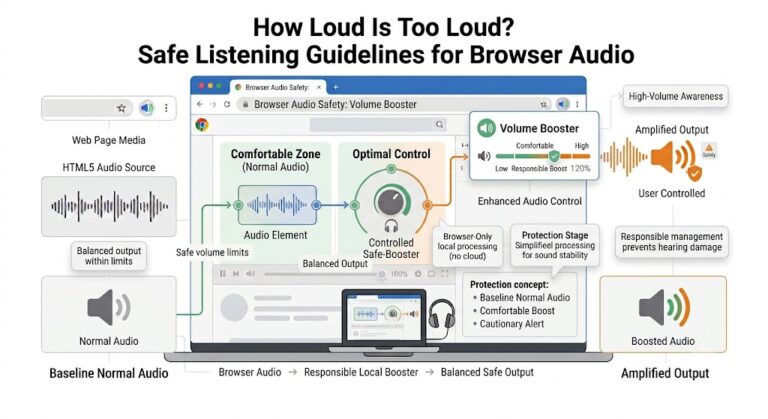
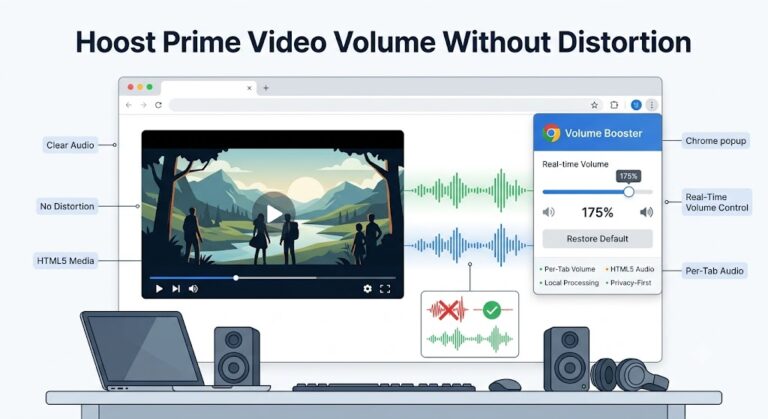
Pushing any audio beyond its original level introduces the risk of clipping — a harsh distortion that can make voices sound crackly. The key is to boost just enough to bring quiet sections into a comfortable range without smashing the loudest peaks.
Volume Booster’s real‑time slider lets you audition the effect instantly. Here’s a safe approach:
- Start the podcast and set the extension slider to 100% (the default, no boost).
- Gradually move the slider upward — 120%, 140%, 160% — while listening to speech segments and sudden laughter or sound effects.
- Stop as soon as you hear any “crackle” or harshness, then back down 5–10%. That’s your maximum clean boost for that episode.
- Use the reset button when you switch to a different podcast or finish listening, so the next tab starts fresh.
Because the extension applies only a linear gain increase, there’s no compression, no normalization, and no AI guesswork — just a pure multiplication of the audio signal. This keeps the original tonal character intact. For additional safety tips, see how to safely increase volume without speaker damage.
How Does Volume Booster Process Audio Locally When You Boost a Podcast?
Every time you move the slider, a quiet chain of events fires inside Chrome — entirely on your device. Nothing is recorded, uploaded, or processed externally.
Internal workflow:
- Tab detection: When you open the extension popup, the service worker identifies the active tab and its media elements via Chrome’s tab API. This lookup stays local.
- Media element selection: A content script finds all
<audio>and<video>elements on the page. The podcast player usually has one audio element; that’s the target. - Volume scaling: Volume Booster uses Chrome’s built‑in capability to control the playback volume of an HTML5 media element. It sets the
volumeproperty to a value greater than 1.0 — something you can’t do through the browser’s own interface. For example, a slider at 150% setsvolume = 1.5. - Instant feedback: The change takes effect in real time; you hear the louder audio immediately. The popup displays the current percentage so you always know the applied gain.
All of this runs inside Chrome’s sandboxed extension environment, compliant with Manifest V3. No external requests are made, and no media bytes are read by the extension beyond what the browser already provides for playback. For a broader look at how extensions control audio, check out browser audio amplification.
How to Use Volume Booster for Podcasts: A Step-by-Step Guide
You don’t need to configure anything; the extension works immediately after installation. But a few habits can make your podcast listening smoother.
1. Pin the extension for quick access
- Click the puzzle piece icon in Chrome’s toolbar, find Volume Booster, and pin it. The speaker icon stays visible so you can adjust volume without digging through menus.
2. Start your podcast on any web player
- Open Spotify, Podbean, Google Podcasts, or any site that streams HTML5 audio. Press play.
3. Open the Volume Booster popup on that tab
- Click the extension icon. The popup automatically detects the active tab and any media playing. You’ll see a large slider showing the current boost percentage.
4. Drag the slider to your desired level
- Move it to 130% for a gentle lift, or up to 200% for extremely quiet episodes. The change takes effect instantly, so you can find the sweet spot in seconds.
5. Reset when you’re done
- Click the reset button (or move the slider back to 100%) before closing the tab or switching to another audio source. This prevents accidentally boosting a different podcast or video later.
The entire process respects your privacy: no login, no account, no data leaving Chrome. Compare this with other volume boosting extensions that might require permissions you don’t need.
Practical Examples: Boosting Podcast Audio in Real Listening Scenarios
Example 1: The Remote Worker Catching Up on Industry News
- Situation: Sam works from a co‑working space with a lot of background chatter. She streams a marketing podcast through the web player, but the host’s voice gets swallowed by ambient noise even at max system volume.
- Action: She opens Volume Booster on the podcast tab and raises the slider to 170%. The voice suddenly cuts through the noise; she can keep the laptop speakers at 70% and still understand every word.
- Result: Sam avoids ear fatigue from constantly straining to hear, and she doesn’t disturb neighbors by blasting the speakers. After the episode, she resets the tab to default.
Example 2: The Student Listening to Lecture Recordings
- Situation: Ali often replays university lectures posted as podcasts. Some recordings are extremely quiet — almost unusable on his budget earbuds. Turning up the system volume introduces hiss from the cheap audio chip.
- Action: He sets the Volume Booster slider to 150% for the lecture tab, leaving the system volume at a modest 60%. The gain lifts the professor’s voice without amplifying background noise because the boost happens at the clean digital stage.
- Result: Ali can follow complex material without constantly rewinding to catch missed phrases. He pairs the boost with tips for improving speech clarity to get the best out of educational audio.
Example 3: The Language Learner Using Podcasts for Immersion
- Situation: Maria listens to slow‑paced Spanish podcasts during her commute. The app’s built‑in volume is fine for music but too low for subtle pronunciation — she misses the difference between “pero” and “perro.”
- Action: She boosts only the podcast tab to 135%. The slight increase makes consonants sharper without becoming loud enough to distort. She can still hear traffic announcements over her headphones because the system volume stays moderate.
- Result: Maria learns faster because she catches every syllable. The per‑tab setting ensures her music streaming tab later that day won’t be accidentally amplified.
Frequently Asked Questions About Boosting Podcast Audio
Does Volume Booster change the audio permanently or alter the podcast file?
No. The boost is applied only during playback inside Chrome. The original podcast file on the server remains untouched. Once you close the tab or reset the slider, the audio plays at its normal level again.
Can I boost podcast audio while using Bluetooth headphones?
Yes. Volume Booster works with any audio output device your browser uses — built‑in speakers, wired headphones, USB headsets, or Bluetooth earbuds. The gain is applied before the audio reaches the output hardware, so it’s compatible with all setups.
What happens if I boost too much and hear distortion?
Move the slider down immediately. The distortion you hear is digital clipping caused by the amplified signal exceeding the maximum value the audio pipeline can handle. Since the extension only applies linear gain, you can always back off to a clean level. For understanding the limits, refer to our safe listening guidelines.
Does Volume Booster work on every podcast website?
It works on any website that uses standard HTML5 audio or video elements for playback. This covers most modern podcast platforms, including Spotify web player, Apple Podcasts web, Google Podcasts, and many independent sites. If a site uses a proprietary plugin that doesn’t use HTML5 media, the extension won’t detect it.
Will boosting the volume affect other tabs or my browser’s performance?
The boost is applied per tab — only the tab you adjust is affected. The extension itself is lightweight and uses minimal CPU because it only modifies a browser property; there’s no continuous audio processing loop. Your other tabs, video calls, and system sounds remain at their original levels.
Do I need to create an account to use Volume Booster?
No accounts, no logins, no cloud storage. Volume Booster runs entirely on your device. There’s no user tracking, no analytics, and no external server communication. It’s a pure local utility.
Enjoy Clearer Podcasts with Full Privacy
Learning how to boost podcast audio directly in your browser turns a frustrating listening experience into a customizable one. Instead of settling for quiet, muffled episodes, you now have a simple slider that respects your ears and your privacy.
Key takeaways:
- Quiet podcast audio often comes from the source, not your hardware — browser‑side gain solves it instantly.
- Volume Booster works per tab, so you can independently amplify a podcast without disturbing other media.
- All processing happens locally on your device; no audio ever leaves Chrome, and no personal data is collected.
- Start with small boosts and listen for distortion; the reset button keeps you in control.
Whether you’re trying to follow a lecture, decipher a new language, or simply enjoy a softly‑spoken interview, a well‑placed volume boost makes every word accessible. Next, you might explore how the same technique helps with dialogue enhancement in movies and shows or why some movie dialogue sounds muffled — the browser audio principles are the same.
Open a quiet podcast episode, click the Volume Booster icon, and give the slider a gentle push. You’ll hear the difference instantly, with zero compromises on privacy or performance.