How to Boost Prime Video Volume Without Distortion
You’re watching a thriller on Prime Video and the dialogue is barely a whisper even at 100% volume. Boosting Prime Video volume without distortion isn’t about cranking up every knob — it’s about precise, per‑tab audio gain that respects the source material. The Volume Booster Chrome extension gives you exactly that: real‑time control over HTML5 media volume, processed entirely on your device, with no accounts and no cloud.
- Why the default Chrome volume slider often isn’t enough for Prime Video
- How the Volume Booster extension lifts audio without creating harsh clipping
- What happens inside the browser when you move the booster slider
- When to use the reset button and how to avoid over‑amplification
Why Is Prime Video Audio Often Too Quiet?
Many Prime Video titles are mixed with wide dynamic range — loud explosions but soft dialogue. When you watch on a laptop, built‑in speakers or even external headphones may not reproduce enough volume, leaving spoken words buried. The browser’s native volume slider can’t push beyond 100%, so you’re stuck at a ceiling that wasn’t designed for modern streaming’s quiet moments.
On top of that, Chrome itself applies a system‑level volume cap per tab, and the video player inside Prime Video uses HTML5 audio that respects this cap. Without an extension, you either strain to hear or resort to cranking up system volume, which often introduces hiss and still doesn’t fix the quiet‑loud imbalance.
This is the exact problem that browser audio that sounds too quiet explores in depth — the gap between what the content delivers and what your hardware can comfortably output.
How Can You Boost Prime Video Volume Without Distortion?
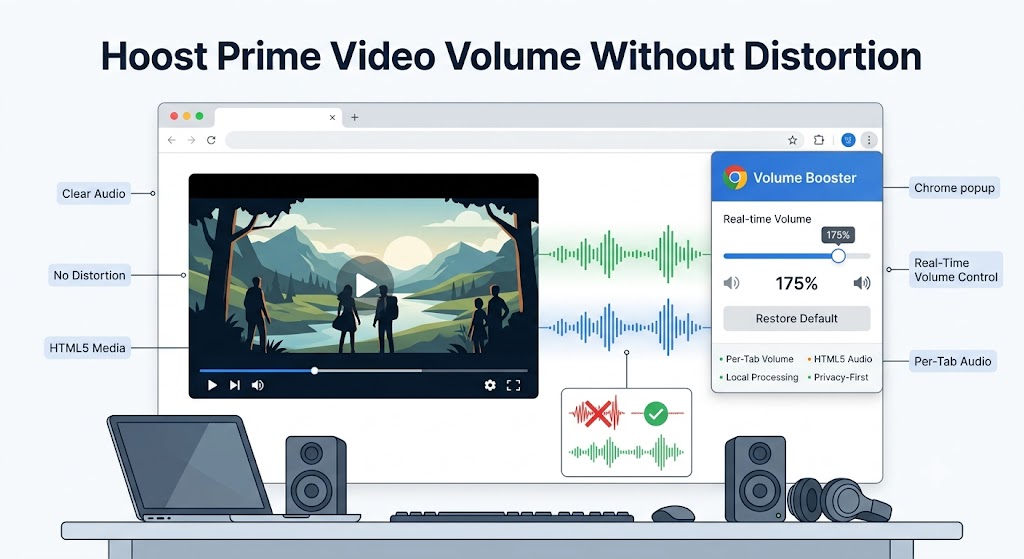
The answer is to apply additional gain only to the active Prime Video tab, using an extension that processes audio locally without altering the source file. Volume Booster adds a controlled amplification layer after the video’s original audio stream, so you can raise the volume beyond 100% while keeping the final output clean.
Key actions you take:
- Open Prime Video and start playing any title. The extension automatically detects the active HTML5 media element — no setup needed.
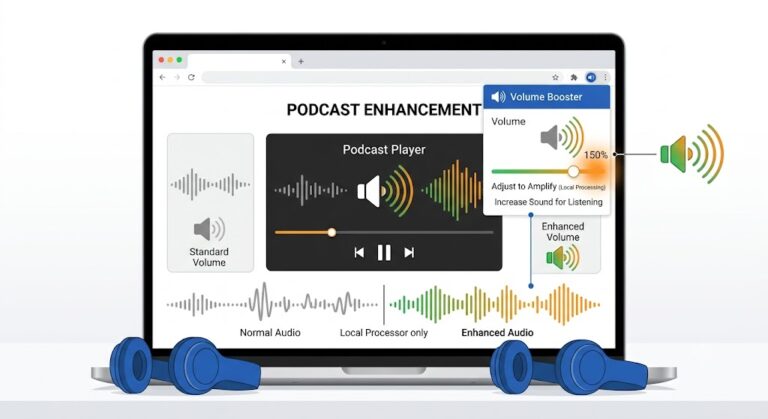
- Click the Volume Booster icon in the Chrome toolbar. A popup appears showing the current volume percentage for that tab.
- Drag the large slider to the right — values like 150%, 200%, or even higher. The change happens instantly; you’ll hear dialogue lift without needing to refresh the page.
The moment you release the slider, the extension sets the new gain on the media node and the volume percentage updates in real time. Because all processing stays inside Chrome’s own audio stack, there’s zero latency and no external dependency.
If you ever need to return to the original level, the Reset button brings the tab back to 100% instantly. This is especially useful after you’ve experimented with higher values and want a quick default.
What Causes Audio Distortion When Increasing Volume?
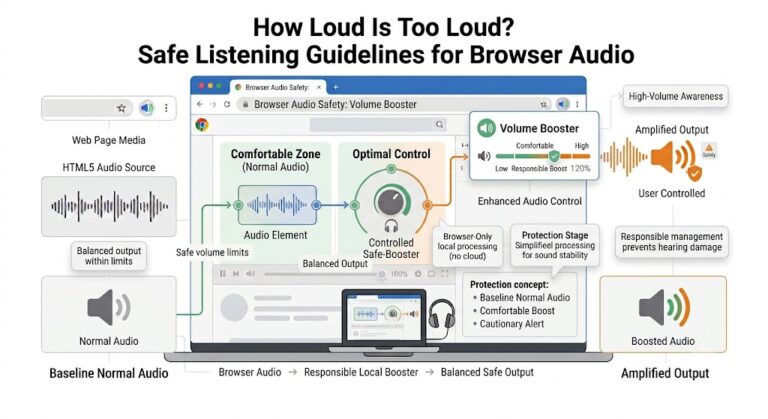
Distortion occurs when the audio signal is pushed beyond its maximum digital limit, a phenomenon known as clipping. In digital audio, every sample has a peak value; if amplification tries to exceed that ceiling, the waveform gets chopped, creating harsh, crunchy sound. This is different from simply being loud — it’s about crossing a boundary the system can’t handle.
Chrome’s built‑in volume control works by attenuating the signal before it reaches your speakers, so it can only reduce, never amplify. When you use an extension to boost, the gain must be applied carefully. Too much gain on a track already near 0 dBFS (decibels relative to full scale) will clip. That’s why boost Prime Video volume without distortion requires a tool that lets you increase volume incrementally and stay aware of the source material’s loudness.
Volume Booster doesn’t add compression or limiting — it’s a straightforward gain increase. That means if the original audio is already peaking, pushing the slider to extreme values (like 300% or 400%) will introduce distortion. The art is to increase just enough to make dialogue clear without entering the clipping zone. The guide to increasing browser volume beyond default limits explains the underlying audio mechanics in more detail.
How Does the Volume Booster Extension Safely Increase Prime Video Volume?
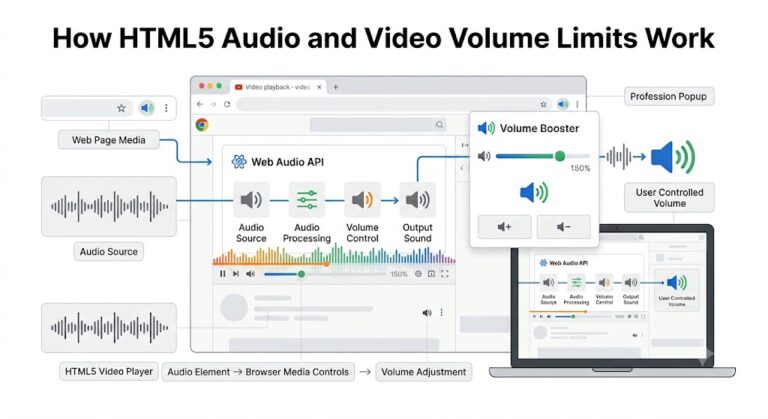
The extension uses Chrome’s Manifest V3 architecture and interacts directly with the HTML5 media element’s audio gain node. Here’s what happens under the hood:
- Detection: The content script identifies the active tab’s `
- Audio Graph Modification: Volume Booster inserts a gain control into the media element’s audio chain, strictly within the browser’s sandboxed execution environment. All calculations run locally; no media samples leave Chrome.
- Real‑Time Adjustment: When you move the slider, the gain value updates immediately via Chrome’s messaging system (service worker ↔ content script). The result is fluid, lag‑free audio change.
- Per‑Tab Isolation: Each tab’s volume setting is independent. Boosting Prime Video won’t affect a YouTube music tab playing in the background, and closing the tab discards the boost — no data persists.
This local processing approach means that you can boost Prime Video volume without distortion as long as you stay below the clipping point. The extension gives you fine granularity; you might find that 130% is perfect for a quiet drama, while 180% works for a documentary with low narration. The volume percentage display helps you remember the sweet spot for different content types.
Because the extension never uploads, records, or analyses audio, your privacy remains intact. It doesn’t require a login, doesn’t sync to any server, and doesn’t even request analytics. That’s the core principle of the Volume Booster Chrome extension.
Practical Examples: Boosting Prime Video Volume in Real Scenarios
Example 1: Late‑Night Watching with Laptop Speakers
- Situation: A student watches a Prime Video lecture in a dorm at night. System volume is already at 80% to avoid disturbing roommates, but the professor’s soft voice is inaudible over the laptop fan.
- Action: She opens Volume Booster and slides the gain to 145%. The dialogue becomes clear, and because the source audio isn’t heavily compressed, no distortion appears. She leaves system volume unchanged.
- Result: She can follow the entire lecture without repeatedly rewinding or resorting to external speakers. The boost is isolated to that Prime Video tab — her music playlist in another tab stays at 100%.
Example 2: Action Movie with Dynamic Range Issues
- Situation: A user streams a Prime Video action film on a desktop with quality headphones. Explosions are deafening, but whispered dialogue is lost. The native volume slider doesn’t help because raising it makes action scenes unbearable.
- Action: She sets Volume Booster to 120% — a modest increase that lifts the quiet dialogue without pushing loud scenes into clipping. She uses the slider’s fine control to test different levels during an early dialogue-heavy scene.
- Result: Dialogue is now intelligible while action sequences remain comfortable. She saves the percentage as a mental reference for similar content. No third‑party EQ needed.
Example 3: Watching Prime Video in a Noisy Café
- Situation: A freelancer watches a Prime Video documentary during lunch at a café. Ambient noise drowns out narration even with earbuds at full system volume.
- Action: He boosts the Prime Video tab to 175% while keeping system volume at max. The extension provides the extra gain needed to overcome background chatter. He confirms no crackling by listening for a minute; the audio remains clean.
- Result: He enjoys the documentary without needing noise‑cancelling headphones. When he later opens Netflix in another tab, it plays at default volume, not affected by the Prime Video boost.
Frequently Asked Questions
Will boosting Prime Video volume damage my speakers or headphones?
Volume Booster increases the digital signal level, but the final output power is still controlled by your system volume and hardware amplifier. As long as you don’t set system volume to dangerous levels, the boost itself won’t cause physical damage. If you hear distortion, reduce the slider immediately — that’s the signal that digital clipping is occurring, not speaker stress.
Why does the audio sometimes distort even at a low boost like 130%?
Distortion depends on how loud the original audio was mastered. If the source already peaks near 0 dBFS, even a small gain increase can cause clipping. This is more common with modern, heavily compressed soundtracks. Try lowering the boost or checking if a different audio track (like stereo instead of 5.1) is available in Prime Video’s settings.
Can I set different volume levels for different Prime Video episodes?
Yes. Volume Booster controls the active tab, so each time you open a new Prime Video page in a separate tab, it starts at 100%. You can adjust that tab individually. The settings are not saved permanently; closing the tab removes the boost, which is ideal for privacy and temporary viewing.
Does the extension work with Prime Video’s surround sound or only stereo?
The extension interacts with the audio output after Chrome has decoded whatever format Prime Video delivers. It works regardless of whether the source is stereo, 5.1, or Dolby Atmos — because the amplification happens on the final mixed signal inside the browser. You don’t need to change audio settings on Prime Video.
How does Volume Booster compare to Windows loudness equalization or macOS audio enhancements?
System‑wide enhancements apply to everything, often adding latency and altering the tonal balance. Volume Booster targets only the current tab’s media, keeping the rest of the system unaffected. It’s more selective and runs without any background services — a good fit if you only need extra volume for specific streaming sites.
Can I use Volume Booster on other streaming services like Netflix or Disney+?
Absolutely. The extension works on any website that uses HTML5 audio or video. You can fix low volume on Netflix in Chrome or improve Disney+ audio quality using the exact same slider. The principle is identical — per‑tab, local gain control.
Listen to Prime Video the Way It Should Sound — Loud, Clear, Distortion‑Free
You don’t need expensive hardware or system‑wide audio processing to hear every line of dialogue. With a privacy‑first extension that runs entirely in your browser, you can boost Prime Video volume without distortion by applying just the right amount of extra gain, exactly where you need it.
Key takeaways:
- Distortion is a digital clipping problem, not a volume problem — stay below the point where the audio waveform runs out of headroom.
- The Volume Booster slider gives you per‑tab, real‑time control; start small and increase until dialogue becomes clear.
- Because everything is processed locally, your privacy is never at risk. No account, no cloud, no tracking.
Whether you’re catching up on a series late at night or deciphering soft‑spoken drama in a noisy room, the right volume level is a slider away. Open Prime Video, click the extension, and find your distortion‑free sweet spot. Then, explore how the same approach can improve audio on YouTube or any other HTML5 media site — all without leaving Chrome.
If you’re curious about the broader principles of increasing browser volume beyond the default limit, that guide explains the technical boundaries every streaming viewer should know.