How to Boost YouTube Volume Above Maximum
Quiet YouTube videos can ruin a lecture, a movie night, or a music session. Boost YouTube volume above maximum with the Volume Booster extension, and you’ll hear every word clearly — without touching your system volume, switching speakers, or uploading any audio. All amplification stays inside your browser, on your device, never leaving Chrome.
- Why the standard YouTube volume slider often isn’t enough
- How Volume Booster safely increases audio beyond 100% for any HTML5 video
- Step‑by‑step: boost YouTube volume above maximum in one click
- Real‑life examples for lectures, movies, music, and accessibility
What Does “Boost YouTube Volume Above Maximum” Mean?
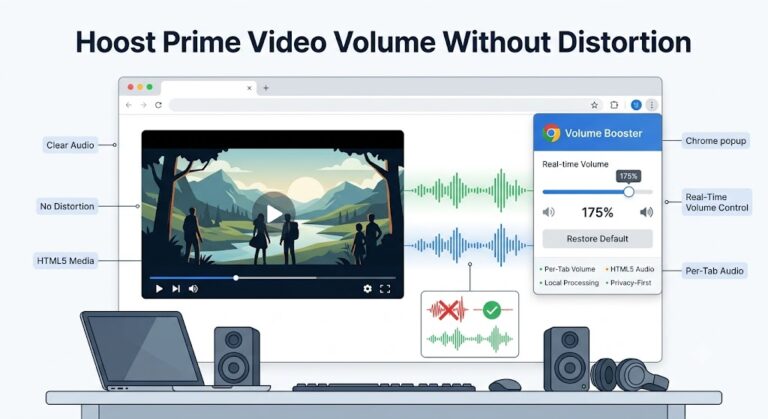
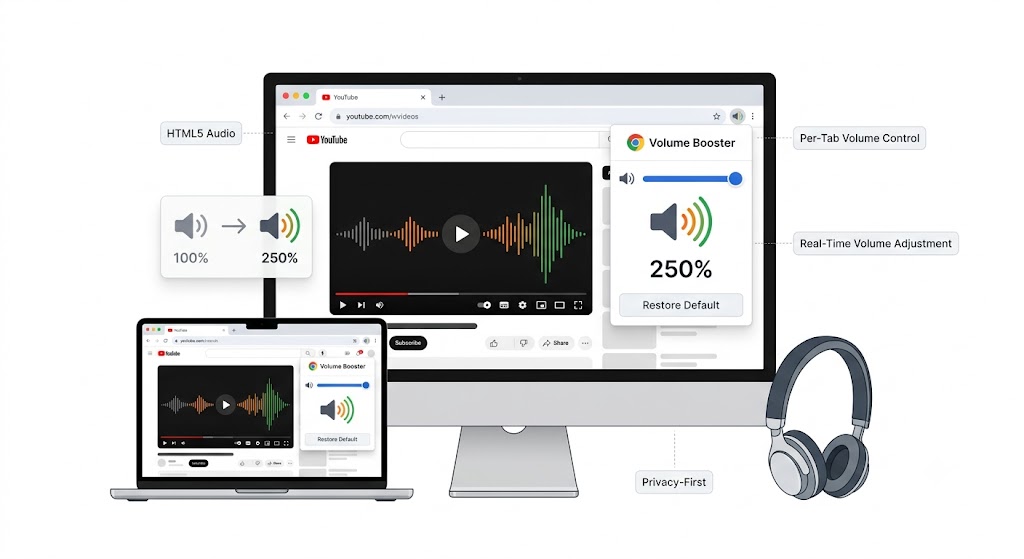
Every YouTube video comes with a built‑in volume control, but it can only go up to 100%. That ceiling is set by the browser and the HTML5 video player — and for many recordings, especially older ones, it’s not loud enough. Boosting YouTube volume above maximum means pushing the audio past that 100% limit, making the video louder than YouTube normally allows.
This isn’t about turning up your laptop speakers or your headphones. It’s about amplifying the digital audio stream itself before it leaves the browser. Think of it as giving the sound a clean, local gain increase — exactly what the Volume Booster Chrome extension does.
When you use Volume Booster, you’re not hacking YouTube. You’re using standard Chrome APIs to process the audio more powerfully, all within the same tab. No content is altered, recorded, or sent anywhere.
Learn more about how the extension handles all kinds of web audio on the Chrome Volume Booster feature page.
Why Is YouTube Volume Sometimes Too Quiet?
You’ve probably experienced this: you set YouTube’s slider to max, your system volume is already at 100%, and the video still sounds muffled. Several factors can cause this, and understanding them helps you see why a volume booster solves the problem at its root.
- Low‑level audio mastering: Creators sometimes upload videos with quiet soundtracks or voice recordings. The digital loudness was never normalized, so even at 100% it’s weak.
- Quiet hardware: Built‑in laptop speakers, budget headphones, or small monitors may need more signal strength than YouTube’s 100% provides.
- Environment noise: In a noisy café or an open office, the default maximum volume may not compete with background chatter.
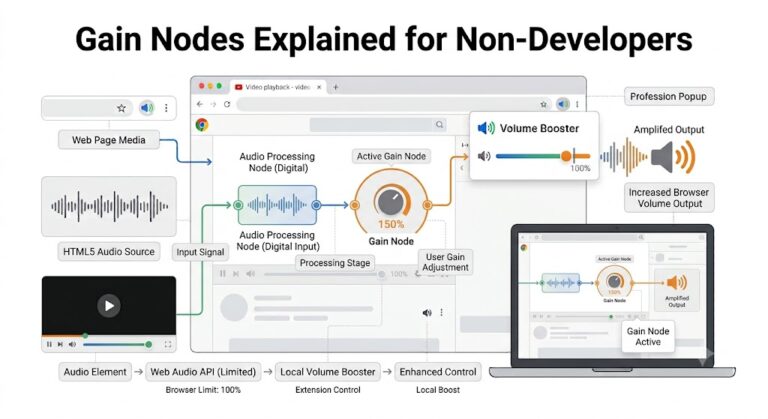
- Browser‑imposed limits: Chrome (and other browsers) cap the volume of a media element at 1.0 (100%). Any attempt to go higher via the HTML5 volume property is ignored. You need an intermediate gain stage — exactly what Volume Booster supplies.
Volume Booster bypasses the browser cap by inserting a gain node into the audio pipeline, giving you clean, precise amplification beyond 100%. The original file stays untouched; only the output gets louder.
How Does Volume Booster Increase YouTube Volume Beyond the Default Limit?
When you click the extension icon and drag the slider past 100%, a short but powerful local process runs in the current tab. Here’s exactly what happens — all within Chrome, all in real time.
- Detection: The content script instantly locates any active HTML5
<video>or<audio>elements on the page. On YouTube, it finds the main player seamlessly. - Audio graph creation: Volume Booster creates a tiny Web Audio API context (strictly local, sandboxed by Manifest V3) and connects it to the media element’s audio output.
- Gain adjustment: A
GainNodeis inserted into the chain. Its gain value is set to match the percentage you chose — 100% equals a gain of 1.0 (no change), and any value above that multiplies the signal. For example, 150% applies a gain of 1.5, making the sound noticeably louder without clipping when used reasonably. - Immediate playback update: The change takes effect the moment you release the slider. You hear the boosted volume instantly — no page reload, no buffering, no delay.
The extension remembers your setting per tab. If you navigate to another YouTube video in the same tab, the boosted level persists. Close the tab, and the boost resets — leaving no trace, no stored preference for that page.
For a broader view of how the extension increases volume across all websites, see increase browser volume beyond the default limit.
Is It Safe to Boost YouTube Volume Above 100%?
Yes, when done with a well‑designed extension like Volume Booster. The key is that the amplification happens digitally, before the sound hits your speakers, and the tool gives you full control. However, a few principles keep the experience safe and enjoyable.
- Gradual adjustment: The large slider lets you increase volume in fine steps. You can go from 100% to 110% to 120% and hear the difference without shocking your ears or your drivers.
- Reset button always visible: If the boost ever feels too intense, one click on the reset button instantly returns the tab to 100% — the browser’s default.
- No permanent alteration: Volume Booster never modifies the original audio file. The amplification is a real‑time effect applied to the output stream only. Reload the page, and everything is back to normal.
- Awareness of hardware limits: Extremely high gain values can introduce distortion, especially on tiny laptop speakers. Volume Booster lets you push the volume, but it’s wise to increase it just enough to hear clearly, not to the maximum possible setting. Your ears will thank you.
Because the processing is entirely local, there’s zero risk of your audio being uploaded, recorded, or analyzed. The extension doesn’t even request network permissions — it works offline and never makes external requests.
How to Use Volume Booster to Boost YouTube Volume Step by Step
Once the extension is installed, boosting YouTube volume above maximum takes only a few seconds. Here’s the routine I use every time a video feels too quiet.
- Open YouTube and start playing any video. Make sure the tab is active and the video is playing.
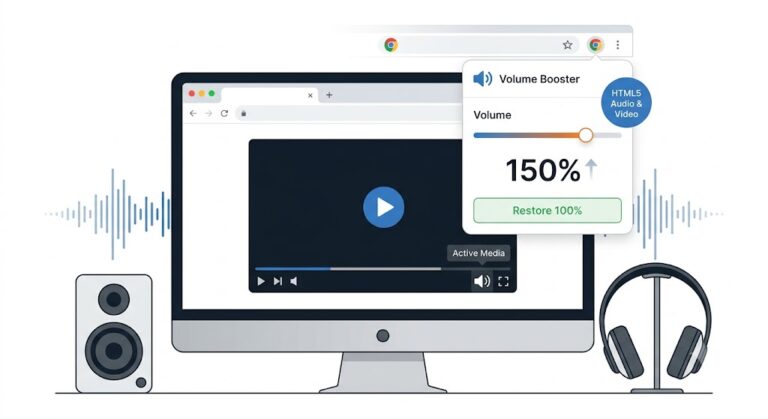
- Click the Volume Booster icon in the Chrome toolbar. The popup window appears, displaying the current tab’s volume percentage.
- Drag the large slider to the right — past 100%. You’ll see the percentage number update in real time as you drag.
- Listen to the audio change instantly. There’s no lag; the moment you release the slider, the volume adjusts. You can fine‑tune by sliding again.
- If needed, click “Reset” to jump back to 100% and start over. This is useful when testing different boost levels.
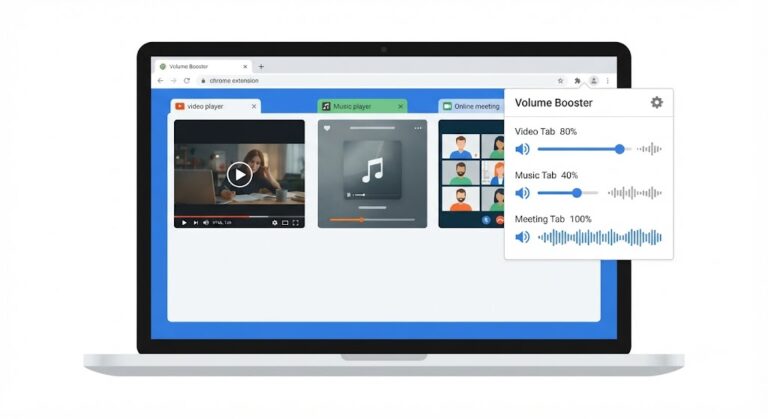
The popup also shows the detected tab title, so you always know which video you’re controlling. If you have multiple YouTube tabs open, each one gets its own independent volume setting — no cross‑tab interference.
This simple workflow is why I built Volume Booster: a clean interface that gets out of your way. You don’t need a manual; you just slide and listen.
How Does Volume Booster Process Audio Locally and Protect Privacy?
Privacy isn’t a side feature — it’s the foundation. Volume Booster works entirely inside your Chrome browser; no audio data ever leaves your device. Here’s what that means in practice.
- No audio uploads: The extension never captures, records, or streams your YouTube audio. The Web Audio API gain node is applied directly to the existing media element pipeline — the sound stays in your tab.
- No accounts, no cloud: There’s no login, no user profile, no synchronization across devices. Every setting is ephemeral and stored only in the tab’s session.
- No analytics, no tracking: Volume Booster does not contain any telemetry, analytics scripts, or advertising code. The only permission it needs is access to the active tab’s media — and Chrome’s permission system enforces that strictly.
- Manifest V3 compliance: Built on the latest Chrome extension platform, the service worker replaces persistent background pages, and content scripts run only when needed. This improves both security and performance.
When I use Volume Booster on a YouTube video, I know that the boost is happening in the same browser sandbox that’s already rendering the page. Nothing extra, nothing hidden.
For a deeper dive into the extension’s privacy design, visit the Volume Booster homepage.
How Real Users Boost YouTube Volume Above Maximum Every Day
Here are three scenarios where the extension makes the difference between struggling to hear and fully enjoying the content.
Example 1: The Movie Night with a Quiet Upload
- Situation: A family is watching an older film on YouTube, but the audio track is mastered at a very low level. Even with the TV speakers at max, dialogue is hard to follow.
- Action: They open Volume Booster, drag the slider to 140%, and instantly the voices become clear. They adjust slightly down to 130% once they find the sweet spot.
- Result: The movie becomes enjoyable without cranking up the TV volume, which would also amplify background hiss. The boost is clean, and the bass doesn’t distort because the gain is moderate.
Example 2: The Online Lecture with a Soft‑Spoken Professor
- Situation: A university student is watching a recorded lecture on YouTube. The professor’s microphone was far away, and even at 100% the voice is barely audible through laptop speakers.
- Action: The student sets Volume Booster to 160% for that tab. The audio jumps up enough to take notes comfortably, without straining. After the lecture, he hits Reset to return to normal volume for the next video.
- Result: No missed concepts, no need for external speakers. The tab‑specific memory means other YouTube tabs remain at 100%.
Example 3: The Music Playlist That Needs Extra Punch
- Situation: A user is playing a YouTube music playlist while cooking. Some tracks sound perfect, but a few older ones are mixed much quieter than the rest.
- Action: Whenever a quiet track plays, she opens Volume Booster and nudges the slider to 120%–130%. As soon as a louder song comes on, she resets to 100% or lowers it.
- Result: A consistent listening experience without constantly adjusting the system volume or the YouTube player. The quick popup and slider make the workflow effortless.
Frequently Asked Questions
Can I boost volume above maximum on YouTube without any extension?
No. Chrome’s native HTML5 volume property accepts values only between 0 and 1.0. To exceed 100%, you need an extension that uses the Web Audio API to apply additional gain — exactly what Volume Booster does.
Will boosting YouTube volume above 100% damage my speakers?
It’s unlikely if you use the slider responsibly. Volume Booster provides fine control, so you can increase volume gradually. As with any audio amplification, extremely high gain can cause distortion or stress small speakers, but moderate boosts (up to 150‑170%) are generally safe. The Reset button is always there to instantly return to the default level.
Does Volume Booster work on embedded YouTube videos (like in blogs or other sites)?
Yes. The extension detects any HTML5 video element, whether it’s directly on youtube.com or embedded elsewhere. As long as the video plays in the active tab and the page uses a standard <video> tag, Volume Booster can boost its audio.
Will the boosted volume setting stay if I open a new YouTube tab?
Each tab maintains its own independent volume. If you boost volume in one tab and then open a new YouTube tab, the new tab starts at 100%. This per‑tab isolation prevents unexpected loudness when switching between videos.
Does Volume Booster collect any data from my YouTube watching?
No. The extension runs entirely locally. It doesn’t collect watch history, video titles, URLs, or any audio content. There’s no analytics code, no tracking, and no external server communication. Your privacy is fully protected.
Can I use Volume Booster on other streaming sites besides YouTube?
Absolutely. It works on any website that uses HTML5 audio or video players — Netflix, Vimeo, Spotify web player, online learning platforms, and more. As long as the media is delivered via standard browser media elements, Volume Booster can amplify it. Check the Volume Booster blog for more tips.
Hear Every Word: Make Quiet YouTube Videos a Thing of the Past
Boosting YouTube volume above maximum isn’t a hack — it’s a practical solution to a common problem. With Volume Booster, you reclaim control over audio that the default browser limits would otherwise keep too quiet.
Key takeaways:
- The extension inserts a local gain stage via the Web Audio API, allowing volume beyond 100% without altering the original file.
- Everything happens inside your Chrome tab, with zero data collection, no accounts, and no cloud dependency.
- Per‑tab control, a large slider, and a reset button make the experience both powerful and forgiving.
- Real‑world use — from lectures to movies — proves that a small boost can dramatically improve understanding and enjoyment.
Because Volume Booster is built on the principles of simplicity, privacy, and performance, you can use it every day without worrying about security or bloat. Next, explore how the extension can increase browser volume beyond the default limit across all your favorite websites, not just YouTube.