How to Boost Zoom-Style Meeting Volume in Chrome Tabs
You join a Google Meet, Zoom web, or Teams call, crank every system slider to maximum, and still strain to hear. Boosting Zoom-style meeting volume in Chrome goes beyond the browser’s built‑in limit — and the Volume Booster extension does exactly that, directly inside your browser, without touching any sensitive meeting data. Everything stays local; your audio never leaves your device.
- Why web meeting audio often remains quiet even when Chrome volume is maxed out
- How the Volume Booster extension amplifies HTML5 meeting audio in real time
- The privacy‑first, local‑only design that never records or uploads your conversations
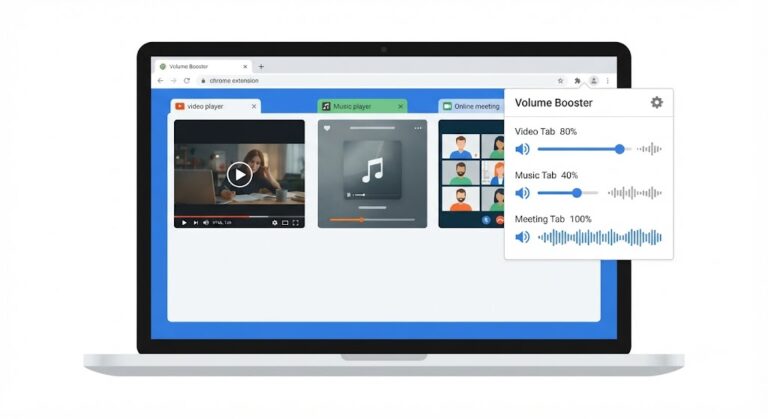
- Simple per‑tab controls that keep meeting volume separate from music or video tabs
Why Is Meeting Audio Too Quiet Even at Max Volume in Chrome?
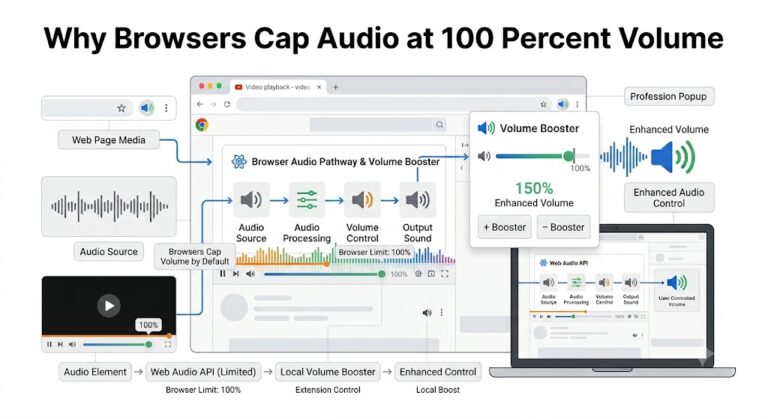
When you’re in a Zoom-style web meeting — whether it’s Google Meet, Zoom in the browser, or Microsoft Teams — the audio stream is delivered as standard HTML5 media. Chrome applies its own volume cap on every tab, and once that slider hits 100%, there’s no built‑in way to go louder.
Several factors often combine to make meeting audio frustratingly low:
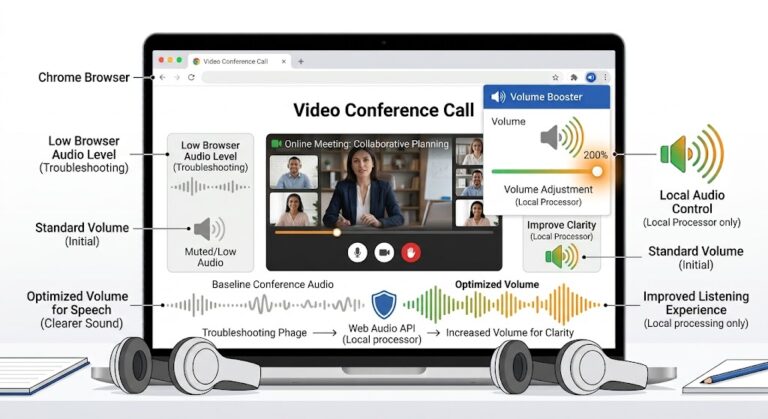
- Soft‑spoken speakers or poor microphones produce a weak signal that never reaches a comfortable listening level, even at max system volume.
- Laptop speakers and low‑powered headsets struggle to fill a room; turning up the OS volume alone often isn’t enough.
- Meeting platform gain control is limited — some web clients don’t offer any extra boost, leaving you stuck at 100%.
- Multiple audio layers (notifications, other tabs, system sounds) force you to keep Chrome’s volume lower, which hurts the meeting tab you actually need to hear.
The root cause is that Chrome’s volume slider is a multiplier between 0 and 1. To boost Zoom-style meeting volume in Chrome, you need something that amplifies the audio signal above the browser’s unity gain — and that’s exactly what the Volume Booster extension provides. For deeper insight into why browser audio sometimes sounds weak, see our guide on browser audio amplification.
How Can I Boost Zoom-Style Meeting Volume in Chrome Safely?
The safest and most practical way is to use a Chrome extension that processes audio entirely on your device. Volume Booster amplifies the sound of any HTML5‑based meeting tab without recording, uploading, or analyzing your audio stream. It works instantly after installation — no accounts, no cloud services.
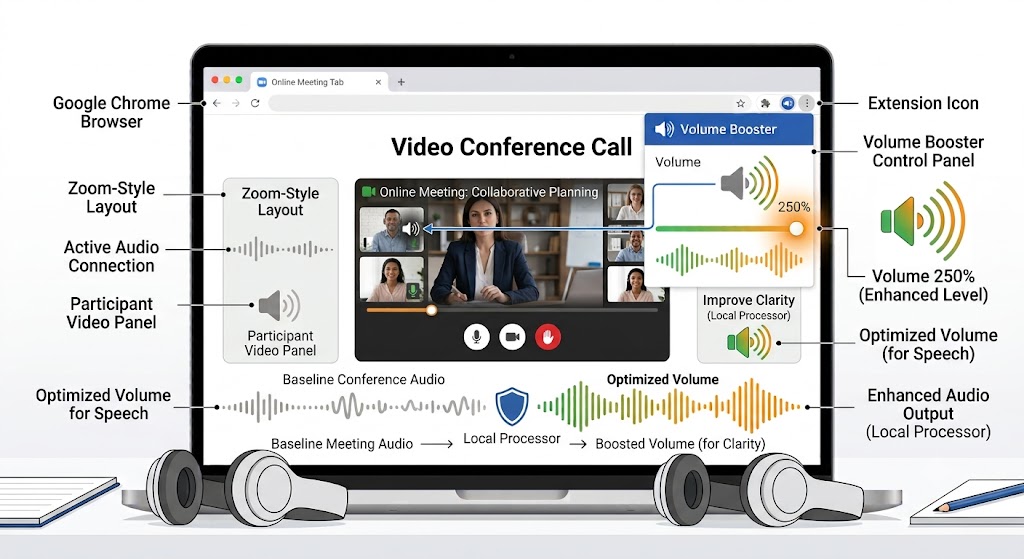
When you open the extension popup while a meeting tab is active, Volume Booster automatically detects the media and presents a large volume slider. You can push the volume above 100%, often up to 600% of the original level, until speech becomes clear and comfortable. The boost is applied in real time, and you can fine‑tune the percentage while the meeting is in progress.
Because the extension boosts Zoom-style meeting volume in Chrome locally, it avoids the common privacy pitfalls of audio plugins that send data to external servers. Your meeting content stays exactly where it belongs — on your machine. For a broader look at safe amplification techniques, read about how to safely increase volume without speaker damage.
How Does Volume Booster Process Audio Locally?
Every time you adjust the slider, a content script inside the active tab intercepts the HTML5 audio or video element and applies a gain node — all in‑browser, using Chrome’s standard media APIs. The chain is simple and transparent:
- The extension reads the active tab’s media element via Chrome’s
tabandscriptingAPIs, always respecting Manifest V3’s privacy boundaries. - A gain value proportional to the volume percentage you set is applied directly to that tab’s audio stream. No intermediate recordings, no data buffers stored on disk.
- The amplified sound reaches your speakers or headphones immediately, while the tab’s visual volume indicator updates to show the new percentage.
Because the processing is per‑tab, you can boost your meeting audio to 250% while your music tab stays at 100% or lower. Resetting is just as easy: the Reset button instantly returns the tab to its original 100% volume, which is helpful when you switch from a quiet meeting to a louder video. Learn more about the underlying technology in our gain nodes explained article.
How Do I Use Volume Booster for Online Meetings?
The workflow is designed to be as simple as possible, because you don’t want to fiddle with settings while someone is presenting. Here’s the typical flow when you need to boost Zoom-style meeting volume in Chrome during a call:
- Join the meeting in your Chrome tab — Google Meet, Zoom web client, Teams, or any web‑based conferencing tool.
- Click the Volume Booster icon in the Chrome toolbar. The popup immediately detects that the active tab contains HTML5 audio or video.
- Drag the slider to the right. A large, touch‑friendly control shows the current percentage (e.g., 180%). The change applies instantly — you’ll hear voices become louder without any lag.
- Fine‑tune until speech is clear. Because the slider supports small increments, you can dial in exactly the level that’s comfortable without over‑amplifying background noise.
- Use the Reset button to return to 100% when the meeting ends or when you switch to another audio source. You can also adjust the slider back down manually.
The extension also optionally shows a badge on the icon that displays the current boost percentage for the active tab, so you can see at a glance whether a tab is amplified. For persistent quiet‑conference issues, explore our dedicated guide: fix quiet audio during video conferences.
Does Boosting Meeting Volume Affect Audio Quality?
When you amplify a digital signal beyond its original level, some increase in background hiss or minor distortion can become audible, especially at very high percentages. However, because meeting audio is primarily speech — not music or movie soundtracks — the practical impact is usually negligible. Voices remain intelligible, and a modest boost (150–300%) almost never introduces noticeable artifacts on modern hardware.
Volume Booster applies a clean gain increase; it doesn’t add equalization, bass enhancement, or other processing that could alter voice timbre. The result is louder but natural‑sounding speech. You remain in full control: if you hear any harshness, you simply back the slider down a few percentage points. This approach aligns perfectly with our safe listening practices, detailed in our safe listening guidelines.
What Privacy Advantages Does Volume Booster Offer During Meetings?
Privacy is especially critical during work meetings, where conversations may contain confidential information. Volume Booster is built around five core principles: simplicity, privacy, performance, browser compatibility, and local processing.
- No audio recording or uploading: The extension never accesses your microphone, never captures meeting content, and never sends audio data anywhere.
- No accounts or cloud sync: There’s no login, no user profiling, and no server-side storage. The extension functions entirely inside your Chrome browser.
- No tracking or analytics: We don’t collect browsing history, usage patterns, or meeting metadata. No telemetry leaves your device.
- Minimal permissions: Volume Booster requests only the permissions necessary to access the active tab’s HTML5 media. It can’t read your screen, keystrokes, or personal data.
When you boost Zoom-style meeting volume in Chrome with this extension, you can be confident that your meeting remains private and that the amplification happens entirely within the browser sandbox. For a complete list of features and how they safeguard your data, visit our volume boosting extensions overview.
When Should You Boost Meeting Volume? Practical Examples
Here’s how real users apply boosting Zoom-style meeting volume in Chrome in their daily workflows.
Example 1: The Remote Worker in a Daily Stand‑Up
- Situation: Using Google Meet on a laptop with weak built‑in speakers. Two teammates have soft microphones, making the whole call difficult to follow at 100% Chrome volume.
- Action: With the meeting tab active, the user opens Volume Booster and drags the slider to 220%. Voices immediately become clearer without any distortion. The reset button is used after the stand‑up to avoid blasting the next YouTube video.
- Result: The worker no longer asks colleagues to repeat themselves and stays engaged throughout the call. No extra hardware required.
Example 2: The Student Attending a Virtual Lecture
- Situation: The online class platform streams audio through a Chrome tab, but the professor’s lavalier mic occasionally drops in level. Even with headphones at full volume, some sentences are lost.
- Action: The student sets Volume Booster to 180% for the lecture tab only. During quiet sections, the extra gain brings speech comfortably into range; when the audio normalizes, they dial back to 130% without leaving the popup.
- Result: Note‑taking becomes easier, and the student can keep all other tabs (research, chat) at standard volume without affecting the lecture audio. For more on education scenarios, see improve audio quality during online classes.
Example 3: The Professional in a Client Presentation with Multiple Media
- Situation: The client shares a screen with an embedded video during a Teams web call. The video’s audio is extremely low, even though the meeting voice audio was fine moments earlier.
- Action: The professional leaves the meeting tab active and boosts volume to 300% only while the video plays. The slider is immediately returned to 100% once the presentation switches back to live discussion.
- Result: No frantic adjustments to system settings, no interrupting the presenter. The per‑tab control keeps the whole meeting experience seamless.
Frequently Asked Questions
Can I boost meeting volume only for the tab I’m using, without affecting others?
Yes. Volume Booster works per tab. When you open the popup, it automatically detects the active tab and applies amplification only to that tab’s HTML5 audio or video. Other tabs remain at their original volume level or whatever boost you’ve set for them earlier.
Does Volume Booster work with all web‑based meeting platforms?
It works with any platform that delivers audio through HTML5 audio or video elements — including Google Meet, Zoom web client, Microsoft Teams on the web, Webex, and Jitsi. If you can hear the meeting in Chrome, Volume Booster can usually amplify it.
Will boosting volume drain my laptop battery faster?
The extension is lightweight and uses minimal CPU, so battery impact is negligible. The amplification itself is a simple gain operation that modern processors handle effortlessly. Your speakers might consume slightly more power at higher volumes, but the extension’s own footprint stays tiny.
What happens if I boost volume too high — can I damage my speakers or ears?
Volume Booster doesn’t impose a hard cap, so you could push the signal to a level that creates distortion or discomfort. Always start with a small increase (150–200%) and adjust gradually. For guidance on safe listening, review our safe listening guidelines.
Is any meeting audio ever stored or processed outside my browser?
No. All audio processing happens locally through Chrome’s own APIs. The extension does not record, capture, or transmit any audio. It runs completely offline after installation — no external servers, no analytics, no hidden data collection.
Can I use Volume Booster together with other audio extensions?
While it’s technically possible, we don’t recommend stacking multiple audio‑modifying extensions on the same tab, because they may apply conflicting gain stages. For the cleanest results, use Volume Booster as your sole amplification tool.
Turn Quiet Meetings into Clear Conversations — Privately and Instantly
When you boost Zoom-style meeting volume in Chrome with Volume Booster, you solve a real, everyday problem without sacrificing privacy or simplicity. A single slider gives you back the clarity that weak microphones and underpowered speakers take away — and because everything stays local, your meetings remain confidential.
Key takeaways:
- The extension amplifies any HTML5 meeting audio beyond Chrome’s default 100% limit, using only browser‑native technology.
- Per‑tab control means you can boost your meeting tab while leaving music or video tabs untouched.
- No accounts, no cloud processing, no tracking — privacy is built into the architecture.
- Real‑time slider adjustments let you fine‑tune speech clarity during live calls without disrupting the meeting.
Because Volume Booster runs entirely on your device, you can experiment fearlessly. Start by joining your next web meeting, clicking the extension icon, and gently pushing the volume up to 150%. From there, you’ll quickly find the sweet spot where every word comes through loud and clear. For even more ways to enhance dialogue across media, explore our guide on enhancing dialogue in movies and shows — the same principle applies to spoken‑word content everywhere.