An Advanced Guide to Browser Audio Amplification
Have you ever maxed out a site’s volume slider yet still struggled to hear? Browser audio amplification is the technique that pushes sound beyond the browser’s built‑in ceiling — and when done right, it changes everything about how you experience online media. Volume Booster handles this amplification entirely on your device, never sending audio anywhere, never requiring an account, and never touching your privacy.
- Why browser audio amplification matters even when your system volume is at 100%
- How Volume Booster uses local Web Audio API gain nodes to safely boost sound
- What real‑time per‑tab control looks like — and how to avoid distortion
- Where to start for streaming, online learning, and accessibility
What Is Browser Audio Amplification and Why Does It Matter?
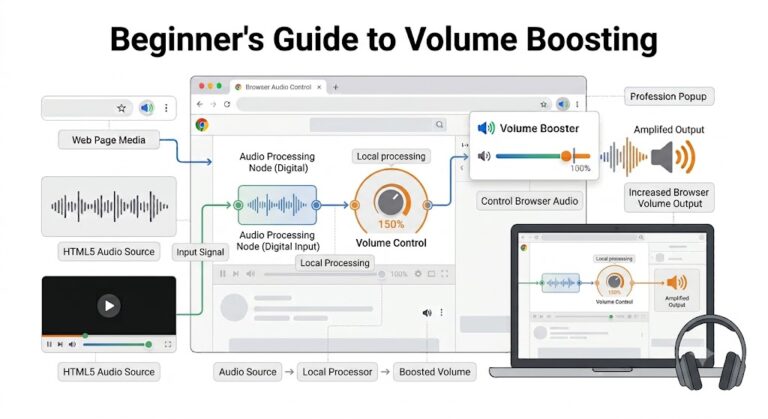
Browser audio amplification is the process of increasing the loudness of media elements inside your web browser beyond the standard 100% volume level that sites can offer. Unlike turning up your computer speakers or headphones, this type of amplification works directly on the audio signal before it ever leaves the browser tab — giving you extra headroom that many online videos, music streams, and conference calls desperately need.
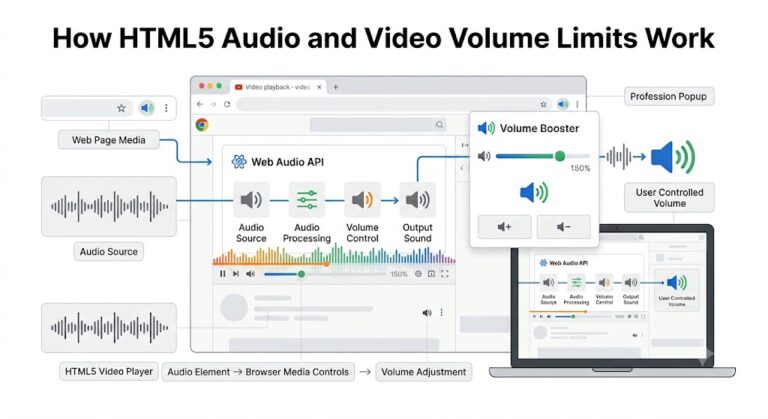
Normal browser volume controls are capped by design. A webpage can set its audio element to 100%, but if the source recording is quiet or poorly mastered, you’re still left leaning in. Browser audio amplification bypasses that limit by injecting a controlled gain stage into the playback pipeline, using technologies Chrome already provides. No extra hardware, no system‑level hacks — just smarter use of the browser’s own audio graph.
This matters for anyone who watches online content in less‑than‑ideal listening environments, uses laptop speakers, or relies on streaming services with inconsistent audio levels. Instead of constantly riding your system volume, amplification gives you a second, independent layer of control that stays inside the tab where the sound lives. Read more about how browsers cap audio at 100% volume and why that limit exists.
Why Do Some Websites Sound Too Quiet Even at Maximum Volume?
The most obvious culprit is the audio source itself. A video recorded with a low microphone level, a podcast mixed far below 0 dB, or a streaming service that normalizes audio conservatively all produce weak signals long before they reach your ears. When you then hit the browser’s volume cap, there’s nothing more the site can do — the amplifier inside the page is already wide open.
Chrome, Firefox, and other modern browsers deliberately enforce this ceiling to prevent sudden loud bursts from damaging hearing or speakers. But that safety net often leaves quiet content unreachable. The browser treats 100% as the absolute maximum, even if your system volume could handle a little more without distortion.
Beyond the source, HTML5 audio and video volume limits play a role. The HTML5 media element has a volume attribute that ranges from 0.0 to 1.0, and JavaScript on the page can’t exceed 1.0. A Chrome extension like Volume Booster, however, can sit between the media element and your speakers, applying additional gain through the Web Audio API — a completely separate processing layer that respects the original signal but adds the boost you need.
How Does the Volume Booster Extension Amplify Audio Safely?
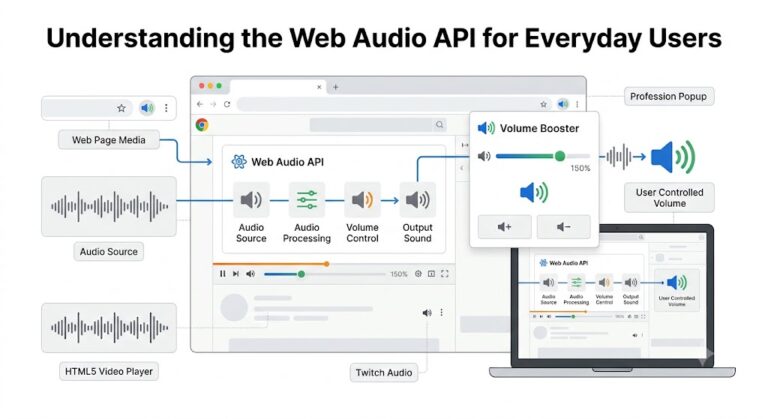
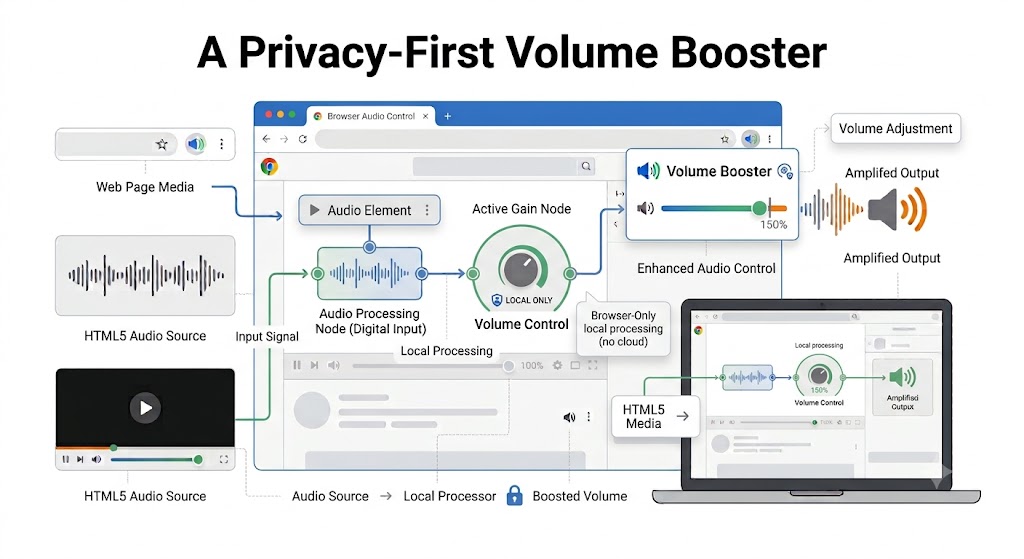
Volume Booster uses the Web Audio API, a built‑in Chrome capability that lets developers manipulate audio streams with high precision and near‑zero latency. When you open a page with HTML5 audio or video, the extension creates an audio context, connects the media element to a GainNode, and routes the output back to your speakers. That GainNode multiplies the signal by a value you control — above the default 1.0 — resulting in louder, clearer playback.
Every step of this process happens inside your browser, on your device. There’s no cloud server, no remote processing, and no intermediary listening to your audio. Because the Web Audio API is a native browser feature, the gain operation is extremely efficient; it adds negligible CPU and memory overhead. The extension itself is built on Manifest V3, using a lightweight service worker and content scripts that only activate when a tab contains detectable media.
Once the gain node is inserted, you control the amount of amplification with a simple slider in the browser action popup. Volume Booster’s audio gain logic monitors your changes in real time and adjusts the node’s gain value instantly, so you hear the effect as you drag. To understand the technical foundation deeper, you can also explore how gain nodes explained break down every control point.
How Do You Control Audio Amplification with Volume Booster?
Volume Booster is designed to be intuitive enough for anyone to use, yet precise enough for those who want fine control. All interaction happens through the extension’s popup — a clean interface that appears when you click the Volume Booster icon in Chrome’s toolbar.
The controls you’ll work with:
- Volume Slider: A large, easy‑to‑drag slider that adjusts the amplification percentage. The default position is 100% (meaning no extra boost — just the browser’s native volume). Sliding to the right increases gain in real time; you’ll see the numeric percentage update and hear the change immediately.
- Reset Button: Instantly returns the slider to 100%, effectively removing any amplification. This is useful when you switch from a quiet video to normal‑level content and want to avoid sudden loudness.
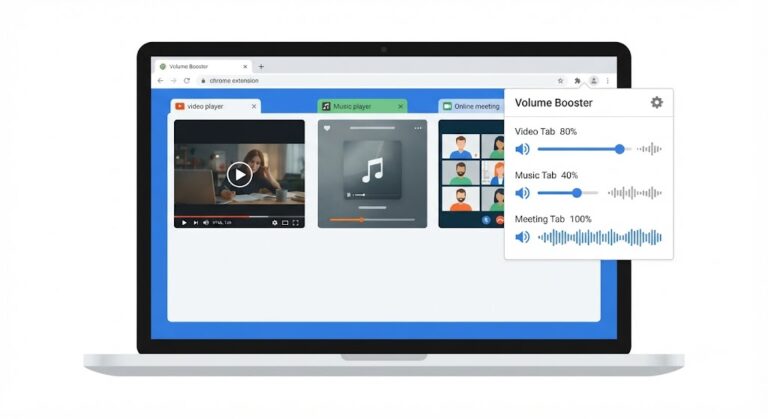
- Active Tab Detection: The popup automatically recognizes which tab is currently active and shows that tab’s volume state. If you switch tabs, the slider reflects the new tab’s settings (each tab maintains its own amplification level independently).
There’s no learning curve. Open a quiet YouTube video, click the extension, drag the slider up, and hear the difference. Because the amplification is per‑tab, you can have a boosted podcast in one window while a video call stays at its default level in another — no cross‑interference. This per‑tab isolation is something you won’t find with system‑wide equalizers or sound card utilities; it’s uniquely suited for volume boosting extensions that operate at the browser level.
How Does Volume Booster Ensure Complete Privacy During Audio Processing?
Privacy is not an afterthought — it’s the foundation. Volume Booster never records, uploads, or inspects your audio. The extension’s content script creates an AudioContext, attaches the GainNode, and hands control back to you. No bytes of audio leave the browser sandbox. There are no external servers to send data to, and the extension makes zero network requests other than what Chrome itself requires for extension updates.
This local‑first architecture means:
- No user accounts, logins, or cloud sync.
- No analytics, telemetry, or usage tracking of any kind.
- No access to your browsing history or microphone.
- No advertisements, no profiling — you are not the product.
Even the Manifest V3 permissions are minimal. Volume Booster asks only for access to the active tab’s media elements when you invoke the popup; it doesn’t run in the background sniffing tabs. When you’re not actively using the extension, it consumes zero CPU and leaves your privacy completely intact. This is in stark contrast to many audio tools that route your audio through remote servers for processing. With Volume Booster, everything stays with you.
How Real Users Benefit from Browser Audio Amplification Every Day
Browser audio amplification isn’t theoretical — it solves tangible, frustrating problems for millions of people. Here’s how it fits into everyday listening.
Example 1: The Student Attending Online Lectures
- Situation: A university student logs into a recorded lecture where the professor’s microphone level is very low. Even with laptop speakers at 100% and the video player at maximum, the voice is barely intelligible. Background noise from a nearby café makes things worse.
- User Action: Opens the Volume Booster popup while the lecture tab is active. Drags the slider to 140%. Instantly, the professor’s voice becomes crisp and clear, cutting through the ambient noise without reaching for external speakers or headphones.
- What Happens Technically: The extension’s content script detects the HTML5 video element, creates a GainNode connected to it, and multiplies the audio signal by a factor derived from the 140% setting. The entire operation runs inside Chrome’s rendering process, adding no perceptible latency.
- Result: The student can focus on the content instead of straining to hear. After the lecture, a quick click on Reset returns the tab to normal volume for the next website. Similar experiences often arise when trying to fix low volume on Netflix in Chrome — a few extra decibels from the extension makes dialogue pop.
Example 2: The Remote Worker in a Soft‑Voiced Conference Call
- Situation: A teammate joins a browser‑based video call with a microphone that’s naturally quiet. The meeting platform’s volume is already maxed, but the person’s voice remains low, forcing the worker to crank the system volume to an uncomfortable level.
- User Action: Uses Volume Booster on the meeting tab only. Sets amplification to 130%. Now the quiet speaker is audible at a moderate system volume, without making notification sounds or other tabs painfully loud.
- What Happens Technically: Because the gain is applied per‑tab, only the meeting’s audio path receives the boost. Other tabs — an email client with notification pings, for instance — remain completely untouched.
- Result: The worker can participate fully without constantly adjusting the master volume. The separation of control also helps when trying to improve Disney+ audio quality in your browser while a work call remains on another screen — each service gets its own volume profile.
Example 3: The Music Lover Streaming a Quiet Album on Spotify Web
- Situation: A jazz album on Spotify’s web player was mastered at a lower loudness than modern pop tracks. Even at 100% volume, the nuances of the double bass and piano are lost on desktop speakers.
- User Action: Navigates to the Spotify web player tab, opens Volume Booster, and pushes the slider to 150%. The subtle dynamics come alive without audible clipping — the extension’s gain stays within a range that avoids digital distortion for this particular recording.
- What Happens Technically: The GainNode applies a clean multiplication. Because the source material has enough dynamic range, the boosted signal remains clear. The extension doesn’t add compression or equalization; it simply amplifies linearly, which preserves the original character.
- Result: The listener enjoys a richer experience. For services with more dynamic content, you might need to tweak the boost carefully, but the process is the same as when you boost Prime Video volume without distortion — gentle increments until the dialogue or music sits at the right level.
Frequently Asked Questions About Browser Audio Amplification
Will browser audio amplification distort my audio?
It can if pushed too far. Volume Booster does not add any dynamic compression or limiting; it’s a pure linear gain increase. If the source audio already reaches near 0 dBFS, boosting further may cause digital clipping. The best practice is to increase amplification gradually until the desired loudness is reached, then stop. Most quiet content has enough headroom for an additional 30–50% boost without audible distortion.
Does Volume Booster work on every website?
The extension works on any page that uses standard HTML5 audio or video elements. That covers YouTube, Netflix, Spotify Web Player, Disney+, Twitch, and most modern streaming and conferencing platforms. Some sites that use custom audio implementations (like certain DRM‑wrapped playback) may not be compatible. However, the vast majority of everyday web media will respond. For specific services, you can read our guide to Spotify web player volume or how to increase Twitch stream volume in Chrome.
Can browser audio amplification damage my speakers or ears?
Because the gain is applied in software, the final loudness also depends on your system volume and speaker capability. Sudden extreme boosts could theoretically send a clipped signal to your speakers, but you’d hear the distortion long before any physical damage occurs. Always start with small adjustments and listen for signs of strain. Volume Booster includes a prominent Reset button to instantly return to safe levels.
How is this different from just turning up my computer’s volume?
System volume controls the overall output level of your entire device — notifications, other apps, everything. Browser audio amplification lets you boost a single tab’s audio independently, so a quiet lecture can be louder without making system alerts deafening. It’s an extra, granular layer of control that works before the signal reaches the operating system’s mixer.
Does the extension work offline or with local files?
If you open a local HTML file containing an audio or video element in Chrome, Volume Booster can amplify it just as it would with an online page. The processing is identical and stays entirely local. No internet connection is required for the extension to function — once installed, the gain stage runs entirely inside your browser.
Is Volume Booster compatible with Chrome’s memory saver and energy saver?
Yes. Because the extension uses content scripts that only activate when you interact with the popup, it doesn’t keep tabs awake or prevent them from being discarded by Chrome’s memory‑saving features. When a tab is reloaded after being frozen, the amplification setting is restored automatically (if the user has set it previously for that domain), ready for the next playback session.
Take Control of Your Listening Experience with Browser Audio Amplification
Browser audio amplification transforms how you interact with sound on the web. It lifts the volume ceiling that browsers impose, gives you per‑tab independence, and does it all without compromising your privacy or device performance. Volume Booster condenses years of browser audio engineering into a single slider, proving that powerful audio processing doesn’t need to be complicated.
What you’ve learned today:
- Browser audio amplification fills the gap when source material is too quiet, even at 100% volume.
- Volume Booster uses the Web Audio API’s GainNode to multiply audio signals locally, inside Chrome.
- Every control — slider, reset, per‑tab isolation — is designed for immediate, real‑time feedback.
- The extension operates with zero data collection, no external servers, and only minimal browser permissions.
Because Volume Booster processes everything on your device, you can experiment with amplification levels fearlessly. Start with a quiet Netflix show, slide the gain up to 120%, and notice how dialogue becomes clearer without touching your system dial. Then explore our other guides, like how to fix low volume on Netflix in Chrome or how to improve Disney+ audio quality in your browser, to master specific streaming scenarios. Your browser already has the tools for great sound — you just need the right extension to unlock them.