Why Does My Browser Audio Sound Too Quiet?
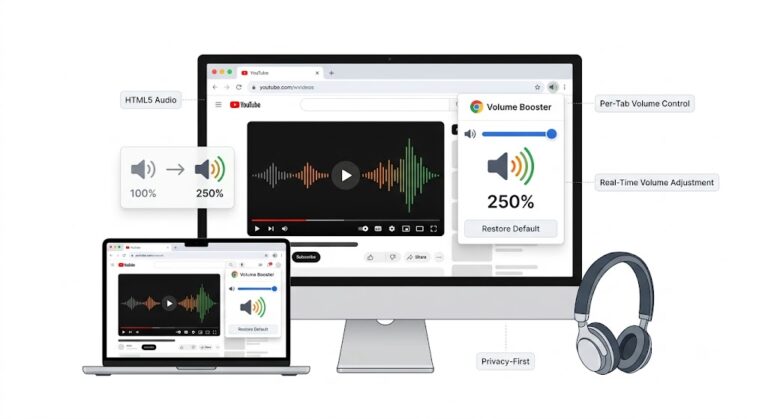
You’ve cranked every volume slider to 100%, yet speech remains muffled, videos feel distant, and audio from online lectures barely registers. Browser audio sounding too quiet is a common frustration with a clear fix — and Volume Booster, a privacy‑first Chrome extension, puts the solution directly in your hands. It boosts HTML5 media volume beyond Chrome’s built‑in cap, works instantly in the active tab, and never records, uploads, or tracks your audio. Everything stays on your device.
- Why Chrome’s default volume limit leaves many websites too quiet
- How per‑tab volume boosting fixes quiet audio without system‑wide changes
- What local audio processing means — and why your privacy remains intact
- When to use Volume Booster for online learning, streaming, or accessibility
What Makes Browser Audio Sound Too Quiet in Chrome?
Several factors work together to produce that “too quiet” experience, even when every slider is at maximum. Understanding them helps you solve the real problem instead of blindly raising the volume.
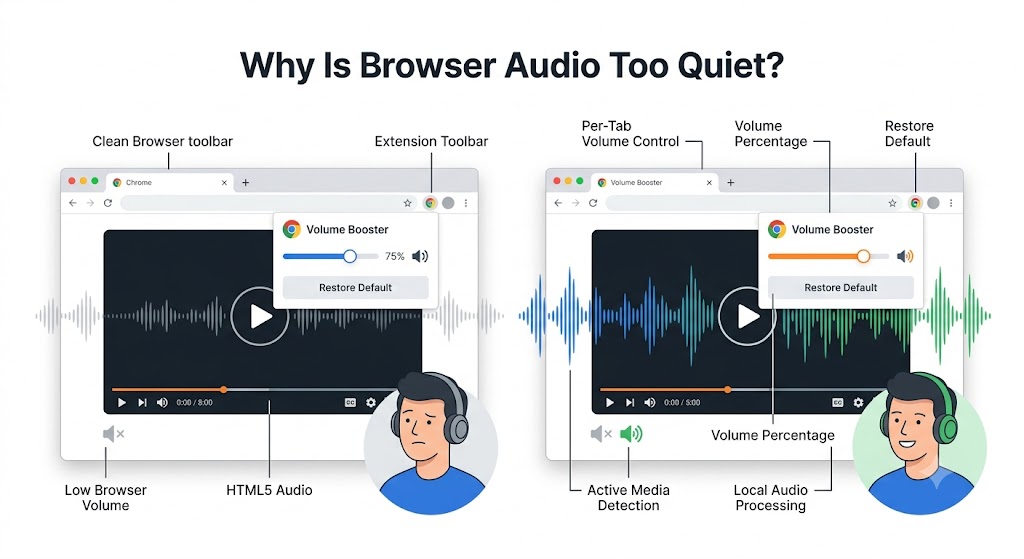
- Chrome’s built‑in gain ceiling: Chrome limits the maximum amplitude of HTML5 audio and video elements to prevent distortion. That ceiling is often too conservative for soft‑spoken podcasts, poorly mixed webinars, or websites with low source volume.
- System‑level audio balance: Your operating system or external speakers may have per‑application volume controls. Chrome might be lowered there independently of the site’s volume slider.
- Media encoding levels: Video and audio files embedded in web pages are not normalised. A quiet recording stays quiet no matter how high you set Chrome’s volume.
- Tab‑specific mute state: Chrome allows muting entire tabs. Sometimes a tab is muted by accident, and users overlook the small mute indicator.
- Headphone impedance or low‑gain output: High‑impedance headphones or Bluetooth codecs can deliver lower perceived loudness, making browser audio feel quieter than it actually is.
Volume Booster directly tackles the first cause — Chrome’s gain ceiling — while helping you quickly check tab mute status, giving you a practical, immediate lift without messing with system settings. Learn more about increasing browser volume beyond the default limit.
Why Doesn’t Chrome’s Native Volume Slider Solve Quiet Audio?
Chrome’s volume slider — the one you see on the tab itself or in the media playback controls — works like a digital attenuator. It can only reduce the maximum level set by the browser; it cannot amplify audio above 100%. When a media source is inherently quiet, pushing the slider to 100% simply lets the original weak signal through unchanged.
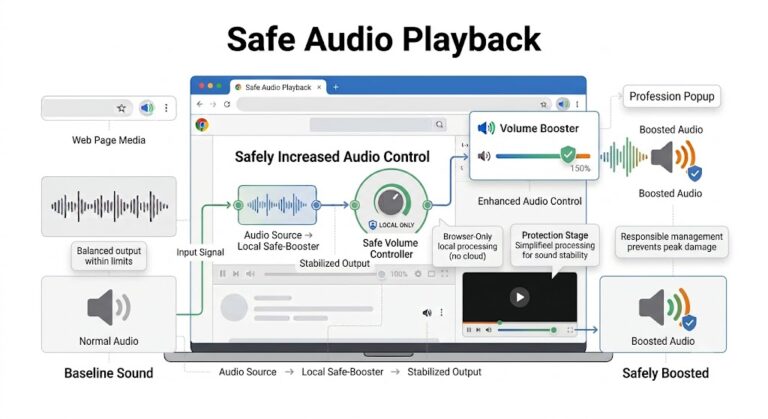
Think of it as a faucet that can’t increase water pressure beyond what comes from the pipe. Volume Booster adds a local gain stage after the media element, effectively amplifying the signal before it reaches your speakers — all within the Chrome sandbox. It doesn’t modify the source file, and the process respects Volume Booster’s privacy‑first approach: no audio data ever leaves the browser.
How Does Volume Booster Actually Increase Browser Audio Volume?
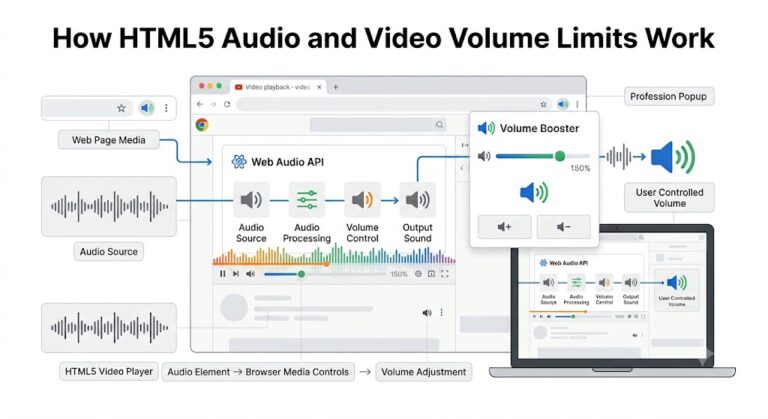
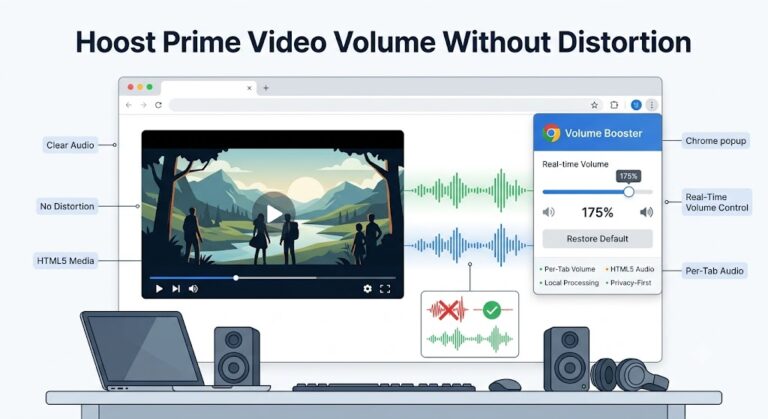
Volume Booster interacts directly with the HTML5 media elements of the active tab. It uses Chrome’s extension APIs to detect audio sources and applies a gain multiplier in real time, entirely on your device.
Here’s the step‑by‑step flow when you boost a tab:
- Detection: The extension identifies active HTML5
<audio>or<video>elements in the current tab via content scripts. No scanning of other tabs unless you switch to them. - Gain adjustment: Volume Booster hooks into the media element’s playback pipeline and multiplies the output gain by the percentage you choose on the slider — 120%, 150%, 200%, or any fine level in between.
- Real‑time processing: The change is instantaneous. You hear the volume jump the moment you move the slider; no page reload, no delay.
- Local execution: All processing runs inside Chrome’s secure extension environment, compliant with Manifest V3. Volume Booster never sends audio data anywhere, never records, and never analyses content.
The popup’s clean interface shows the current tab’s volume percentage, a large slider, and a reset button. You can slide up to 400% — far beyond Chrome’s 100% ceiling — and restore default volume with one click. This local-only design means zero privacy trade‑offs. See how the extension works on the Chrome Volume Booster page.
Is It Safe to Boost Volume Beyond 100% in Chrome?
Yes, when done through a tool like Volume Booster that stays within the browser’s audio pipeline. The amplification is digital gain, not a physical speaker mod. Your hardware and hearing remain protected as long as you use reasonable levels.
Key safety points:
- Volume Booster amplifies the audio signal, not the system output. If your speakers are already near their limit, extreme boosting can cause clipping. Use the slider gradually.
- The extension includes a Reset Volume button to instantly fall back to 100%. This prevents accidental sustained high output.
- Because amplification is per‑tab and not global, you never accidentally blow out system‑wide audio. Switching to a different tab restores its own volume level.
- No persistent changes: closing the tab or restoring default volume returns everything to Chrome’s standard behaviour.
Thousands of users rely on Volume Booster daily for meetings, lectures, and media without harming their hearing or equipment. The “start slow, increase gradually” habit makes it completely safe.
When Do You Actually Need a Browser Volume Booster?
Quiet browser audio isn’t always obvious. Sometimes you feel you’re straining to hear, and a modest boost solves it instantly. Here are the most common scenarios where Volume Booster becomes essential.
- Online learning: Recorded lectures with low microphone gain. Boosting the tab volume helps you follow every word without external speakers.
- YouTube or streaming videos: Some uploads are quietly mixed. Volume Booster lifts them to comfortable levels without adjusting system volume.
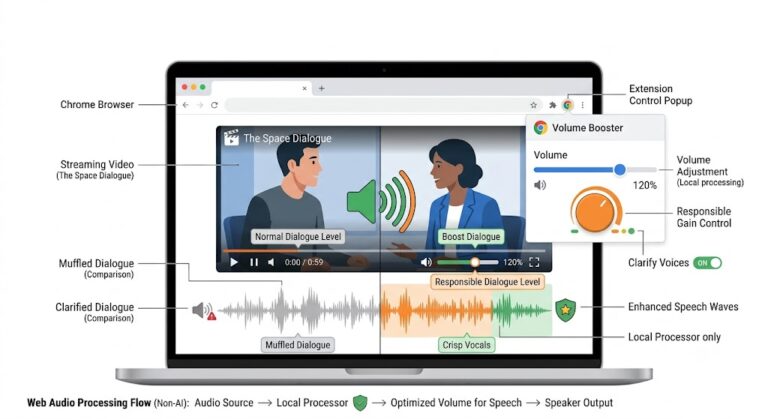
- Video conferences: A soft‑spoken participant or a platform that doesn’t amplify remote audio. Boosting only the browser tab prevents you from missing details.
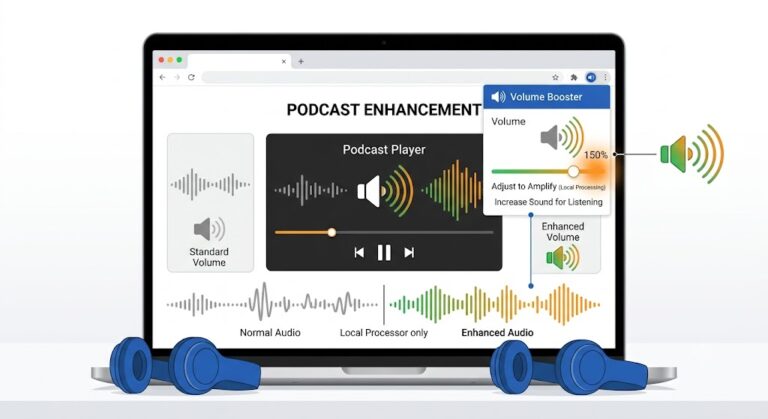
- Podcasts and web audio: Many podcast players have no volume control beyond the site’s own. Volume Booster gives you that extra gain.
- Language learning: Quiet audio in language apps can hinder comprehension. A small volume lift makes pronunciation clearer.
- Accessibility needs: Users with mild hearing difficulties can benefit from browser‑level amplification without system‑wide heavy processing.
In each case, Volume Booster’s per‑tab control means you boost only the quiet source, while everything else stays at normal volume. That precision makes it a productivity tool, not a blunt instrument.
What Privacy Guarantees Does Volume Booster Offer?
Volume Booster is built on the principle that audio amplification should never come at the cost of your privacy. That’s why it operates entirely inside your Chrome browser, with no external connections.
Here’s what the extension never does:
- No audio recording or storage — not even temporarily.
- No uploading of media streams to remote servers.
- No user accounts, logins, or cloud syncing.
- No analytics, telemetry, or usage tracking.
- No browsing history collection, no page content scanning.
- No advertisements or user profiling.
Volume Booster uses only the minimum Chrome permissions required to detect media elements in the active tab and apply volume changes. The code is lightweight and auditable. All processing happens in real time, sandboxed by Chrome’s extension architecture under Manifest V3. Your audio stays yours.
Read more about the extension’s philosophy on the Volume Booster blog.
How Real Browsing Sessions Benefit from Volume Booster
The following examples show how browser audio sounding too quiet gets solved in everyday use.
Example 1: The University Student Watching a Guest Lecture
- Situation: A 50‑minute video embedded in the university portal plays at low volume. Chrome and system sliders are both at 100%, yet the professor’s voice is barely audible through laptop speakers.
- Action: The student opens Volume Booster from the Chrome toolbar. The popup detects the active tab’s video. He drags the slider to 180% and immediately hears the lecture clearly.
- Result: No need to strain, no need to connect external speakers. After the lecture, he clicks Reset Volume to return to default for other tabs.
Example 2: The Remote Worker on a Soft‑Voiced Conference Call
- Situation: A web‑based meeting platform, one participant speaks very softly. The worker has already maxed out the meeting app’s volume.
- Action: She clicks the Volume Booster icon, sees the tab is at 100%, and slides to 150%. The boost applies only to that meeting tab. Other tabs (music, email notifications) remain untouched.
- Result: She no longer misses action items. When the meeting ends, she restores the tab volume to 100% with one click.
Example 3: The Language Learner Using an Online Audio Course
- Situation: A web‑based language app plays native speaker dialogues, but the recordings are quiet. The learner can’t increase volume within the app’s interface.
- Action: Volume Booster’s slider goes to 130%. The subtle boost makes every syllable distinguishable without distortion.
- Result: The learner progresses faster, and the extension becomes part of the daily study routine. No privacy concerns because nothing is uploaded.
How to Use Volume Booster Without Affecting Other Tabs or System Sound
Volume Booster’s core design is per‑tab. Changing the volume for a video site will not alter your music streaming tab, nor will it touch your computer’s master volume.
Best practices for a smooth experience:
- Check the active tab indicator in the popup. Volume Booster always adjusts the currently focused tab. If you have multiple windows, the one you last clicked will be targeted.
- Use the Reset Volume button before switching tabs if you’ve boosted heavily. This prevents forgetting a high gain on a tab you later reopen.
- Combine with Chrome’s tab mute: If you need silence from a tab but still want to keep it open, mute it via Chrome’s context menu. Volume Booster won’t override that mute.
- Adjust incrementally: Start at 110% or 120% and listen. A small increase often suffices and avoids audio clipping.
Because the extension stores no settings in the cloud, each session starts fresh. If you’ve changed the volume for a tab and close it, the next time you visit that page, Chrome returns to default 100%. That’s intentional — no surprises, no residue.
Frequently Asked Questions
Why does my browser audio sound too quiet even when everything is at 100%?
Chrome caps the maximum amplitude of media elements. If the original recording is quiet, that cap prevents you from reaching a comfortable listening level. Volume Booster applies an additional gain stage after Chrome’s cap, effectively amplifying the audio while keeping it local.
Will Volume Booster improve audio quality for low‑bitrate streams?
No, Volume Booster only adjusts volume. It does not enhance clarity, add equalisation, or reduce noise. The audio source quality remains unchanged; you simply hear it louder.
Does Volume Booster work on all websites with audio or video?
It works on any site that uses standard HTML5 <audio> or <video> elements. Most modern streaming platforms, educational portals, and conferencing apps rely on these. Sites using Flash or non‑standard players may not be compatible, but such cases are rare today.
Can I permanently save a volume level for a specific website?
Volume Booster does not store per‑site presets. Every time you open a tab, it starts at 100%. You adjust on the fly. This keeps the extension simple and fully private.
Does boosting volume drain laptop battery faster?
The impact is negligible. The gain multiplication is a lightweight digital operation. Higher speaker output can consume slightly more power, but the extension itself is extremely CPU‑efficient.
Is Volume Booster compatible with Chrome’s Manifest V3?
Yes, it’s built entirely on Manifest V3, using service workers and content scripts. That means it adheres to Chrome’s latest security and performance standards without compromising functionality.
Quiet Browser Audio Has a Simple, Privacy‑Respecting Solution
Browser audio that’s too quiet doesn’t have to be a permanent frustration. Chrome’s built‑in volume controls stop at 100%, but Volume Booster gives you the precise, per‑tab amplification you need — without a single byte of audio leaving your computer.
Key takeaways:
- Chrome’s default audio ceiling is often the root cause of quiet playback; external sliders can’t fix it.
- Volume Booster works locally, instantly, and only on the tab you choose, keeping your system sound and other tabs untouched.
- No accounts, no tracking, no recordings — the extension respects your privacy at every level.
- From online courses to video meetings to entertainment, a small volume lift can make a substantial difference in comprehension and comfort.
Whether you’re straining to hear a lecturer or simply want to enjoy a quietly mixed documentary, open Volume Booster, slide to your ideal level, and let Chrome do the rest. Then explore more audio tips and workflows on the Volume Booster blog to get the most out of every listening session.