Why Browsers Cap Audio at 100 Percent Volume
You turn your laptop volume to max, the browser slider is at 100%, yet the sound is still too quiet. Browsers cap audio at 100 percent volume by design, but that limit often masks the real problem: many web videos and audio streams are mastered far below the maximum safe level. Volume Booster bridges that gap by applying extra gain locally, directly inside Chrome — no accounts, no uploads, no external servers.
- Why the browser’s 100% volume slider doesn’t always mean maximum loudness
- The technical reason behind the Browsers Cap Audio at 100 Percent Volume limit
- How Volume Booster adds additional amplification using the Web Audio API
- When to use a volume booster without compromising audio quality or privacy
What Does “Browsers Cap Audio at 100 Percent Volume” Really Mean?
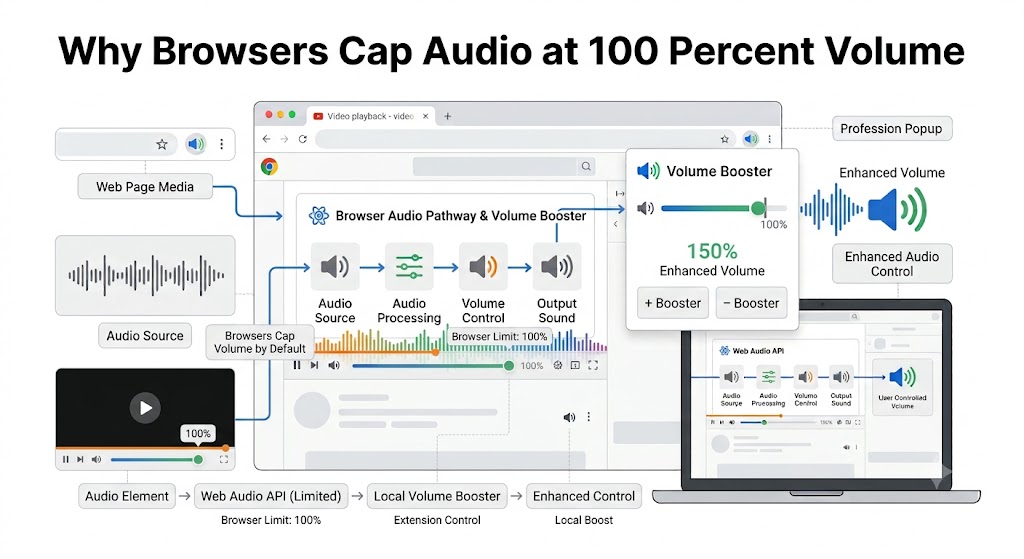
The phrase “browsers cap audio at 100 percent volume” refers to the hard limit built into every major browser, including Chrome. The HTML5 media element — used for online videos, music, podcasts, and calls — has a volume property that can only accept values between 0.0 (silent) and 1.0 (full). When you drag the native volume slider all the way to the right, you are setting that property to 1.0. The browser will not let it go higher.
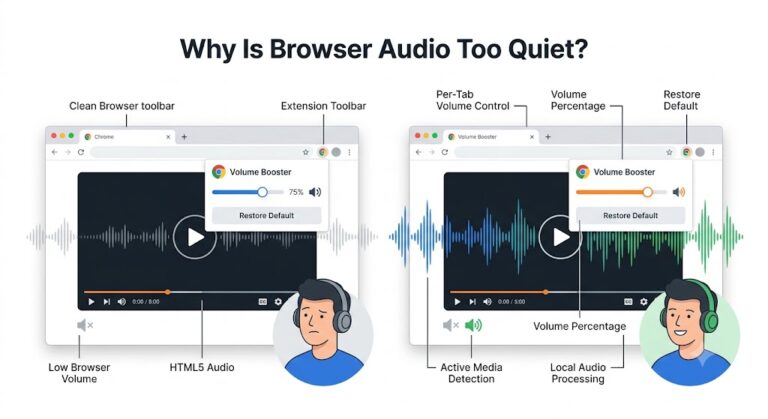
But “full” doesn’t mean maximum possible loudness; it only means the full amplitude of whatever the source file provides. If a YouTube lecture is mastered at a low level, even 100% volume will sound faint. The browser cap is a ceiling, not a guarantee of sufficient volume.
Volume Booster respects this reality. Instead of fighting the cap, it works alongside the media element — applying clean, local gain after the browser’s volume stage, so you can comfortably hear content that would otherwise stay too quiet. Learn more about the underlying limits in our HTML5 audio and video volume limits guide.
Why Do Browsers Enforce a Hard Volume Cap?
Browsers cap audio at 100 percent volume for three main reasons:
- Preventing digital clipping. Amplifying a waveform beyond its peak causes flat‑topped distortion. The 1.0 ceiling keeps the signal within safe bounds at the browser’s final output mixer.
- Protecting hardware. Sudden extreme volume spikes could damage tiny laptop speakers or cause painful blasts in headphones. The cap acts as a safety net.
- Consistent user experience. Web developers can rely on a predictable volume range across all operating systems and devices. Without the cap, identical code would produce wildly different loudness.
These are sensible defaults, but they don’t help when a video’s source level is already low. That’s where Volume Booster adds a deliberate, user‑controlled extra gain stage — without removing the original safety layer. The extension doesn’t alter the browser’s cap; it creates a second, locally processed audio path that you adjust yourself.
How Does Browser Audio Processing Work Under the Hood?
To understand why browsers cap audio at 100 percent volume, it helps to see what happens from the moment a web page plays sound.
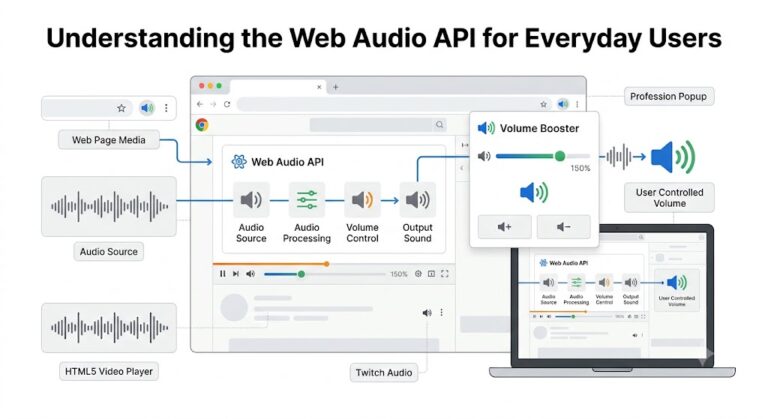
- HTMLMediaElement. A
<audio>or<video>element decodes the source file and outputs audio at the volume set by itsvolumeproperty (0–1). - Web Audio API graph. If a page (or an extension) creates an
AudioContext, the media element can be routed through additional processing nodes — gain, filters, analysers — before reaching the speakers. - System mixer. Chrome sends the final audio stream to your operating system, which applies its own system‑wide volume control and any hardware‑level amplification.
Volume Booster uses step 2. When you open the popup and push the slider beyond 100%, the extension’s content script creates a lightweight AudioContext for the active tab, inserts a GainNode with a value above 1.0, and connects the media element through it. All processing happens inside Chrome’s sandbox, using only the standard Web Audio API. No audio sample ever leaves your device.
What Happens When You Try to Increase Volume Beyond Browser Limits?
Without a dedicated extension, any attempt to push volume above 100% fails silently. Setting video.volume = 1.5 in the console simply clamps the value to 1.0 — the browser ignores the excess. That’s the hard cap in action.
Volume Booster changes the equation by working downstream of the clamp. Here’s the typical interaction:
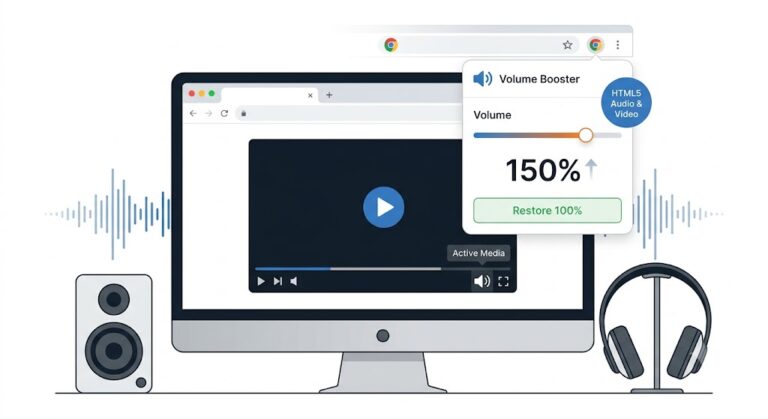
- You click the Volume Booster icon. The popup instantly reads the active tab and detects any playing HTML5 audio or video.
- A large slider shows the current extra gain (initially 0%, meaning the browser’s native volume is untouched).
- You drag the slider to, say, 140%. The extension’s content script sets the
GainNodegain to 1.4. The original media volume property stays at 1.0 — untouched. - Audio becomes noticeably louder, updated in real time without any page reload.
- If you ever want to return to the browser’s default, you press the Reset button. The gain node is removed, and playback returns exactly to the 100% cap level.
Because each tab gets its own gain context, you can boost a quiet lecture in one window while keeping music at normal levels in another. The extension badge (if enabled) can also show the current amplification percentage at a glance.
How Does Volume Booster Safely Increase Volume Without Distortion?
Adding gain above 1.0 always carries a risk of clipping, but Volume Booster gives you the precision to avoid it. The popup’s large slider lets you make tiny adjustments — you might settle at 115% rather than 150% if you hear the first signs of harshness. The real‑time nature of the processing means you can back off instantly.
Several design choices keep the experience clean:
- No permanent alteration. The extension never re‑encodes or modifies the source file. It only adds a gain stage during playback. Close the tab or hit Reset, and everything reverts.
- Minimal processing footprint. A single gain node consumes negligible CPU and memory. The extension’s service worker and content scripts stay lean — fully compliant with Manifest V3 requirements.
- Active‑tab focus. Volume Booster only processes audio in the tab you’re currently controlling. It doesn’t crawl all open tabs, keeping resource usage low.
- Local execution. No audio analytics, no remote servers, no profiling. The gain multiplication happens entirely inside Chrome’s audio thread, using your device’s own computing power. This is fundamental to our privacy‑first approach.
For a deeper dive into distortion‑free boosting, see how we tackled Prime Video volume without distortion — the same principle applies to any HTML5 media.
When Should You Use a Volume Booster?
Anytime the browser’s 100% ceiling leaves content barely audible, a volume booster becomes a practical tool. Common situations include:
- Online courses where the instructor’s microphone is set too low.
- Quiet YouTube videos, especially older uploads with poor level normalisation.
- Streaming services that mix dialog much softer than action — a frequent complaint on Netflix.
- Podcasts or audio streams recorded with low gain, leaving you straining even with headphones.
- Video conferencing when a remote speaker can’t be heard clearly despite system volume maxed out.
Because Volume Booster works per tab, you can boost only the problematic content while other tabs stay at normal levels. This selective approach is far more convenient than adjusting global system settings for a single quiet stream.
How Real Users Overcome the 100% Volume Cap Every Day
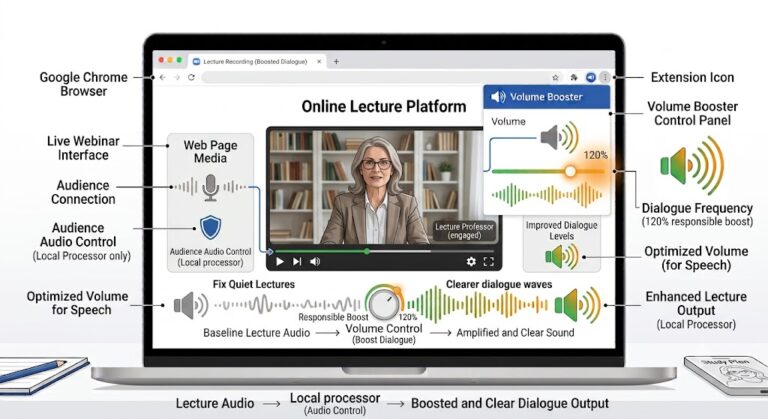
Example 1: The Student Watching a Recorded Lecture
- Situation: A university portal hosts a lecture video. Even with laptop volume at 100% and the browser slider at maximum, the professor’s voice is a murmur.
- Action: The student opens Volume Booster on the lecture tab. She nudges the slider to 130% and listens for a few seconds. The voice becomes clear without noticeable distortion. She adds a bookmark for future sessions.
- Result: She can follow the entire lecture without external speakers. The gain applies only to that tab; her music stream in another tab stays untouched. Read our guide on Spotify web player volume for similar per‑tab control.
Example 2: The Remote Worker on a Quiet Video Call
- Situation: A web‑based meeting tool has no built‑in volume boost. One colleague’s microphone is so low that every sentence requires “Could you repeat that?”.
- Action: During the call, the worker clicks the Volume Booster icon, identifies the active meeting tab, and raises the slider to 145%. The speech becomes intelligible instantly.
- Result: The meeting continues without interruptions. Afterwards, he resets the tab to 100% with a single click. No setting lingers to surprise him later.
Example 3: The Movie Fan Struggling with Quiet Streaming Audio
- Situation: A Disney+ movie has beautifully mastered music but whispered dialog. The overall volume is already at 100% in Chrome, but conversations are lost.
- Action: She follows the steps in our Disney+ audio quality guide and uses Volume Booster to apply an extra 120% gain. She toggles the boost on and off to find the sweet spot where dialog is crisp without overpowering the soundtrack.
- Result: The whole family enjoys the movie without constant volume wrestling. The extension’s lightweight footprint means no frame drops or buffering.
Frequently Asked Questions
Does increasing volume beyond 100% damage my speakers or headphones?
Digital gain above 1.0 can cause clipping, which sounds harsh but doesn’t physically harm modern hardware at moderate levels. Volume Booster does not change your system volume, only the digital signal inside Chrome. As long as you back off the slider if you hear distortion, your speakers are safe.
Will Volume Booster work on every website?
It works on any page that uses standard HTML5 <audio> or <video> elements. Most streaming platforms, social media, and learning portals rely on these. A few sites that use custom DRM‑protected players or non‑standard audio paths may not expose the media element to extensions. Check our Twitch stream volume guide for an example of how the booster handles live platforms.
Does Volume Booster record or upload my audio?
No. The extension processes all audio locally using the browser’s Web Audio API. No audio samples are recorded, stored, or transmitted. There is no account, no telemetry, and no analytics. Read more about our privacy‑first design.
Can I set different volume levels per tab?
Yes. Volume Booster detects the active tab when you open the popup and applies gain only to that tab’s media. You can boost a quiet video in one tab while keeping a music stream at its native 100% in another.
How do I return to the original browser volume?
Press the Reset button inside the popup, or drag the slider back to 0%. The gain node is instantly removed, and playback returns to exactly what the browser’s native 100% level provides.
Is Volume Booster compatible with Manifest V3?
Absolutely. The extension uses Manifest V3’s service worker model, content scripts that follow the latest Chrome extension policies, and no remotely hosted code. It’s designed for long‑term compatibility with future Chrome versions.
Turn the Browser’s 100% Cap into Your Starting Point, Not a Dead End
Browsers cap audio at 100 percent volume to protect your ears and your hardware, but that sensible limit shouldn’t stop you from hearing quiet content clearly. With Volume Booster, you get a transparent, local gain stage that works right inside Chrome — without registrations, without cloud connections, and without altering the source audio.
Key takeaways:
- The 100% cap is a browser‑side ceiling, not a reflection of true loudness.
- Volume Booster uses the Web Audio API to add extra gain safely, per tab, in real time.
- Small, careful adjustments let you hear quiet lectures, calls, and movies without distortion.
- All processing stays on your device, preserving both performance and privacy.
Next time a video whispers at full volume, open the extension, nudge the slider, and discover how much sound was waiting beyond the browser’s default wall. Then explore the Volume Booster blog for more tips on getting the most from your browser audio.