What Is a Chrome Volume Booster and How Does It Work in Chrome
Some web pages play audio so quietly that even maxing out your system volume barely helps. A Chrome volume booster solves this by amplifying sound directly inside the browser — without touching your system settings, without uploading any audio, and without ever sending your listening activity anywhere. Everything stays on your device, processed locally inside Chrome.
- How a Chrome volume booster gives you per‑tab control over quiet media
- Why local audio processing means zero privacy risk and no accounts
- What actually happens inside Chrome when you drag the volume slider
- When to use a volume booster for videos, podcasts, online learning, and more
What Is a Chrome Volume Booster?
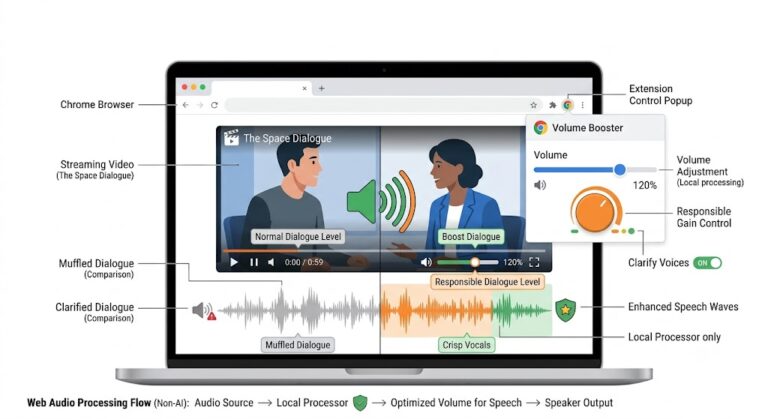
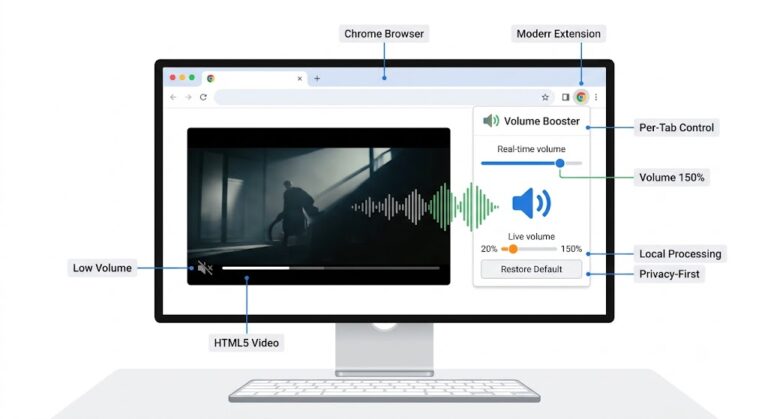
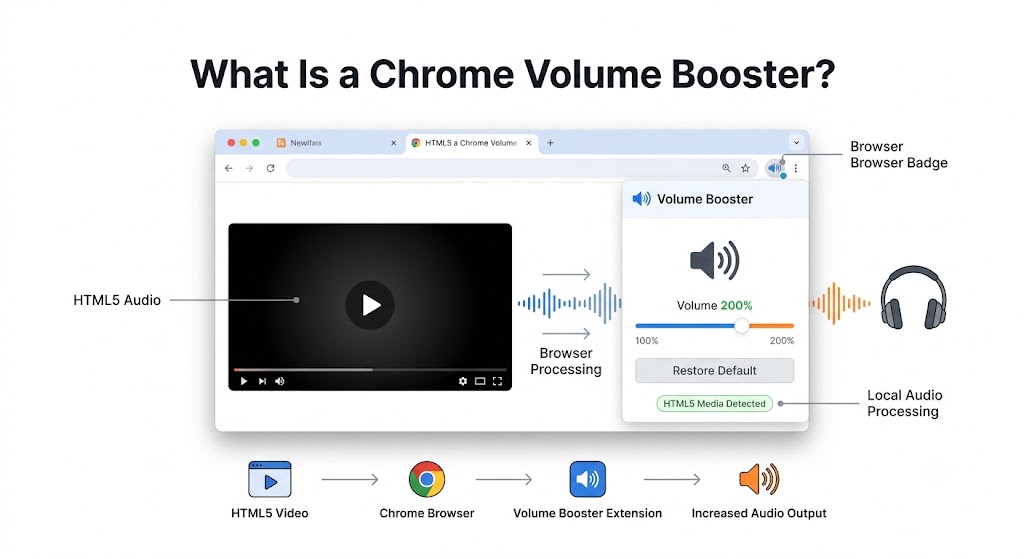
A Chrome volume booster is a lightweight browser extension that lets you increase the audio volume of HTML5 media beyond the default maximum that websites and Chrome normally allow. It works directly inside Google Chrome, giving you a simple volume slider that amplifies sound in real time for the active tab.
Unlike system‑wide equalizers or external audio tools, a Chrome volume booster only affects the browser tab you're currently using. It doesn't change your computer's master volume, and it doesn't alter audio for other applications. This focused approach means you can boost a quiet YouTube lecture without blowing out your music app or notification sounds.
The Volume Booster Chrome Extension takes this concept further by keeping everything local. There's no account to create, no login required, and no audio ever leaves your device. You install it, pin it to your toolbar, and get immediate control over any quiet tab playing HTML5 audio or video.
Learn more about the extension on the Volume Booster homepage and explore related topics on the Volume Booster blog.
How Does a Chrome Volume Booster Work in Chrome?
When you install a Chrome volume booster and click its toolbar icon, the extension detects the active tab and looks for HTML5 media elements — audio tags, video tags, or any web player built on top of them. Once media is found, the extension applies volume adjustments directly to those elements using Chrome's built‑in capabilities.
Here's the step‑by‑step process:
- You open a tab with quiet audio — a podcast player, a streaming video, or an online course. The media is already playing or ready to play through standard HTML5 elements.
- You click the Volume Booster icon in your Chrome toolbar. The extension's popup appears, showing the current tab's information and a large volume slider set to its default position.
- The extension queries the active tab using Chrome's extension APIs — specifically, it communicates with a lightweight content script that identifies available audio and video elements on the page. This all happens inside Chrome's sandboxed environment under Manifest V3 rules.
- You drag the slider to a higher percentage. The extension sends that value to the content script, which adjusts the volume property of each detected media element instantly. There's no delay, no buffering, and no reloading.
- Audio plays louder — but only for that tab. Other tabs, other applications, and your system volume remain completely unchanged.
The entire chain — detection, adjustment, and playback — stays inside your browser. No external servers, no cloud processing, no analytics. That's the core of how a privacy‑first Chrome volume booster works.
Why Is Browser Audio Sometimes Too Quiet?
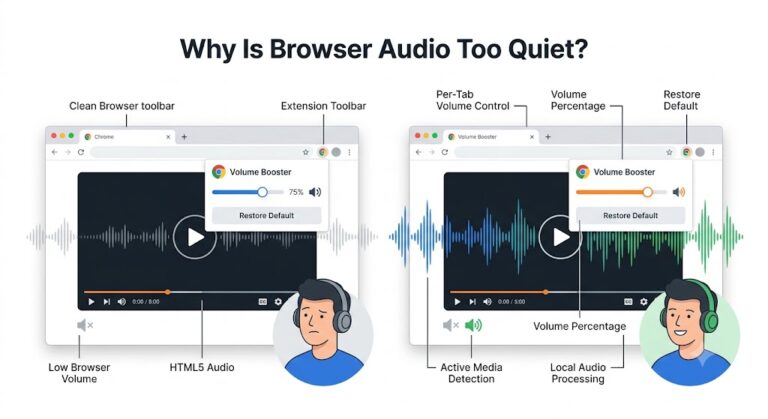
Before reaching for a Chrome volume booster, it helps to understand why browser audio can feel underwhelming even when every volume knob is maxed out. Several factors combine to create this frustration:
- Website audio encoding: Many platforms compress audio or set a conservative baseline volume to avoid distortion across different devices. A video that sounds fine on studio monitors can feel whisper‑quiet on laptop speakers.
- Browser volume caps: Chrome itself doesn't impose a hard volume limit on HTML5 media, but it respects the audio level set by the website. If a site's player outputs at 60% of its potential amplitude, Chrome won't override that on its own.
- Hardware limitations: Built‑in laptop speakers, budget headphones, or aging desktop speakers often lack the power to fill a room. Even at 100% system volume, quiet recordings remain quiet.
- Background noise: In a busy coffee shop, on public transit, or in an open‑plan office, ambient noise drowns out dialogue and narration that would be perfectly audible in a silent room.
- Mixed media sources: You might have one tab playing a loud video while another whispers a podcast. System‑wide volume can't differentiate — but a per‑tab booster can.
A Chrome volume booster addresses the browser‑side portion of this problem by giving you direct amplification control over individual tabs, compensating for quiet source material without touching your hardware knobs.
How Can You Safely Increase Audio Volume in Chrome?
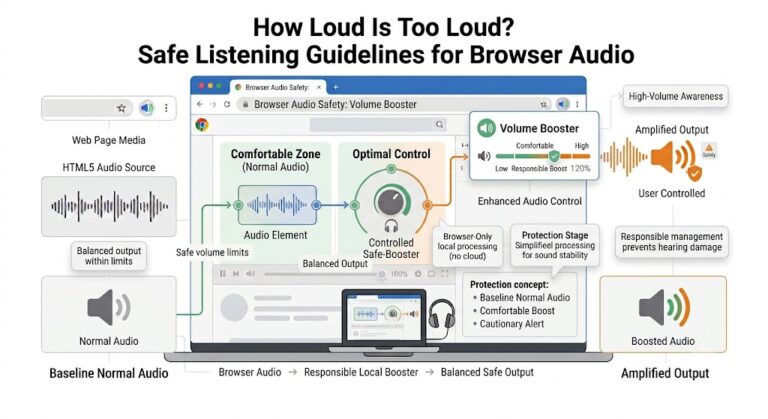
Safety matters when you amplify audio. A well‑designed Chrome volume booster gives you fine control so you never push sound into painful or distorted territory. Here's how the Volume Booster extension keeps amplification safe and comfortable:
- Real‑time slider control: The popup features a large, easy‑to‑grab slider that updates volume as you drag it. There's no guesswork — you hear the change immediately and can stop at the perfect level.
- Volume percentage display: A clear numeric readout shows your current amplification level at all times. You always know exactly how much boost you're applying.
- Reset button: One click restores the tab's volume to its default state. If you ever boost too high or simply want to start fresh, the reset is instant.
- Per‑tab isolation: Boosting one tab never bleeds into another. A loud YouTube video stays exactly as you set it, while your boosted podcast tab gets its own independent level.
- No system interference: The extension never touches your computer's master volume or any audio driver settings. It works purely within Chrome's media layer.
Best practice: start with small increments — 120% to 150% is often enough to bring quiet dialogue into comfortable range. Reserve higher boosts for exceptionally quiet sources, and use the reset button liberally when switching between different types of content.
Does Increasing Browser Volume Affect Audio Quality?
This is one of the most common questions users ask before trying a Chrome volume booster. The answer depends on the source material and how much amplification you apply.
At moderate boost levels — typically up to 200% — most HTML5 media sounds clean and clear. The extension amplifies the existing audio signal without re‑encoding or processing it through filters. You're simply increasing the amplitude of sound waves that are already there. For well‑recorded podcasts, lectures, and music, this range is transparent and artifact‑free.
At higher boost levels, you may begin to notice the natural limitations of the source audio. Quiet background hiss that was always present in the recording becomes more audible. Peaks in the audio waveform may clip slightly if pushed extremely high. These aren't flaws introduced by the extension — they're characteristics of the original file becoming more noticeable under amplification.
Think of it like turning up the gain on a microphone. A good recording has enough headroom to handle moderate gain gracefully. A poor recording reveals its shortcomings faster. The Volume Booster Chrome Extension gives you the slider; your ears tell you the sweet spot.
For the best experience, raise volume gradually and listen for clarity. If you hear distortion, back off slightly. The reset button is always one click away if you want to return to default and start over.
When Should You Use a Chrome Volume Booster?
A Chrome volume booster shines in specific everyday scenarios where system volume alone can't solve the problem. Here are the most common situations where the extension proves invaluable:
- Online learning and courses: Many educational platforms record lectures at conservative volume levels. A student following along with dense material needs every word clear. Boosting just the course tab makes instructors audible without affecting other browser audio.
- Quiet YouTube videos: Creators sometimes upload content mixed at low levels, especially older videos or screencasts. Rather than maxing out your entire system, you boost only that video tab and keep everything else balanced.
- Podcasts and spoken word: Dialogue‑heavy content suffers the most from low volume. Missing a single word can break comprehension. A per‑tab boost lifts spoken audio into comfortable range on any speakers or headphones.
- Language learning: When you're trying to catch subtle pronunciation differences in a foreign language, every decibel counts. Boosting audio for language apps and video lessons helps distinguish similar sounds that would otherwise blur together.
- Movies and streaming: Films with wide dynamic range often have quiet dialogue and loud action sequences. Boosting the quieter parts makes the entire experience more enjoyable without constantly riding the volume control.
- Accessibility: Users with mild hearing difficulties benefit from being able to push audio beyond default browser limits. Combined with system accessibility settings, a volume booster adds another layer of personalization.
- Remote work and video conferences: Some meeting platforms have inconsistent audio levels across participants. Boosting a quiet speaker's feed makes collaboration smoother without asking them to adjust their microphone.
In all these cases, the extension stays lightweight, private, and instant — exactly what you need when audio gets in the way of what you're trying to do.
How Does Volume Booster Process Audio Locally?
Privacy is a core principle of the Volume Booster Chrome Extension. Understanding how local processing works helps you trust that your media stays yours. Here's what happens — and what doesn't:
- All detection happens inside your browser: The extension's content script identifies HTML5 audio and video elements on the active tab using standard Chrome APIs. No information about what you're watching or listening to ever leaves your device.
- Volume adjustment is direct: When you move the slider, the extension modifies the volume property of media elements in real time. This is a native browser capability — the same property any webpage could technically access. The extension simply gives you control over it.
- No audio is captured or recorded: The extension never taps into your audio stream, never creates copies of your media, and never buffers sound for processing. It adjusts playback volume, period.
- No external requests: The extension makes zero network calls to any server. There's no telemetry, no analytics, no usage tracking, and no cloud synchronization. You can verify this by inspecting the extension's network activity — you'll find none.
- Manifest V3 compliance: The extension is built on Chrome's modern extension framework, which enforces stricter privacy and security boundaries. Content scripts run in isolated worlds, and the service worker handles popup logic without persistent background processes.
- No user profiling: There are no accounts, no logins, and no user identifiers. The extension doesn't know who you are, and it doesn't try to find out.
This local‑first architecture means the extension is essentially a remote control for media volume that lives entirely inside Chrome. You get the amplification you need with none of the privacy trade‑offs that come with cloud‑based audio tools.
How Real Users Apply a Chrome Volume Booster in Daily Browsing
Here's how different people use the Chrome volume booster to solve genuine audio problems.
Example 1: The Online Student Catching Up on Lectures
- Situation: A university student has three lecture tabs open. One professor recorded at a low level, making it nearly impossible to hear clearly through laptop speakers. System volume is already at 100%, but the lecture still sounds distant.
- Action: The student clicks the Volume Booster icon on the quiet lecture tab, drags the slider to 180%, and instantly hears the professor's voice clearly. The other two tabs — a music stream and a research paper — remain at their original volumes.
- Result: The student finishes the lecture without straining to hear, takes notes comfortably, and resets the volume back to default before moving to the next task. No settings were permanently changed, and no other audio was disrupted.
Example 2: The Remote Worker in a Noisy Environment
- Situation: A remote worker joins a video call from a busy co‑working space. One colleague's microphone is quiet, and ambient chatter makes it hard to follow their points. Turning up system volume would make notifications and other tabs painfully loud.
- Action: The worker opens the meeting tab, boosts volume to 150% using the extension, and hears the quiet colleague clearly. The boost only affects the meeting tab — Slack notifications and background music stay at comfortable levels.
- Result: The meeting proceeds smoothly. After the call, the worker clicks reset, and the tab returns to default volume for the next meeting. The entire adjustment took under three seconds.
Example 3: The Language Learner Practicing Pronunciation
- Situation: A language learner uses a web‑based app to practice French pronunciation. The audio examples are recorded at a low level, making it difficult to distinguish between similar vowel sounds through standard earbuds.
- Action: The learner boosts the language app tab to 200%, revealing subtle differences in nasal vowels and liaison patterns that were previously inaudible. The extension stays pinned for quick access during daily practice sessions.
- Result: Pronunciation improves noticeably over two weeks of boosted listening. The learner develops an ear for distinctions that classmates still struggle to hear, all because the audio was amplified to a comfortable learning level.
Frequently Asked Questions
Does a Chrome volume booster work on all websites?
It works on most modern websites that use standard HTML5 audio or video elements. This includes YouTube, Vimeo, most podcast players, streaming platforms, online course sites, and web‑based music services. Sites that use custom, non‑standard audio delivery may not be detected, but these are increasingly rare.
Will boosting volume damage my speakers or headphones?
Moderate boosts are safe for all standard audio hardware. The extension amplifies the digital audio signal within Chrome's media layer — it doesn't push power beyond what your system volume already allows. If you hear distortion, simply lower the slider. Use the same common‑sense listening practices you would with any audio source.
Does the extension remember my volume settings between sessions?
The Volume Booster Chrome Extension applies volume adjustments in real time for the active tab. When you navigate away, close the tab, or restart Chrome, each tab returns to its default level. This keeps your browsing predictable — you always start fresh and adjust as needed.
Can I boost audio on multiple tabs at once?
Yes. Each tab's volume is controlled independently. You can boost a podcast in one tab to 150%, a video in another tab to 130%, and leave a third tab at its default level. The extension's popup always shows and controls the currently active tab.
Is any of my browsing data collected by the volume booster?
No. The extension operates entirely locally. There are no analytics scripts, no tracking pixels, no telemetry, and no external servers. It doesn't collect browsing history, doesn't record audio, and doesn't create user profiles. You can confirm this by reviewing the extension's permissions and network activity — it requests only the minimum needed to adjust media volume.
What's the difference between a Chrome volume booster and my system volume control?
System volume controls the output level for everything on your computer — all applications, all tabs, all notifications. A Chrome volume booster gives you per‑tab control within the browser. This lets you amplify one quiet source without making everything else louder. The two controls work together: system volume sets the overall ceiling, and the extension fine‑tunes individual tabs within that range.
Take Control of Quiet Browser Audio — Locally, Privately, Instantly
A Chrome volume booster fills the gap between what websites deliver and what your ears need. By amplifying HTML5 media directly inside Chrome — without accounts, cloud processing, or tracking — it puts volume control exactly where it belongs: in your hands, on your device, for the tab you're actually using.
Key points to remember:
- A Chrome volume booster amplifies audio on a per‑tab basis, leaving system volume and other applications untouched.
- All processing happens locally inside your browser — no audio is uploaded, recorded, or analyzed.
- Moderate boosts make quiet lectures, podcasts, videos, and conference calls comfortably audible without distortion.
- The Volume Booster Chrome Extension keeps things simple: a slider, a percentage readout, and a reset button — no unnecessary complexity.
- Privacy is built into the architecture. No accounts, no telemetry, no external requests — ever.
If you've ever maxed out your system volume and still struggled to hear a quiet video or lecture, a Chrome volume booster is the lightweight, privacy‑respecting answer. Install it, pin it, and give yourself the per‑tab control that Chrome's default audio settings don't provide.
Explore the Volume Booster homepage to learn more about the extension, or read additional guides on the Volume Booster blog for tips on getting the most out of browser audio.