How to Control Volume Separately for Each Browser Tab
You have a podcast playing in one tab, a video call running in another, and background music streaming from a third — yet Chrome gives you only one global volume control. Learning how to control volume for each browser tab transforms that chaos into a calm, personalized listening experience where every tab gets exactly the audio level it deserves. Volume Booster makes this possible with a lightweight, privacy-first approach that never touches your data.
- Why per-tab volume control solves the biggest frustration of multi-tab audio browsing
- How Volume Booster detects and adjusts audio on individual tabs in real time
- What happens inside Chrome when you adjust volume for a single tab — no cloud, no uploads
- When per-tab control matters most — meetings, movies, music, and learning
What Does It Mean to Control Volume Separately for Each Browser Tab?
Most people assume browser audio is an all-or-nothing affair. You open a tab, sound plays, and the only lever you have is the system volume — which affects every application on your computer equally. That's the default Chrome experience, and it's limiting.
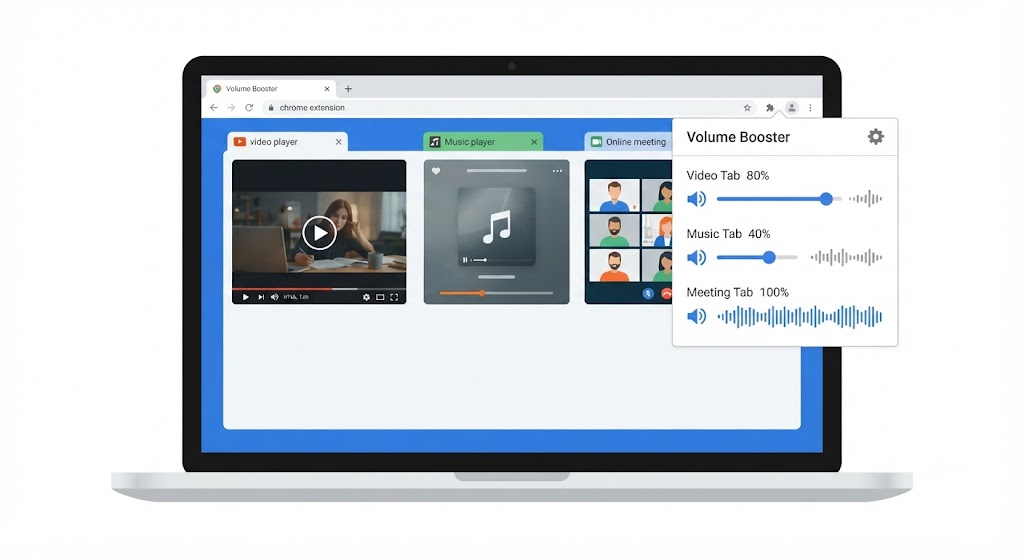
Controlling volume for each browser tab means breaking that single-channel limitation. It means you can boost the whispered dialogue in a streaming movie on one tab while simultaneously keeping a YouTube music playlist at a gentle background level on another — all without touching your system mixer or closing anything.
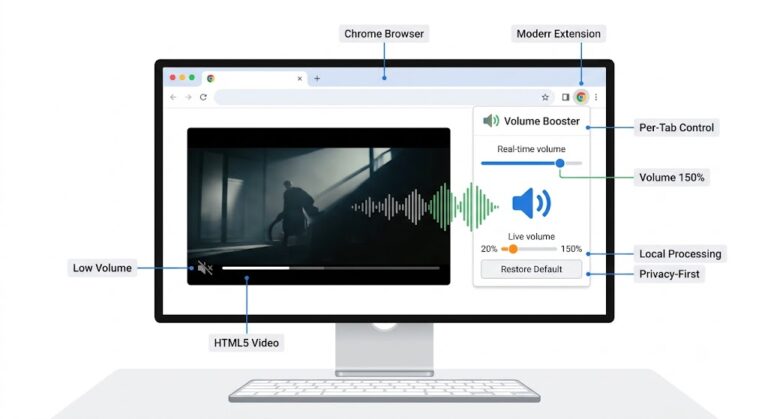
Volume Booster achieves this by targeting the HTML5 media element inside each open tab individually. When you switch tabs and open the extension popup, the slider you see controls only the audio playing in that specific tab. Nothing else is affected. Your video call stays at 100%, your podcast sits at 140%, and your notification sounds remain untouched at system level.
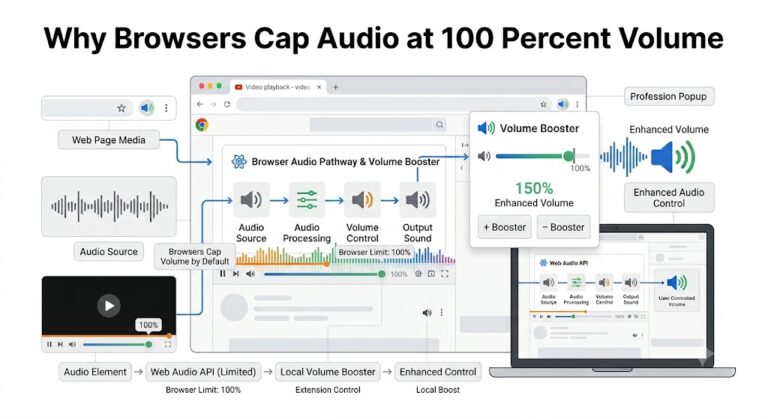
This is fundamentally different from system-wide equalizers or desktop audio routers. Those tools sit outside the browser. Volume Booster works inside Chrome, using the browser's own media APIs to intercept and adjust audio gain before it ever reaches your speakers. The result is per-tab precision with zero external dependencies.
Why Is Per-Tab Volume Control Essential for Modern Browsing?
Modern browsing is inherently multi-tab. A typical work session might include a video conferencing tab, a reference documentation tab with embedded video tutorials, a background music tab, and a social media feed auto-playing clips. Chrome treats all of these as equal audio sources, which means one loud ad or poorly mixed webinar can overwhelm everything else.
Without per-tab control, your only options are crude: mute the offending tab entirely, close it, or adjust the system volume and compromise every other audio source. That's not a solution — it's a workaround that disrupts your workflow.
Per-tab volume control gives you granularity. You become the audio engineer of your own browser. A quiet lecture recording can be boosted independently without making your music tab painfully loud. A video conference with low speaker output can be amplified without affecting the movie you're watching during a break. This level of control turns Chrome from a passive media player into an active listening environment you shape to your needs.
For users with hearing difficulties or those working in noisy environments, per-tab control is not a luxury — it's an accessibility tool. Being able to control volume for each browser tab independently means you can compensate for poorly mastered audio on a case-by-case basis, without installing complex system-level software or buying external hardware.
How Does Volume Booster Let You Control Volume for Each Browser Tab?
Volume Booster adds a clean, single-purpose popup to your Chrome toolbar. Click the extension icon, and you see the current tab's audio status — along with the controls to adjust it. There's no dashboard, no settings labyrinth, no account to create. The interface is deliberately minimal because the job is specific.
Here's what you interact with:
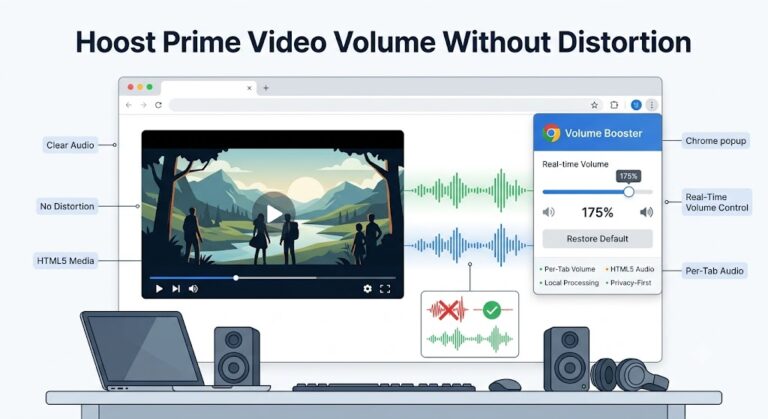
- The Volume Slider: A large, responsive range control that goes from 0% up to well beyond the browser's default maximum. Drag it up to amplify quiet audio. Drag it down to reduce loud audio. The current percentage displays clearly next to the slider — no guessing.
- The Reset Button: One click returns the active tab's volume to 100%, which is Chrome's standard level. This is useful when you've boosted a tab for a specific video and want to restore normal playback before switching to something else.
- The Active Tab Indicator: The popup automatically detects which tab is currently focused and shows you its audio status. If the tab isn't playing any HTML5 audio or video, the extension still lets you set a volume level — it takes effect the moment media starts.
Every adjustment is instant. There's no "apply" button, no delay, and no page reload required. You hear the volume change in real time as you move the slider. This immediate feedback is critical for fine-tuning — you can nudge the slider until speech sounds crisp or music sits at just the right background level.
If you want to understand the broader mechanics of how browser audio amplification works, read our guide on browser audio amplification for a deeper technical dive.
What Happens Inside Chrome When You Adjust Volume Per Tab?
Understanding the internal process builds trust — and with Volume Booster, that trust is grounded in complete transparency. Here's exactly what occurs from the moment you move the slider:
- Tab Detection: When you open the popup, Volume Booster queries Chrome's tab API to identify the currently active tab. It checks whether that tab contains any HTML5
<audio>or<video>elements. This query runs entirely in your browser's local extension context — no data is sent anywhere. - Gain Application: Once you adjust the slider, the extension's content script applies a gain adjustment to the detected media element. This happens through Chrome's standard media APIs, which allow extensions to modify audio playback parameters on the page. The gain value is calculated from your slider position and applied directly to the media element's audio output.
- Real-Time Update: The audio change takes effect in milliseconds. Because the processing happens at the browser level — not through external servers or cloud pipelines — there's virtually zero latency. You hear the difference immediately, which makes precise adjustments intuitive.
- Local Storage of Preferences: Volume Booster remembers your per-tab volume setting using Chrome's local storage API. If you close and reopen the popup, the slider reflects the last value you set for that tab. This data never leaves your device — it's stored in Chrome's sandboxed extension storage, isolated from every other extension and website.
The entire processing chain — detection, gain calculation, application, and storage — runs inside your browser on your device. Volume Booster uses Manifest V3, Chrome's latest extension framework, which enforces strict security boundaries. The extension cannot and does not make external network requests, record audio, or access your browsing history.
This architecture is deliberately simple. By avoiding cloud dependencies, Volume Booster stays fast, private, and reliable — even when you're offline or behind restrictive firewalls.
What Are the Best Practices for Controlling Volume Per Tab Safely?
Per-tab volume control is powerful, but like any audio tool, it benefits from mindful usage. Here are practical guidelines developed from real-world testing and user feedback:
- Start at 100% and adjust gradually: Every tab begins at Chrome's default level. If audio is too quiet, increase in small increments — 10% to 20% at a time — until you reach comfortable clarity. Jumping straight to maximum amplification can introduce distortion, especially on poorly compressed audio sources.
- Use the reset button as a habit: After finishing with a boosted tab, click reset. This prevents a scenario where you open a new video later and it blasts at 200% because you forgot to lower the volume. The reset button is a single click — build it into your tab-closing routine.
- Be mindful of speaker limits: Boosting volume increases the signal sent to your speakers or headphones. While Volume Booster itself doesn't damage hardware, consistently running at extreme amplification levels can strain small laptop speakers over time. Read our guide on safely increasing volume without speaker damage for a full explanation of hardware-safe practices.
- Protect your hearing: Perceived loudness can be deceptive. A boosted tab at 180% might feel "normal" after a few minutes, but your ears are still receiving higher sound pressure levels. Follow our safe listening guidelines to enjoy extended sessions without ear fatigue or long-term hearing risk.
- Match volume to content type: Speech-heavy content — lectures, podcasts, video calls — benefits most from moderate boosting that lifts voices out of the mud. Music and movies may need subtler adjustments since they already have dynamic range. Per-tab control lets you apply different strategies to different tabs simultaneously.
These practices aren't restrictions — they're habits that make per-tab control more effective and sustainable over years of daily browsing.
How Real Workflows Benefit from Per-Tab Volume Control
Abstract explanations only go so far. Here's how controlling volume for each browser tab plays out in genuine, everyday scenarios.
Example 1: The Remote Worker in Back-to-Back Video Calls
- Situation: Three Chrome tabs open — a Google Meet call in the current tab, a Zoom webinar running in the background, and a YouTube tutorial playing quietly for reference. The Meet call is too quiet; the webinar is occasionally loud; the tutorial needs to stay audible but not dominant.
- User Action: She opens Volume Booster on the Meet tab and boosts it to 135% — voices become clear and present. She switches to the Zoom tab, where the host's microphone is already strong, and leaves it at 100%. On the YouTube tab, she sets volume to 80% so the tutorial stays in the background without stealing focus.
- Result: All three audio sources coexist peacefully. She hears every word of her active meeting, catches key points from the webinar when she switches tabs, and still has the tutorial running at a non-distracting level. Per-tab control eliminated the need to constantly mute and unmute tabs.
- Takeaway: For anyone juggling multiple communication tools, per-tab volume is a productivity multiplier. If you frequently experience quiet audio during meetings, explore our dedicated guide on how to fix quiet audio during video conferences.
Example 2: The Student Taking Online Classes While Reviewing Recordings
- Situation: A live online class streams in one tab, while a recorded lecture from last week plays in another. The live stream is at normal volume, but the recording is extremely quiet — the professor's voice sounds distant and muffled.
- User Action: On the recorded lecture tab, the student opens Volume Booster and gradually increases the slider to 160%. The professor's voice lifts out of the background noise. The live class tab remains at 100%, so notifications and the instructor's voice stay at a comfortable level.
- Result: The student can take notes from the recording while staying present in the live class. Without per-tab control, she would have had to choose between straining to hear the recording or missing the live session entirely.
- Takeaway: Online learning often involves audio from multiple sources with wildly different recording quality. Read our guides on how to improve audio quality during online classes and increase volume for lecture recordings for more education-specific strategies.
Example 3: The Movie Enthusiast Watching Dialogue-Heavy Films
- Situation: A streaming movie plays in one tab while a film review podcast runs quietly in another. The movie's dialogue is buried under a loud soundtrack — characters sound like they're whispering behind an orchestra. The podcast, however, is well-mixed and clear at 100%.
- User Action: On the movie tab, Volume Booster is set to 145%. The dialogue becomes intelligible without the action scenes becoming harsh. The podcast tab stays at 100%, providing consistent background commentary. After the movie, a single click on reset restores both tabs to default.
- Result: The viewer enjoys the film without constantly riding the volume buttons on their keyboard. The per-tab boost compensates for the movie's poor dialogue mix without affecting the podcast's already-good audio.
- Takeaway: Streaming content varies enormously in audio quality. If you regularly struggle with hard-to-hear dialogue, check our articles on how to enhance dialogue in movies and shows and what to do when movie dialogue sounds muffled.
Example 4: The Podcast Listener Multitasking Through a Workday
- Situation: A long-form interview podcast plays in a background tab while the user works in Google Docs and occasionally checks a news site that auto-plays video clips. The podcast is engaging but recorded at a lower level than typical music streams. The news videos are jarringly loud by comparison.
- User Action: The podcast tab gets boosted to 130% via Volume Booster — voices become full and clear even through laptop speakers. The news site tab, when it auto-plays, is quickly lowered to 60% so headlines play without startling. The Google Docs tab, having no audio, requires no adjustment.
- Result: A seamless audio environment that adapts to each tab's content. The user stays immersed in the podcast without flinching every time an auto-play ad or news clip fires. Per-tab control turns a potentially annoying browsing session into a smooth listening experience.
- Takeaway: Podcasts and spoken-word content often need a volume lift that music doesn't. For more on this, read how to boost podcast audio directly in the browser.
Example 5: The Professional Attending Webinars and Watching Training Videos
- Situation: A live industry webinar streams in Chrome, while a pre-recorded video tutorial on the same topic sits open in another tab for later review. The webinar audio is low due to the presenter's soft microphone technique. The tutorial, when previewed, is also quiet but differently so — it needs its own adjustment.
- User Action: Volume Booster is set to 140% on the webinar tab, bringing the presenter's voice up to a professional, clear level. The tutorial tab is independently set to 125% — enough to make the instructor audible without overpowering when the user switches to it. After the webinar ends, both tabs are reset with one click each.
- Result: The professional absorbs both the live event and the supplementary training without missing details or straining to hear. The independent settings meant no compromise — each audio source received exactly the boost it needed.
- Takeaway: Webinars and training videos are core to professional development. For related guidance, see our articles on how to improve audio in webinars and boost audio for video tutorials.
Example 6: The Job Seeker Reviewing Interview Recordings
- Situation: A candidate has a recorded mock interview in one tab and a YouTube playlist of interview tips in another. The mock interview recording is quiet — the microphone was positioned too far during the session. The YouTube playlist plays at normal volume.
- User Action: On the interview recording tab, Volume Booster is raised to 150%. The candidate's own responses become clear enough to critique. The YouTube tab stays at 100% for easy listening while taking notes.
- Result: The job seeker can properly review their performance without cupping their ears or maxing out system volume. The per-tab boost makes a poorly recorded file usable, which could directly impact interview preparation quality.
- Takeaway: Recorded conversations often suffer from inconsistent audio levels. Learn more about how to improve interview recording playback volume for this specific use case.
Example 7: The Multitasker on Zoom-Style Meetings with Background Audio
- Situation: A Zoom meeting dominates the active tab, while a lo-fi music stream plays in a pinned tab for focus. The meeting host's voice is clear but a touch quiet. The music is well-balanced but needs to stay firmly in the background.
- User Action: The meeting tab is boosted to 125% with Volume Booster. The music tab is set to 50% — present but never intrusive. When the meeting ends, both tabs are reset to default with two quick clicks.
- Result: The user stays engaged in the meeting with crisp voice audio while maintaining a calm, focused atmosphere through subtle background music. No audio source competes with another.
- Takeaway: Balancing communication tools with ambient audio is a common modern workflow. Read our specific guide on how to boost Zoom-style meeting volume in Chrome tabs for deeper tips on this scenario.
How Does Per-Tab Volume Control Differ from System-Wide Audio Solutions?
You might wonder: why not just use your operating system's volume mixer or a desktop audio router? These tools exist, and they have their place — but they operate at a fundamentally different level from Volume Booster.
System-wide mixers control audio after it leaves Chrome. They see the browser as a single application. If you boost Chrome's system volume, every tab gets louder equally — precisely the problem per-tab control solves. System mixers can't distinguish between your video call tab and your music tab because Chrome presents them as one unified audio stream to the operating system.
Volume Booster works inside Chrome, before audio is handed off to the system. It intercepts the gain of individual media elements — the <audio> and <video> tags on each page — and adjusts them independently. This is only possible because Volume Booster runs as a Chrome extension with direct access to the browser's media pipeline.
The advantages of this approach:
- Granularity: Each tab gets its own volume level, independent of every other tab and independent of system volume.
- Simplicity: No need to install additional desktop software, configure virtual audio cables, or learn complex routing interfaces. The Volume Booster popup is the only control you need.
- Portability: Volume Booster travels with your Chrome profile. If you use Chrome on multiple devices, the extension is available wherever you're signed in — though volume settings are stored locally per device, consistent with the privacy-first design.
- Privacy: Desktop audio routers often require deep system access. Volume Booster runs sandboxed inside Chrome with Manifest V3 permissions. It can't see or control audio from other applications, and it doesn't want to.
For users who need per-application control, system mixers are useful. For users who need per-tab control within Chrome, Volume Booster is the focused, lightweight tool designed specifically for that task.
What Are the Privacy and Performance Implications of Per-Tab Volume Control?
Every browser extension makes trade-offs. Some trade your privacy for convenience. Some trade performance for features. Volume Booster was designed to make neither compromise.
Privacy: Volume Booster processes everything locally. When you adjust the volume on a tab, the gain calculation runs entirely inside your Chrome browser. No audio data is recorded, sampled, analyzed, or transmitted. The extension doesn't know what you're listening to — it only knows there's a media element playing and that you want it louder or quieter. There are no user accounts, no analytics scripts, no telemetry calls, and no external servers to ping. The extension's network permissions are deliberately minimal — it doesn't make outbound requests at all.
Performance: Volume Booster is a lightweight extension. The content script that applies gain to media elements is a few lines of code that execute in microseconds. The popup interface loads instantly because it's simple HTML and vanilla JavaScript — no frameworks, no libraries, no dependencies to download. Memory usage stays low because the extension doesn't maintain persistent background processes beyond Chrome's required service worker, which sleeps when not in use per Manifest V3 standards. CPU usage during volume adjustment is negligible — gain application is a trivial mathematical operation on an audio stream that Chrome already has in memory.
For users on older hardware, low-powered laptops, or Chromebooks with limited resources, this efficiency matters. Volume Booster won't slow down your browser, drain your battery, or compete with other tabs for processing power. It does one job and it does it with minimal overhead.
Frequently Asked Questions About Controlling Volume for Each Browser Tab
Does Volume Booster work on every website?
Volume Booster works on any website that uses standard HTML5 <audio> or <video> elements. This covers the vast majority of modern websites — YouTube, Netflix, Spotify Web Player, Zoom Web, Google Meet, most podcast players, online course platforms, and news sites with embedded video. Websites that use proprietary non-HTML5 players or deliver audio through WebRTC in ways that bypass standard media elements may not be compatible. If a site doesn't respond to the volume slider, the media on that page likely uses a non-standard delivery method.
Can I set different volumes for different tabs at the same time?
Yes, that's exactly what Volume Booster is designed for. Each tab maintains its own volume setting independently. You can have a YouTube tab at 130%, a podcast tab at 110%, and a video call tab at 90% — all simultaneously. The extension's popup shows and controls only the currently active tab's volume, but the settings for other tabs persist in the background.
What happens to my volume settings when I close a tab?
When you close a tab, its volume setting is cleared. If you reopen the same URL later, the tab starts at the default 100% level. Volume Booster ties settings to open tab sessions, not to specific websites — this prevents unexpected loud playback when you revisit a site days later with different audio needs.
Does boosting volume above 100% reduce audio quality?
Moderate boosting — up to around 150% — generally preserves acceptable audio quality on most content. Beyond that, you may hear distortion, clipping, or a compressed sound, especially on audio that was already mastered near peak levels. This is a physical limitation of digital audio gain, not a flaw in Volume Booster. The extension applies clean gain; the quality of the result depends on the source material's headroom. For best results, boost only as much as needed and consider using external speakers or headphones if you consistently need extreme amplification.
Can I use Volume Booster alongside other audio extensions?
Volume Booster is designed to coexist peacefully with most Chrome extensions. However, if another extension also modifies the same media element's gain, the effects may compound unpredictably. If you notice unexpected audio behavior, try disabling other audio-related extensions to isolate the cause. Volume Booster's simple gain approach means it rarely conflicts, but browser extension interactions can be complex.
Is Volume Booster free? Are there any paid features?
Volume Booster is completely free. There are no paid tiers, no premium features locked behind a subscription, and no in-extension purchases. The extension has no advertisements, no sponsored placements, and no affiliate tracking. This aligns with the developer's commitment to building privacy-first, distraction-free tools that serve users without monetizing their attention or data.
Take Control of Your Browser's Audio — One Tab at a Time
Chrome's default audio behavior treats every tab as an equal citizen in a single-volume world. That's fine when you're only listening to one thing. But modern browsing is rarely that simple. You stream, you call, you learn, you watch, you listen — often all within the same browser window, often simultaneously.
Learning how to control volume for each browser tab gives you back the control that Chrome's one-size-fits-all approach takes away. With Volume Booster, you become the decision-maker for every audio source in your browser. A quiet lecture gets the boost it needs. A loud commercial gets tamed. A video call stays crystal clear while your background playlist hums along at exactly the right level.
Key takeaways from this guide:
- Per-tab volume control is the most precise way to manage multi-source audio in Chrome — more granular than system mixers, simpler than external software.
- Volume Booster applies gain directly to HTML5 media elements inside each tab, processing everything locally with no cloud dependencies, no accounts, and no data collection.
- Best practices — gradual adjustment, habitual resetting, and content-appropriate levels — keep your listening safe and your hardware protected.
- Real workflows from remote work to online learning to entertainment benefit immediately from independent per-tab audio control.
Because Volume Booster runs entirely on your device, you can experiment freely. Try boosting a quiet podcast. Lower a loud news clip. Set different levels for a video call and a tutorial playing side by side. Every adjustment is instant, private, and fully reversible — reset is always one click away.
Ready to explore more ways to improve your browser audio experience? Browse the Volume Booster blog for guides on speech clarity, safe listening, dialogue enhancement, and getting the most out of your browser's audio capabilities. If you found per-tab control useful, you'll also appreciate our deep dive on how to improve speech clarity while watching videos — a natural next step for anyone who values clear, comfortable browser audio.