How to Enhance Dialogue in Movies and Shows
You turn up the volume to hear what characters are saying — then an explosion rattles your speakers. Enhance dialogue in movies and shows by giving yourself more volume headroom. Volume Booster amplifies your browser's audio output beyond the default 100% cap, so quiet conversations become audible without reaching for subtitles. Everything runs locally inside Chrome; no audio ever leaves your device.
- Why modern movie mixing makes dialogue harder to hear than ever
- How the browser's 100% volume cap limits your ability to compensate
- What Volume Booster actually does — and does not do — to speech clarity
- When a simple volume increase is the most effective dialogue fix available
Why Is Dialogue So Hard to Hear in Modern Movies and Shows?
You are not imagining it — dialogue in movies and shows genuinely feels quieter than it used to be. This isn't a defect in your laptop speakers, your headphones, or your hearing. It's a deliberate mixing choice that creates real frustration for viewers at home.
Film and TV audio is mixed for cinema environments with massive dynamic range — the gap between the quietest whisper and the loudest explosion. In a theater, that range works because the room is silent and the speaker system can handle both extremes. But when that same mix lands on a streaming platform and plays through your browser on modest hardware, the dialogue sinks below comfortable audibility while sound effects still boom.
Several factors combine to bury speech:
- Wide dynamic range mixing: Engineers prioritize dramatic impact over consistent speech levels, so dialogue sits far lower in the mix than action sequences.
- Center-channel reliance: Dialogue is often mixed primarily to the center channel in surround sound. When that mix is downmixed to stereo for laptop speakers or basic headphones, speech can lose presence.
- Thin laptop speakers: Most built-in speakers cannot reproduce midrange frequencies where vocal clarity lives. Even at maximum volume, dialogue sounds muffled because the hardware physically cannot project those frequencies.
- Bluetooth headphone compression: Wireless audio codecs compress dynamic range further, sometimes pushing quiet speech below the perceptual floor.
- Background music creep: Many modern productions layer dense ambient scores underneath dialogue scenes, masking speech frequencies.
None of these problems are your fault. But they all land on your ears. The solution most people reach for — turning up the system volume — hits a hard ceiling at 100% inside Google Chrome. That's where the real bottleneck lives.
Learn more about why browsers cap audio at 100% volume and how that limit affects everything you watch online.
What Does "Enhance Dialogue" Actually Mean — and What Can Volume Booster Do?
Let's be direct about something important: Volume Booster does not isolate dialogue. It does not apply equalization, compress dynamic range, boost voice frequencies, or perform any kind of speech-specific processing. Those are features found in dedicated audio engineering software, not a lightweight browser extension.
What Volume Booster does is simpler and, in many cases, more immediately effective: it increases the overall volume of HTML5 media playing in your browser beyond the browser's built-in 100% limit.
Here's why that matters for dialogue specifically:
- When you raise the overall volume, quiet dialogue becomes louder. The relative balance between speech and sound effects doesn't change — but everything shifts upward, pushing previously inaudible speech into comfortable hearing range.
- Many users discover that dialogue becomes clear once they have enough raw volume headroom. The speech was always there in the mix; it just sat below the threshold their speakers or ears could perceive at default levels.
- Unlike system-wide volume boosts that affect notifications, system sounds, and every application, Volume Booster targets only the active browser tab. You amplify the movie, not the whole operating system.
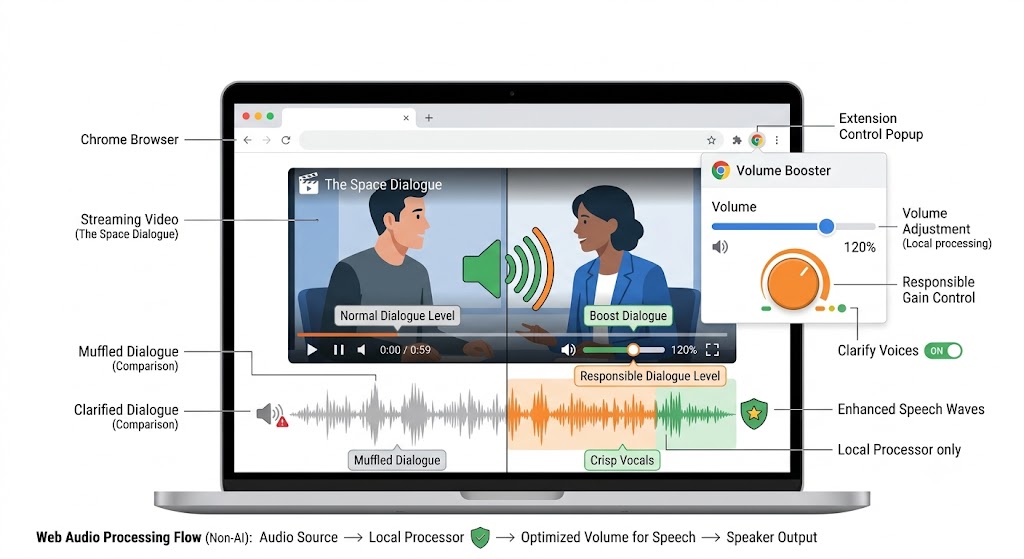
This distinction is critical. The extension does not "enhance dialogue" through audio manipulation — it gives you the volume headroom you need to hear dialogue that the browser's 100% cap was hiding from you. For most viewers watching on laptops, tablets, or modest desktop speakers, that extra amplification is the single most effective change available.
Read about audio gain to understand the technical principle behind this volume increase.
How Does Volume Booster Increase Volume for Dialogue-Heavy Content?
When you open a streaming site in Chrome — Netflix, YouTube, Hulu, Disney+, or any platform using HTML5 video — the browser plays audio through its standard media pipeline. That pipeline enforces a hard volume ceiling: 100%. You can drag the video player's volume slider to maximum and still find dialogue too quiet.
Volume Booster extends that ceiling. Here's the step-by-step process:
- Media detection: When you click the Volume Booster icon in your Chrome toolbar, the extension's popup immediately detects any HTML5 audio or video elements playing in the currently active tab. No scanning of other tabs, no background monitoring of inactive pages.
- Per-tab gain application: The extension applies audio gain specifically to the detected media in that tab. Gain is a straightforward multiplication of the audio signal — if you set the slider to 150%, every sample in the audio stream is amplified by a factor of 1.5.
- Real-time slider control: You adjust the volume using a large, responsive slider in the popup. Values update instantly. There's no delay, no processing lag, and no audio dropout. You hear the change as you drag.
- Local-only processing: All gain calculations happen inside Chrome's sandboxed extension environment. The extension runs entirely on your device. No audio data is sent anywhere. No media files are uploaded, analyzed, or stored.
- Percentage display: The popup shows your current volume as a clear percentage — 120%, 200%, 350% — so you always know exactly how much amplification is applied.
The reset button returns volume to 100% with a single click. This is useful when you finish watching a dialogue-heavy drama and switch to a music video that's already mixed loudly — you can instantly restore default levels without guessing.
For a deeper dive into how browsers handle media volume, see our explanation of HTML5 audio and video volume limits.
How Can You Safely Increase Volume Without Damaging Your Speakers or Hearing?
Amplifying audio beyond a system's designed output carries genuine risks — speaker distortion, hearing fatigue, and in extreme cases, physical damage to drivers. Volume Booster gives you the control to push volume higher, but safe usage depends on you applying that control responsibly.
Here are practical safety guidelines to follow every time you boost volume for dialogue:
- Start small and step up gradually: Begin at 120% or 130%, not 300%. Listen for a few minutes. If dialogue is still unclear, increase in small increments — 10% to 20% at a time. The right setting is the lowest one that makes speech comfortably audible, not the highest the extension allows.
- Listen for distortion before it becomes obvious: Speaker distortion often starts subtly — a slight buzz, a thinness in the midrange, a rattling on certain syllables. If you hear any of these, back the volume down immediately. Distortion means the speaker cone is physically struggling, and sustained distortion shortens speaker life.
- Match the boost to your hardware: Laptop speakers typically cannot handle amplification above 150%–200% without audible degradation. Quality external speakers or wired headphones can often go higher cleanly. Bluetooth headphones vary widely — test carefully.
- Take breaks during long viewing sessions: Sustained high-volume listening, even at clean levels, causes ear fatigue. Your perception of "quiet dialogue" may actually be temporary threshold shift — your ears need a rest, not more volume. Pause every hour, step away for a few minutes, then reassess.
- Use the reset button between different content types: A volume level that works for a quiet drama will be painfully loud for an action movie. Reset to 100% when switching programs, then adjust again for the new content.
Volume Booster does not include automatic limiters or safety cutoffs — it trusts you to control the output. This is a deliberate design choice: automatic limiters add processing overhead and can interfere with the clean gain structure. The responsibility for safe levels rests with the user, and the extension provides clear, immediate feedback through the percentage display and real-time slider response.
Review our safe listening guidelines for a comprehensive overview of hearing protection during extended media sessions. Also see how to safely increase volume without speaker damage for hardware-specific advice.
Why Doesn't the Browser's Built-In Volume Slider Solve the Problem?
Every video player inside Chrome — whether on YouTube, Netflix, or a news site — includes its own volume control. You can also adjust your operating system's master volume. With all these controls available, it seems like you should be able to reach any volume level you need. Yet dialogue remains too quiet even with everything set to maximum.
The limitation is architectural. Browser-based media players map their volume slider to a range of 0% to 100% of the media element's output. That 100% represents unity gain — the audio signal passes through unchanged. The browser does not provide a built-in mechanism to exceed unity gain. Your operating system's volume control can also reach only its own maximum, which on many laptops is insufficient for quiet dialogue in a noisy room.
Volume Booster sits between the media element's output and your speakers, applying additional gain after the browser's internal volume stage. This is conceptually similar to adding a preamp between a turntable and a receiver — the original volume control still works, but you now have additional amplification headroom beyond it.
This is also why Volume Booster works per tab rather than system-wide. The extension intercepts the audio path for a specific browser tab, leaving other tabs and applications unaffected. You can boost the volume of a quiet documentary in one tab while a video call in another tab remains at normal levels.
For more context on browser audio architecture, read about browser audio amplification and how extensions interact with Chrome's media pipeline.
When Should You Use Volume Booster Versus Other Solutions?
Volume Booster solves one specific problem extremely well: browser-based media is too quiet at maximum system and player volume. When your situation matches that description, the extension is the most direct fix available. But other scenarios call for different approaches.
Use Volume Booster when:
- You are watching a movie or show inside Chrome and dialogue is inaudible even with the player and system volume at 100%.
- You are using built-in laptop speakers or modest external speakers that simply cannot project enough sound at default levels.
- You are in a noisy environment — a kitchen, a shared office, a living room with background conversation — and need to push volume higher to overcome ambient noise.
- You are watching content with extremely wide dynamic range where dialogue sits far below action sequences, and you want to hear speech without constantly riding the volume control.
Consider other solutions when:
- The audio itself is distorted, clipped, or poorly encoded. Volume Booster amplifies what exists — it cannot repair damaged audio. If the source is bad, no amount of gain will fix it.
- You need dialogue-specific enhancement like voice frequency boosting or dynamic range compression. These require dedicated audio processing tools, not a volume amplifier. The extension deliberately avoids these features to stay lightweight and privacy-respecting.
- You are listening on high-quality hardware that can already reach comfortable levels. If your headphones or speakers are powerful enough at 100%, adding gain introduces unnecessary risk of distortion.
- You are watching content outside Chrome. Volume Booster works exclusively within the Chrome browser on HTML5 media. Desktop applications, mobile apps, and non-Chrome browsers are outside its scope.
Understanding this boundary is key. Volume Booster is a precision tool, not a universal audio suite. It excels at what it does because it does one thing — volume amplification — with minimal overhead, maximum privacy, and immediate responsiveness.
How Real Viewers Enhance Dialogue in Movies and Shows With Volume Booster
Here's how adjusting volume beyond the browser's default cap makes dialogue audible in everyday viewing situations.
Example 1: The Apartment Dweller Watching a Drama Late at Night
- Situation: Streaming a dialogue-heavy drama on a laptop at 11 PM. The building is quiet, but the laptop's built-in speakers at 100% still render whispered conversations as unintelligible. External speakers would disturb neighbors; headphones are uncomfortable for a two-hour film.
- Action: Opens Volume Booster from the Chrome toolbar. The popup detects the streaming tab immediately. Drags the slider to 180% — loud enough that dialogue becomes clear, but not so loud that the occasional raised voice or door slam becomes startling. The percentage display confirms the exact level.
- Result: Dialogue is comfortably audible. The viewer no longer leans forward to catch quiet lines. When the film ends, a single click on the reset button returns volume to 100% before closing the tab. No settings to undo, no system preferences to restore.
Example 2: The Language Learner Studying Foreign Films Without Subtitles
- Situation: Watching a French film on a streaming platform, intentionally avoiding English subtitles to practice listening comprehension. Rapid conversational speech, regional accents, and overlapping dialogue make individual words hard to distinguish at normal volume on basic USB desktop speakers.
- Action: Sets Volume Booster to 220% for the film. The higher gain pushes subtle consonant sounds — crucial for distinguishing similar French words — above the noise floor of the modest speakers. When switching to a language-learning podcast afterward, resets to 100% and adjusts separately for that content type.
- Result: Speech becomes distinguishable without changing the audio character. The learner catches verb endings and liaison patterns that were previously swallowed by insufficient volume. The per-tab approach means the boosted film tab doesn't affect other study materials open in separate tabs.
Example 3: The Family Watching a Movie Together in a Living Room
- Situation: A family of four watching a streaming movie on a desktop computer connected to modest external speakers. Children talking intermittently, kitchen noises in the background, and the air conditioner running create a noisy listening environment. The movie's dialogue scenes are inaudible over the ambient sound, but action scenes are already loud enough.
- Action: A family member opens Volume Booster and sets the slider to 260%. The external speakers handle the amplification without distortion because they have more headroom than built-in laptop drivers. During a quiet dialogue scene, everyone can hear clearly. When an action sequence begins, the viewer manually lowers the slider to 160% to avoid excessive loudness, then raises it again when dialogue resumes.
- Result: The family watches the entire film without a single "what did she say?" moment. The manual adjustment during loud scenes takes seconds through the popup interface. After the movie, reset returns everything to default. No permanent settings changed, no system audio configuration altered.
How Does Per-Tab Volume Control Help With Dialogue Across Multiple Sites?
Not every website mixes audio the same way. A documentary on YouTube might have clear, forward dialogue while an independent film on a festival platform buries speech in ambient sound design. A news interview on one site might be perfectly audible at 100% while a panel discussion on another site sounds muffled.
Volume Booster's per-tab architecture means each tab gets its own independent volume setting. Here's how that plays out in practice:
- You open a film on a streaming site and boost it to 180% for clear dialogue.
- In another tab, you have a video call running at standard 100% — the boost on the film tab does not affect the call.
- You open a third tab with a music video that's already mixed hot. That tab stays at 100% or even gets reduced if needed.
- Closing any tab clears its specific boost. Reopening the same site later starts fresh at 100%.
This tab-level isolation is especially valuable for people who keep multiple media tabs open simultaneously — researchers comparing video sources, language learners switching between native and target language content, or anyone who multitasks with background video while working in other tabs.
Read more about improving speech clarity while watching videos for additional techniques that complement volume boosting.
What Are the Privacy and Performance Implications of Using Volume Booster?
Volume Booster is built on five core principles: simplicity, privacy, performance, browser compatibility, and local processing. These are not marketing claims — they are engineering constraints that shaped every decision during development.
Here's what the privacy commitment means in concrete terms:
- No audio uploads: Your media never leaves your device. The extension does not capture, record, stream, or transmit any audio data. It applies gain to the live playback stream entirely within Chrome's runtime.
- No user accounts: There is no login system, no registration, and no profile. The extension works immediately after installation with zero setup.
- No analytics or telemetry: The extension does not collect usage statistics, crash reports, or behavioral data. There is no analytics SDK, no tracking pixel, and no external server that receives data about how you use the tool.
- No external requests: Once installed, the extension makes zero network requests to any server. All code runs locally. There is no cloud synchronization, no remote configuration fetching, and no "phone home" behavior.
- Manifest V3 compliance: The extension adheres to Chrome's latest extension architecture, which enforces stricter privacy and security boundaries than previous versions.
Performance is similarly lightweight. The extension uses minimal CPU because gain application is a trivial mathematical operation — multiplying each audio sample by a constant factor. Memory usage stays low because the extension does not buffer audio, maintain large state objects, or run background processes when no media is playing.
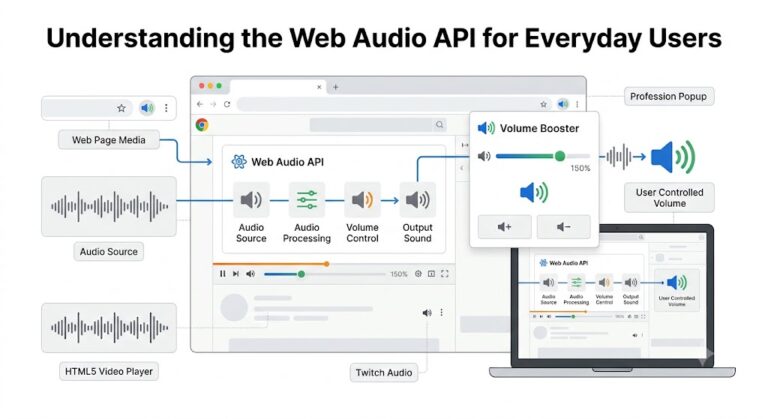
For users who want to understand the underlying technology, we have detailed explanations of the Web Audio API and gain nodes explained for those interested in the technical implementation.
Frequently Asked Questions
Does Volume Booster specifically enhance dialogue, or does it just make everything louder?
Volume Booster increases overall volume — it amplifies the entire audio signal, not just speech frequencies. This is an important distinction. However, in practice, raising overall volume is often the most effective way to make quiet dialogue audible, because the dialogue was already present in the mix but sitting below comfortable hearing levels. The extension does not include equalization, voice isolation, or dynamic range compression. It gives you more volume headroom, and for most users with modest hardware, that solves the core problem.
Can I use Volume Booster on any streaming site?
Volume Booster works on any website that uses HTML5 audio or video elements. This includes virtually all major streaming platforms — Netflix, YouTube, Hulu, Disney+, HBO Max, Amazon Prime Video, and countless others. It also works on embedded video players, podcast web players, and audio streaming sites. If the site plays media through an HTML5 element, the extension can amplify it. Sites using legacy Flash players or custom non-standard audio delivery may not be compatible.
Will boosting volume above 100% damage my laptop speakers?
It can, if pushed too far. Laptop speakers are physically small drivers with limited excursion capability. Pushing them beyond their design limits causes distortion and, over time, can cause permanent damage. The key is moderation — 120% to 180% is generally safe for most laptops, while 300% or higher almost guarantees distortion and potential damage. Listen for any buzzing, rattling, or thinning of the sound, and back off immediately if you hear these warning signs. External speakers and quality headphones typically handle amplification better than built-in laptop drivers.
Does the extension work when I'm watching downloaded videos or local files in Chrome?
Yes, as long as the local file is opened in Chrome and played through an HTML5 media element. You can drag a video file into a Chrome tab, and if Chrome renders it using its native player, Volume Booster can detect and amplify it. The same applies to audio files played directly in the browser.
Why does my volume reset when I close a tab and reopen the same site?
Volume Booster applies gain on a per-tab, per-session basis. When you close a tab, that session ends, and the boost setting is cleared. Reopening the site starts a new session at 100%. This is by design — it prevents old boost settings from accumulating and surprising you later. There is no persistent storage of per-site volume preferences, which also aligns with the extension's privacy-first, no-data-retention philosophy.
Is Volume Booster accessible for users with hearing impairments?
Volume Booster can help users with mild to moderate hearing difficulties by providing additional volume beyond what the browser normally allows. However, it is not a substitute for dedicated assistive listening devices or hearing aids. It amplifies all audio equally — it does not apply frequency-specific corrections that might benefit certain types of hearing loss. Users with significant hearing impairment should consult an audiologist for appropriate solutions. For those who simply need more volume to hear dialogue clearly, the extension provides a simple, immediate tool.
Dialogue Clarity Starts With Having Enough Volume Headroom
You cannot change how movies and shows are mixed. You cannot force streaming platforms to prioritize speech clarity over dramatic dynamic range. But you can give yourself the volume headroom to hear what's already there — quiet dialogue buried beneath the browser's default 100% ceiling.
Key takeaways from this guide:
- Dialogue in modern productions is genuinely quieter relative to sound effects due to wide dynamic range mixing — this is not your imagination or faulty equipment.
- Google Chrome enforces a hard 100% volume limit on all HTML5 media. Volume Booster extends that limit with per-tab gain control, giving you the amplification needed to hear quiet speech.
- The extension does not isolate or enhance dialogue through EQ or compression — it increases overall volume, which for most viewers on modest hardware is the most direct and effective fix.
- Safe usage depends on gradual adjustment, awareness of your hardware's limits, and regular listening breaks. Start at 120%–130% and increase only as needed.
- Every audio processing operation runs entirely inside your browser. No data is collected, stored, or transmitted. The extension is a self-contained tool with zero external dependencies.
Volume Booster was built for exactly this scenario: you are watching something you care about, the dialogue is too quiet, and you need a simple, fast, private way to fix it without configuring complex audio software or buying new hardware. Click the extension icon, drag the slider, and hear what you've been missing.
Next, explore how Volume Booster handles volume boosting compared to other extensions, or learn about increasing Twitch stream volume in Chrome for live content where dialogue clarity is equally critical. If you use Spotify's web player, see how to boost Spotify Web Player volume for music and spoken-word content alike.