Fix Low Volume on Netflix in Chrome
You’ve cranked up your laptop speakers, slid the Chrome volume to 100%, and still Netflix dialogue sounds like a whisper. Fix low volume on Netflix in Chrome with the Volume Booster extension — a privacy‑first tool that lets you push Netflix audio well past the browser’s default ceiling, all without accounts, cloud servers, or any data leaving your device. I built Volume Booster to solve exactly this problem while keeping your listening habits completely private.
- Why Netflix volume feels half as loud even at max Chrome settings
- How to safely raise Netflix audio above the normal limit without distortion
- What happens inside the extension when you drag the volume slider on the Netflix tab
- How per‑tab control keeps your other sites unaffected and your privacy intact
Why Does Netflix Sound Too Quiet in Chrome Even at Full Volume?
You’ve probably experienced it: your system volume is at 80%, Chrome’s tab volume is maxed, and yet Netflix still sounds muted. This isn’t a bug — it’s a combination of how Chrome handles HTML5 audio and how Netflix encodes its streams.
Netflix uses dynamic range compression and loudness normalization to keep audio consistent across different titles. In practice, that often means the overall loudness is pulled down to a standard level, which can feel quiet on built‑in laptop speakers or low‑sensitivity headphones. Chrome then processes that audio through its own volume pipeline, which has a hard 100% cap for every tab.
What you’re really facing is a volume ceiling. No matter how far you push Chrome’s slider, the browser won’t amplify the signal beyond the raw playback level. If you’ve already checked why browser audio sounds too quiet, you know that the solution isn’t another system tweak — it’s a way to break through that cap safely.
Learn more about the fundamentals of audio playback in Chrome on the Volume Booster blog.
How Can You Fix Low Volume on Netflix in Chrome Safely and Privately?
The most straightforward way to fix low volume on Netflix in Chrome is to use an extension that increases browser volume beyond the default limit — but only if it respects your privacy. That’s exactly why I designed Volume Booster to run entirely on your device.
Here’s the process in three steps:
- Install the Volume Booster extension from the Chrome Web Store. No sign‑up, no permissions that access your browsing history.
- Open Netflix, play any show or movie. The extension automatically detects active HTML5 media on the current tab. Everything happens inside Chrome’s sandbox — no audio is ever sent anywhere.
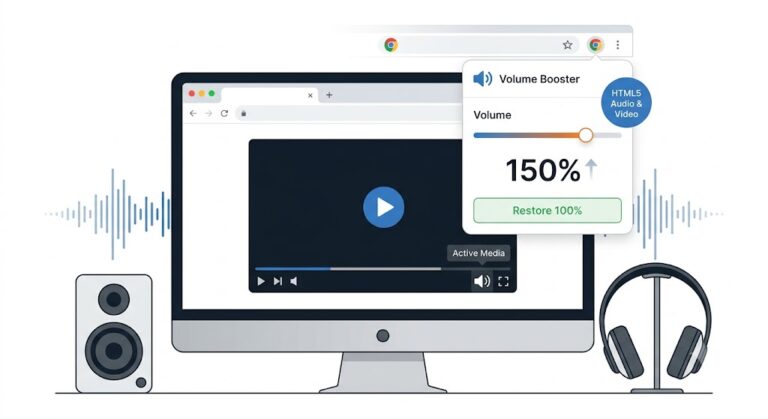
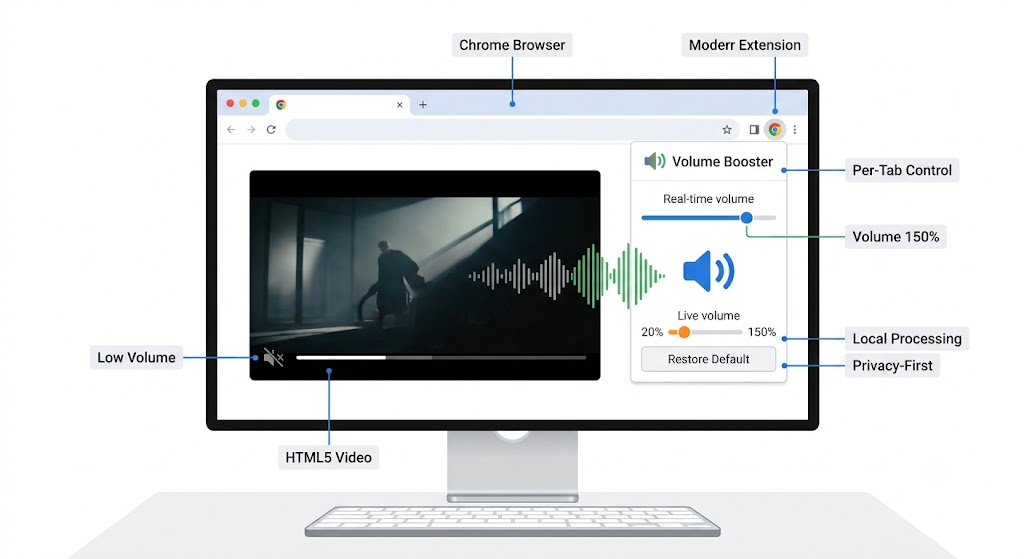
- Click the Volume Booster icon and drag the slider above 100%. The volume increase is instant, smooth, and only applies to the Netflix tab. Your other tabs stay exactly as they were.
Because all processing is local, you’re not uploading a single second of audio. No accounts, no telemetry, no analytics. It’s the Volume Booster promise — clean, simple, private.
How Does Volume Booster Increase Netflix Volume Beyond Chrome’s Default Maximum?
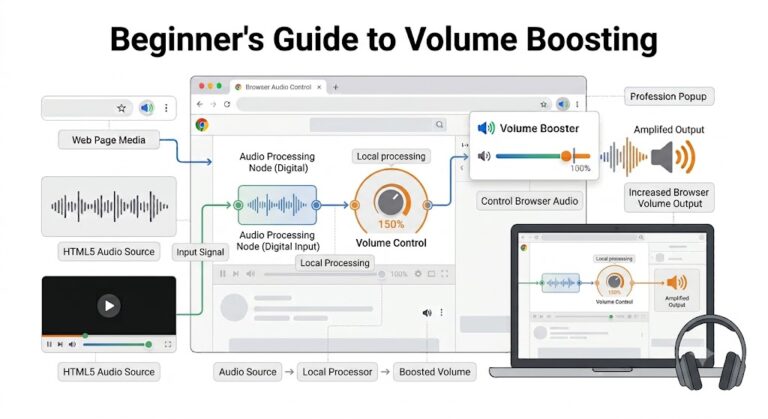
When you push the slider past 100%, the extension intervenes directly on the HTML5 audio pipeline of the active tab. It uses Chrome’s Web Audio API to insert a gain node that multiplies the original signal — entirely within the page’s own audio context. No external libraries, no remote processing.
Here’s what happens behind the popup:
- The content script detects every
<audio>and<video>element on the Netflix tab. It finds the active media stream and hooks into its playback without interrupting the video. - The extension’s service worker (Manifest V3 compliant) relays your slider position to the content script. A gain node raises the amplitude of the audio data in real time. Every movement of the slider instantly adjusts that gain — you hear the change immediately, no lag.
- The processed audio is output through the same system speakers or headphones you’re already using. At no point is the audio recorded, copied, or stored. It stays in the browser’s memory and is discarded as soon as you close the tab.
Because Volume Booster works on the actual audio stream, you get a true increase in loudness, not just a simulated EQ trick. The slider also displays the exact percentage, so you can fine‑tune the level without guessing.
If you ever need to reset, the popup’s Reset button returns Netflix audio to its original 100% instantly. This is especially useful when you switch from a quiet drama to a loud action trailer and want to start fresh.
How to Use the Volume Booster Extension While Watching Netflix
Using Volume Booster during a Netflix session is designed to be as seamless as reaching for a physical volume knob. Here’s a typical workflow:
- Start your show. Once Netflix is playing, click the extension icon in the toolbar. The popup shows a large slider and the current volume percentage for that tab.
- Adjust on the fly. If dialogue is still hard to hear, nudge the slider up gradually — maybe to 150% or 200%. You’ll hear the difference without any distortion as long as you stay within reasonable limits for your hardware.
- Keep it tab‑specific. While Netflix is boosted, your YouTube music tab or a Zoom call in another tab remains unchanged. Only the active tab’s audio is amplified when you open the popup.
- Use the Reset button. If you’ve boosted too high and notice a bit of clipping, one click on Reset returns to 100%. Then you can re‑adjust more carefully.
The extension also remembers your last setting per tab until you close that tab or reset it, so you don’t have to re‑configure every time you unpause Netflix. If you regularly watch Netflix and boost YouTube volume above maximum too, you’ll appreciate how Volume Booster handles each site independently.
How Real Viewers Fix Low Volume on Netflix in Chrome Using Volume Booster
Here’s how the extension helps in situations many of us encounter daily.
Example 1: Late‑Night Binge with Laptop Speakers
- Situation: You’re watching a Netflix original with headphones unplugged, using built‑in laptop speakers. Even at max system and Chrome volume, the audio is barely audible.
- Action: Click the Volume Booster icon on the Netflix tab and raise the slider to 180%. Because the boost happens inside Chrome’s audio engine, the laptop speakers get a cleaner amplified signal — no system‑wide overdrive that would distort everything else.
- Result: Dialogue becomes crisp without tinniness. You can keep the system volume at a moderate level and still hear every word. The boost applies only to Netflix; a notification sound from another app won’t blow your ears off.
Example 2: Quiet Documentary on Bluetooth Headphones
- Situation: You’re listening to a documentary with a notoriously low mix via Bluetooth earbuds. You’ve already maxed out the headphone volume, and Chrome is at 100%.
- Action: Open the Volume Booster popup, see the active tab is Netflix, and push the slider to 220%. The gain node handles the audio before it leaves Chrome, so the Bluetooth transmission gets a stronger signal without requiring extra battery‑draining amplification from the earbuds.
- Result: The documentary voiceover reaches a comfortable level. Because Volume Booster’s processing is lightweight, there’s zero audio latency — lip sync stays perfect.
Example 3: Group Watch on a Conference Room Screen
- Situation: You’re projecting Netflix from a work laptop to a large screen in a bright room. The built‑in audio output through the projector is muffled and quiet.
- Action: Boost the Netflix tab to 200% via Volume Booster. The amplified audio goes through the HDMI audio channel, making the dialogue much louder for everyone in the room. No extra hardware or software needed.
- Result: The whole team can follow the content without straining. After the meeting, one click on Reset returns the laptop’s audio to normal, so your next video call isn’t unexpectedly loud.
Each of these examples follows the same principle: boost only what you need, when you need it, with no lingering side effects.
Frequently Asked Questions
Will increasing the volume damage my speakers or headphones?
Volume Booster raises the audio signal digitally within Chrome. It cannot physically overpower your hardware’s safe operating range, but pushing the slider extremely high (above 300%) can introduce digital clipping, which may sound harsh. Increase gradually and find the loudest clear level — your ears will tell you when you’ve gone too far.
Does Volume Booster work on all Netflix content, including 5.1 surround audio?
Yes. Netflix in Chrome outputs a stereo downmix of its surround tracks through the HTML5 video element, and Volume Booster intercepts that stereo stream. So whether the original mix is 5.1 or stereo, the boost is applied to what you actually hear.
Will using Volume Booster affect other tabs like YouTube or Spotify?
No. Volume Booster processes only the tab you’re actively adjusting from the popup. When you boost Netflix, YouTube in another tab stays at its own volume. The extension can control each tab independently — simply switch to a different tab and move the slider if you want a different boost level there.
What happens if I close the Netflix tab and reopen it later? Do I have to re‑set the volume?
The boost setting is temporary and tied to the tab’s lifetime. Closing the tab discards the boost; reopening Netflix gives you a fresh 100% starting point. If you want the same level again, just move the slider once more — it takes a second.
Does Volume Booster record or analyze what I’m watching on Netflix?
Absolutely not. The extension never accesses, uploads, or records any audio or video content. All audio processing happens inside your browser’s sandbox. There are no servers, no analytics scripts, and no account systems. Your Netflix choices remain private.
Can I use Volume Booster with other browsers like Edge or Firefox?
Volume Booster is built as a Chrome extension using Manifest V3 and the Web Audio API. It may work in Chromium‑based browsers like Edge or Brave that support these APIs, but I test and optimize it specifically for Google Chrome. For the best Netflix experience, stick with Chrome.
Fix Low Volume on Netflix in Chrome Without Sacrificing Your Privacy
When Netflix audio feels weak, the fix isn’t in your system settings or a different pair of headphones — it’s in giving Chrome the ability to amplify the audio stream itself. The Volume Booster extension does exactly that, and it does so with a dead‑simple interface, zero data collection, and instant, per‑tab control.
Key takeaways:
- Chrome’s volume cap is a hard limit — you need a local audio booster to break through it safely.
- Volume Booster works on the actual HTML5 audio pipeline, not through system‑wide hacks that degrade quality.
- All processing happens on your device; no audio, browsing history, or personal data ever leaves your browser.
- The slider and Reset button give you full control, making it easy to adapt to any Netflix title, from whispers to explosions.
Whether you’re using laptop speakers, Bluetooth headphones, or a home theater setup routed through Chrome, the extension stays out of your way until you need it. If you haven’t yet, take a moment to explore how the Volume Booster for Chrome can turn frustratingly quiet streams into clear, comfortable listening — no account required, no strings attached.
Ready to enjoy Netflix without constantly reaching for the volume keys? Install Volume Booster, open your favorite show, and pull that slider up. You’ll hear the difference immediately.