How to Fix Quiet Audio During Video Conferences
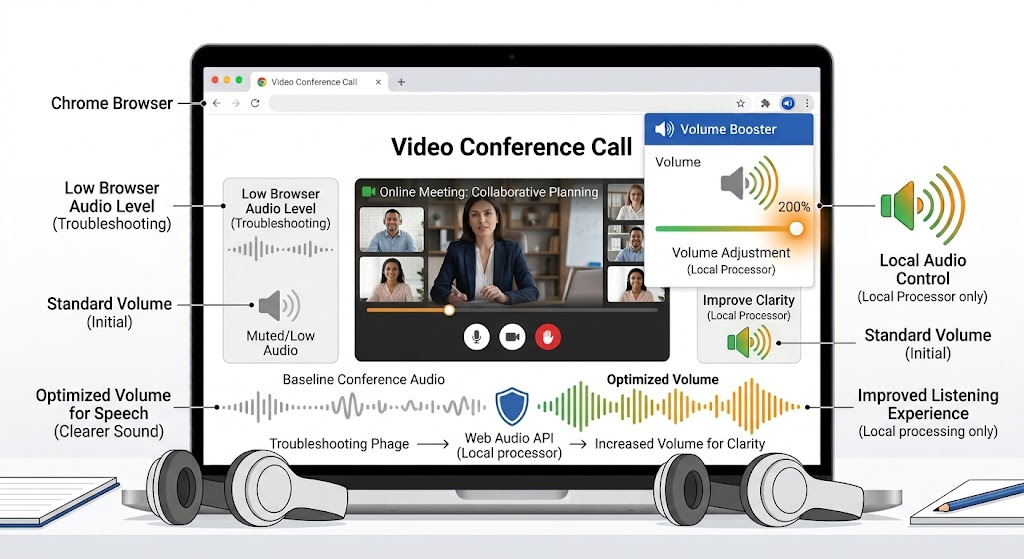
You join a meeting, and the presenter sounds like they're whispering from another room. Your system volume is already at 100%, yet voices remain frustratingly faint. Learning how to fix quiet audio during video conferences means understanding where browser volume limits come from — and how to safely push past them without installing bloated software, creating accounts, or sacrificing privacy. Volume Booster gives you that extra gain directly inside Chrome, processing everything locally on your device.
- Why browser-based calls often sound quieter than native apps
- How the Volume Booster extension raises audio above Chrome's default ceiling
- What per-tab volume control means for meetings, webinars, and remote work
- When to boost, when to reset, and how to protect your hearing along the way
Why Does Audio Sound Too Quiet During Browser Video Conferences?
Browser-based conference tools like Google Meet, Zoom Web, and Microsoft Teams all rely on HTML5 audio to deliver sound through Chrome. Each platform has its own audio processing chain, and the final output is constrained by Chrome's internal volume ceiling — which is often lower than what your operating system or hardware can actually handle.
Several factors combine to make conference audio feel muffled or distant:
- Platform compression: Conference services compress audio streams to save bandwidth, which can flatten voices and reduce perceived loudness, especially when multiple participants speak at different levels.
- Microphone variability: Presenters use everything from studio mics to built-in laptop microphones. A quiet talker with a low-gain mic produces a signal that arrives at your browser already too soft.
- Browser gain staging: Chrome applies its own volume normalization to HTML5 media. Even with your system volume maxed out, the browser may still cap the audio below comfortable listening levels.
- Bluetooth headphone quirks: Some Bluetooth headsets report lower maximum volume to the browser, creating an additional ceiling that wired headphones or desktop speakers don't impose.
The core problem isn't your hardware — it's the multiple layers of attenuation between the speaker's voice and your ears. Fixing quiet audio during video conferences requires a tool that operates at the browser level, after the platform delivers its stream but before Chrome sends audio to your speakers.
How Can You Fix Quiet Audio During Video Conferences Inside Chrome?
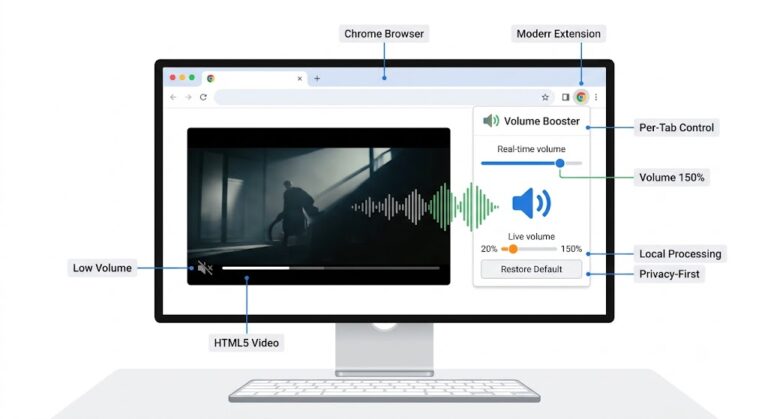
Volume Booster addresses the problem exactly where it happens: inside the browser tab running your conference. The extension detects HTML5 audio streams — the same technology powering Google Meet, Zoom Web, Microsoft Teams, Webex, and most webinar platforms — and applies additional gain before the audio reaches your output device.
Here's what the extension actually does when you use it during a call:
- Active tab detection: Click the Volume Booster icon in your Chrome toolbar. The popup immediately identifies the current tab — your meeting tab — without any manual selection. Everything is automatic and instant.
- Media detection: The extension scans the tab for active HTML5 audio or video elements. When it finds the conference audio stream, it's ready to process it. No uploads, no analysis of the audio content — just a local detection of playback.
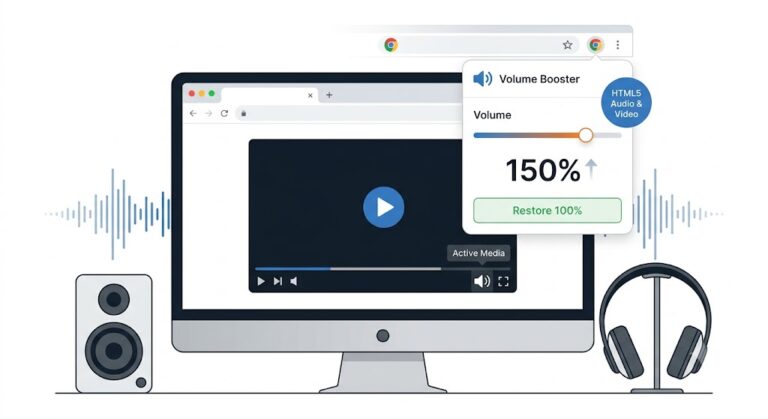
- Volume adjustment: Use the large slider inside the popup to increase the volume beyond 100%. The extension applies real-time gain to the detected media stream. Changes are immediate — you hear the difference as you drag.
- Percentage display: A clear percentage indicator shows exactly where you are, from the default 100% up to higher amplification levels. You're never guessing how much boost is applied.
- Reset whenever needed: A single click on the reset button returns the tab to Chrome's default volume. No lingering changes, no hidden state — the meeting audio goes back to normal instantly.
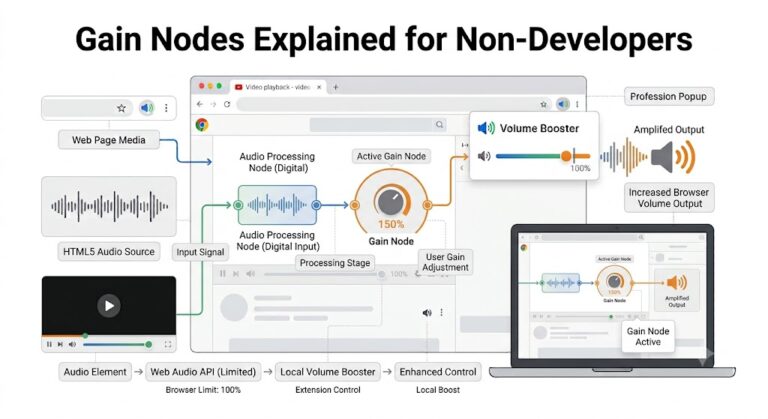
All of this runs entirely inside Chrome. The extension uses Manifest V3, Chrome's latest extension framework, and processes audio through content scripts that interact with HTML5 media elements on the page. No audio data leaves your browser. No external servers are contacted. No accounts are created. The entire operation is sandboxed, lightweight, and local.
If you're curious about the technical foundation behind this, read gain nodes explained for a deeper dive into how browser audio processing works under the hood.
What Are the Best Practices for Boosting Conference Volume Safely?
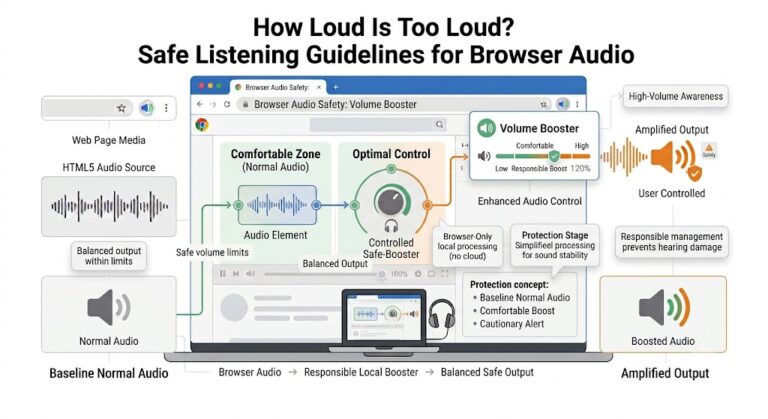
Having the ability to push volume higher comes with responsibility. Blasting audio at extreme levels can cause listening fatigue or, over time, hearing damage. The goal isn't maximum loudness — it's clarity and comfort, especially during long meetings.
Follow these practical guidelines whenever you boost conference audio:
- Start small, then adjust: Don't jump to 150% immediately. Move the slider in small increments — 110%, 120% — while the speaker is talking. Stop as soon as voices are comfortably clear. Often a modest boost is all you need.
- Use the reset button between meetings: After a quiet call ends, hit reset so your next meeting starts at default volume. This prevents accidentally blasting a louder session and protects your ears from sudden volume jumps.
- Pair with good audio hardware: Volume Booster amplifies the signal you already have. If your laptop speakers are tinny and weak, boosting them helps but won't create richness that isn't there. For the best experience, combine the extension with decent headphones or external speakers that can handle the amplified signal cleanly.
- Watch for distortion: If you hear crackling, buzzing, or harshness at higher boost levels, back off slightly. Distortion means the digital gain is pushing the audio beyond what your output device can reproduce cleanly. The sweet spot is just below that threshold.
- Respect per-tab isolation: Volume Booster applies gain only to the tab you're adjusting. Your music tab, podcast tab, or other media stay at their own levels. This isolation is intentional — you can boost the conference without affecting anything else in your browser.
For a broader look at staying safe while amplifying, see safe listening guidelines. The principles apply equally to conferences, movies, and music.
How Does Volume Booster Compare to Other Ways of Fixing Quiet Conference Audio?
Users searching for how to fix quiet audio during video conferences inevitably encounter several alternatives. Understanding what each approach actually does — and doesn't do — helps you choose the right tool for the job.
System Volume vs. Browser Volume
Raising your operating system volume helps, but it's a blunt instrument. It amplifies everything — notifications, other apps, system sounds — not just the conference. If your system volume is already at 100%, there's nowhere left to go. Volume Booster gives you an additional gain stage specifically for the browser tab, independent of system settings.
Conference Platform Volume Controls
Google Meet, Zoom, and Teams all have their own volume sliders, but they rarely exceed the default browser ceiling. These controls adjust the relative loudness within the platform's audio pipeline, not the absolute output level. They also reset between sessions and can't push beyond the browser's built-in cap. Volume Booster operates above that cap, offering headroom the platforms themselves cannot provide.
External Audio Boosters and Mixers
Dedicated hardware or system-level software can amplify audio, but they introduce complexity: installation, configuration, driver updates, and often a price tag. They also affect all system audio equally. Volume Booster is free, requires no installation beyond adding it to Chrome, and gives you precise control limited to the tabs you choose.
Browser Flags and Hidden Settings
Chrome has experimental flags like chrome://flags entries that can tweak audio behavior, but these are unstable, unsupported, and can break with any browser update. They're not designed for everyday use. Volume Booster is a stable, maintained extension built on Chrome's standard extension APIs — reliable, predictable, and safe across updates.
For a broader comparison of volume-boosting approaches in the browser, see volume boosting extensions and browser audio amplification.
How Real Workflows Benefit from Fixing Quiet Audio During Video Conferences
Here's how Volume Booster makes a tangible difference across different meeting scenarios — each drawn from everyday remote work life.
Example 1: The Remote Worker with a Soft-Spoken Manager
- Situation: Daily standup on Google Meet. The manager speaks quietly, and the company uses aggressive audio compression to conserve bandwidth. System volume is at 90%, but voices still sound distant and tiring over a 45-minute call.
- Action: The user opens Volume Booster on the meeting tab, watches the percentage display, and nudges the slider to 125%. Instantly, voices become clearer without distortion. The boost is modest — just enough to bring the manager's voice into a comfortable range.
- Result: Less listening fatigue, fewer "could you repeat that" interruptions, and a meeting that flows naturally. After the standup, the reset button returns the tab to 100% for the next session.
Example 2: The Student Attending a Recorded Lecture with Poor Audio
- Situation: A university streams lectures via a browser portal. The recording's audio was captured with low gain, and even at full system volume, the professor's voice is barely audible through laptop speakers.
- Action: The student opens Volume Booster, detects the lecture tab automatically, and increases volume to 140%. The boost compensates for the poor original recording, making every word intelligible without straining.
- Result: Note-taking becomes efficient again. The student can focus on the material rather than fighting the audio. When switching to a music tab during a break, the volume remains untouched — only the lecture tab is boosted.
Example 3: The Freelancer Juggling Client Calls Across Time Zones
- Situation: Back-to-back client calls on Microsoft Teams and Zoom Web. One client has a professional setup with clear audio; the next uses a built-in laptop mic and sounds barely audible. System volume adjustments between calls are cumbersome and easy to forget.
- Action: For the quiet client's call, the freelancer boosts the Teams tab to 130%. For the next call on Zoom, where audio is already strong, the default 100% is perfect. Volume Booster's per-tab isolation ensures each meeting has its own level, remembered independently during the session.
- Result: Seamless transitions between calls, zero fiddling with system settings, and a professional experience where the freelancer never misses a detail due to volume issues. The lightweight extension uses minimal CPU, so it never interferes with screen sharing or other browser tasks.
How Does Per-Tab Volume Control Help During Conferences with Multiple Audio Sources?
Modern remote work often involves more than one audio source. You might have a conference in one tab, a shared document with embedded video in another, and a reference recording open in a third. Without per-tab control, you're constantly adjusting system volume or muting and unmuting tabs individually.
Volume Booster's per-tab isolation means:
- Your conference tab can be boosted to 135% for clear voices.
- A reference video in another tab stays at 100% — loud enough to glance at but not overpowering.
- A background music tab for focus time can sit at 60%, providing ambiance without distracting.
Each tab's gain is independent. Clicking between them and opening the extension popup shows the current level for that specific tab. This is especially valuable during long collaborative sessions where you need to balance multiple streams of audio without constant manual adjustment.
The extension's popup interface is deliberately simple: a large slider, a percentage readout, and a reset button. There's no complexity to navigate mid-meeting, no menus to hunt through. The design follows the principle of simplicity — you open it, adjust, and close it, all within seconds, without disrupting the flow of your call.
What Role Does Privacy Play When Fixing Quiet Audio During Video Conferences?
Conference calls often contain sensitive information — client strategy, personal conversations, internal company discussions. Any tool that touches your audio must respect that confidentiality absolutely.
Volume Booster was built around a privacy-first, local-only philosophy that applies to every feature:
- No audio uploads: The extension never sends audio data anywhere. It processes gain locally within Chrome's sandboxed environment, using content scripts that interact directly with HTML5 media elements on the page.
- No recording: There is zero audio recording, buffering, or caching. The extension applies real-time gain and immediately passes the amplified signal to your output device. Nothing is stored, even temporarily.
- No accounts: You don't sign up, log in, or provide any information. The extension works immediately after installation with no personal data required.
- No analytics or telemetry: There is no tracking, no usage reporting, no crash analytics phoning home. The extension makes zero external network requests. You can verify this through Chrome's extension management panel — the network activity will be empty.
- No cloud synchronization: Volume settings live in Chrome's local storage, confined to your device. If you boost a tab, that preference stays local and is never synced to any server.
For remote workers, freelancers, and anyone under NDAs or privacy regulations, this local-only design is critical. You can fix quiet audio during video conferences without introducing a privacy risk. The extension doesn't even know what platform you're using — it only detects that HTML5 audio is playing and applies the gain you request.
Learn more about safe amplification practices in safely increase volume without speaker damage, which covers the intersection of privacy, safety, and effective volume control.
How Does Volume Booster Handle Different Conference Platforms?
Because Volume Booster works at the HTML5 media level, it's platform-agnostic. The extension doesn't need to know whether you're on Google Meet, Zoom Web, Microsoft Teams, Webex, Jitsi, or any other browser-based conferencing tool. If the platform delivers audio through standard HTML5 audio or video elements — which virtually all modern web conferencing tools do — the extension can detect and amplify it.
Here's what to expect across common platforms:
- Google Meet: Full compatibility. Audio streams through HTML5 video elements. The extension detects the meeting tab instantly and applies gain without any platform-specific configuration.
- Zoom Web Client: Works well. The browser-based Zoom client uses WebRTC and HTML5 media, both of which Volume Booster handles naturally. Note that the desktop Zoom app is outside the browser and cannot be affected — only the web client in Chrome is reachable.
- Microsoft Teams (Browser): Compatible. Teams in Chrome relies on HTML5 audio delivery. Boost functions identically to other platforms.
- Webex, Jitsi, Whereby: All use standard web audio APIs. Volume Booster works without any special setup.
The key limitation to understand: Volume Booster only affects audio playing inside Chrome tabs. It cannot boost system-level applications like the desktop Zoom app, Slack's standalone client, or system notification sounds. For browser-based conferencing, however, coverage is nearly universal.
If you also watch movies or shows in Chrome and encounter similar quiet-dialogue problems, movie dialogue sounds muffled offers additional guidance that overlaps with conference audio challenges.
Frequently Asked Questions About Fixing Quiet Audio During Video Conferences
Will boosting volume during a conference affect the audio quality?
Moderate boosts — up to around 150% — typically introduce no perceptible quality loss on most hardware. The extension applies digital gain, which increases amplitude without altering the frequency content. However, pushing too high can cause clipping or distortion, especially on smaller laptop speakers. The best approach: increase gradually until voices are clear, then stop. If you hear crackling, back off slightly. The sweet spot varies by device, but you'll find it quickly through the real-time slider.
Does Volume Booster work with Bluetooth headphones during calls?
Yes. Bluetooth headphones receive the amplified signal just like wired headphones or built-in speakers would. However, some Bluetooth devices have their own internal volume limits that sit below what Chrome can output. In those cases, Volume Booster helps by maximizing the signal before it reaches the headphone's input, giving you the fullest possible level the device can reproduce. Pairing the extension with speech clarity techniques can further enhance the listening experience.
Can I boost audio on only one tab while keeping others at normal volume?
Yes — this is one of Volume Booster's core features. Each tab's volume is independent. Boost your conference tab to 130% while a podcast in another tab stays at 100%, and a third tab with background music sits at 70%. The extension's popup always shows the level for the currently active tab. This per-tab isolation is ideal for multitasking during long calls or webinars where you need multiple audio sources balanced differently.
What happens to my volume settings when I close and reopen Chrome?
Volume Booster stores your per-tab gain preferences in Chrome's local storage. When you close a tab and reopen the same URL later, the extension can restore your previous volume level. However, because each tab is identified by its active media context, a completely new session on a conference platform may start at the default 100% — which is the safest behavior. You can reapply your preferred boost with a quick slider adjustment at the start of each call.
Does the extension require any special permissions to boost conference audio?
Volume Booster requires only the standard permissions needed to interact with HTML5 media on the pages you visit. It does not request access to your microphone, camera, screen sharing, browsing history, or any personal data. You can review all permissions in Chrome's extension management panel at chrome://extensions. The extension is Manifest V3 compliant, meaning it adheres to Chrome's latest security and privacy standards.
Is there any risk of damaging my speakers when boosting conference audio?
When used responsibly, no. The extension applies digital gain within Chrome, which increases signal amplitude. As long as you avoid extreme levels — and listen for signs of distortion — your hardware is safe. For detailed guidance, read safely increase volume without speaker damage. The reset button is always available to return to default levels instantly if anything sounds uncomfortable.
Clearer Conferences Start with Smarter Browser Audio Control
Quiet conference audio is frustrating — but it's also fixable without expensive hardware, complex software, or compromising your privacy. Learning how to fix quiet audio during video conferences comes down to understanding that Chrome's default volume ceiling is not the final word. Volume Booster gives you that extra headroom, applied locally and transparently, right where the audio plays.
Key takeaways:
- Browser-based conferencing tools share a common limitation — Chrome's built-in volume cap — which Volume Booster directly addresses by applying additional gain to HTML5 media streams.
- Per-tab control means you boost only the meeting tab, leaving music, podcasts, and other audio sources at their own independent levels.
- Privacy is uncompromised: no accounts, no uploads, no tracking, no external servers. Every audio processing operation stays inside Chrome on your device.
- The extension's simple interface — slider, percentage display, reset button — is designed for quick adjustments mid-call without disrupting your workflow.
- Start with small boosts, listen for clarity rather than raw loudness, and reset between meetings to maintain a safe, comfortable listening baseline.
Because Volume Booster runs entirely on your machine using Manifest V3 and Chrome's standard extension APIs, you can experiment freely. Boost a quiet call, reset it, try a different level — there's no risk, no data trail, and no impact on other tabs or applications.
If conference calls are just one part of your daily audio experience, explore how Volume Booster helps in other scenarios: enhance dialogue in movies and shows, boost podcast audio directly in browser, and improve audio quality during online classes. Each use case benefits from the same local-first, privacy-respecting amplification that makes conference calls clearer — and your workday a little easier.