Gain Nodes Explained for Non-Developers
Browser audio often feels too quiet, especially on laptops, Bluetooth headphones, or poorly mixed streams. Gain Nodes Explained in plain language shows you how Volume Booster uses a tiny, invisible amplifier — a gain node — to boost sound safely beyond the normal 100% limit, entirely inside your Chrome browser. No accounts, no uploads, just clean local audio processing.
- What a gain node actually does in under‑the‑hood audio terms
- Why browsers intentionally cap volume at 100% and how a gain node works around that
- How Volume Booster uses this technology without touching your privacy
- When a gain node gives you clean, distortion‑free audio and when to be careful
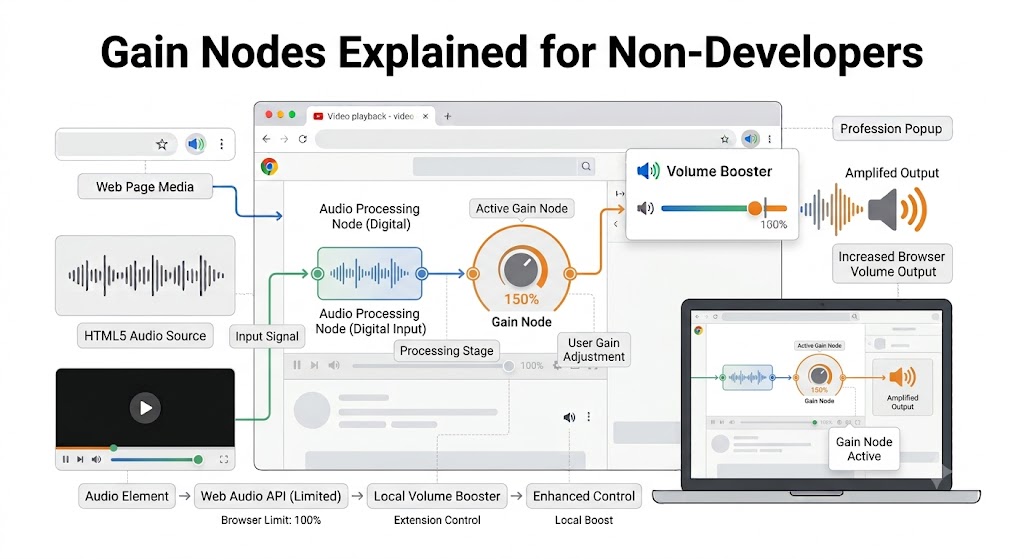
What Is a Gain Node?
A gain node is a simple audio processing block that multiplies the volume of a sound — like turning a digital volume knob. In the world of browser audio, it lives inside the Web Audio API, a built‑in toolkit Chrome uses to handle sound with high precision.
Think of audio as a stream of numbers (samples). A gain node takes every sample and multiplies it by a number you choose. If the gain is set to 1.0, the audio passes through unchanged — that’s your normal 100% volume. Set it to 2.0, and every sample doubles, making the sound twice as loud. Set it to 0.5, and it halves.
Because the gain node works on the raw digital signal before it reaches your speakers or headphones, the adjustment happens instantly and without degrading the original audio track. This is the same principle professional audio software uses, but here it runs right inside your Chrome tab, powered by nothing more than the browser’s own engine.
Read our deeper dive into audio gain to see how this simple multiplier solves so many quiet‑audio headaches.
Why Do Browsers Limit Volume to 100%?
When you watch a video or listen to music in Chrome, the sound comes from an HTML5 <audio> or <video> element. These elements have a built‑in volume property that goes from 0.0 (silent) to 1.0 (100%). That’s as loud as the browser will natively let you go.
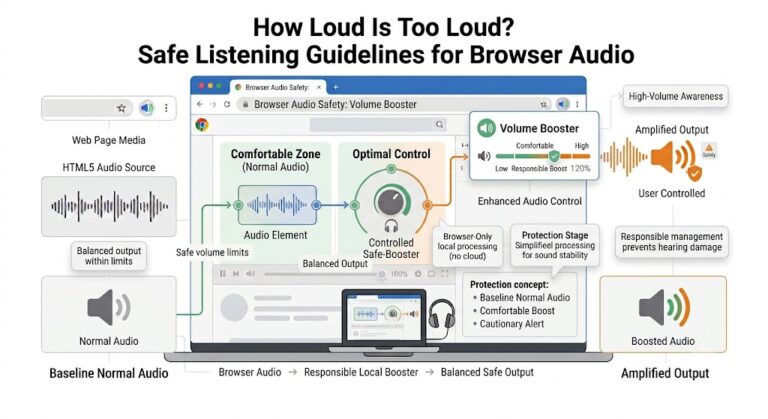
The reason is safety and consistency. If every website could push volume way beyond 100%, you’d risk sudden, painful loudness spikes — and browsers want to protect your ears and your hardware. The 100% ceiling is a universal guardrail.
But that guardrail becomes a problem when the source audio itself is recorded too quietly, or when you’re using small laptop speakers, older Bluetooth headphones, or struggling to hear a whispered dialogue in a movie. In those cases, even maxed‑out browser volume isn’t enough — and that’s exactly where a gain node steps in.
For more background on why this happens, check our explanation of how HTML5 audio and video volume limits work and what can go wrong.
How Does Volume Booster Use a Gain Node to Increase Browser Audio?
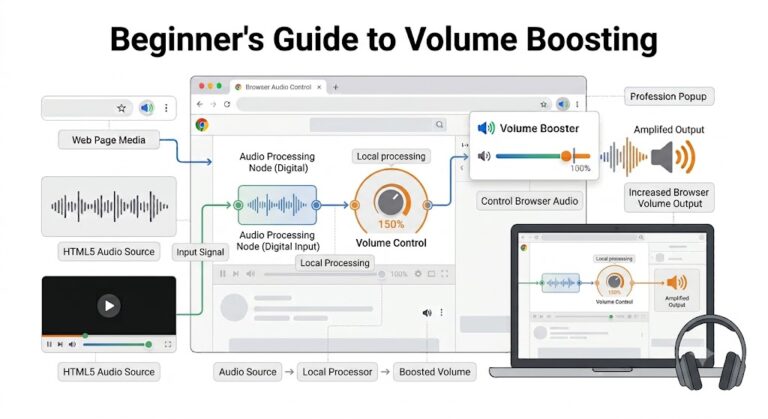
Volume Booster works by inserting a gain node between the webpage’s audio source and your speakers. It doesn’t change the original file, doesn’t re‑encode anything, and doesn’t send data anywhere. Here’s the step‑by‑step process that runs entirely on your device:
- Detection: When you open a tab with audio (YouTube, Netflix, Spotify Web Player, etc.), the extension’s content script identifies the active
<audio>or<video>element. Everything stays inside that tab — the extension never scans other windows or records anything. - Audio context creation: The extension creates a lightweight AudioContext (the Web Audio API’s workspace). This context operates independently, consuming minimal CPU and memory.
- Gain node insertion: Volume Booster connects a gain node right into the audio pipeline. The original media element’s output is routed through this node before reaching the system sound output.
- Real‑time gain control: The gain node’s value is tied directly to the extension’s volume slider. If you set the slider to 250%, the gain node multiplies the signal by 2.5. You hear the result instantly — no lag, no buffering.
All of this happens inside Chrome’s sandboxed environment, with zero external requests. Even the Web Audio API itself is a browser‑only mechanism — nothing leaks to the internet.
What Happens When You Move the Volume Booster Slider?
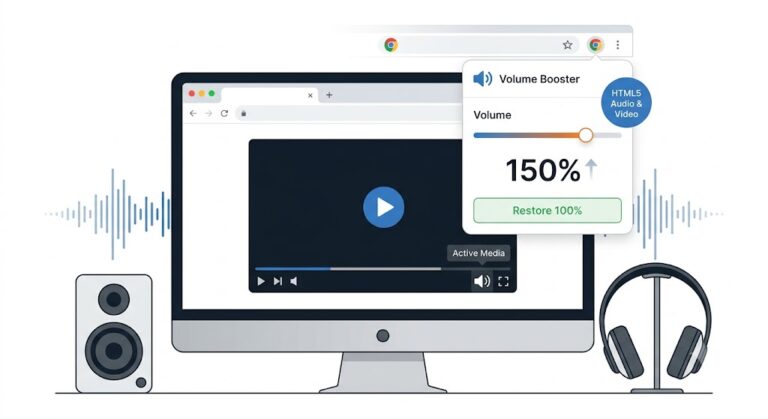
The slider inside the Volume Booster popup is your direct control over the gain node. Every time you drag it or click a percentage, the extension communicates the new value to the active tab’s audio pipeline. Here’s what takes place under the hood:
- Input: You move the slider from 100% to 220%. The popup updates the displayed percentage instantly.
- Processing: A message is sent via Chrome’s internal messaging (service worker ↔ content script). The content script updates the gain node’s
gain.valueto 2.2. Because the gain node is already in the audio graph, the change takes effect in microseconds. - Output: The audio becomes noticeably louder, but the gain node does not add any extra processing, EQ, or distortion — it’s a pure multiplication. The extension also monitors the signal to prevent digital clipping where possible, though very extreme boosts (above 400%–500%) can introduce clipping depending on the source material.
If you press the Reset button, the slider returns to 100% and the gain node value is set back to 1.0. The original volume is restored instantly, as if the extension never intervened.
The entire process is confined to the current tab. Other tabs remain at their own volume levels because Volume Booster maintains a per‑tab volume control, not a global override.
Is Boosting Volume with a Gain Node Safe for Speakers and Headphones?
Yes, when used reasonably. A gain node only amplifies the digital audio signal — it does not force your hardware to work harder. Your computer’s sound card, DAC, and speakers still receive the same type of signal they always do; the signal just has a higher amplitude.
However, two things are worth keeping in mind:
- Digital clipping: If the gain is pushed so high that the audio samples exceed the maximum digital value (1.0 or –1.0), the waveform gets squared off, causing harsh distortion. Volume Booster’s real‑time processing tries to keep you in a safe range, but on extremely quiet sources you may notice the audio breaking up past 400%–500%. This is a mathematical limit, not a bug.
- Listening comfort: Because gain nodes can make audio significantly louder, it’s easy to forget how high the actual output level is. Always start with small steps, especially on headphones, and never set a percentage you wouldn’t be comfortable hearing unexpectedly.
Modern Chrome extensions like Volume Booster are designed to respect your system audio safety — the extension never overrides your operating system’s volume mixer or bypasses hardware limits. It simply gives you extra headroom within the browser’s audio pipeline.
How Does Local Processing Keep Your Audio Private?
Every gain node operation inside Volume Booster happens directly on your device, using only the browser’s built‑in Web Audio API. There is no server, no cloud account, and no external script involved. The extension’s Manifest V3 architecture guarantees that no audio data leaves your tab.
Specifically:
- No audio recording: The extension never captures, stores, or streams your media. It merely adjusts the volume of what is already playing.
- No network requests: Apart from the initial installation and optional badge updates (if you enable them), the extension sends zero data to the internet. Your listening habits remain completely private.
- No user accounts: You don’t log in, you don’t sync settings. Everything is stored in Chrome’s local storage, tied to your browser profile.
That’s the core philosophy behind Volume Booster: privacy‑first audio control. If you’d like to understand the full picture, we’ve written about why browsers cap audio at 100% volume and how local gain avoids all privacy pitfalls.
How Real Listening Situations Benefit from a Gain Node
Here’s how the gain node inside Volume Booster changes everyday audio experiences — without you ever needing to know it’s there.
Example 1: Quiet Online Lecture on Laptop Speakers
- Situation: A university student is watching a recorded lecture where the professor’s microphone level is extremely low. Chrome’s volume slider at 100% is still barely audible through built‑in laptop speakers.
- Action: She clicks the Volume Booster icon, sees the current tab detected, and drags the slider to 280%. The extension instantly updates the gain node to 2.8. The professor’s voice becomes clear and present, without the static that would come from external speakers at max volume.
- Result: She can follow the lecture without straining, and when she switches to a music tab later, that tab’s volume stays at its normal level — only the lecture tab was boosted.
Example 2: Soft Dialogue in a Streaming Movie
- Situation: A family is watching a movie on a streaming platform, but the dialogue is mixed too low compared to the background score. The built‑in volume is already maxed, and turning up the TV’s master volume makes everything else too loud.
- Action: One of them opens Volume Booster, sees the streaming tab already selected, and increases the gain to 180%. The gain node lifts the overall volume, making speech intelligible without over‑amplifying the music — because the amplification applies evenly to the entire audio stream.
- Result: Dialogue becomes clear; no need to constantly ride the volume buttons. Because the processing happens locally, there’s zero impact on streaming quality or sync.
Example 3: Spotify Web Player Through Bluetooth Headphones
- Situation: A developer listens to Spotify’s web player while coding. The Bluetooth headphones have their own volume limit, and even with Chrome at 100%, the overall loudness is insufficient for a noisy co‑working space.
- Action: He sets Volume Booster to 200% for the Spotify tab. The gain node multiplies the web player’s output by 2.0, feeding a hotter signal to the Bluetooth headphones. The result is noticeably louder playback without any extra compression or signal processing that could degrade audio quality.
- Result: The music cuts through background noise, yet the extension’s reset button lets him return to 100% instantly when the room quiets down. Everything remains private — no listening data is ever collected.
Frequently Asked Questions About Gain Nodes
Do gain nodes introduce any audio delay?
No. Gain nodes operate with near‑zero latency — they multiply samples in real time as the audio passes through. You won’t notice any lag between changing the slider and hearing the result. This is a core advantage of the Web Audio API’s design.
Can a gain node make audio clearer, or just louder?
A pure gain node only amplifies volume; it does not apply equalization, compression, or noise reduction. However, making quiet content louder can subjectively improve clarity because your ears no longer have to strain. If you need tone adjustments, you’d need additional processing nodes — but Volume Booster deliberately focuses on clean, distortion‑free amplification.
What’s the difference between a gain node and the Chrome volume slider?
The Chrome volume slider controls the browser’s per‑tab volume, but it cannot exceed 100%. A gain node sits deeper in the audio pipeline and can multiply the signal beyond that ceiling. Essentially, the slider sets a baseline, and the gain node adds extra headroom on top of it.
Will using a gain node damage my browser or slow down my computer?
No. Gain nodes are computationally trivial — a single multiplication per sample. Volume Booster is designed to have a minimal CPU footprint, and its Manifest V3 service worker only runs when needed. You’ll see no perceivable performance impact, even on older machines.
Does Volume Booster use a gain node on every website?
The extension automatically detects HTML5 audio or video on most modern websites. If a site uses proprietary playback methods that bypass standard media elements, Volume Booster may not be able to inject a gain node. However, for all major streaming platforms (YouTube, Netflix, Prime Video, Spotify Web Player, etc.), the gain node is inserted seamlessly.
Can I adjust the gain for multiple tabs simultaneously?
Yes, but separately. Volume Booster provides per‑tab volume control. Open the popup while on a tab to set its individual gain. Switch to another tab, open the popup again, and adjust that tab independently. Each gain node operates in its own audio context, leaving other tabs untouched.
Gain Nodes: The Simple, Private Way to Reclaim Lost Volume
Gain Nodes Explained boils down to one idea: a digital multiplier that makes quiet audio comfortably loud, without ever leaving your browser. Volume Booster leverages this technology to give you fine‑grained, per‑tab volume control that respects your privacy and your system’s limits.
What you’ve learned:
- A gain node is a lightweight, instant volume amplifier built into Chrome’s Web Audio API.
- It bypasses the normal 100% browser volume cap without recording or uploading any audio.
- The Volume Booster slider directly sets the gain node value, giving you real‑time control with no distortion at moderate levels.
- Everything runs locally — no accounts, no cloud, no analytics.
- Gain nodes work on a per‑tab basis, so you can boost just the quiet tab while keeping others unchanged.
Next time a video whispers or a podcast barely registers, you’ll know exactly what’s happening behind the scenes: a simple gain node, doing its job silently and safely. To explore more about how Volume Booster handles specific platforms, check out our guides for fixing low volume on Netflix, improving Disney+ audio, or boosting Spotify Web Player volume. Because great sound should never be out of reach.