How HTML5 Audio and Video Volume Limits Work
You've cranked your speaker knob, maxed out the Chrome volume slider, and set the video player to 100% — yet the audio still feels thin, distant, or frustratingly quiet. HTML5 audio and video volume limits aren't a bug. They're the result of how browsers, media elements, and operating systems negotiate loudness boundaries. Once you understand these limits, you can safely push past them with local, privacy-first tools that never touch a remote server.
- Why the browser volume slider at 100% doesn't always mean maximum loudness
- How HTML5 media elements impose their own gain ceiling inside Chrome
- What happens when Volume Booster applies local gain processing to overcome quiet playback
- When to adjust volume per tab for streaming, meetings, podcasts, and movies
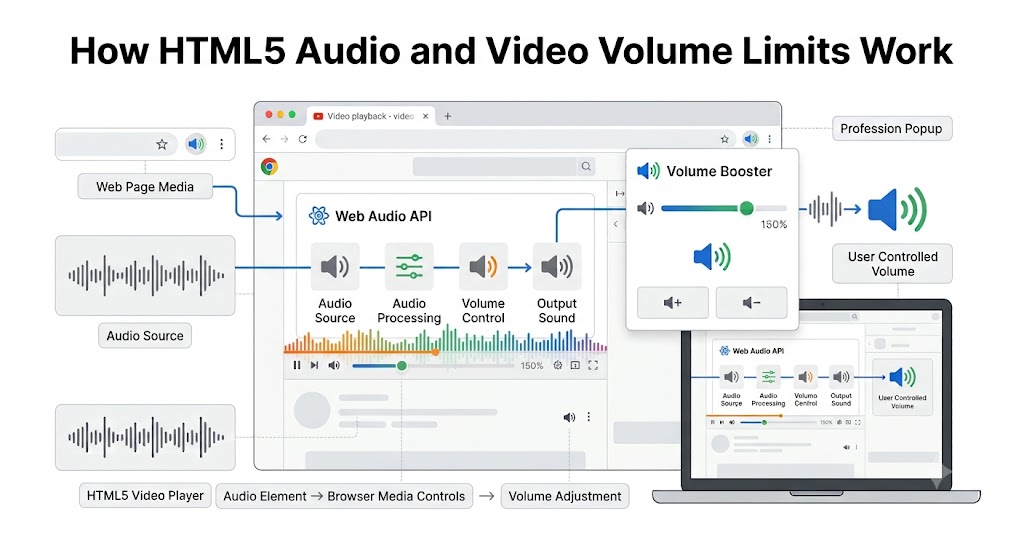
What Are HTML5 Audio and Video Volume Limits?
Every piece of audio you hear inside Chrome travels through a chain of volume controls. The final loudness you experience is the result of multiple stages multiplied together — and each stage has its own ceiling. HTML5 audio and video volume limits refer to the maximum gain allowed at the media element level before the signal even reaches your system mixer.
In practical terms, an HTML5 <audio> or <video> element has a .volume property that ranges from 0.0 (silent) to 1.0 (full). That 1.0 represents unity gain — the original amplitude encoded in the file. No browser lets you set .volume above 1.0 through its built-in slider. That hard cap is the HTML5 volume limit.
This limit exists for good reasons:
- Preventing clipping distortion: pushing digital amplitude beyond 0 dBFS in the signal chain can cause harsh, unpleasant clipping. Browsers enforce the 1.0 ceiling to keep playback within a safe digital headroom by default.
- Consistency across websites: every site using standard HTML5 media plays within the same gain boundaries, so users don't get sudden volume jumps between tabs.
- User safety: uncontrolled amplification could expose listeners to dangerously loud levels, especially with headphones. The limit acts as a guardrail.
But here's the catch: not all audio files are mastered to use the full dynamic range. A quiet podcast recorded at -18 dBFS will sound weak even at 100% volume. The HTML5 limit doesn't compensate for source material variation — it just caps the ceiling. That's where understanding the limit becomes the first step toward fixing quiet audio. Read more on the Web Audio API to see how modern browsers give developers fine-grained control beyond the basic HTML5 slider.
Why Does Browser Audio Sometimes Feel Too Quiet Even at 100%?
You're watching a documentary on a streaming site. The Chrome tab volume is full. Your laptop speakers are at maximum. Yet dialogue sounds muffled, and you're leaning forward to catch every word. The culprit isn't your hardware — it's the gap between encoded audio levels and what the HTML5 pipeline delivers.
Several factors contribute to perceived quietness despite everything showing 100%:
- Source mastering level: many content creators intentionally master audio with conservative peaks to leave headroom. A video encoded with an average loudness of -23 LUFS will sound much quieter than one at -14 LUFS, even though both technically play at the same browser volume setting.
- Dynamic range compression by the browser: Chrome applies its own audio processing pipeline. While it doesn't compress by default, the system audio stack on Windows, macOS, or ChromeOS may apply loudness equalization or limiting that affects perceived output.
- Codec and container behavior: different media codecs handle gain metadata differently. An MP4 file with AAC audio might report different perceived loudness than a WebM with Opus, even when both are at
.volume = 1.0. - Operating system mixer layers: Windows has per-app volume controls. Chrome might be at 100% internally, but if the OS mixer has Chrome set to 40%, the final output is quiet — and users often overlook this.
- Hardware limitations: built-in laptop speakers rarely produce strong output below 200 Hz. Dialogue-heavy content lacks bass impact, making the overall experience feel quieter even when measured SPL is technically adequate.
These layers stack. When you understand them, the solution isn't to blindly raise volume — it's to apply clean, local gain at the right point in the chain. That's the core idea behind the Volume Booster extension, which inserts a gain stage after the HTML5 limit but before the OS mixer.
How Does Chrome Handle HTML5 Media Volume Internally?
Chrome's audio pipeline for HTML5 media is a multi-stage system. Understanding each stage reveals exactly where volume limits are enforced and where they can be safely extended.
The internal flow looks like this:
- Media element decoding: Chrome fetches the audio file, demuxes the container, and decodes the compressed audio stream into raw PCM (pulse-code modulation) samples. At this point, the samples represent the original encoded amplitude.
- HTML5 volume application: the
<audio>or<video>element multiplies every sample by its.volumeproperty — capped at 1.0. This is the first hard limit. No JavaScript running on the page can setmediaElement.volumeabove 1.0. - Chrome's internal mixer: the gain-adjusted samples enter Chrome's audio rendering thread, where streams from multiple tabs are mixed. Chrome applies a per-tab volume factor here — the one you control by right-clicking a tab and adjusting "Sound" or via the tab's audio indicator.
- Operating system handoff: the final mixed audio is handed to the OS audio stack — WASAPI on Windows, CoreAudio on macOS, ALSA/PulseAudio on Linux, or the ChromeOS audio server. The OS applies its own per-application volume before sending samples to the DAC and speakers.
The critical insight: the HTML5 audio and video volume limits sit at stage 2. If a tab's audio is quiet at that point, no downstream adjustment in Chrome's tab mixer or OS settings can recover lost detail — they can only amplify what's already there, including any noise floor. True clean amplification must happen between stage 1 and stage 2, or immediately after stage 2 using a gain node that operates above unity. That's exactly what a well-designed extension does.
What Creates the Perceived Volume Ceiling in Browsers?
Beyond the technical 1.0 cap, users experience a perceived volume ceiling — the point where turning up any available slider produces no meaningful loudness increase. This ceiling varies from site to site and tab to tab.
Key contributors to this perception:
- Streaming platform loudness normalization: services like YouTube, Netflix, and Spotify apply loudness normalization to match content to a target LUFS level. YouTube targets around -14 LUFS integrated. If the original content was mastered much lower, the platform's normalization still leaves it quieter than other videos — and the browser volume slider can't compensate beyond 100%.
- Browser tab isolation: each tab runs in its own process. A quiet tab gets no automatic volume boost. If one tab's media element outputs low samples, the tab mixer simply passes them through quietly. You hear the difference sharply when switching between a loud music tab and a quiet lecture tab.
- Per-tab volume control granularity: Chrome's built-in per-tab volume is a multiplier on the already-limited HTML5 output. It cannot add gain above unity either — it only attenuates. So a tab with quiet source material stays quiet regardless of how you configure Chrome's native controls.
- No built-in dynamic range compression: unlike many standalone media players, Chrome doesn't include a loudness compressor or normalization filter in its default audio path. Quiet passages stay quiet; loud passages stay loud. There's no automatic evening-out of volume.
For users who frequently switch between Spotify Web Player tracks and other media, this ceiling becomes obvious — one song booms while the next barely registers. The HTML5 volume limit is a fixed ceiling, but the source material varies enormously beneath it.
How Can You Safely Increase Volume Beyond Browser Defaults?
Safely exceeding HTML5 audio and video volume limits requires adding clean digital gain after the media element's output but before the signal hits your ears. This isn't about hacking browser internals — it's about using the extension APIs Chrome provides under Manifest V3.
The safe approach follows three principles:
- Apply gain in the digital domain before the OS mixer: a gain node multiplies PCM samples by a factor above 1.0, increasing amplitude. When done with floating-point precision, this avoids hard clipping — modern audio pipelines handle values above 0 dBFS internally and only clip at the final DAC output stage.
- Process audio locally with zero network activity: all gain calculations happen inside Chrome on your device. No audio samples are sent anywhere. No recording occurs. The extension simply inserts a gain stage into the existing playback chain.
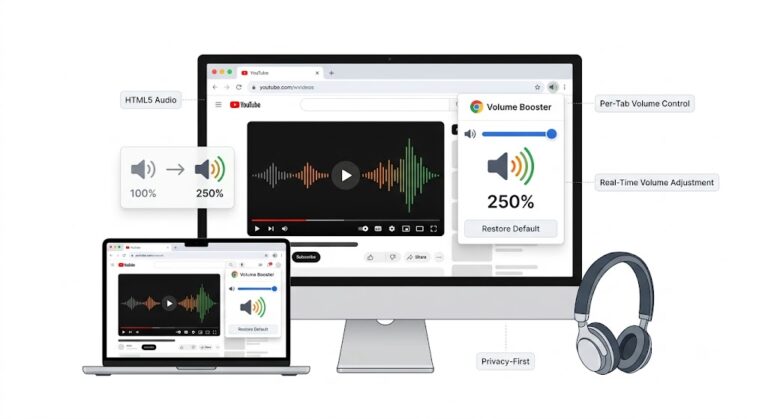
- Give users real-time, per-tab control: a single global volume boost is blunt. Per-tab control lets you raise a quiet documentary without blasting the music tab next to it. A responsive slider with instant feedback makes the difference between usable amplification and frustrating over-correction.
Volume Booster implements exactly this pattern. It detects active HTML5 media in the current tab, applies a user-controlled gain factor, and renders the amplified audio through Chrome's standard output path. No cloud processing, no external dependencies, no data collection. Learn more about fixing quiet playback on specific platforms with our guides for Netflix, Disney+, and Prime Video.
How Does Volume Booster Process Audio Locally to Overcome Limits?
When you move the Volume Booster slider from 100% to, say, 180%, several things happen inside Chrome — all within milliseconds, all on your machine.
The internal processing flow:
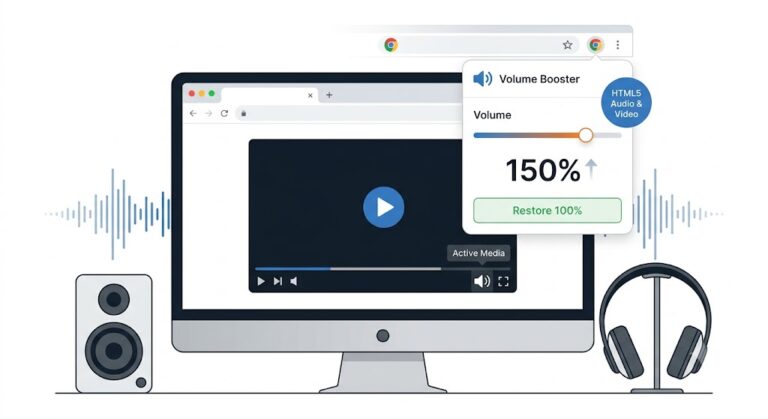
- Tab detection: the extension identifies the active tab. A content script checks for the presence of
<audio>or<video>elements actively playing media. No scanning of page content — just checking for media element existence and playback state. - Media element access: once a media element is detected, the extension interacts with it through Chrome's extension APIs. Under Manifest V3, this happens via a service worker that coordinates between the popup UI and the content script running in the page context.
- Gain application: the slider value — shown as a percentage in the popup — translates to a gain multiplier. A setting of 150% means a gain factor of 1.5. The extension applies this factor to the audio stream, effectively multiplying the sample values beyond the HTML5 1.0 ceiling.
- Real-time audio adjustment: the gain change takes effect instantly. You hear the difference as you drag the slider. There's no buffering delay, no page reload, and no interruption to playback. The audio continues smoothly at the new level.
- Reset capability: clicking the reset button returns the gain factor to 1.0 (displayed as 100%), restoring the original HTML5 volume limit behavior. The tab's audio reverts to exactly what the website intended — no permanent changes, no lingering effects.
All of this runs inside Chrome's sandbox. The extension never makes external network requests. It doesn't record, sample, analyze, or store audio. It doesn't require an account, a login, or any form of cloud synchronization. The entire processing chain lives and dies within your browser session. This architecture reflects the extension's core commitment to local-first, privacy-respecting design.
What Happens When You Push Volume Beyond the Standard Range?
Amplifying audio beyond the HTML5 1.0 ceiling is safe up to a point — but every user should understand the tradeoffs. Digital amplification is a tool, not magic, and it behaves predictably.
What to expect at different gain levels:
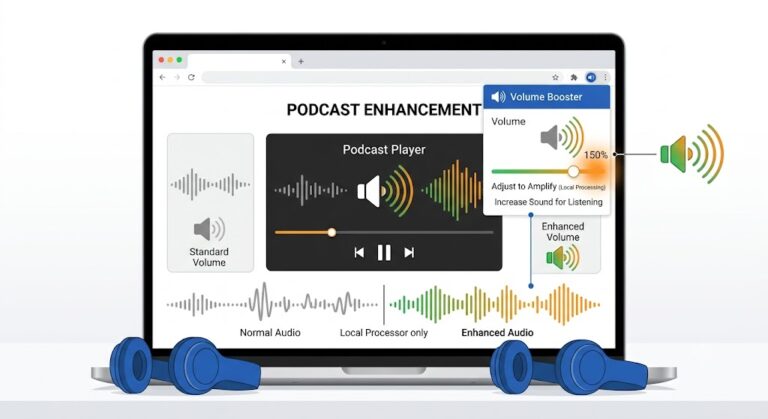
- 100%–150% (unity to 1.5x gain): for most well-mastered content, this range adds noticeable loudness without audible distortion. Quiet podcasts, soft-spoken lectures, and low-level conference streams become comfortably listenable. Laptop speakers benefit the most here.
- 150%–250% (1.5x to 2.5x gain): this range is useful for extremely quiet source material — archival recordings, poorly mixed webinars, or videos recorded with distant microphones. Some soft clipping may become audible on peaks, especially with compressed audio formats. Bluetooth headphones often handle this range well due to their own internal amplification.
- Above 250% (2.5x gain and beyond): the noise floor of the original recording becomes prominent. You'll hear more hiss, more room tone, and more artifacts from lossy compression. Digital clipping on loud transients becomes likely. This range should be used sparingly and only when the source material is genuinely too quiet at lower settings.
The key practice: start at a modest boost, listen for a few seconds, and increase gradually. The volume percentage display in the extension popup gives you precise control — you're never guessing. And because the reset button is one click away, experimenting is risk-free. If you hear distortion, back off by 10–20% and the issue almost always resolves.
For platform-specific guidance, check our articles on boosting Twitch streams and improving Disney+ audio — each platform has unique volume characteristics worth understanding.
How Do Different Audio Setups Affect Perceived Browser Volume?
The same HTML5 volume limit produces wildly different real-world loudness depending on your audio hardware. Understanding this relationship helps you set appropriate gain levels for each listening scenario.
Common setups and how they interact with browser volume:
- Built-in laptop speakers: small drivers with limited power amplification. These almost always benefit from a 130%–180% boost. The speakers themselves can't produce deep bass, so the amplification primarily helps midrange clarity and dialogue intelligibility.
- Wired headphones: impedance varies widely. Low-impedance earbuds (16–32 ohms) may already sound loud at 100% browser volume. High-impedance studio headphones (80–250 ohms) often need 150%–200% to reach comfortable listening levels from a standard laptop headphone jack.
- Bluetooth headphones: these have their own amplifier and DSP chain. The volume you set in Chrome is digital gain feeding into the headphones' own volume control. A modest browser boost of 120%–150% combined with the headphones' hardware volume control usually gives the cleanest result with lowest noise.
- External desktop speakers: powered monitors or 2.1 systems have dedicated amplifiers. Browser volume at 100% often provides plenty of headroom. Boosting here is rarely needed unless the source material is exceptionally quiet. Over-amplification can cause room resonance and listener fatigue.
- USB DACs and audio interfaces: these bypass the computer's built-in audio hardware entirely. The digital signal from Chrome is converted externally. Gain applied in the browser is clean digital gain that the external DAC handles with high precision — these setups tolerate higher boost levels with minimal noise penalty.
Best practice: switch between your common audio setups and note the volume percentage that feels right for each. The extension's per-tab control means you can have different levels for a podcast on speakers versus a movie on headphones — all within the same browsing session.
How Real Workflows Benefit from Understanding HTML5 Audio Volume Limits
Here's how grasping HTML5 audio and video volume limits — and using a local gain tool — makes a tangible difference in everyday browsing.
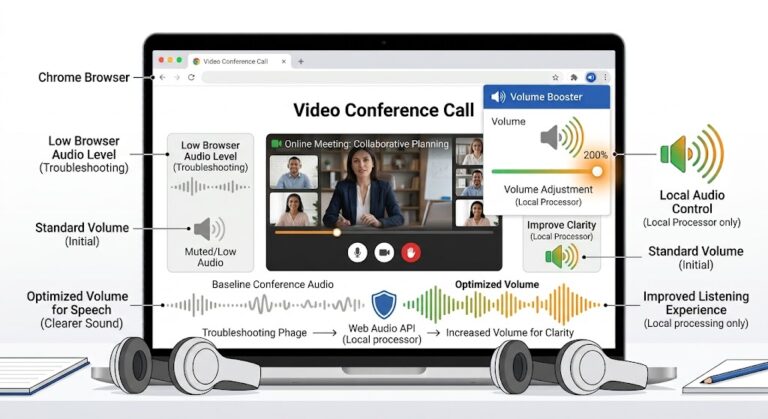
Example 1: The Remote Worker on a Video Call Platform
- Situation: a project manager joins a web-based conference call. The presenter's microphone is set low, and the entire team sounds distant. The platform's built-in volume is already at maximum. System volume is at 80%, but the audio still feels thin through laptop speakers.
- Action: she opens the Volume Booster popup on the meeting tab. The slider shows 100%. She drags it to 160% while the presenter continues speaking. The volume increase is immediate — no reload, no interruption to the call. The reset button stays visible in case she needs to return to default after the meeting.
- Result: dialogue becomes clear and intelligible. She can take notes without straining to hear. The boost affects only the meeting tab — her music streaming tab in the background remains at its own volume level. After the call, she clicks reset and the tab returns to normal.
Example 2: The Student Watching Recorded Lectures
- Situation: a university student replays a lecture recording on the learning management system. The professor's voice was captured by a room microphone 15 feet away. At 100% browser volume, the lecture is barely audible over ambient room noise, even with headphones.
- Action: the student sets the Volume Booster slider to 200%. The extension applies clean gain to the lecture tab only. Other open tabs — research papers, the library catalog, a music player — stay at their default levels. The student listens for 90 minutes without adjusting anything further.
- Result: the lecture is comfortably audible. The slight increase in background hiss from the recording is tolerable. The student catches details missed in previous viewings. No data was uploaded, no audio was recorded — everything happened locally in Chrome.
Example 3: The Movie Watcher on a Streaming Service with Quiet Dialogue
- Situation: a couple watches a drama film on a streaming platform. Action scenes are loud, but dialogue scenes are mixed so low they keep adjusting the TV volume. The browser's 100% ceiling prevents any further boost from the computer side. The TV's own volume is already high, causing loud action scenes to disturb others in the house.
- Action: one of them opens Volume Booster on the streaming tab and sets it to 140%. This modest boost lifts dialogue above the noise floor without pushing action scenes into distortion. They leave the TV volume at a moderate level. For particularly quiet scenes, they nudge the slider to 155% and then back down when the scene ends.
- Result: the film becomes watchable without constant remote control adjustments. The extension's instant response means they can fine-tune on the fly. Because Volume Booster processes everything locally, no streaming data is intercepted or modified — the video stream remains untouched, only the final audio gain changes.
Frequently Asked Questions
Does increasing volume beyond 100% damage my speakers?
Digital gain alone cannot physically damage speakers. Damage occurs when the analog amplifier driving the speakers is pushed into clipping for extended periods, generating excessive heat in the voice coils. Moderate browser gain increases — up to 200% — rarely cause this, especially with headphones and laptop speakers. If you hear audible distortion, reduce the gain. That crackling sound is digital clipping, and while it's unpleasant, it's not inherently destructive at typical listening levels. Use your ears: if it sounds clean, it's safe.
Will Volume Booster affect audio quality?
At modest gain levels — up to about 180% — the quality impact is negligible for most content. The extension applies gain as a simple multiplication of sample values. It doesn't compress, equalize, or otherwise process the audio. You hear the original recording, just louder. At higher gain levels, the noise floor of the source material becomes more noticeable, and lossy compression artifacts may become audible. This isn't the extension degrading quality — it's revealing what was already in the file at low levels.
Why doesn't Chrome just allow volume above 100% natively?
Chrome's developers prioritize consistency and safety. Allowing arbitrary gain above unity would create unpredictable loudness across websites and increase the risk of sudden loud bursts — especially problematic for headphone users. The 0.0–1.0 range is a W3C specification for HTML5 media elements, not a Chrome-specific limitation. Extensions can work within this constraint to offer users more control while Chrome maintains the safe default behavior.
Can I set different volume levels for different tabs?
Yes. Volume Booster applies its gain per active tab. When you switch to a different tab and open the extension popup, the slider reflects that tab's current boost level. This means you can have a podcast tab at 150%, a video tab at 120%, and a music tab at 100% — each independently controlled. Chrome's native per-tab volume (right-click the tab) still works alongside the extension, giving you two layers of control.
Does Volume Booster work on all websites?
The extension works on any website that uses standard HTML5 <audio> or <video> elements for playback. This covers the vast majority of modern streaming platforms, video sites, podcast players, web-based conference tools, and music services. Sites that use custom audio rendering via Web Audio API without a media element may not be detected — though many still include a media element for compatibility. For platform-specific guidance, see our blog for detailed per-platform tips.
Is any of my audio data sent to external servers?
No. Volume Booster processes all audio entirely within Chrome on your device. No audio samples are recorded, sampled, analyzed, uploaded, or transmitted. The extension doesn't even have a network permission in its manifest. It makes no external requests of any kind. There are no accounts, no logins, no cloud synchronization, and no analytics. Your audio stays on your machine — period.
Understanding Volume Limits Is the First Step to Better Browser Audio
HTML5 audio and video volume limits aren't arbitrary restrictions — they're the predictable result of how browsers, media standards, and operating systems negotiate safe audio playback. But knowing where these limits sit, and how they stack across the playback chain, gives you the power to adjust intelligently rather than accept quiet audio as unfixable.
Key takeaways from this deep dive:
- The HTML5
.volumeproperty caps at 1.0 — unity gain. This limit is baked into the web standard and enforced by every major browser. It doesn't account for variations in source mastering levels. - Perceived quietness often comes from a combination of conservative mastering, streaming platform normalization, OS mixer settings, and hardware limitations — not any single failure point.
- Safe amplification beyond the HTML5 limit is possible by applying clean digital gain within Chrome's extension framework, after the media element but before the OS audio stack. This is local, instant, and reversible.
- Different audio hardware setups — laptop speakers, wired headphones, Bluetooth buds, external speakers — benefit from different gain levels. Understanding your setup lets you dial in the right boost without guesswork.
- All processing done by Volume Booster stays on your device. No audio ever leaves Chrome. No accounts, no tracking, no cloud. Just local gain control that respects your privacy.
Next time you encounter a video that's too quiet even with every slider maxed out, you'll know exactly what's happening inside Chrome — and exactly how to fix it. Start by opening the Volume Booster extension, checking the current tab's level, and nudging the slider up in small increments until the audio feels right. Then explore our platform-specific guides for Prime Video, Spotify, and Netflix to fine-tune your setup for every streaming service you use.