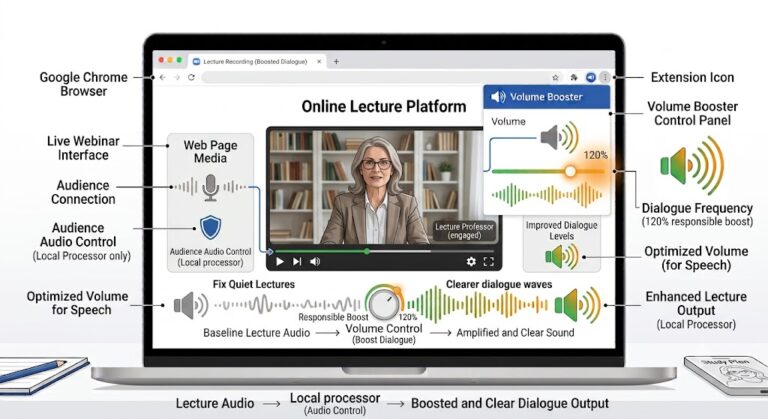
Improve Audio in Webinars with Volume Booster Extension
You click the join link, the presenter starts speaking — and you can barely hear a word. Maybe the stream is inherently quiet, or your laptop speakers struggle to fill the room. Improve audio in webinars instantly by boosting the sound of any HTML5-based webinar platform right inside Chrome. Volume Booster works locally, leaves zero footprint on your privacy, and never asks for an account. Just install, open the popup, and slide the volume up.
- How a privacy‑first volume boost fixes quiet webinar streams without server‑side changes
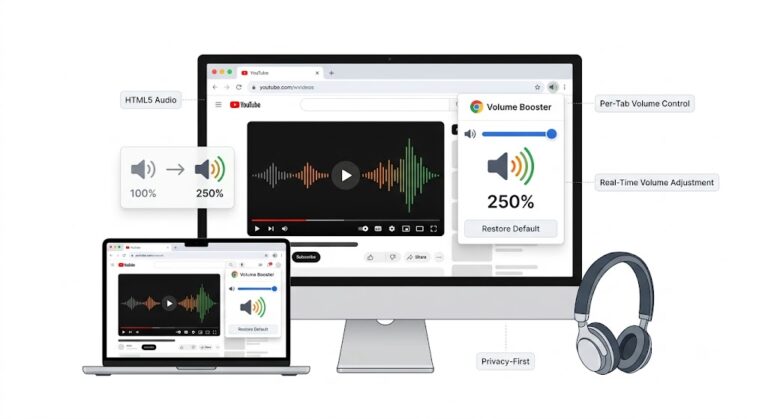
- Why per‑tab volume control is essential when you multitask during live presentations
- What real‑time audio amplification does to HTML5 media — and what it does not touch
- When to use the reset button and how to avoid distortion while keeping speech crisp
Why Does Webinar Audio Often Sound Too Quiet?
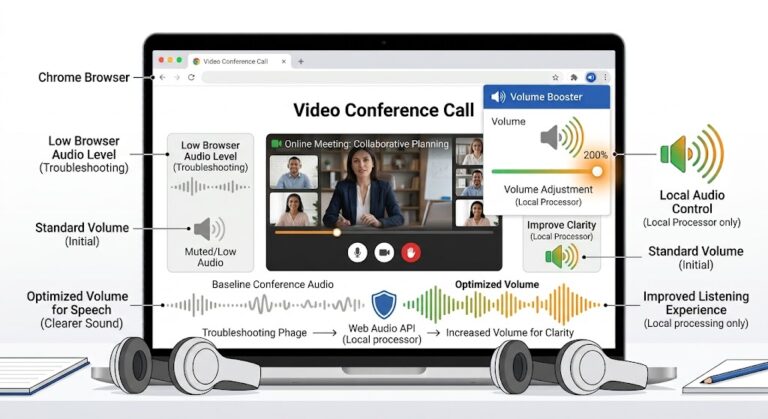
Most webinar platforms — Zoom Webinars, Google Meet, Microsoft Teams, GoToWebinar, or even live‑streamed YouTube presentations — deliver audio through HTML5 <video> or <audio> elements inside your browser. The volume you hear depends on three layers: the platform’s stream level, the browser’s built‑in volume limit, and your system output.
Often the stream itself is mastered conservatively. The presenter’s microphone might be positioned too far, or the conference software normalizes audio below your comfort level. Your laptop or desktop speakers may also lack the headroom to make quiet speech intelligible. When you’re in a noisy environment or using small built‑in speakers, that subtle volume drop becomes a real barrier.
Chrome’s native volume control caps the media element at 100%. Even if you crank your system volume to maximum, you might still strain to hear every word. That’s where a dedicated browser‑level boost makes an immediate difference. And because Volume Booster processes everything locally on your machine, you fix the problem without touching the stream, the presenter, or any server.
How Can You Increase Volume Beyond the Browser’s Limit?
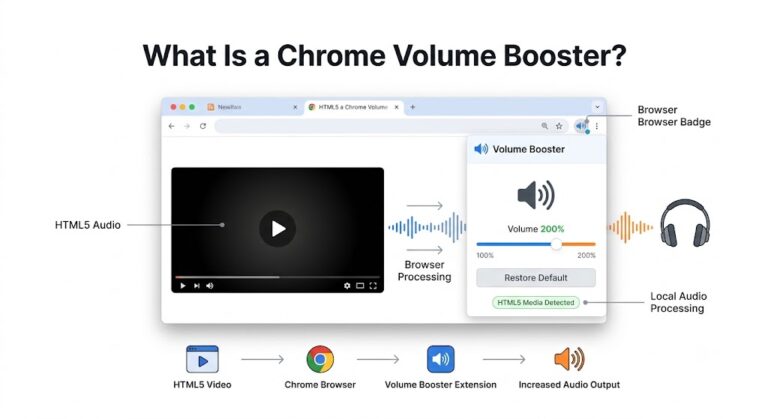
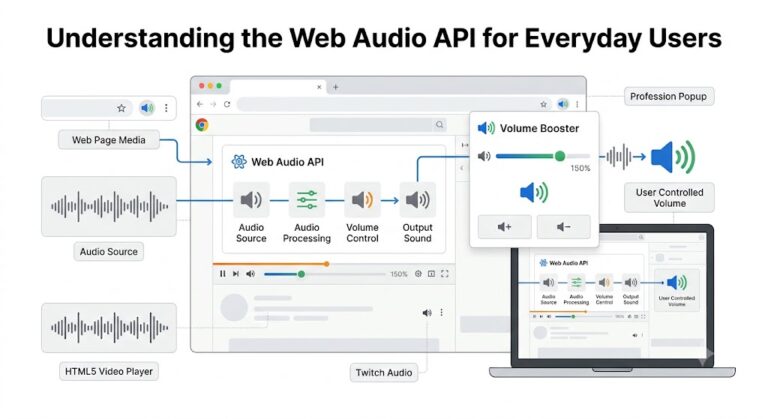
The browser’s standard volume slider stops at 100% — that’s the maximum gain the HTML5 media element can apply on its own. To go louder, you need to amplify the audio after the media element renders it, but before it leaves your browser. Volume Booster does exactly that.
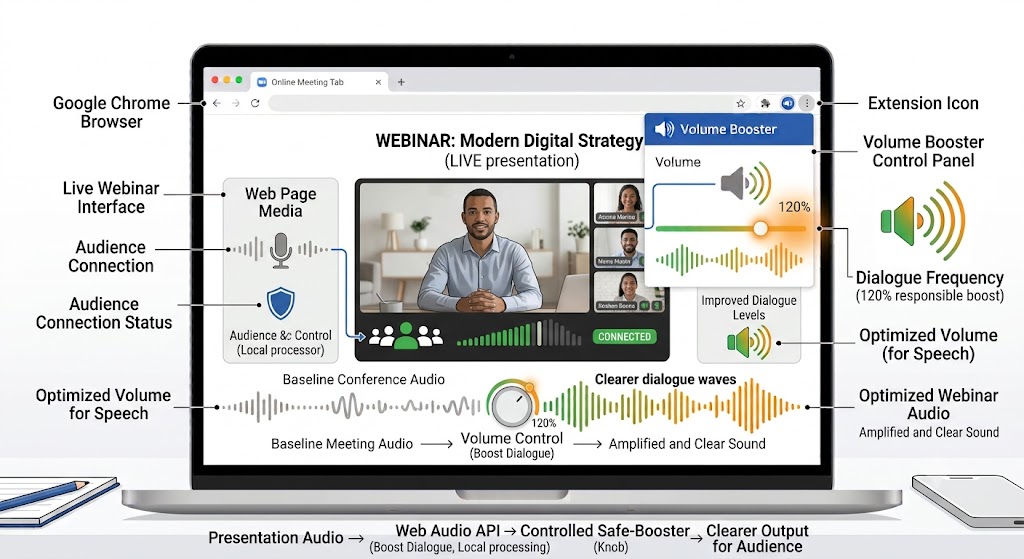
The extension injects a lightweight content script into every tab that contains an HTML5 media element. When you move the Volume Booster slider, the script adjusts the media element’s volume property to a value above 1.0 (up to 6.0, which corresponds to 600% of the original level). Because the operation is a direct browser API call, the change happens instantly and without re‑encoding any audio.
Key behaviors of this approach:
- No external processing: The volume boost runs entirely inside Chrome’s sandbox. No audio data is ever recorded, uploaded, or shared.
- Real‑time adjustment: You hear the difference as you move the slider. There’s no lag, no buffering, and no need to reload the webinar page.
- Per‑tab isolation: You can boost only the webinar tab while leaving other tabs at their default level. This is especially useful if you’re also monitoring a chat or a note‑taking app.
Because the extension stays within the boundaries of the Media Capture and Streams API and the standard HTML5 media model, it works transparently on any website that uses browser‑native playback — including all major webinar platforms that run in Chrome.
How Does Volume Booster Improve Audio in Webinars Locally?
Once installed, Volume Booster adds a small icon to your Chrome toolbar. Clicking it opens a clean popup with a large volume slider, a percentage readout, and a reset button. The popup automatically detects the active tab. If that tab contains a playable HTML5 media element, the slider becomes available.
Here’s the step‑by‑step process that happens when you boost a live webinar:
- You open the webinar in a Chrome tab — the page loads an HTML5 video player (the standard player used by Zoom, Teams, etc.).
- You click the Volume Booster icon. The extension’s service worker (Manifest V3) activates the popup and queries the active tab for media presence.
- The popup displays the current volume percentage. You drag the slider to, say, 250%. The extension’s content script immediately sets the media element’s volume to 2.5.
- You hear a clear, amplified voice — no distortion because the gain increase is moderate, and the browser’s internal audio path handles the scaling cleanly.
- If you later switch to another tab, the slider shows its own independent value. Returning to the webinar tab brings back your previously set boost.
All of this runs without creating an account, without analytics, and without any network requests to external servers. Your webinar audio stays within your local Chrome environment. For a deeper look at how browser‑side amplification works, you can read our guide on browser audio amplification.
How to Use Volume Booster During a Live Webinar
The workflow is deliberately simple so you can adjust the sound without disrupting your attention during a live presentation. No need to open settings panels or restart Chrome — everything is accessible from the toolbar popup.
Best practice for a typical live session:
- Join the webinar first and confirm that audio is playing through your desired output (speakers, headphones, or headset).
- Open the Volume Booster popup from the Chrome toolbar. The popup will show the volume level for the current tab — initially at the default 100%.
- Gradually increase the slider while listening to the presenter’s voice. Try 150% to 200% as a starting point. The percentage indicator helps you find a repeatable setting for future sessions.
- If you hear any harshness or clipping, dial back slightly. The boost is clean, but pushing to 600% on already loud streams may cause digital distortion — that’s a property of any amplification, not a flaw of the extension.
- Use the reset button (the circular arrow) to instantly return to the browser’s default volume. This is handy if you share your screen later and want to avoid accidentally broadcasting an amplified signal.
Because the extension remembers the volume per tab during a session, you can jump between the webinar and your notes without readjusting everything. The volume is never persisted across browser restarts unless you manually set it again — another privacy‑by‑design choice.
For users who frequently attend webinars on platforms like Zoom running inside Chrome, we also have a dedicated walkthrough on how to boost Zoom‑style meeting volume in Chrome tabs.
Best Practices for Webinar Audio Without Distortion
Increasing volume beyond the default 100% is safe for your hardware as long as you stay within reasonable limits. Volume Booster does not alter the audio signal’s dynamic range — it simply multiplies the amplitude. That means the same loud and quiet parts scale together, and speech intelligibility often improves because the quieter phonemes become louder.
To get the cleanest sound:
- Start with your system volume at a comfortable baseline — maybe 50‑70% of your laptop’s maximum. That leaves headroom for the booster to work cleanly.
- Use the smallest effective boost. If 180% makes the presenter clearly audible, don’t push to 300%. Excessive gain can amplify background hum or platform‑side compression artifacts.
- Pair with good headphones or external speakers. Built‑in laptop speakers distort earlier; even inexpensive wired earphones can handle a 250% boost without noticeable crackle. Our guide on safely increasing volume without speaker damage explains the physics behind this.
- Monitor the volume percentage display. It helps you keep track of how much you’re amplifying; this is especially valuable if you attend multiple webinars in a day and need to switch between different default levels.
- Reset after the webinar. This avoids accidentally blasting the next video you watch. The reset button is instant and always restores the standard 100% level for that tab.
Because Volume Booster never modifies your system audio settings or installs custom drivers, there’s zero risk of permanently altering your sound card configuration. The effect lives and dies inside the Chrome tab.
How Real Webinar Listeners Use Volume Booster
Example 1: The Remote Employee on a Quiet Laptop
- Situation: Joining a company‑wide live presentation via a browser‑based webinar tool. The laptop’s downward‑firing speakers make the CEO’s voice sound muffled, and the stream volume is low.
- Action: She opens the Volume Booster popup during the opening slides, pushes the slider to 200%. The volume percentage appears clearly in the popup. She hears the presenter’s speech as if it were spoken a foot away — no strain, no leaning in.
- Result: She participates fully, takes notes, and doesn’t miss a single Q&A point. The boost stays active only on the webinar tab; her other tabs remain at default volume. The entire adjustment took less than 5 seconds and required no IT support.
Example 2: The Student Attending a Live Lecture with Poor Audio
- Situation: A university uses a custom streaming platform for live lectures. The embedded HTML5 player peaks at a whisper‑level volume, even with system volume maxed out. The student has already missed key concepts in previous sessions.
- Action: After installing Volume Booster, he sets the lecture tab to 300%. He carefully listens for any distortion — the audio remains clear because the source recording is simply undermastered. He bookmarks the setting mentally for every future lecture.
- Result: Comprehension improves instantly. The student no longer dreads the low‑audio barrier and can concentrate on the material. This same approach applies to any educational livestream; you can also check our guide on how to improve audio quality during online classes for more classroom‑specific tips.
Example 3: The Multitasker Monitoring a Live Panel While Working
- Situation: A developer keeps a tech panel discussion open in a background tab while coding. The panel’s volume is so low that she only catches words when no other sound plays. She needs the boost without affecting her music app in another tab.
- Action: She clicks the Volume Booster icon while the panel tab is active, increases the volume to 250%, and then switches back to her editor. The panel audio now cuts through the room’s ambient noise. The music tab remains untouched because Volume Booster adjusts only the active tab at the moment of change.
- Result: She stays informed without disrupting her workflow. The per‑tab isolation proves essential — she can later reset the panel’s volume with one click when the session ends, leaving no trace.
Frequently Asked Questions
Will Volume Booster work if the webinar platform uses its own desktop app?
Volume Booster only works inside Chrome on HTML5 audio and video. If you’re using a standalone desktop app (Zoom, Teams, etc.), the extension cannot reach that audio. However, most of those platforms also offer a “join from browser” option — using that version in Chrome allows the extension to work normally. For browser‑based meeting tips, see how to fix quiet audio during video conferences.
Does boosting the volume affect the webinar recording or others’ experience?
No. The amplification is applied locally on your device, inside your Chrome tab. It does not modify the outgoing stream or the recording on the host’s server. Only you hear the louder audio.
Can I permanently save a volume level for a specific webinar site?
Volume Booster does not store profiles or presets — it respects your privacy by not saving any browsing data. The boost is tied to a tab for the duration of that tab’s life. If you reload the page, the volume resets to 100%. This intentional design keeps things simple and prevents unwanted surprises.
Is it safe to boost webinar audio to 600% on cheap speakers?
While the extension allows up to 600% gain, always listen responsibly. Cranked amplification can push small speakers into physical distortion or damage over time. Use the lowest effective level, and follow our safe listening guidelines to protect your ears and equipment.
What happens if the webinar audio is already loud and I boost it?
If you boost an already loud stream, you’ll hear digital clipping (a harsh, crackling distortion) because the audio waveform exceeds the digital ceiling. The reset button instantly returns you to the default 100% volume. A good habit: always start at 100%, then gradually increase while listening.
Does Volume Booster require any special permissions?
The extension requests only the minimal permissions needed to detect media in tabs and adjust volume. It does not read your browsing history, access your microphone, or communicate with any external server. All processing follows Chrome’s Manifest V3 security model, and you can verify the open‑source behavior in the extension’s code.
Take Control of Your Webinar Listening Experience — Privately
Quiet webinars don’t have to mean missed information. By using a local, privacy‑first volume booster, you reclaim the ability to hear every word without compromising your browser’s security or your personal data.
Key takeaways:
- Webinars often suffer from low stream volume, but you can improve audio in webinars instantly by boosting the HTML5 media element from within Chrome.
- Volume Booster gives you a simple slider, a percentage display, and a reset button — all isolated per tab and processed entirely on your device.
- Gradual, moderate boosts preserve clarity while lifting speech out of the noise floor. Combine the extension with good headphones or speakers for the best results.
- Because the extension never records, never uploads, and never demands an account, you can use it in any professional or educational setting without privacy concerns.
Whether you’re attending a high‑stakes company‑wide briefing or catching up on a recorded lecture, Volume Booster ensures the audio never stays too quiet. Start by installing the extension, then explore more ways to enhance your browser audio on our Volume Booster blog — from boosting podcast volume to improving dialogue in movies.