How to Improve Audio Quality During Online Classes
A quiet instructor or muffled audio stream can turn a live class into a guessing game. Improving audio quality during online classes often starts with one overlooked factor: the volume your browser actually delivers. Learn how to safely boost sound, preserve clarity, and catch every word — without compromising privacy or installing complex software.
- Why the default browser volume isn’t always enough for online lectures
- How the Volume Booster extension lifts quiet voices in real time
- What browser settings and safe listening practices can improve audio quality during online classes without distortion
- How local processing keeps your class audio private — no recordings, no cloud

What Causes Poor Audio Quality in Online Classes?
Online class audio can feel thin, distant, or barely audible even when your system volume is cranked up. The root problem is rarely your ears — it’s a mismatch between the original audio level and what your browser passes through to the speakers.
Several things contribute to weak sound during a live session:
- The instructor’s microphone may be set at a low input gain, delivering a quiet stream from the source.
- The conferencing platform itself can apply dynamic compression or automatic gain control that pushes soft voices even lower.
- Browser‑based audio is limited by Chrome’s own volume ceiling; once the site’s player is at 100 %, you cannot go higher using built‑in controls alone.
- Cheap laptop speakers or budget earphones often reproduce speech frequencies poorly, making voices appear quieter than they really are.
The result: you strain to understand lectures, miss critical instructions, and tire quickly. The good news is that you don’t need expensive gear to fix this — you can improve audio quality during online classes directly inside Chrome with a careful volume boost and a few mindful adjustments.
For a deeper look at why built‑in controls fall short, read about browser audio amplification and how the browser handles media playback.
How Can You Improve Audio Quality During Online Classes Without Distortion?
Many people reach for the operating system volume slider — and that helps to a point. But system volume just amplifies the final output, including any noise or distortion already present. To truly improve audio quality during online classes, you need to increase the audio signal before it leaves Chrome, while preserving clarity.
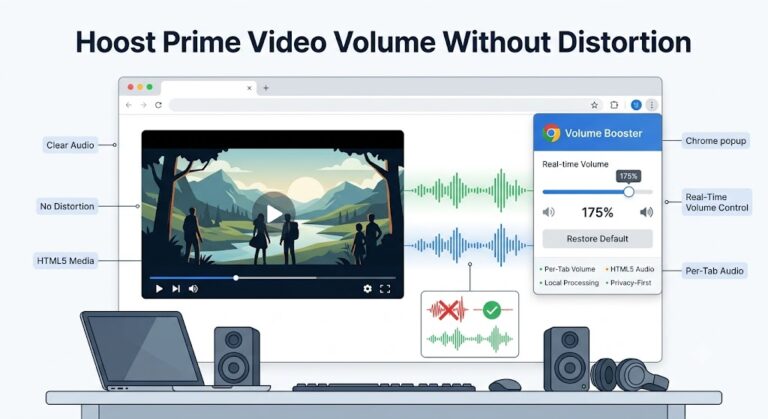
That’s where the Volume Booster Chrome extension comes in. It works on the actual HTML5 audio stream of the class tab, raising the volume digitally in real time. Because the processing happens within Chrome’s own audio pipeline, you get cleaner gain with far less background hiss than simply maxing out external speakers.
Combine this with a few best practices:
- Keep the class tab active — Volume Booster applies its boost to the currently active tab by default, so pin the class window.
- Use the fine volume slider in the extension popup instead of jumping to maximum. Small increments often reveal the sweet spot where voices become crisp without sounding harsh.
- Check your output device. Wired headphones or decent external speakers almost always deliver clearer speech than tiny laptop drivers. The boost you apply will work with any output.
For a complete guide on protecting your ears while increasing volume, see safe listening guidelines.
How Does the Volume Booster Chrome Extension Boost Instructor Voices?
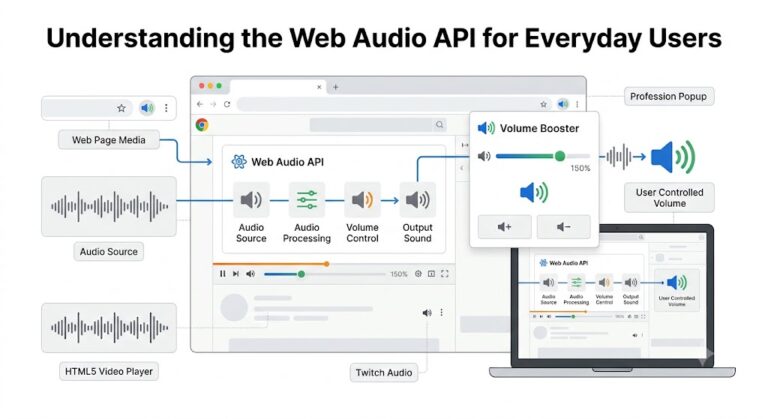
The extension uses Chrome’s native ability to process audio through the Web Audio API — a set of browser technologies that manipulate sound without any plugins or external servers. When you move the Volume Booster slider, it inserts a gain node into the audio graph of every HTML5 media element on the active page.
Here’s what happens under the hood:
- As soon as you open a tab with a live class (Google Meet, Zoom Web, Microsoft Teams, etc.), the extension detects the
<audio>and<video>elements that carry the instructor’s voice. - Your chosen volume percentage (say 150 %) is converted into a gain value and applied to the media stream via the browser’s audio graph.
- The boosted signal is then sent straight to your speakers or headphones — all locally, all instantly.
- If you click Reset, the gain node is bypassed, and the audio returns exactly to the original site volume.
This approach means you can push volume well beyond Chrome’s default maximum without touching the site’s own player. And because the gain is applied per tab, you can boost your class audio while keeping a music tab at its normal level. For a technical walk‑through of how gain nodes work in the browser, visit gain nodes explained.
How to Set Up Volume Booster for Live Online Classes
Setting up the extension before your next lecture takes less than a minute, and it stays out of your way until you need it.
Step‑by‑step for a typical class scenario:
- Install the Volume Booster extension from the Chrome Web Store. No account, no sign‑up required.
- Open your class link (Zoom, Meet, etc.) in Chrome and make sure the tab is active.
- Click the extension icon in the toolbar. The popup instantly detects audio on the current tab and shows the volume slider with the current percentage — usually 100 %.
- While the instructor is speaking, gently drag the slider upward. You’ll hear the volume increase in real time. Stop when voices are clear and comfortable.
- If the sound ever becomes too loud, slide it back or hit the Reset button to return to the default level.
The slider stays at your chosen level for that tab while the class is live. If you switch to another tab with audio, the extension will show the volume for that tab separately, so your class boost won’t blast you when you open a YouTube video later.
Because the extension works entirely on your device, there is zero lag in volume changes — the adjustment is as immediate as turning a physical knob. For more on the extension’s privacy model, read about volume boosting extensions and how they differ from cloud‑dependent tools.
How to Combine Volume Booster with Browser Audio Settings
The extension is powerful on its own, but you can improve audio quality during online classes even more by pairing it with a few built‑in Chrome and operating system adjustments.
Try this workflow:
- Set system volume to around 50–70 %. This leaves headroom for the boosted signal without overdriving your speakers.
- Use Volume Booster to raise the class tab to a comfortable level. Because the boost happens before the system amplifier, you avoid the static that often appears when the OS volume is maxed out.
- Enable Chrome’s “Sound content” site permissions. Under chrome://settings/content/sound, make sure your class site is allowed to play audio. The extension won’t work on muted or blocked sites.
- Close other tabs that auto‑play media while in class. This prevents the extension’s active tab detection from switching focus accidentally, and it conserves CPU for smoother audio processing.
The extension’s volume percentage display gives you immediate feedback. A good rule of thumb: most quiet online classes become clearly audible between 120 % and 180 %. Beyond 200 %, you risk pushing small speakers into distortion, so increase gradually and listen for any crackling. For more on safe volume limits, check how to safely increase volume without speaker damage.
Real‑Life Examples: Boosting Audio for Students, Teachers, and Language Learners
Example 1: The University Student in a Large Zoom Lecture
- Situation: A professor uses a lapel mic that sounds distant. With system volume at 100 %, voices are still too soft to follow comfortably, especially through laptop speakers in a noisy dorm.
- Browser setup: Chrome with the Zoom meeting tab open; Volume Booster installed. System volume set to 60 %.
- Action: The student clicks the Volume Booster icon and slowly pushes the slider to 155 %. The professor’s voice becomes noticeably fuller without distortion. The on‑screen percentage confirms the exact boost.
- Result: The student can now take notes without constantly asking classmates to repeat questions. The boost stays steady throughout the entire 90‑minute lecture, and one click on Reset restores normal volume when class ends.
Example 2: The High School Teacher Hosting a Recorded Lesson
- Situation: A teacher records a lesson on Google Meet for absent students, but the playback volume within the browser is too low — the recording’s audio level was set during a quiet afternoon class, and playback doesn’t match.
- Browser setup: Chrome playing the recorded video from Google Drive; Volume Booster active on that tab. Wired earphones connected.
- Action: The teacher uses the extension to set a permanent 140 % boost for the recording tab. Because the boost applies only to HTML5 media, system sounds remain untouched.
- Result: Students who watch the recording later (on their own devices) still hear low audio, but the teacher can monitor the material clearly. The teacher also shares a tip with students: they can install the same extension to adjust playback individually — a simple fix explained on the Volume Booster blog.
Example 3: The Language Learner Using Audio‑Heavy Webinars
- Situation: A learner attends live webinars where the presenter speaks a foreign language softly. Background noise in the café makes it hard to pick out new vocabulary.
- Browser setup: Chrome on a laptop; Bluetooth earphones; webinar running in an active tab.
- Action: They boost the webinar tab to 170 % using Volume Booster, then fine‑tune down to 165 % when a louder slide‑transition sound occurs. The real‑time slider makes it easy to adjust on the fly.
- Result: Speech clarity improves dramatically without reaching for external amplifiers. The learner also discovers they can boost past episodes of language podcasts directly in the browser using the same technique — see how to boost podcast audio directly in browser for more.
Frequently Asked Questions
Will increasing the volume with the extension ruin audio quality?
When used within reasonable limits, no. Volume Booster applies clean digital gain, similar to turning up the volume on a good amplifier. It does not compress, equalize, or otherwise alter the tonal character of the voice. If you push beyond 200 % on very small speakers, you might hear distortion — that’s a limitation of the hardware, not the extension. Stay within the range where speech sounds natural, and quality remains intact.
Does the extension work with all online class platforms?
It works with any platform that streams audio through HTML5 media elements in Chrome. This includes Google Meet, Zoom Web, Microsoft Teams (web version), Cisco Webex, and most LMS playback. If you can hear the class in Chrome, Volume Booster can increase it. For a deeper dive into compatibility, see how audio gain works in the browser.
Can I damage my speakers by boosting too much?
Potentially, if you set the extension extremely high and also max out your system volume. To avoid damage, keep system volume moderate and use the extension to bring voices to a comfortable level. The real‑time slider and percentage display help you stay aware. Read safely increase volume without speaker damage for practical boundaries.
Is my online class audio recorded or sent anywhere when I use Volume Booster?
Never. All processing is local. The extension does not record, store, upload, or analyze any audio. It simply increases the gain of the media elements already playing in your browser. No class content ever leaves your device.
Why does the boost reset when I switch tabs?
By design, Volume Booster works per‑tab. When you move to a new active tab, the extension reads that tab’s audio. Your previous boost is remembered for the old tab — switch back, and the slider returns to the level you set. This keeps your class boost isolated from other media.
Can I use Volume Booster on a Chromebook with touchscreen controls?
Yes. The extension’s popup interface is fully functional with touch. The large slider and percentage display work smoothly on touchscreens, making it easy to adjust volume without a mouse during a class.
Clearer Audio Means Better Learning — Start Boosting Safely
You don’t have to accept muffled lectures or strained hearing as a normal part of online education. By understanding how browser audio works and applying a precise volume boost where it matters, you can improve audio quality during online classes dramatically — with no extra hardware, no lag, and no privacy trade‑offs.
Key takeaways:
- Low class audio is often a browser volume ceiling problem, not a fault of your speakers or the instructor’s equipment.
- The Volume Booster extension lifts the volume of HTML5 media safely from within Chrome, using only local processing.
- Pair the extension with mindful system volume settings and a good pair of headphones for the cleanest speech reproduction.
- Always start with small increments and use the Reset button to snap back to default when class ends.
Because everything happens in real time on your device, you can experiment freely without worrying about account logins, cloud storage, or data tracking. Just install, click, and hear the difference in your next live session.
For more guidance on getting the most from browser‑based audio, explore the Volume Booster blog where we cover everything from improving speech clarity while watching videos to boosting movie dialogue and podcast playback — all within the browser you already use.