Improve Disney+ Audio Quality in Your Browser
Disney+ streams in high definition, but browser audio often feels flat, quiet, or swallowed by background noise. Improve Disney+ audio quality in your browser by taking control of the volume yourself — without touching the platform’s own limited controls. Volume Booster lets you amplify HTML5 media directly inside Chrome, so dialogue cuts through, music fills the room, and every sound effect lands exactly as intended.
- Why Disney+ volume can feel too low even at 100% in your browser
- How the extension raises the ceiling safely without altering the original stream
- What real‑time, per‑tab volume control does for movies, shows, and documentaries
- When a privacy‑first, local‑only approach protects your Disney+ viewing habits
Why Does Disney+ Sound So Quiet Even When the Player Is at Maximum?
Disney+ adjusts its own audio level based on the streaming quality, device, and source material. But inside a browser, several layers sit between the stream and your ears — Chrome’s internal gain handling, your operating system’s volume mixer, and the tiny control built into the Disney+ player itself.
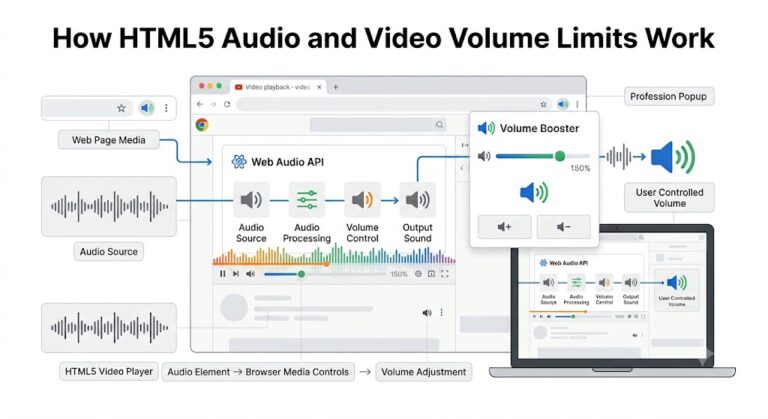
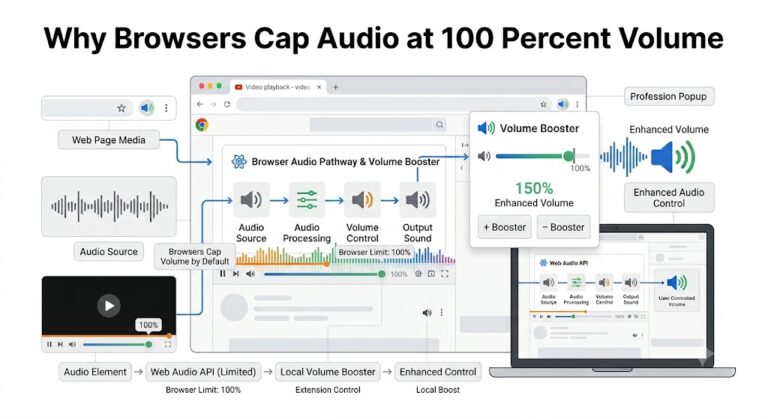
That player volume slider only controls the media element’s relative volume, not the absolute loudness reaching your speakers. When you max it out, you’re still inside a fixed 0–100% range that Chrome considers safe. Some movies and shows — especially older animations, international dubs, or dialogue‑heavy scenes — just can’t get loud enough inside that boundary.
Add in quiet laptop speakers, low‑sensitivity headphones, or a noisy room, and you end up straining to hear what the characters are saying. This isn’t a Disney+ bug; it’s a limitation of how browsers handle audio for HTML5 video. The good news: you can extend that range without touching the stream itself.
For more background on why browser audio often feels weak, read about the common causes of low browser sound and how the extension tackles them.
How Can You Improve Disney+ Audio Quality in Your Browser Without Changing the Stream?
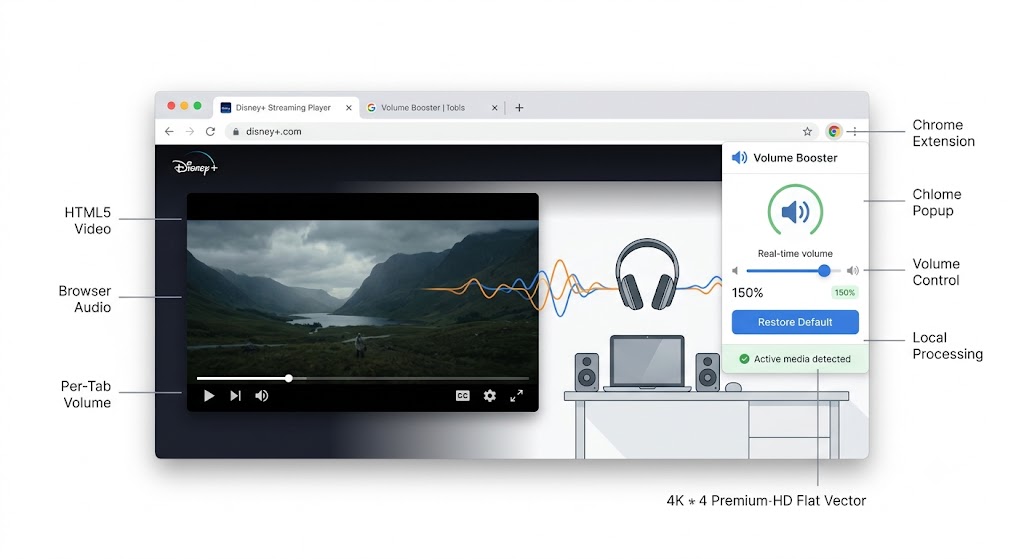
Instead of re‑encoding the video or adding artificial effects, Volume Booster works on the playback level — right where Chrome hands audio off to your speakers. When you open the extension popup while watching a Disney+ tab, it detects the active HTML5 media element and gives you an extra volume slider that goes beyond the browser’s default 100% limit.
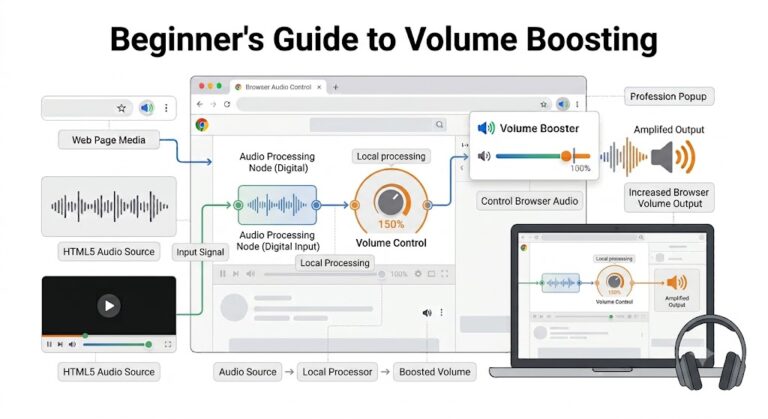
This isn’t a separate audio channel. It’s the same Disney+ stream, with the same cinematic mix, just delivered with more clean headroom. You’re not applying an equalizer, boosting specific frequencies, or adding spatial effects. You’re simply raising the overall gain, much like turning up an amplifier that sits after the player but before your output device.
Key controls you’ll use:
- Large volume slider — Drag it right to increase above 100%, left to fine‑tune or reduce below the default. The percentage indicator updates instantly so you always know the exact boost level.
- Reset button — One click returns the tab’s audio to its original state. Use it whenever you want to hear exactly what Disney+ provided without any enhancement.
- Active tab detection — The popup automatically locks onto the Disney+ tab you’re watching. No need to select it from a list; the extension knows where the media is playing.
Everything happens locally in Chrome. The extension never intercepts network traffic or decodes the video stream — it works purely on the final audio output stage that the browser already uses. That means zero impact on video quality and no risk of sync issues.
What Happens Inside the Browser When Volume Booster Amplifies a Disney+ Stream?
Understanding the internal flow helps you trust what the extension is doing — and what it’s not doing. The process relies entirely on Chrome’s native extension APIs and the HTML5 media specification, both of which are sandboxed and permission‑controlled under Manifest V3.
Here’s the step‑by‑step sequence when you boost Disney+ audio:
- Media detection. The extension’s content script identifies active video or audio elements on the current tab. In Disney+, that’s the HTML5 <video> player. Detection happens in real time and consumes negligible CPU.
- Gain interception. Once you move the volume slider, the extension adjusts the media element’s
volumeproperty — allowing values greater than 1.0 within Chrome’s internal audio graph. The browser processes this amplified signal before passing it to your system sound output. - Instant update. The change takes effect within milliseconds, so you hear the difference as you drag the slider. No buffering, no reloading, no disruption to the Disney+ player controls.
- Per‑tab isolation. The boost applies only to the Disney+ tab. Other tabs playing audio — YouTube, Spotify, system notifications — stay at their own independent volumes. If you switch to another tab, the popup instantly reflects that tab’s audio state.
Throughout this entire chain, no audio data is recorded, uploaded, or analyzed. The extension makes no external network requests. All computation stays within Chrome’s sandboxed extension environment, in line with the privacy‑first architecture of Volume Booster.
Which Disney+ Audio Problems Can a Volume Increase Actually Solve?
More volume alone doesn’t fix a poor mix, but it can overcome many practical listening barriers. When you improve Disney+ audio quality in your browser through precise amplification, you address the problems that make great soundtracks hard to enjoy.
- Low dialogue in quiet scenes. Many Disney+ movies rely on subtle speech moments where actors whisper or speak softly. Boosting the volume brings those lines out of the noise floor without making action scenes uncomfortably loud — you simply dial in the right level for the entire film.
- Weak output from built‑in laptop speakers. The tiny drivers in most notebooks simply can’t push enough air to fill a room. A clean volume boost gives them more signal to work with, often making speech intelligible without distortion.
- Bluetooth headphones that feel capped. Some wireless earbuds and headsets have their own gain limits that react poorly to a quiet source. Feeding them a stronger signal from the browser can result in cleaner, fuller sound because the headphone amp operates in a more efficient range.
- Loud environments. Watching Disney+ in a café, on a train, or with background chatter demands more output. Amplifying the browser audio helps you hear over the ambient noise without resorting to external amplifiers.
It’s important to note: the extension doesn’t add dynamic compression, noise reduction, or “night mode”‑style processing. It simply gives you the headroom that Chrome’s default settings hide. The original dynamic range remains intact; you just hear more of it.
How to Set Up Volume Booster for the Best Disney+ Listening Experience
There’s no one‑size‑fits‑all volume setting, but a few practical habits will give you consistently better sound without fiddling every time you press play.
Start with the extension’s default position — the slider at 100%, which equals the standard browser volume. While watching a Disney+ show that feels too quiet, slowly drag the slider to the right until the dialogue settles at a comfortable level. Watch for a minute, paying attention to both speech and the loudest sound effects. You’ll usually find a sweet spot between 150% and 300%, depending on your hardware and the specific title.
For movies with wide dynamic range (like Marvel blockbusters or Star Wars sagas), avoid setting the boost so high that explosions or orchestral swells cause distortion. The slider gives you fine control, not just huge jumps — small increments often make the biggest difference. If you ever overshoot, tap the Reset button and start again.
If you frequently switch between Disney+ and other tabs, the per‑tab memory ensures your boost stays only where you need it. For example, you can keep Disney+ at 250% while your music streaming tab sits untouched at 100%. When you return to Disney+, the extension recalls your last setting automatically. Read more about how increasing browser volume beyond the default limit works across multiple tabs.
How Real Viewers Improve Disney+ Audio Quality in Their Browser
Here’s how three different people use Volume Booster to make Disney+ sound better in everyday situations.
Example 1: The Family Movie Night on a Laptop
- Situation: A family gathers around a 13‑inch laptop to watch a new Disney animation. The built‑in speakers are barely loud enough for the kids in the back, and dialogue gets lost whenever the oven or dishwasher runs nearby.
- Action: The user opens Volume Booster on the Disney+ tab and pushes the slider to 210%. Instantly the dialog becomes clear across the room. They watch the entire film without toggling back and forth — the extension stays at the same boost level.
- Result: The movie sounds full and engaging. No one asks “What did she say?” The family enjoys the experience without an external speaker, all while the extension uses minimal CPU and no network data.
Example 2: The Commuter with Bluetooth Earbuds
- Situation: A daily train rider streams a Disney+ documentary on their Android phone using Chrome. The earbuds’ max volume is decent, but the rumbling of the train masks the presenter’s voice. Even at full phone and earbud volume, spoken segments are hard to follow.
- Action: They install Volume Booster on Chrome for mobile (or desktop equivalent) — the slider lets them push the browser’s output to 180%. Because the gain happens before the Bluetooth codec, the earbuds receive a louder, cleaner signal.
- Result: Commentary and interviews cut through ambient noise. The listener isn’t constantly adjusting volume; the boost stays consistent across episodes, and the phone’s battery isn’t hit by heavy processing.
Example 3: The Late‑Night Viewer with Wired Headphones
- Situation: A student watches a classic Disney film after hours in a shared apartment. The wired headphones produce a warm but very quiet output — the headphone jack’s amplifier seems underpowered for this device.
- Action: They set Volume Booster to 140%, just enough to lift the quiet orchestral soundtrack without losing detail. After the film, they hit Reset and the slider drops back to 100%, keeping the browser ready for the next day’s online lectures at standard volume.
- Result: The film feels immersive, not strained. The small boost makes the difference between “I think I hear strings” and “the score is gorgeous.” No extra hardware, no complicated audio routing.
Frequently Asked Questions About Disney+ Browser Audio
Will boosting the volume distort the Disney+ audio?
When used within reasonable limits, no. The extension amplifies the signal cleanly. If you push the slider extremely high, your speakers or headphones may reach their physical limit and produce distortion — that’s a hardware limitation, not the extension’s fault. Start with modest boosts and increase gradually.
Does Volume Booster affect the video quality on Disney+?
No. The extension only interacts with the audio output path of the HTML5 media element. Video decoding, resolution, and buffering remain completely unchanged. You can stream in 4K and boost the volume simultaneously with zero impact on picture quality.
Can I use Volume Booster on Disney+ in incognito mode?
Yes, if you’ve allowed the extension to run in incognito windows via Chrome’s extension settings. Because Volume Booster doesn’t collect any data — in normal or private browsing — your viewing stays entirely local, even in incognito mode.
Is it safe to boost volume for children’s hearing?
As with any audio, prolonged exposure at very high levels can harm hearing. Use the boost only to reach a comfortable listening level, and encourage children to keep the overall system volume moderate. The Reset button makes it easy to return to a safe baseline after a movie ends.
Does the extension work the same way for Netflix or YouTube?
Yes. Volume Booster works on any HTML5 video or audio, so you can apply the same per‑tab boost to YouTube videos, Netflix streams, or music platforms. The approach is identical: detect the media element, adjust gain, stay local.
Will a future Disney+ update break the extension?
Disney+ may update its player or change how it loads media, which could temporarily affect detection. Volume Booster is maintained to keep pace with browser and platform changes. Because it relies on standard HTML5 APIs, compatibility is generally high. Any issues are fixed in regular extension updates.
Take Control of Disney+ Audio — No Extra Hardware Needed
When you improve Disney+ audio quality in your browser, you’re not rewriting the soundtrack. You’re removing the invisible barrier that keeps your favorite movies and shows quieter than they should be. Volume Booster places that control directly in the Chrome popup, using only the browser’s own built‑in capabilities — no accounts, no data collection, no external processing.
Key points to remember:
- Disney+ audio often sounds quiet because Chrome caps the media element’s output; the extension extends that range safely.
- The volume slider gives you fine, real‑time control on a per‑tab basis, so you can keep Disney+ loud while other sites stay at default.
- All processing stays on your device — the extension respects your privacy absolutely and never touches your viewing history.
- A few small adjustments can transform listening on laptop speakers, headphones, or in noisy spaces, without adding distortion or latency.
Next time a whispered line or a swelling orchestral cue gets lost, don’t settle for the default volume ceiling. Open the extension, lift the slider a little, and hear what you’ve been missing. Then explore the Volume Booster blog for more tips on browser audio, and see how the same approach works across every HTML5 media site you use daily.