How to Improve Interview Recording Playback Volume
You’ve got an important interview recording but the speaker sounds distant, the audio is muffled, or Chrome’s volume is already at 100%. You need a way to improve interview recording playback volume without downloading software, creating accounts, or sacrificing privacy. Volume Booster gives you a simple, local, per‑tab volume boost that works on any HTML5 interview — and nothing else touches your audio.
- Why interview recordings are often too quiet even with system volume maxed out
- How the Volume Booster Chrome extension increases playback volume above browser limits
- Safe practices to boost audio without speaker damage or loss of clarity
- Exactly what happens under the hood — all processing stays on your device
Why Are Interview Recordings So Hard to Hear Even at Full Volume?
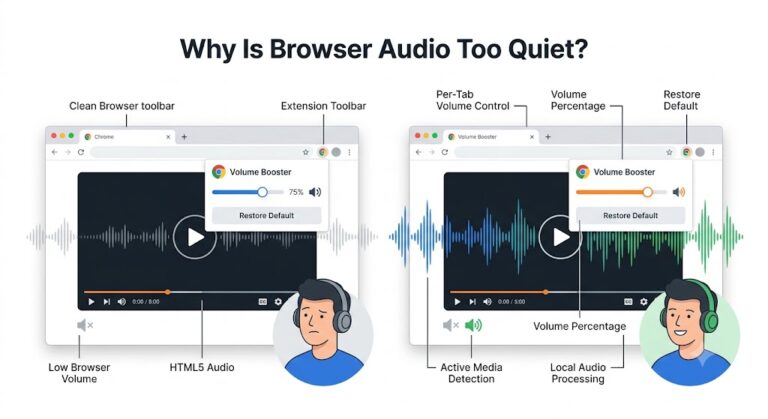
You hit play on a candidate’s one‑way video interview, a research call, or a webinar archive. Chrome’s volume slider is already maxed, your laptop speakers are pushed to 100%, yet voices still sound thin or buried. That’s because the original recording level was low, the microphone placement was poor, or the platform’s audio processing compressed dynamic range too aggressively.
Browsers cap audio output at a safe default — usually 0 dB for HTML5 media — to prevent distortion. But many interview recordings never reach that ceiling. The result: you strain to hear every word, rewind constantly, and miss subtle cues. Improving interview recording playback volume doesn’t mean turning the same weak signal up and causing clipping; it means applying a clean, controlled boost that lifts the entire track while keeping speech intelligible.
This is where a dedicated browser audio tool comes in. Unlike system‑wide volume boosters that affect all sound, Volume Booster works only on the tab playing the interview. And because it processes audio locally — never sending your recordings anywhere — you keep full privacy while making voices audible again.
How Does Volume Booster Improve Interview Recording Playback Volume Inside Chrome?
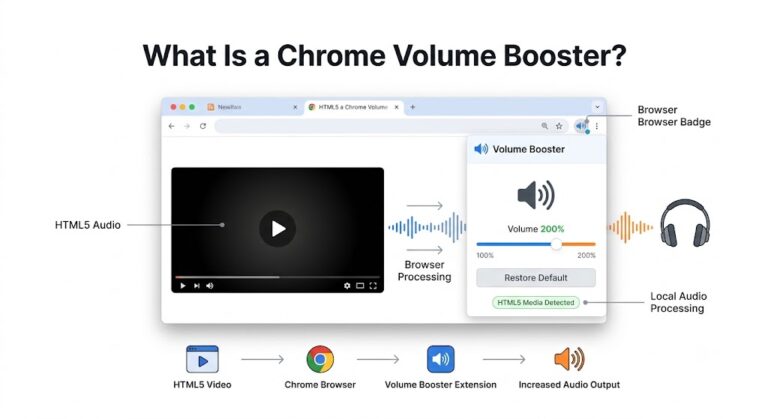
Volume Booster intercepts the audio stream of the active tab and applies a gain (amplification) before it reaches your speakers or headphones. It’s not re‑encoding or altering the file — it just tells Chrome to multiply the waveform amplitude. This happens in real‑time, with zero lag, and only on the tab you choose.
Here’s exactly what happens when you use it on an interview recording:
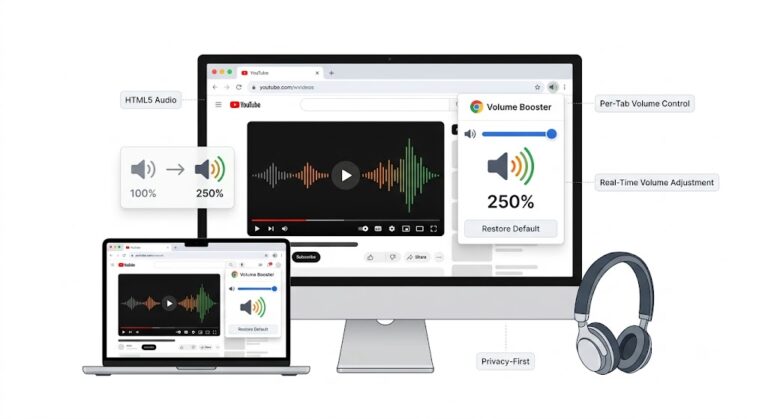
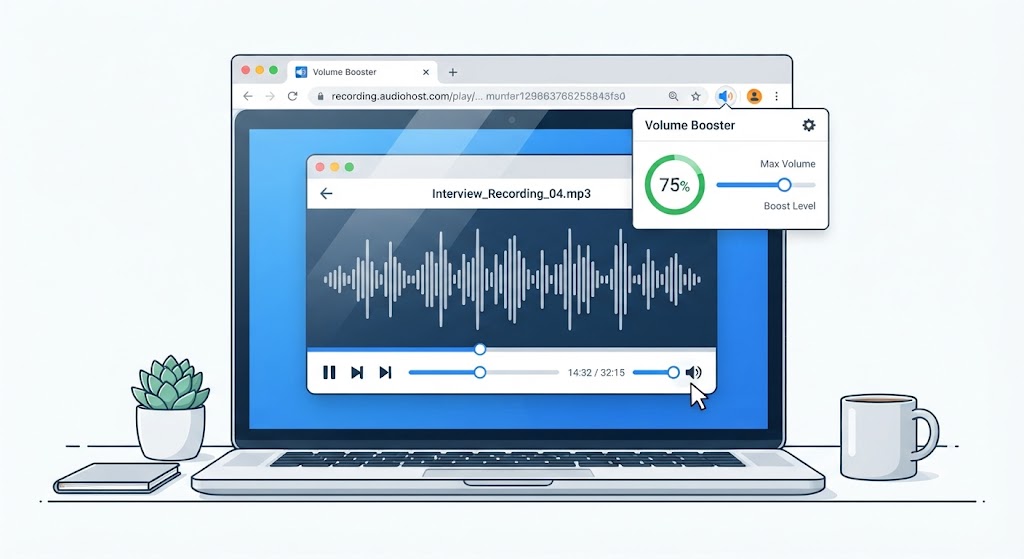
- Open the popup. Click the Volume Booster icon in the Chrome toolbar. The popup detects the current tab’s HTML5 audio or video element automatically.
- Slide to boost. Drag the large volume slider beyond 100%. You’ll see the percentage rise — 150%, 200%, up to the extension’s maximum. The adjustment is instant; you hear the change immediately.
- Fine‑tune per tab. If you have multiple tabs open, each gets its own volume level. The tab playing the interview keeps its boost, while your email notification sound stays at normal volume.
- Reset anytime. Hit the reset button to return to Chrome’s default level. No permanent changes are made to the recording or your browser settings.
Everything runs through the Chrome extension’s content script and, where needed, the Web Audio API — all inside your browser’s sandbox. No external servers, no account, no analytics. The extension simply reads the media element and boosts its output gain. For a deeper dive into the technology, see how browser audio amplification works.
How Can You Safely Increase Volume Without Damaging Your Speakers?
One common worry is that boosting volume above 100% might blow out laptop speakers or cause ear fatigue. Volume Booster itself doesn’t add harmful distortion — it’s a clean linear gain. The risk comes from pushing tiny built‑in speakers beyond their physical limits or listening at extreme levels for hours.
Follow these safe listening practices when you improve interview recording playback volume:
- Start low, increase gradually. Move the slider from 100% to 120% first, then step up by 10% increments until voices are clear but not harsh.
- Use headphones. Over‑ear or in‑ear monitors handle extra gain better than thin laptop speakers and let you hear detail without cranking the output.
- Watch for distortion. If you hear crackling, buzzing, or a “clipping” sound, you’ve gone too far. Back down by 5–10%. Audio should remain clean.
- Take breaks. Even clear, amplified audio can tire your ears. Pause every hour, especially during long interview review sessions.
For a complete guide on preventing damage while still getting louder audio, read how to safely increase volume without speaker damage. The extension also pairs well with the principles in our safe listening guidelines.
Does Boosting Volume Ruin the Audio Quality of an Interview Recording?
Not if you stay within a reasonable range. Volume Booster applies a digital gain, which is essentially a multiplier. As long as you don’t push the signal into digital clipping (where the waveform hits the maximum digital amplitude and gets cut off), the speech remains clear and natural. Most interview recordings have enough headroom to accept a 150–200% boost without audible problems.
What you might notice:
- Softer background noise becomes more prominent. Room hum, keyboard clicks, and distant traffic will be amplified along with the voice. This is the original recording noise, not something the extension adds.
- Quiet passages become intelligible. Whispered asides or low‑talkers suddenly come through, which is exactly why you wanted to improve interview recording playback volume in the first place.
- No artificial processing. Volume Booster doesn’t try to “enhance” or filter the audio. You hear the recording as it is — just louder.
If you’re listening to speech‑heavy content, this transparent approach is a major advantage because you aren’t introducing unnatural EQ changes. For more on keeping dialogue crisp, visit how to improve speech clarity while watching videos.
What Interview Platforms and Recording Formats Can Volume Booster Amplify?
Because Volume Booster hooks into HTML5 audio and video elements, it works with any web‑based interview recording that plays through Chrome’s native media player. This covers:
- Pre‑recorded video interviews embedded in hiring platforms (Workable, Greenhouse, Spark Hire) as long as they use HTML5 video tags.
- Cloud recordings from Zoom, Google Meet, Microsoft Teams, and Webex when viewed via their web players (not the desktop app).
- YouTube and Vimeo interviews — unlisted research calls, journalism archives, or public Q&A sessions.
- Podcast interviews played through web players or embedded players like Spotify’s web version.
- Local audio/video files opened in Chrome (drag an MP3 or MP4 into a tab).
A small number of platforms use proprietary streaming protocols that bypass HTML5 media elements; Volume Booster may not detect audio in those rare cases. However, for the vast majority of modern interview recordings, you’ll get an immediate boost. If you frequently review dialogue‑heavy content, you’ll also find value in our guide on enhancing dialogue in movies and shows.
Real‑World Scenarios: Improving Interview Recording Playback Volume in Everyday Workflows
Example 1: The Recruiter Screening Pre‑Recorded Candidate Interviews
- Situation: A hiring manager opens a one‑way video interview link in Chrome. The candidate’s voice is barely audible at 100% system volume. Laptop speakers are struggling.
- Action: She clicks the Volume Booster icon, slides the control to 160%. Immediately, the candidate’s tone and word endings become clear. She can now assess communication skills without rewinding.
- Result: Screening time drops because she no longer replays answers. Volume Booster stays at 160% only on that tab; other tabs remain at normal volume. No candidate data is recorded — the gain adjustment is entirely local.
Example 2: The Journalist Transcribing a Recorded Remote Interview
- Situation: A reporter has a 45‑minute Zoom cloud recording. The source’s side of the conversation was recorded low due to a weak microphone. Even with headphones, some phrases are inaudible.
- Action: She opens the Zoom recording link in Chrome, activates Volume Booster, and sets the per‑tab volume to 200%. She also uses the same technique for lecture recordings to ensure consistency.
- Result: Transcription becomes faster; she hears every word. The boosted audio doesn’t distort because the original recording had sufficient headroom. Everything stays inside Chrome — the audio never leaves her machine.
Example 3: The Student Reviewing a Thesis Defense Recording
- Situation: A graduate student watches a committee Q&A recorded in a large hall. The built‑in microphone captured mostly ambient reverb, and the speaker’s voice is muddy.
- Action: While streaming from the university’s media portal in Chrome, he turns up the Volume Booster to 140%. The extra gain pulls the voice out of the room echo just enough to catch the comments.
- Result: He understands the feedback without external audio editors. Plus, he knows the extension isn’t tracking him or the video — a critical point when dealing with unpublished academic work. For more about boosting speech in educational content, see improving audio quality during online classes.
Frequently Asked Questions About Boosting Interview Playback Volume
Will Volume Booster work if the interview platform uses DRM or encrypted streaming?
No. Like all volume boosters, the extension relies on the HTML5 media element. Encrypted or DRM‑protected streams (e.g., Netflix, protected corporate video portals) block access to the audio buffer. For standard interview recordings on open platforms, it works flawlessly.
Does the extension record or upload my interview audio?
Never. Volume Booster processes all audio locally inside Chrome. It does not capture, save, or transmit any audio data. There are no accounts, no cloud connections, and no external servers. You can verify this by checking Chrome’s network tab while using it — you’ll see zero outgoing requests.
Can I boost the volume of a live interview (e.g., Google Meet call) while it’s happening?
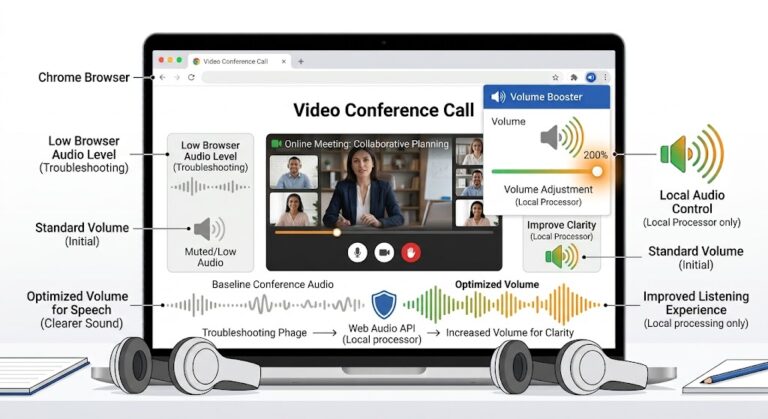
Volume Booster is designed for playback of HTML5 media, not real‑time communication. In live calls, the audio path is handled differently by WebRTC. The extension may not consistently boost live streams. For recorded interviews watched later in a browser tab, it works without issue. For live meeting volume challenges, you can explore fixing quiet audio during video conferences for tips.
What’s the maximum volume boost I can apply?
Volume Booster allows a significant increase above 100% — enough to bring barely audible recordings to a comfortable level. The exact upper limit is chosen to avoid hardware stress while still giving plenty of headroom. We recommend starting low and stopping as soon as voices are clear.
If I reset the volume, does it go back to Chrome’s default across all tabs?
The reset button returns the current tab to 100% (Chrome’s native level). It doesn’t affect other tabs. If you want all tabs reset, you’ll need to click reset on each. This per‑tab independence is what makes it perfect for multitasking during interview review.
Will using Volume Booster cause my browser to slow down?
No. The extension is lightweight, uses minimal CPU and memory, and processes audio only when you adjust the slider. It runs on Manifest V3, Chrome’s modern extension platform, and respects idle states. You can keep it enabled all the time without performance impact.
Quiet Interview Recordings Don’t Have to Stay That Way
When a recording’s volume is too low, you shouldn’t have to download audio editors, install system‑wide equalizers, or compromise your privacy just to hear what was said. Improve interview recording playback volume directly in Chrome with a tool built for simplicity and local control.
Key takeaways:
- Chrome’s default volume limit often leaves interview recordings barely audible; a dedicated extension bridges the gap cleanly.
- Volume Booster applies a transparent gain — no EQ tricks, no cloud processing — so you hear the original recording, only louder.
- Per‑tab control keeps your browsing sane: boost the interview tab while your music or notification sounds stay unchanged.
- Safety is in your hands: gradual adjustments and comfortable headphones prevent speaker strain and hearing fatigue.
Because the extension works entirely offline on your device, you can use it on confidential candidate interviews, sensitive research calls, or personal journals without a trace. No login, no analytics, no hidden data collection — just louder, clearer speech when you need it.
Next time you struggle to catch every word of an interview, open Volume Booster, slide up the gain, and experience how much difference a few percentage points of extra volume can make. For more ways to improve audio across different media, explore our complete guide library and discover how local, privacy‑first audio amplification puts control back in your hands.