How to Improve Speech Clarity While Watching Videos
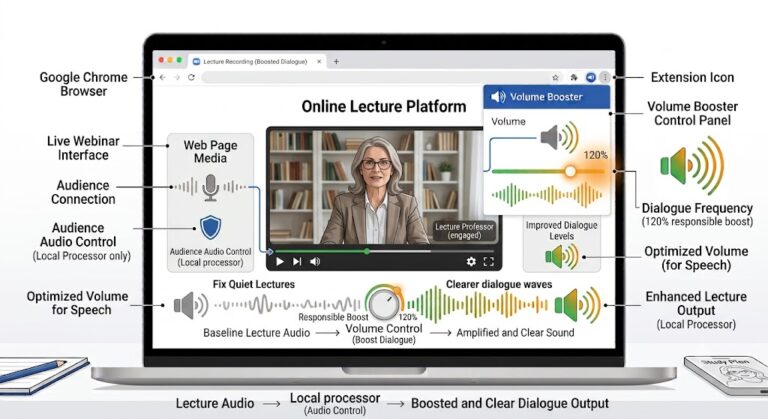
Muffled dialogue, quiet lectures, or soft podcast voices can turn a video into a frustrating experience. Improving speech clarity while watching videos doesn’t require expensive headphones or audio filters — it starts with precise, local volume control inside your browser. Volume Booster gives you a direct way to raise the audio level of any HTML5 video or audio element so speech cuts through background noise. All processing stays on your device; nothing is ever recorded or sent anywhere.
- Why speech often sounds too quiet even when your system volume is high
- How adjusting per‑tab volume makes dialogue instantly clearer
- What happens inside Chrome when Volume Booster amplifies audio locally
- Practical ways to set the volume slider for different kinds of spoken content
Why Is Speech Often Hard to Hear in Online Videos?
Many videos, especially lectures, webinars, interviews, and older movies, suffer from low or uneven speech levels. The person speaking might be far from the microphone, the recording might have been compressed, or the original audio mix simply didn’t prioritize dialogue.
On top of that, browsers themselves cap audio at 100% system volume. If a video’s source level is already low, maxing out your computer’s volume still leaves you straining to understand every word. This is where a browser‑side volume booster becomes a practical, everyday tool.
By increasing the gain of the audio stream directly inside Chrome, you can bring spoken words up to a comfortable listening level without touching your system mixer or external speakers. It’s a direct, local fix for one of the most common web media frustrations.
How Does Volume Booster Help You Improve Speech Clarity While Watching Videos?
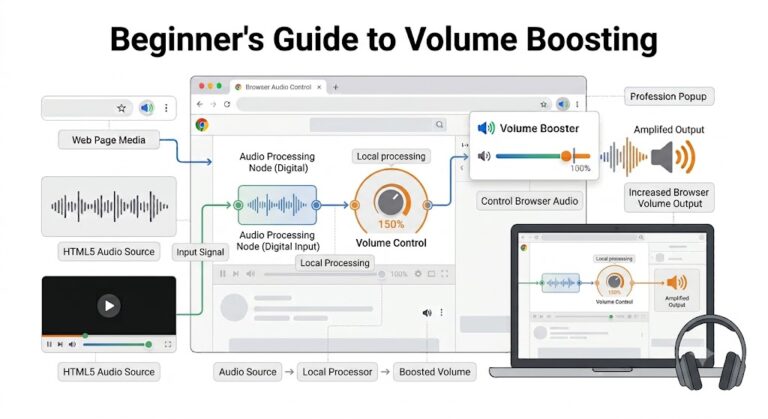
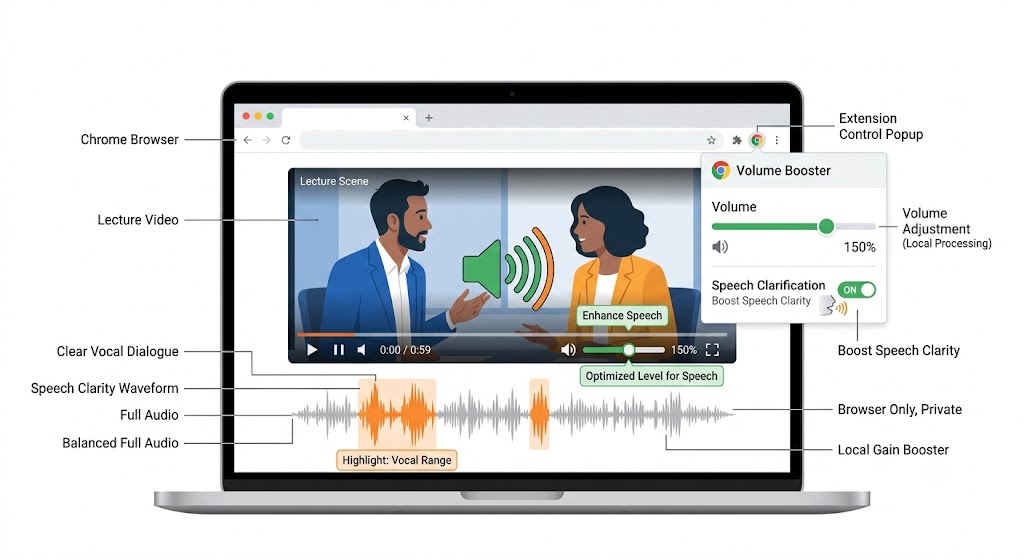
Volume Booster acts as a clean volume amplifier that works on any HTML5 audio or video element. When you improve speech clarity while watching videos with the extension, you aren’t applying voice filters or equalizers — you’re raising the overall output of the media track so that every syllable becomes louder and easier to distinguish.
Here’s what happens the moment you adjust the volume slider:
- The extension detects the active HTML5 media element in the current tab. This works on YouTube, Vimeo, online course platforms, news sites, and any page using standard
<audio>or<video>tags. - Volume Booster increases the audio gain locally, using browser‑supported amplification that stays entirely inside Chrome’s sandboxed environment. No audio data is uploaded, recorded, or shared.
- The change takes effect instantly. Speech that was buried under background noise or recorded too softly is now clearly audible without any distortion, as long as you stay within a reasonable boost range.
The result is a dramatic improvement in speech intelligibility, especially when you’re using built‑in laptop speakers, low‑powered headphones, or listening in a noisy room. You hear every word without straining, and you stay in complete control of the final output level.
How to Use the Volume Slider to Bring Out Dialogue
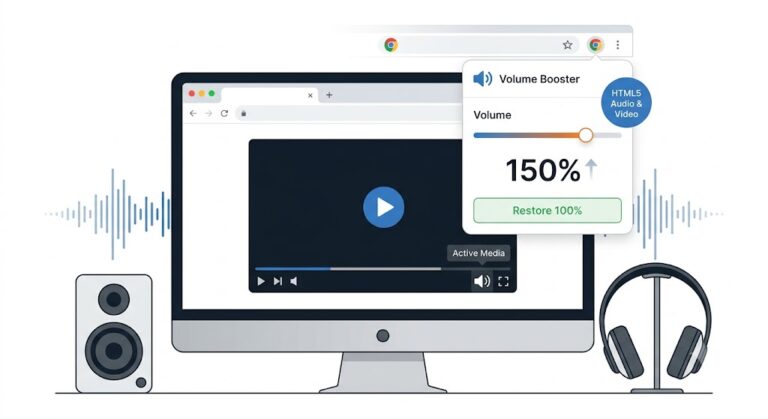
The volume slider inside the Volume Booster popup is your primary tool for improving speech clarity while watching videos. Instead of a binary “louder” button, you get a fine‑grained percentage scale — typically from 100% (the browser’s default) up to 600% — that you can adjust in real time while the video plays.
Best practice for speech‑heavy content:
- Start at 100% — the browser’s natural ceiling — and slowly drag the slider upward while paying attention to the dialogue.
- Stop when you can comfortably understand every word, not when the audio sounds “loud.” Usually 150‑250% is enough for quiet lectures; poorly mixed movies might need up to 300%.
- Watch for distortion. If the voice starts crackling or sounding harsh, you’ve pushed the gain too far. Drop back slightly until the sound cleans up.
- Use the Reset button (the circular arrow icon) to instantly return to the browser’s default volume if you need to compare the boosted level against the original.
Because the slider updates the audio with zero delay, you can dial in the perfect speech clarity mid‑video, without pausing or refreshing the page. This makes it especially useful for long‑form content like online courses or conference recordings.
For a deeper technical look at what happens behind the slider, you can read about audio gain and how gain increases the power of an audio signal without altering its original character.
How to Set Per‑Tab Volume for Different Video Sources
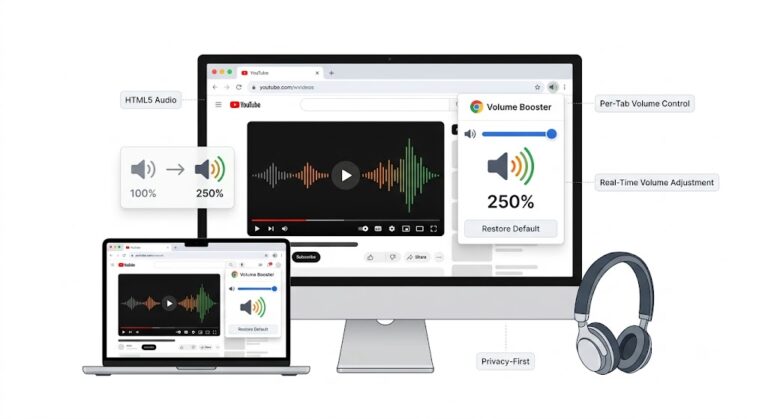
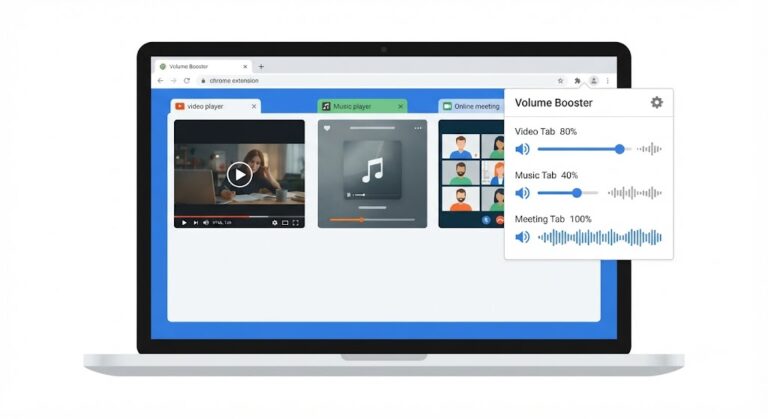
Not every video needs the same level of amplification. A clear documentary might only require a small boost, while a poorly recorded panel discussion could need significantly more. Volume Booster’s per‑tab volume control lets you set an independent level for each tab, so your speech clarity settings never clash.
When you open the extension popup, it automatically detects the active tab’s media. Any change you make applies only to that tab. Switch to another video in a different tab, and you’ll see its own volume level — or the default 100% if you haven’t adjusted it yet.
Practical scenarios where per‑tab control shines:
- You keep a lecture at 200% for clear speech while a background music tab stays at 120% so the beat doesn’t overpower everything.
- During a video conference call, you boost only the presenter’s shared video tab without affecting your meeting platform’s own audio.
- While comparing two versions of the same talk, you can set independent volumes for each tab and switch back and forth instantly.
All per‑tab settings are stored in memory only for the current browsing session. Close a tab and its specific volume information disappears — no data is ever saved to disk or synced across devices.
When Should You Reset Volume to Default?
The reset button isn’t just a fallback; it’s a quick way to ensure you’re not accidentally boosting audio when you don’t need to. Clicking it returns the active tab’s volume instantly to 100%, matching the browser’s standard output.
I personally use reset in these situations:
- After finishing a long video where I’d boosted speech clarity, I reset before opening a different kind of media — say, a music playlist — so I don’t get surprised by sudden loudness.
- When I’m troubleshooting audio quality and want to hear the original source first, then re‑apply a more moderate boost.
- If I’ve handed my laptop to someone else and want to make sure they experience the default volume without any leftover amplification.
Because the reset action is local and instant, there’s no risk of losing settings you intentionally kept on another tab. It only affects the media in the currently active tab, keeping your other speech clarity adjustments untouched.
How Does Local Audio Processing Keep Your Listening Safe and Private?
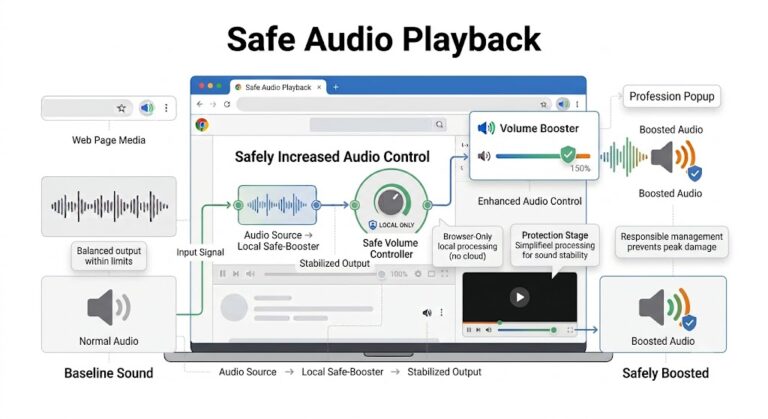
Every action Volume Booster takes — reading the audio track, applying gain, updating the output — happens inside Chrome’s own extension sandbox. The extension never makes network requests related to your audio, never records a single second of sound, and never collects any analytics or telemetry.
This privacy‑first design matters especially when you’re watching sensitive content: business calls, personal health videos, or private educational material. You can improve speech clarity while watching videos without worrying about who might be listening. No one is listening.
The extension adheres to Manifest V3, Chrome’s latest extension platform, which enforces stricter security and limits background processing. Volume Booster works entirely through content scripts and the browser action popup — no persistent background page, no unnecessary permissions. You can inspect the open source code or use the browser’s developer tools to verify that zero external communication occurs when you adjust the volume.
If you’d like to explore how to boost volume safely without damaging your hearing or speakers, our safe listening guidelines walk through best practices and explain the limits of per‑tab amplification.
Practical Examples: Clearer Speech in Real‑Life Scenarios
Here’s how real users apply Volume Booster to improve speech clarity while watching videos across different everyday situations.
Example 1: The Online Student Following a Recorded Lecture
- Situation: The professor’s voice is faint in the university’s video player, even with laptop volume at maximum. Key terms are lost in the room echo.
- Action: The student opens Volume Booster while the lecture plays, drags the slider to 220%, and immediately hears every technical term clearly. She leaves the tab open for two hours of study; the boosted level stays consistent the entire time.
- Result: No more rewinding to catch missed words. She completes the module faster and retains more information because she’s not fighting the audio.
Example 2: The Remote Worker Watching a Conference Keynote
- Situation: The keynote speaker uses a lapel mic, but the stream’s audio mix buries the voice under applause and hall ambiance. The worker’s Bluetooth earbuds make the problem worse.
- Action: He opens the extension popup, notices the volume indicator at 100%, and gradually raises it to 180%. The dialogue moves forward without distortion. He pairs this with the browser’s built‑in picture‑in‑picture mode so he can continue working in other tabs while the boosted audio plays in a floating window.
- Result: He follows the entire keynote without missing a sentence, takes notes in parallel, and uses the reset button when switching to a music tab later. The per‑tab setting kept the speech boost isolated.
Example 3: The Language Learner Practicing with Subtitled Videos
- Situation: A learner watches short film clips in a foreign language. The actors speak softly, and background music often drowns out the pronunciation they need to study.
- Action: She sets the video’s volume to 260% via Volume Booster. Now every consonant and vowel is pronounced loud enough for her to mimic. She often pauses, repeats a phrase, and doesn’t need to adjust the slider again because the amplification stays stable.
- Result: Speech clarity improves dramatically without any special audio equipment. She hears subtle intonations that were previously buried, which accelerates her listening comprehension.
Frequently Asked Questions
Will boosting the volume with Volume Booster damage my speakers or headphones?
Not if you stay within reasonable limits. The extension itself doesn’t push a signal that’s inherently dangerous — it’s the final output level reaching your hardware that matters. Keep the slider below the point where audio distorts, and follow our safe listening guidelines to protect both your hearing and your equipment.
Does Volume Booster work on all video sites?
It works on any website that uses standard HTML5 <video> or <audio> elements. That covers YouTube, Vimeo, Dailymotion, most online learning platforms, news sites, and corporate video portals. Some sites that rely heavily on custom media players may still expose an HTML5 element behind the scenes, and in those cases Volume Booster can often still detect and amplify it.
Can I use Volume Booster to improve speech clarity during live video calls?
If the call is streamed via a web‑based player (like a webinar platform that uses standard video), yes. But real‑time communication apps like Google Meet or Zoom often use WebRTC with their own audio pipelines, which Volume Booster is not designed to intercept. The extension focuses on media elements, not live peer‑to‑peer audio channels.
Is there any difference between boosting speech clarity and just turning up my system volume?
Yes. System volume amplifies everything — system sounds, notifications, and the browser’s output as a whole. Volume Booster amplifies only the specific media track inside a single tab, so you can keep your system volume at a comfortable level while giving spoken content a targeted lift. This also helps avoid sudden loud surprises from other applications.
Will my volume settings be saved when I close the browser?
No. Volume Booster does not store any settings permanently. All per‑tab adjustments are held in memory and disappear when you close the tab or quit Chrome. This design keeps the extension lightweight and privacy‑respecting. Every time you open a fresh video, you start from the browser’s default 100%.
Does the extension affect video quality or cause lag?
No. Volume Booster only touches the audio gain; it does not modify the video stream or add any processing that would introduce latency. The amplification happens in real time with negligible CPU usage, so even on older machines you’ll see no stuttering or frame drops. For a technical overview of how this is possible, gain nodes explained dives into the Web Audio API mechanism behind the scenes.
Hear Every Word — Without Switching Hardware
Improving speech clarity while watching videos is less about expensive gear and more about having the right tool inside your browser. Volume Booster puts a clean, local gain control at your fingertips so dialogue, lectures, and interviews are never too quiet to understand.
Key takeaways:
- Use the precise volume slider to lift speech above background noise — adjust gradually and stop at the point where every word is clear.
- Take advantage of per‑tab volume to maintain independent levels for different types of spoken content.
- Rely on local processing that never uploads or records your audio — your listening habits stay entirely on your device.
- Reset when needed to quickly return to the browser default and prevent accidental overload.
Because the extension runs entirely offline, with no accounts or cloud synchronisation, you can experiment freely. Open a video, click the Volume Booster icon, and start adjusting the slider while the person talks. Once you experience how a simple gain increase can transform muffled speech into crisp, understandable audio, you’ll wonder why you strained for so long.
For more on how browsers handle audio limits and how Volume Booster fits into the bigger picture of safe, local amplification, explore our browser audio amplification guide. And if you’re curious about the underlying technology, volume boosting extensions covers how similar tools compare — though none match our strict privacy‑first approach.