How to Increase Browser Volume Beyond the Default Limit
You've dragged Chrome's volume slider all the way up, and the audio is still too quiet. Learning how to increase browser volume beyond the default limit gives you back control over HTML5 media — whether you're listening to a quiet podcast, watching a poorly mixed video, or straining to hear a lecture recording. Volume Booster amplifies audio directly inside Chrome, with no uploads, no accounts, and no external processing. Everything stays on your device.
- Why Chrome's built-in volume cap leaves audio too quiet on many websites
- How Volume Booster amplifies audio locally without touching your data
- What the real-time volume slider actually controls inside each tab
- When to boost, when to reset, and how to protect your ears and speakers
Why Is Browser Volume Sometimes Too Quiet Even at Maximum?
You're on a video call, and the presenter sounds like they're whispering from another room. You crank Chrome's volume to 100%, but nothing changes. The problem isn't your ears or your hardware — it's how browsers handle audio by design.
Chrome applies its own volume ceiling to HTML5 media. When a website's audio track is recorded or encoded at a low level, Chrome's maximum output still respects that original signal. The browser doesn't automatically boost quiet audio — it just plays what it receives, capped at 100% of the source level.
This becomes especially noticeable with:
- Poorly mixed videos on platforms where creators upload content without normalizing audio levels
- Online lectures recorded with low-gain microphones in large rooms
- Podcasts and interviews where one speaker sits far from the mic
- Language learning materials with intentionally soft native-speaker audio
- Streaming content that wasn't mastered for browser playback
Your operating system volume might be at 80%, your hardware knob turned to max, and Chrome's internal slider pegged at 100% — and the audio is still barely audible. That's the exact gap Volume Booster fills. It doesn't just nudge the volume; it amplifies the audio signal beyond Chrome's native ceiling, processing everything locally on your machine.
Learn more about how the extension handles Chrome volume boosting across different media types.
How Does a Volume Booster Extension Increase Audio Beyond Browser Limits?
When you increase browser volume beyond the default limit, you're not hacking Chrome or bypassing security controls. You're using the browser's own audio processing pipeline — the same APIs that Chrome exposes to every compliant extension — to amplify the gain before the audio reaches your speakers or headphones.
Here's the step-by-step process inside Volume Booster:
- Detection: The extension's content script identifies active HTML5
<audio>and<video>elements on the current tab. It doesn't scan page content — it only looks for media elements that Chrome has already loaded and is playing. - Connection: Volume Booster attaches to the media element's audio output path using Chrome's standard extension APIs. This happens entirely within the sandboxed extension environment defined by Manifest V3 — no external scripts, no remote code.
- Amplification: When you move the volume slider above 100%, the extension increases the audio gain in real time. The processing is mathematically straightforward: it multiplies the audio signal by your chosen amplification factor. At 150%, the signal is 1.5x stronger than the original. At 200%, it's doubled.
- Output: The amplified signal passes directly to your system's audio output — speakers, headphones, or external monitors — through Chrome's normal audio stack. There's no intermediary server, no cloud processing, no delay.
This all happens in milliseconds. You move the slider, and the audio changes instantly. The extension doesn't re-encode anything, doesn't save audio buffers, and doesn't touch files on your disk. It intercepts the live audio stream, adjusts the gain, and passes it along — all within the same browser tab.
For a broader look at what the extension can do, visit the Volume Booster homepage.
What Controls Does Volume Booster Give You Over Browser Audio?
Volume Booster's interface is deliberately simple. There's no learning curve, no configuration file, no hidden settings panel. You click the extension icon, and every control you need is right there in the popup.
The Volume Slider
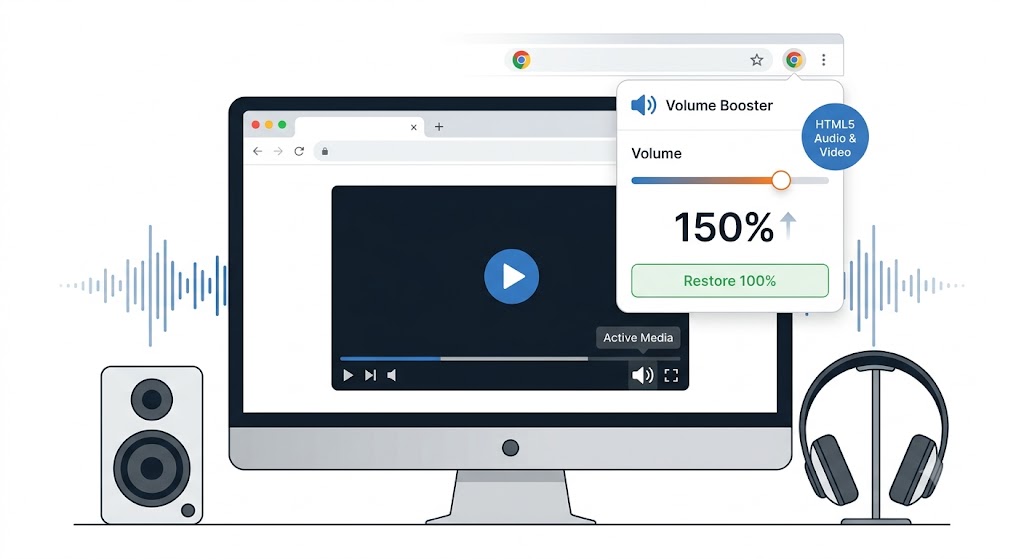
The large central slider is the primary control. It ranges from 0% to well beyond 100% — letting you increase browser volume beyond the default limit by precise increments. Dragging it updates the audio on the active tab in real time. There's no "Apply" button, no delay. What you set is what you hear, immediately.
- Below 100%: Reduces volume for tabs that are too loud — useful when one website blasts audio while others play at normal levels.
- At 100%: Matches Chrome's default maximum — the extension effectively passes audio through unchanged.
- Above 100%: Amplifies beyond Chrome's native ceiling — this is where quiet content becomes comfortably audible.
The Volume Percentage Indicator
Next to the slider, a clear number shows your exact current amplification level. At a glance, you know whether you're at 100%, 150%, or any point in between. This matters because consistent levels across tabs help you avoid sudden volume jumps when switching between websites.
The Reset Button
One click returns the active tab's volume to exactly 100% — Chrome's default. If you've boosted a quiet lecture to 180% and then open a music tab, hitting reset prevents the music from blasting at an unexpected level. It's a safety valve, not just a convenience.
Active Tab Detection
The popup automatically detects which tab you're viewing and adjusts its controls accordingly. If you switch to a different tab and reopen the popup, the slider reflects that new tab's current volume setting. There's no manual tab selection menu — the extension reads your active tab from Chrome's tab API and responds instantly.
Per-Tab Volume Control
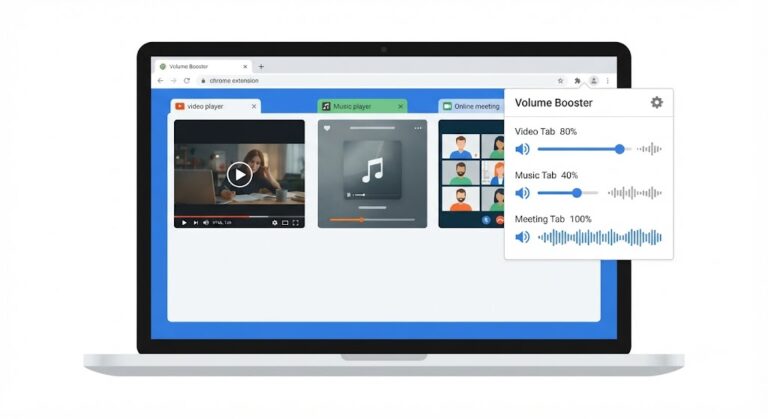
Every tab maintains its own volume setting. Boost your podcast tab to 160%, keep your music tab at 90%, and leave your work video call at 110%. Switching between them preserves each setting independently. This is one of the most practical aspects of the extension — you don't have to readjust every time you move between tasks.
Read more about practical usage scenarios on the Volume Booster blog.
How Does Volume Booster Process Audio Locally Without Compromising Privacy?
Every audio adjustment happens inside your Chrome browser. Nothing leaves your device. This isn't a marketing claim — it's a technical constraint of how the extension is architected under Manifest V3.
Volume Booster operates on a strict local-first principle:
- No audio uploads: The extension never sends your audio stream to any server. It doesn't capture, buffer, or transmit sound data. The gain adjustment is applied directly to the live playback stream within the tab's own JavaScript context.
- No user accounts: There's no login screen, no registration, no email collection. The extension works the moment you install it, with zero personal information required.
- No analytics or telemetry: Volume Booster doesn't track how you use it, which websites you visit, or how often you adjust the volume. There are no analytics scripts, no usage counters, no crash reporters phoning home.
- No external requests: The extension makes zero network calls during normal operation. You can verify this with Chrome's built-in network monitoring tools — Volume Booster generates no outbound traffic.
- No cloud synchronization: Your per-tab volume settings exist only in your browser's local memory during that session. There's no cloud backup, no cross-device sync, no external database storing your preferences.
This privacy model isn't a feature toggle — it's baked into the extension's core design. Volume Booster requests only the minimum Chrome permissions needed to detect media elements and adjust audio gain on the active tab. It doesn't request access to your browsing history, bookmarks, downloads, or any data beyond what's strictly necessary for audio control.
The processing model is transparent: a content script detects media, applies gain, and disappears. The service worker — required by Manifest V3 — handles popup communication but stores nothing persistent. If you close Chrome and reopen it, the extension starts fresh with every tab at 100%.
Is It Safe to Increase Browser Volume Beyond the Default Maximum?
Safety is a legitimate concern when you increase browser volume beyond the default limit. The short answer is yes — the extension is safe for your browser, your hardware, and your privacy. But there are practical considerations every user should understand.
Browser Safety
Volume Booster operates within Chrome's sandboxed extension environment. It can't modify system files, access other applications, or affect audio outside Chrome. If you uninstall the extension, all changes vanish instantly — there's nothing left behind. The amplification is purely mathematical gain adjustment on an existing audio stream; it doesn't alter website code or inject anything permanent into pages.
Hardware Safety
Your speakers and headphones have physical limits. Boosting volume to extreme levels — say, 300% or higher — can cause distortion, clipping, and in rare cases, damage to sensitive headphone drivers. Volume Booster doesn't artificially cap the maximum, so you're responsible for setting sensible levels. Best practices:
- Start at 110–120% for quiet content and increase gradually
- If you hear crackling, distortion, or rattling, lower the volume immediately
- Never boost to maximum while wearing headphones and then switch to a loud tab
- Use the reset button before opening new media tabs to avoid surprises
Hearing Safety
Prolonged listening at high volumes can damage your hearing. The extension gives you the tool to amplify quiet audio — but it's on you to use it responsibly. If you find yourself consistently needing boosts above 150%, consider whether the source audio is simply too quiet, or whether your listening environment needs adjustment. Sometimes moving to a quieter room or switching from laptop speakers to headphones makes more difference than any software boost.
Audio Quality
Boosting volume amplifies everything in the signal — including background noise, compression artifacts, and electrical hum that might be inaudible at normal levels. At moderate boosts of 120–150%, the quality impact is usually negligible on most content. At 200% and above, you may notice increased noise floor. This isn't a bug — it's the nature of gain amplification on any audio source.
When Should You Use a Volume Booster Extension?
Not every quiet tab needs a boost. Knowing when to use Volume Booster — and when to look elsewhere — makes the tool genuinely useful rather than a crutch for fixable problems.
Good times to boost:
- Quiet online lectures and training videos where the instructor's voice is naturally soft and you've already maxed out system volume
- Poorly mixed streaming content from smaller creators who don't have professional audio mastering — common on independent platforms
- Language learning audio where native speakers talk at conversational volume, and you need to hear subtle pronunciation details
- Video conferences where one participant has a weak microphone and the platform's volume controls aren't sufficient
- Podcasts recorded at low gain — especially older episodes or amateur productions that weren't normalized in post-production
- Movies and shows with wide dynamic range where dialogue is intentionally quiet while action scenes are loud — boosting just the quiet parts helps balance the experience
When boosting isn't the answer:
- Your system volume is low: Check your operating system's sound settings and hardware volume knob first. Boosting in-browser audio when the OS is at 20% is fighting the wrong battle.
- Your headphones or speakers are underpowered: Some budget headphones simply can't produce adequate volume. Software amplification can't overcome hardware limitations — it'll just distort.
- Background noise is drowning out audio: In a noisy environment, consider noise-isolating headphones or moving to a quieter space. Cranking volume to compete with ambient noise leads to unsafe listening levels.
The extension excels as a targeted tool for specific quiet tabs — not as a permanent global volume replacement. Use it surgically, and it serves you well.
Practical Examples: Real Situations Where Boosting Browser Volume Helps
Here's how real people increase browser volume beyond the default limit in everyday scenarios — and what happens when they do.
Example 1: The Online Student with Quiet Lecture Recordings
- Situation: A graduate student is watching a recorded seminar on a university portal. The professor's microphone was positioned far from the lectern, and the audio peaks at a whisper. Chrome's volume is at 100%, system volume at 90%, and the student still misses every third word.
- Action: She installs Volume Booster, clicks the extension icon on the lecture tab, and slowly drags the slider to 140%. The audio becomes comfortably audible without distortion. She can now follow complex terminology without straining.
- Result: The lecture is intelligible. She finishes the two-hour recording without fatigue. When she switches to a music tab afterward, she hits the reset button to return to 100% before pressing play — no startling volume jump. The per-tab setting means the lecture tab stays at 140% when she returns to it later.
Example 2: The Remote Worker on a Video Call with Quiet Colleagues
- Situation: A project manager is in a daily standup call. Two team members have weak laptop microphones, and their updates are nearly inaudible even with the conferencing app's volume maxed out. The manager keeps asking people to repeat themselves, slowing down the meeting.
- Action: She opens Volume Booster on the conference tab and sets it to 125%. The quiet voices become clear without making louder colleagues uncomfortably loud. She leaves it at 125% for every standup and resets afterward.
- Result: Meetings run faster. She catches action items the first time. When she accidentally opens a YouTube video with the boost still active, the audio is slightly louder than expected — so she develops the habit of checking the volume indicator before switching media tabs. A quick reset becomes muscle memory.
Example 3: The Podcast Listener with Older Episodes
- Situation: A commuter listens to a podcast that started in 2017. Early episodes were recorded with basic equipment at low gain. Even with phone volume and Chrome volume at maximum, road noise drowns out the dialogue during his train ride.
- Action: He boosts the podcast tab to 160% using Volume Booster. The voices cut through the ambient noise. He notices slight background hiss at this level — the original recording's noise floor — but it's far preferable to missing content.
- Result: He listens to the entire back catalog comfortably. For newer, well-produced episodes, he resets to 100% or even drops to 85% if they're too loud. The per-tab independence means each podcast tab remembers its ideal level.
Frequently Asked Questions
Does Volume Booster work on every website?
Volume Booster works on any website that uses standard HTML5 <audio> or <video> elements. This covers the vast majority of modern websites — YouTube, Vimeo, most podcast players, streaming services, video conferencing platforms, and online learning portals. It does not work on sites that use proprietary non-HTML5 media players (rare) or DRM-restricted content that blocks browser-level audio access. If you can right-click a video and see "HTML5 video" controls, Volume Booster can amplify it.
Will boosting volume damage my laptop speakers?
Moderate boosts of 120–150% are generally safe for any functioning speaker system. At higher levels — above 200% — you risk distortion and, over extended periods, potential wear on small laptop speaker drivers. The best guideline: if the audio sounds distorted, crackly, or rattly, lower the volume. Your ears are the best safety monitor. Volume Booster doesn't enforce a hard cap because different speakers have different tolerances, so responsible use is essential.
Does Volume Booster work on Bluetooth headphones?
Yes. Volume Booster amplifies the audio signal before it leaves Chrome, so it works regardless of your output device — wired headphones, Bluetooth headphones, laptop speakers, desktop speakers, or external monitors. The amplification happens at the browser level; your output device receives the already-boosted signal. Keep in mind that Bluetooth headphones have their own volume controls, so you may need to balance both the headphone volume and the extension's boost level for optimal results.
Why does the volume reset when I close Chrome?
By design, Volume Booster does not persistently store your per-tab volume settings across browser sessions. When you close Chrome and reopen it, all tabs start fresh at 100%. This is a deliberate privacy and simplicity choice — no local storage of preferences means no data to manage, clear, or worry about. It also prevents surprises: you won't open a tab days later and get blasted by a 200% boost you forgot you set. A quick adjustment takes seconds, and the predictability is worth the minor inconvenience.
Can I boost volume on multiple tabs at once?
Each tab's volume setting is independent and remains active as long as the tab is open. You can boost your podcast tab to 140%, leave your video call at 110%, and keep your music tab at 90% — all simultaneously. Volume Booster applies the setting per-tab, not globally. When you switch tabs, the extension popup automatically reflects the active tab's current level, and you can adjust each one separately without affecting the others.
Does Volume Booster use the Web Audio API?
Volume Booster interfaces with HTML5 media elements using Chrome's standard extension content script APIs. The audio gain adjustment happens through the browser's media playback pipeline. The extension does not create separate Web Audio API contexts or nodes — it works directly with existing media elements on the page, keeping processing lightweight and latency imperceptible. This approach also means it doesn't interfere with websites that use the Web Audio API for their own audio processing.
Take Control of Your Browser Audio — Simply, Safely, Locally
Learning how to increase browser volume beyond the default limit isn't about hacking your browser or installing complex audio software. It's about understanding why Chrome caps audio at the source level and using a lightweight, privacy-first tool to amplify only the tabs that need it.
Key takeaways from this guide:
- Chrome's native volume ceiling is tied to the original audio source — quiet recordings stay quiet even at 100%
- Volume Booster amplifies the gain in real time, processing everything inside your browser with zero external communication
- Per-tab volume control means you boost only the quiet lecture, the soft podcast, or the faint video call — not your entire browser
- The reset button and percentage indicator give you precise, predictable control without guesswork
- No accounts, no uploads, no analytics, no cloud — the extension respects your privacy by design
- Responsible use protects your ears and hardware; start with small boosts and increase gradually
Volume Booster doesn't try to be an audio engineering suite. It does one thing: it lets you increase browser volume beyond the default limit on any HTML5 media tab, instantly, with no fuss. There's no equalizer to tune, no presets to manage, no AI processing to trust. Just a slider, a reset button, and a percentage readout — running entirely on your device.
The extension reflects a philosophy that software should respect your time, your privacy, and your intelligence. It doesn't need to know who you are or what you're listening to. It just needs to make quiet audio louder when you ask it to, and then get out of your way.
If you're ready to stop straining to hear online content, start by adding Volume Booster to Chrome. Open your quietest tab, click the extension icon, and slowly raise the slider. You'll hear the difference immediately — and you'll wonder why you spent so long squinting at your screen trying to lip-read a poorly recorded webinar. Then explore the Volume Booster blog for more tips on getting the most from your browser audio setup.