How to Increase Twitch Stream Volume in Chrome
A quiet Twitch stream ruins the experience. Maybe the broadcaster's microphone is low, the game audio barely registers, or your laptop speakers simply can't push enough sound. Increasing Twitch stream volume in Chrome gives you back control — without cranking your system volume to 100% and blowing out your ears when a Discord notification hits. Volume Booster processes all audio locally inside your browser, so you get louder, clearer streams instantly with zero privacy trade-offs.
- Why Twitch streams often sound quieter than other browser audio — and how to fix it
- How the per-tab volume slider gives you precise control over every stream
- What happens inside Chrome when you boost volume — local processing explained
- When to apply the same technique to Spotify Web Player, YouTube, Netflix, and other HTML5 media

What Is Volume Booster, and How Does It Help with Twitch Streams?
Volume Booster is a privacy-first Chrome extension that increases, decreases, and fine-tunes audio volume for any HTML5 media playing inside Google Chrome. It works directly on the audio output of individual browser tabs — including Twitch streams, YouTube videos, Netflix shows, and Spotify Web Player volume controls you wish were louder.
When a Twitch stream sounds too quiet even with the player volume slider at maximum, the problem usually isn't your hardware. It's that the browser's default audio ceiling prevents the tab from going any louder. Volume Booster lifts that ceiling safely, giving you headroom beyond 100% without touching your system sound settings.
The extension operates entirely on your device. No audio data is ever uploaded, recorded, analyzed, or shared. There are no accounts, no cloud sync, no telemetry, and no advertisements. Everything runs inside Chrome's sandboxed extension environment under Manifest V3.
Read more about how the Chrome Volume Booster extension works across different streaming platforms.
Why Is Twitch Stream Audio Often Too Quiet in Chrome?
Several factors combine to make Twitch streams feel quieter than other media. Understanding these helps you use a volume booster more effectively — and avoid unnecessary frustration.
- Broadcaster audio levels vary wildly. Some streamers use professional microphones with proper gain staging; others rely on a headset mic that barely picks up their voice. Twitch doesn't normalize audio across streams, so you're at the mercy of each broadcaster's setup.
- Chrome applies its own audio ceiling. The browser caps per-tab volume at 100% of the media element's output. If the stream itself is mastered quietly, even maxing out the Twitch player slider leaves you wanting more.
- Laptop and built-in speakers have limited dynamic range. Small speakers struggle to reproduce quiet dialogue clearly, especially when game sounds or background music compete in the same mix. Boosting volume compensates for this physical limitation.
- Multiple audio sources compete for attention. You might have Twitch in one tab, Spotify Web Player volume set low in another, and system notifications popping off. Without per-tab control, balancing these sources feels impossible.
Volume Booster addresses each of these issues by letting you independently amplify any tab's audio output — so the quiet stream gets louder without affecting your music, notifications, or other tabs.
If you've experienced similar issues on other platforms, see our guide on why browser audio sounds too quiet and how to fix it across all websites.
How Does Volume Booster Increase Twitch Stream Volume Inside Chrome?
The extension uses a straightforward process that happens entirely inside your browser. Here's exactly what occurs when you boost a Twitch stream:
- Active tab detection. When you open the Volume Booster popup, the extension identifies which tab is currently active. It reads the tab's URL and detects any HTML5 media elements — the standard audio and video players used by Twitch, YouTube, Netflix, and the Spotify Web Player volume interface.
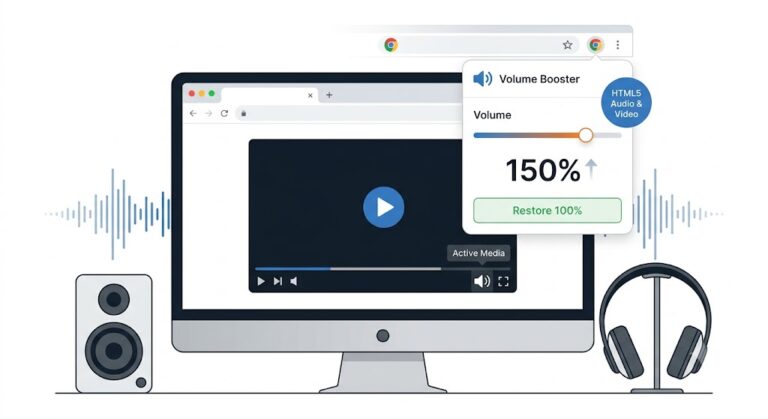
- Volume adjustment. You move the large volume slider in the popup. The extension immediately applies your chosen amplification level to the detected media elements in that specific tab. The change is instant — you hear the difference in real time as you drag the slider.
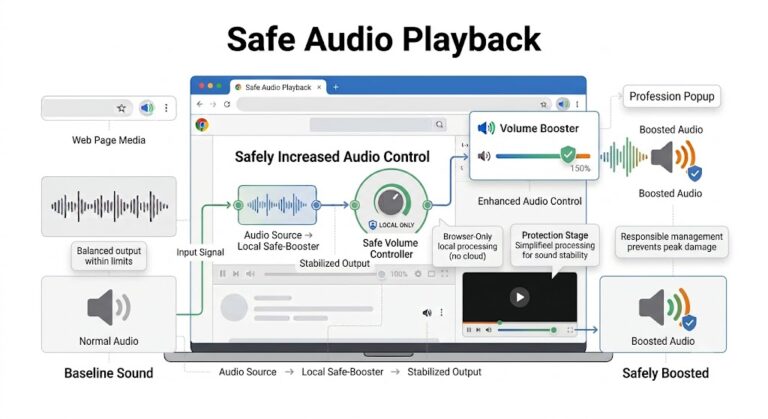
- Local processing only. All amplification happens through Chrome's built-in audio capabilities. The extension never intercepts, copies, or reroutes audio streams. It simply tells the browser to play the existing audio at a higher gain level. No data leaves your device.
- Per-tab isolation. Only the active tab's audio changes. Your other tabs — including any Spotify Web Player volume settings you've already adjusted — remain exactly where you left them. This per-tab control is what makes the extension genuinely useful for multitasking.
The popup shows a clear volume percentage so you always know your current amplification level. A reset button instantly returns the tab to its default 100% volume — useful when you switch to a different stream with louder audio.
Learn more about increasing browser volume beyond the default limit and the technical details behind safe audio amplification.
How Can You Balance Twitch Audio with Spotify Web Player Volume in the Same Browser?
A common scenario: you're watching a Twitch stream on one tab while listening to music through the Spotify Web Player volume controls on another. The streamer's voice gets buried under your playlist, or vice versa. System-wide volume changes affect everything equally, which doesn't help.
Volume Booster solves this with per-tab volume control:
- Twitch tab: Boost it to 180% so the quiet streamer becomes clearly audible, even over background music.
- Spotify Web Player tab: Keep it at 100% — or lower it to 60% if you want the stream to take priority. The Spotify Web Player volume slider inside the Spotify interface still works normally; Volume Booster amplifies or attenuates on top of that base level.
- Everything else: Other tabs stay at their default levels. No global changes, no surprises.
This per-tab isolation means you can create the perfect audio mix for your workflow. Streamers, music, notification sounds, and video calls each get their own volume profile — all managed through a single lightweight extension popup.
For more on balancing audio across platforms, read our guide on managing Spotify Web Player volume alongside other browser audio sources.
Does Increasing Browser Volume Affect Audio Quality or Cause Distortion?
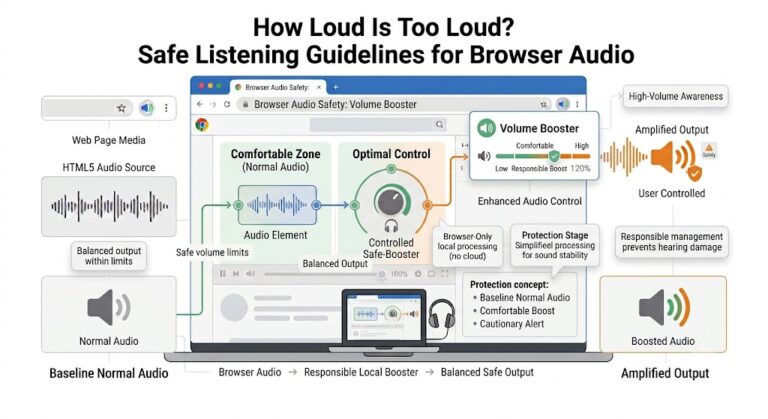
This is the most important question to answer honestly. Any amplification — whether done in software or hardware — can introduce distortion if pushed too far. Volume Booster increases gain on the existing audio signal. At moderate boost levels, the quality remains clean and transparent. At extreme levels, you may hear clipping or harshness, just as you would if you cranked a physical amplifier beyond its clean headroom.
Here's what to expect at different boost ranges:
- 100% to 150%: Clean amplification on virtually all content. This range compensates for quiet streams, low microphone levels, and weak laptop speakers without introducing audible distortion.
- 150% to 250%: Noticeably louder. Most streams and media files still sound good here. You might hear slight compression on already-loud passages, but dialogue and quiet game audio benefit significantly.
- Above 250%: Use with caution. This range is best reserved for extremely quiet sources — a poorly mixed stream, a very soft podcast, or a video recorded with low gain. Distortion becomes more likely, especially on bass-heavy content.
The reset button is your safety net. If you boost too high and hear crackling, click reset to return to 100% instantly, then dial in a lower level. Volume Booster never permanently alters any audio file or stream — it only adjusts playback gain in real time.
For a deeper look at safe amplification practices, see our article on boosting YouTube volume above maximum without sacrificing audio quality.
How Real Workflows Benefit from Per-Tab Volume Boosting
Here's how adjusting volume per tab makes a concrete difference in everyday browsing.
Example 1: The Late-Night Stream Watcher on a Laptop
- Situation: Watching a Twitch stream at 1 AM on built-in laptop speakers. The streamer's voice is clear but quiet; game audio is barely audible. System volume is already at 80%, and cranking it higher would make notification sounds jarring.
- Action: Opens the Volume Booster popup on the Twitch tab. Slides the volume to 160%. The stream immediately becomes fuller and more present. Spotify Web Player volume in another tab stays at 90% for background ambience. Notifications remain at their normal level.
- Result: Immersive stream experience without disturbing anyone or getting startled by loud system sounds. Memory usage stays low because the extension is lightweight — under 2 MB of RAM in typical use.
Example 2: The Multitasking Remote Worker
- Situation: Has a Twitch stream open for background company during work, plus Spotify Web Player volume playing a lo-fi playlist, plus occasional YouTube tutorial tabs. The streamer is too quiet compared to the music. System volume adjustments affect everything at once.
- Action: Boosts the Twitch tab to 200%. Leaves Spotify at 70% — loud enough to hear the music but soft enough that the streamer's commentary cuts through. Keeps YouTube at 100% and adjusts per video as needed. All changes happen through the extension popup in seconds.
- Result: A personalized audio environment where every tab sits at the right level. No need to constantly adjust sliders inside each web player. The reset button makes it easy to normalize everything at day's end.
Example 3: The Competitive Gamer Watching Esports
- Situation: Watching a Twitch broadcast of a tournament. The crowd noise is deafening, but the casters' voices are buried. The Twitch player's built-in volume is already maxed. Desktop speakers can go louder, but system volume at 100% makes other applications unbearably loud.
- Action: Opens Volume Booster on the tournament stream tab. Boosts to 175%. The casters become clear and prominent. Crowd noise remains energetic but no longer overwhelming. Other tabs — including Spotify Web Player volume for the tournament's official playlist — stay at comfortable background levels.
- Result: The stream sounds like it should: balanced, clear, and exciting. The extension runs silently in the background, consuming minimal CPU and memory. No lag, no audio sync issues, no distortion at this boost level.
When Should You Use a Volume Booster vs. System Volume Controls?
System volume controls and browser-based volume boosting serve different purposes. Knowing when to use each gives you the best audio experience.
- Use system volume to set your overall listening level — the baseline for all applications. This is best adjusted with your speaker or headphone hardware in mind.
- Use Volume Booster when a specific tab or website is too quiet relative to everything else. This is the per-tab precision tool that fixes imbalances without affecting system-wide audio.
- Use the Twitch player volume as your first line of adjustment. If the streamer is still too quiet at 100% player volume, that's when Volume Booster becomes the right solution.
- Use the Spotify Web Player volume slider inside the Spotify interface for normal listening levels, then use Volume Booster on that tab only if you need additional gain beyond what Spotify offers.
This layered approach — system volume for baseline, player volume for source control, and Volume Booster for extra headroom — prevents distortion and keeps your audio clean across all applications.
Frequently Asked Questions
Does Volume Booster work on all Twitch streams?
Yes. Twitch uses HTML5 video for all streams, which Volume Booster detects and amplifies automatically. The extension works on live broadcasts, VODs, and clips equally well. If a stream uses the standard Twitch player, Volume Booster can boost it.
Can I boost Spotify Web Player volume and Twitch at the same time?
Absolutely. Each tab gets independent volume control. You can boost your Twitch stream to 180% while keeping Spotify Web Player volume at 100% — or any other combination. Changes in one tab never affect another. This per-tab isolation is core to how the extension works.
Will boosting volume damage my speakers or headphones?
Volume Booster amplifies the audio signal within Chrome. If you boost to extreme levels and your system volume is also very high, the combined output could push small speakers beyond their safe range. Use moderate boost levels, listen for distortion, and click the reset button if anything sounds harsh. The extension gives you control; responsible use protects your hardware.
Does the extension collect any data about what I'm watching or listening to?
No. Volume Booster processes all audio locally on your device. It never uploads, records, analyzes, or stores any audio data. It doesn't track which streams you watch or what you play on Spotify Web Player volume. There are no accounts, no analytics, no telemetry, and no external server requests. Privacy is a core design principle, not an afterthought.
Why does the volume reset when I close the tab?
Volume Booster applies amplification to the active media in real time. When you close a tab, that media session ends. When you reopen the stream in a new tab, it starts fresh at 100%. This behavior keeps your audio predictable — you'll never be surprised by a tab you boosted hours ago and forgot about.
Can I set a default boost level for all tabs?
Volume Booster is designed for per-tab control, not global presets. This intentional design choice keeps the extension simple, lightweight, and predictable. You adjust each tab individually based on its actual audio needs — which is more precise than applying a blanket boost to everything.
Take Control of Your Twitch Audio — and Every Other Tab
Quiet Twitch streams don't have to ruin your viewing experience. With Volume Booster, you get immediate, per-tab volume control that lifts quiet streams to comfortable listening levels without touching your system settings or compromising your privacy.
Key takeaways:
- Twitch streams often sound quiet due to broadcaster audio levels, Chrome's volume ceiling, and hardware limitations — not because of anything wrong on your end.
- Volume Booster amplifies audio locally inside Chrome using per-tab controls, so you boost only the stream that needs it while Spotify Web Player volume and other tabs stay exactly where you want them.
- Moderate boost levels deliver clean, distortion-free amplification. The reset button is always one click away if you push too far.
- Everything runs on your device. No accounts, no cloud, no tracking, no data collection — just a simple tool that makes quiet audio louder.
Open a quiet Twitch stream, click the Volume Booster icon in your Chrome toolbar, and slide the volume up. Hear the difference instantly. Then explore how the same per-tab control transforms low volume on Netflix, Disney+ audio quality, and Prime Video volume without distortion. Your browser audio should work for you — not the other way around.