How to Increase Volume for Lecture Recordings
Quiet lecture recordings turn learning into a strain. Increase volume for lecture recordings instantly — safely, inside Chrome — without uploading a single second of audio. The Volume Booster extension processes every sound wave right on your device, so your lecture audio stays private while you finally hear every word.
- Why lecture recordings often play back too quiet even at max browser volume
- How the Volume Booster extension lifts audio above Chrome's default ceiling
- The exact controls that give you per‑tab, real‑time volume control for any HTML5 lecture player
- How local processing keeps your listening habits 100% private — no accounts, no cloud, no recordings
Why Are Lecture Recordings So Quiet Sometimes?
Many lecture recordings suffer from low audio because the original recording setup wasn’t optimised for playback volume. The instructor might have been far from the microphone, the lecture capture software may have applied aggressive compression, or the platform’s default encoding simply drops the loudness to avoid clipping. On top of that, built‑in browser audio limits often cap volume before your speakers can do their job.
The result? You turn your laptop or headphone volume to 100% and still strain to hear. That’s not your ears — it’s the audio chain breaking before the sound reaches you.
Modern lecture platforms (YouTube, university portals, video‑conference recordings) rely on HTML5 <video> and <audio> elements. Chrome enforces a gain ceiling on these elements, meaning the on‑page volume slider can’t push beyond a fixed maximum. When the source recording is already soft, you need a way to go beyond that ceiling — safely.
That’s exactly why increase volume for lecture recordings is a common search. Users aren’t looking for a system‑wide equalizer or a media player replacement; they need a browser‑level boost that respects their privacy and doesn’t alter the audio file itself.
How Can You Increase Volume for Lecture Recordings in Chrome?
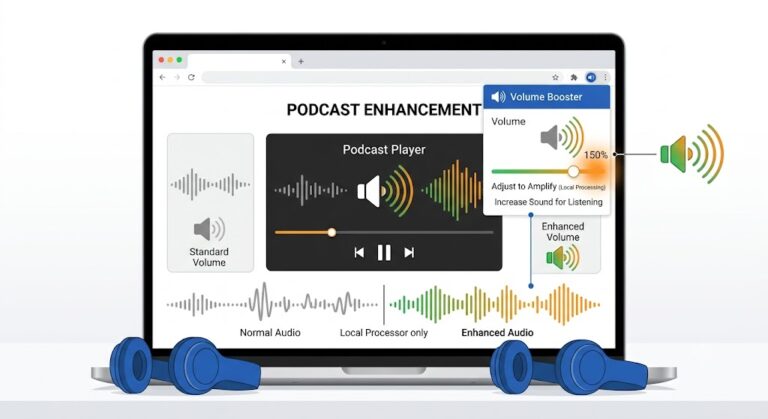
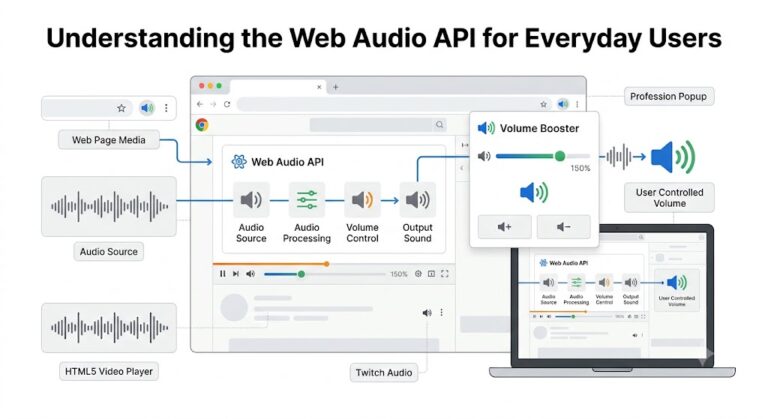
The most straightforward way to increase volume for lecture recordings inside Chrome is to use an extension that amplifies the HTML5 media element’s gain locally. Volume Booster does exactly that. It intercepts the audio playing in the active tab and raises its output level beyond the default browser threshold, all without touching the original file or streaming service.
Here’s the process in simple steps:
- Open the lecture recording in any Chrome tab — a YouTube class, a Moodle embed, a Zoom cloud recording, anything that uses standard HTML5 playback.
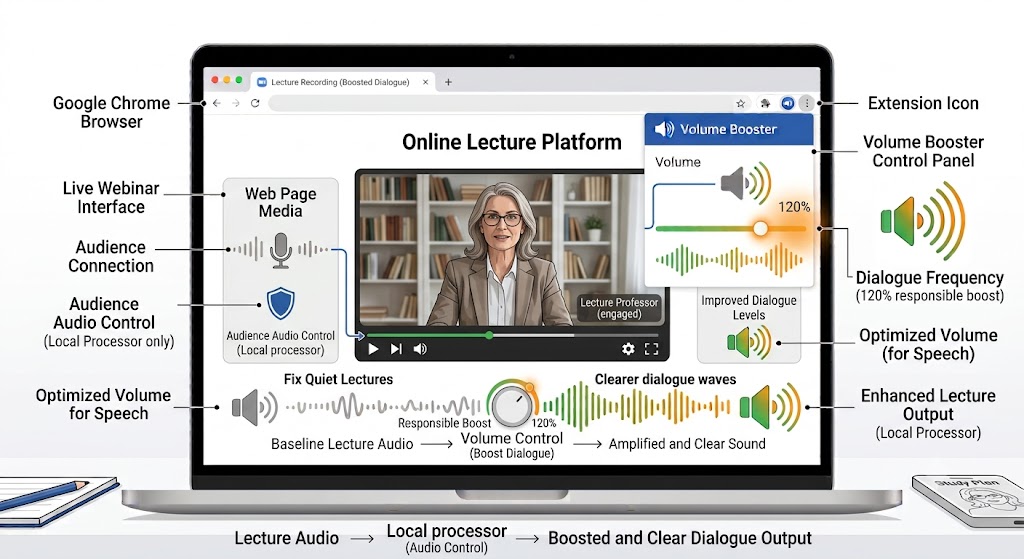
- Click the Volume Booster icon in Chrome’s toolbar. The popup immediately detects the active tab and shows whether media is playing.
- Drag the large volume slider above 100%. The audio volume increases in real time while the video or audio keeps playing. The percentage display updates instantly.
- If you need to return to the original level, press the Reset button. The volume jumps back to 100% (the browser’s default).
Because the extension works per tab, you can boost a lecture in one tab while keeping a news video in another tab at normal volume. That’s essential for learners who reference multiple sources during a study session.
For a deeper look at safe amplification principles, read safely increase volume without speaker damage — it explains the boundaries of loudness and your hardware.
What Is the Volume Booster Chrome Extension and How Does It Process Audio?
Volume Booster is a privacy‑first Chrome extension that gives you fine‑grained volume control over any HTML5 media playing in the browser. It was built around five core principles: simplicity, privacy, performance, browser compatibility, and local processing. There’s no account, no login, no cloud synchronisation, and absolutely no audio ever leaves your device.
Here’s what happens under the hood when you increase volume for a lecture recording:
- Media detection: The extension’s content script identifies
<video>or<audio>elements in the active tab using the standard Chrome tabs API. It never scans page content beyond what’s needed to find the media node. - Gain adjustment: Once media is found, the extension applies a gain node — through the browser’s own audio pipeline — directly to the playback stream. This doesn’t re‑encode the audio; it just tells Chrome to output a stronger signal for that specific tab.
- Real‑time control: The popup slider sends your desired volume percentage to the active tab instantly. All communication stays within Chrome’s sandboxed extension environment, in strict compliance with Manifest V3.
Because everything happens inside your browser, the extension adds virtually zero CPU overhead and doesn’t touch your disk, microphone, or any other input. It’s a lightweight layer that makes quiet lectures audible.
If you’re curious about the broader concept of browser‑side audio amplification, visit browser audio amplification for a thorough walkthrough.
How to Use Volume Booster to Boost Lecture Audio Safely?
Safety in volume boosting isn’t just about your ears — it’s also about your hardware and your data. The Volume Booster extension addresses both. Every control in the popup is designed to give you instant feedback and a clear path back to default, so you never accidentally leave audio at dangerous levels.
Key controls and best practices:
- Volume Slider (0% – 600%): The primary tool. Slide it up gradually. Small increments — 120%, 150% — are often enough to make a quiet lecture clear. Avoid jumping to maximum unless the source is unusually faint. The percentage is displayed live, so you always know where you stand.
- Reset Button: One click restores the tab’s audio to the original browser default. Use it at the end of a lecture or when you switch to another tab that doesn’t need a boost. It prevents you from accidentally blasting a conference call after a boosted lecture.
- Per‑Tab Isolation: The extension only affects the tab you’re viewing in the popup. If you open two lectures side by side, each gets its own independent volume level. There’s no global amplifier that accidentally warps all your tabs.
- Active Tab Detection: The popup always shows the currently active tab’s status. If media is playing, you see a visual indicator (the slider is active). If no media is detected, the controls are disabled, preventing wasted adjustments.
Best practice: pair the volume boost with comfortable headphones or external speakers and follow safe listening guidelines. This ensures you can listen for extended study sessions without fatigue or long‑term hearing strain.
What Happens When You Increase Volume for Lecture Recordings Using This Extension?
When you drag the slider past 100%, the extension raises the gain of the HTML5 media element in the active tab. The result is a perceptibly louder output without changing the audio file’s quality. However, it’s important to understand the limits of this amplification.
What you’ll experience:
- Voices become louder and easier to follow, especially soft‑spoken instructors or poorly recorded lectures.
- Background noise that was already present in the recording may also become more noticeable. That’s not a distortion introduced by the extension; it’s simply the original noise floor being amplified along with the speech.
- The extension does not apply dynamic compression, equalisation, or any kind of “audio enhancement.” It is a pure gain boost. That means the character of the recording stays exactly the same — just louder.
Because the processing is pure volume scaling, you won’t hear the artificial “swooshing” or echo often found in audio‑filter‑based solutions. This makes Volume Booster particularly well‑suited for speech: it preserves the natural vocal clarity that’s critical for understanding lectures, especially in non‑native languages or technical terminology.
For more on preserving voice quality while boosting, see improve speech clarity while watching videos.
Does Boosting Volume Affect Speech Clarity in Lectures?
One of the biggest worries learners have is that turning up the volume will make voices muddy or harsh. With a pure gain boost — the method Volume Booster uses — speech clarity remains intact. There are no processing filters that can smear consonants or introduce unnatural sibilance.
However, clarity depends heavily on the original recording. If the lecture already has a muffled quality, boosting volume will make that muffled quality louder, not fix it. In those cases, combining the volume boost with a browser‑based equalizer (not part of this extension) might help, but for the vast majority of lecture recordings from modern platforms, the problem is simply insufficient loudness.
By lifting the level above Chrome’s ceiling, you bring the speech into a range where your ears can more easily discriminate words. The brain’s ability to understand speech improves significantly when the signal is not at the threshold of hearing. So even a modest increase — say, from 100% to 140% — can dramatically boost comprehension without any audible distortion.
This principle also applies to dialogue in movies and shows; the same volume‑boosting logic is explored in enhance dialogue in movies and shows.
Practical Examples: Boosting Lecture Audio for Different Scenarios
Every learning environment is different. Below are three realistic situations where the ability to increase volume for lecture recordings directly improves the listening experience.
Example 1: The Graduate Student Rewatching a University Lecture
- Situation: A recorded physics lecture posted on the university’s LMS (Moodle) plays back so quietly that even with laptop speakers at 100% and system volume maxed, the professor’s voice barely registers.
- Action: The student opens the lecture page in Chrome, clicks the Volume Booster icon, and slowly moves the slider to 170%. The popup shows the exact percentage. Speech becomes comfortably audible.
- Internal processing: The extension detects the HTML5 video element, applies a gain of 1.7×, and Chrome outputs the amplified stream instantly. No audio is uploaded to any server.
- Result: The student finishes the lecture without missing key equations and then hits Reset to return the tab to default volume before opening a conference call. Memory usage stays below 15 MB, and the fan never spins up.
Example 2: The Online Learner Juggling Multiple Course Platforms
- Situation: A professional taking part‑time courses has two tabs open: a Udemy lecture and a companion YouTube tutorial. The Udemy video is well‑normalised, but the YouTube video is barely audible.
- Action: They click the extension icon while on the YouTube tab, raise the volume to 200%, and keep the Udemy tab at its default. The per‑tab isolation ensures the Udemy lecture doesn’t suddenly blast.
- Result: Both sources are now balanced. The learner switches between tabs without readjusting system audio. Later, they read improve audio quality during online classes to explore how boosting interacts with live classroom audio.
Example 3: The Researcher Attending a Recorded Webinar
- Situation: A recorded Zoom webinar plays through a browser‑based player. The host’s microphone was set low, and the playback volume is extremely soft even on good headphones.
- Action: The researcher opens the webinar link, clicks Volume Booster, and lifts the slider to 220%. The audio clears up without any crackling. The extension’s lightweight design keeps CPU impact negligible, so the browser remains responsive while taking notes in another window.
- Result: The researcher captures the full content and then resets the tab. No account was needed, and no data left the device.
Frequently Asked Questions
Can increasing the volume damage my laptop speakers?
Volume Booster only raises the digital signal inside Chrome. Whether that causes speaker damage depends on your hardware’s physical limits and how high you set the system volume. To stay safe, keep your system volume below 80% and increase the browser volume gradually. Read our guide on safe amplification for detailed thresholds.
Does this extension work on live lectures or only recordings?
It works on any HTML5 media playing in Chrome, whether live or recorded. So live‑streamed classes, Zoom webinars opened in the browser, and pre‑recorded lectures all benefit. It does not alter the incoming stream or inject audio; it only amplifies what’s already playing in the tab.
Will the extension lower audio quality?
No. The boost is a pure gain adjustment. It does not re‑encode or compress the audio, so there is no generation loss. The original signal’s fidelity remains intact — it’s simply louder. If a lecture is already distorted at the source, that distortion will also be amplified, but the extension itself never adds artifacts.
Is Volume Booster compatible with all lecture platforms?
It’s compatible with any platform that uses standard HTML5 <video> or <audio> elements. This covers YouTube, Vimeo, Coursera, edX, university Moodle/Kaltura players, Zoom cloud recordings, Google Drive video previews, and most modern LMS interfaces. It cannot amplify Flash‑based players (now largely obsolete) or DRM‑protected streams that bypass the standard media pipeline.
Why does the extension need access to my tabs?
The “activeTab” permission is required to read the current tab’s URL and detect media elements. Volume Booster never reads your browsing history or the content of other tabs. This permission is granted only when you click the extension icon, and it’s never used to track or store information. For full transparency, visit our blog for a breakdown of all permissions.
Can I boost volume on multiple tabs at the same time?
Yes. Each tab maintains its own volume setting. You can boost a lecture in one tab, a podcast in another, and a webinar in a third — all with independent levels. The extension’s popup shows and controls only the active tab, but the settings persist for each tab until you close it or press Reset.
Hear Every Word — Without Compromising Your Privacy
The need to increase volume for lecture recordings is not a sign of bad equipment; it’s a natural consequence of how web audio is delivered. The Volume Booster extension gives you back control: a clean, local gain boost that respects your ears, your hardware, and your data.
Key takeaways:
- Quiet lectures are usually a volume‑chain problem, not a file problem — Chrome’s built‑in cap is often the bottleneck.
- Volume Booster raises that cap per tab, instantly, using browser‑native audio processing.
- All amplification happens on your device. No audio files are uploaded, recorded, or shared.
- The slider, reset button, and per‑tab design give you safe, precise control in every learning scenario.
Because the extension is Manifest V3 compliant and requests only the absolute minimum permissions, it stays light, fast, and private. There are no accounts, no analytics, and no external servers — just a simple tool that makes learning audible again.
Ready to try it? Open any quiet lecture, click the Volume Booster icon, and slide the volume up a few notches. Notice how voices become clearer without any fuss. When you’re done, reset the tab and continue your work. And if you want to dive deeper into related audio topics, explore how to improve audio in webinars or fix quiet audio during video conferences — each article applies the same privacy‑first philosophy.