Why Movie Dialogue Sounds Muffled and How to Fix It
Quiet, muffled dialogue can ruin a movie — no matter how good the plot is. Movie dialogue sounds muffled because of how soundtracks are mixed for theaters, how browsers handle stereo downmixing, and the limitations of laptop speakers. Volume Booster for Chrome lets you push the volume beyond the browser’s default cap, making every whispered line audible — all locally, no account needed.
- Why movie dialogue often gets buried in sound effects and music
- How downmixing 5.1 surround to stereo creates muddiness
- How Volume Booster gives you per‑tab volume control to clarify speech
- Practical steps to boost dialogue safely on any device
Why Does Movie Dialogue Sound Muffled in the First Place?
Movie dialogue sounds muffled for several reasons, most of which start long before the film reaches your browser. Understanding these causes is the first step toward fixing the problem without buying expensive audio equipment.
Modern movies are mixed for large cinema sound systems. The audio track contains a wide dynamic range — explosions are extremely loud, while whispered conversations stay intentionally soft. When that same soundtrack is played back on a laptop, TV, or even a desktop speaker setup, the dialogue often gets lost because those systems can’t reproduce the full dynamic range without you constantly reaching for the volume knob.
Another major culprit is the way surround sound is converted to stereo. Most streaming versions of movies still carry a multichannel mix. When your device only has two speakers (or you’re using stereo headphones), the browser or operating system must downmix everything. The center channel — where most dialogue lives — can become muddy or quiet in that process.
On top of that, many laptops and built-in monitor speakers simply lack the frequency response needed to make speech crisp. They emphasize bass and treble at the expense of midrange, the exact range where human voices sit. So even if the volume is high, the words remain unclear.
How Does Downmixing Surround Sound to Stereo Affect Dialogue Clarity?
When a movie is streamed in your browser, the audio often arrives as a 5.1 or 7.1 surround mix. Your browser and operating system must then fold all those channels into stereo — a process called downmixing. How well that downmix preserves dialogue depends entirely on the algorithm being used.
The center channel in a surround mix carries almost all the dialogue. In a proper downmix, this channel is split evenly between the left and right speakers. But if the downmix algorithm is basic, it may simply mix the center channel at a lower level or apply dynamic compression that flattens everything together. The result: music and effects stay loud while speech becomes muffled and distant.
Browsers like Chrome rely on the operating system’s audio stack to handle this, and you have little control over it. You can’t adjust the center channel volume separately in a web player. That’s why raising the overall volume — and specifically pushing it beyond 100% — often makes dialogue more intelligible, because you’re amplifying everything, including that weakened center channel. Volume Booster helps you do exactly that, directly from your browser, without touching system settings.
For a deeper look at how browsers handle media playback, see our guide on HTML5 audio and video volume limits.
How Can You Fix Muffled Movie Dialogue Using Only Your Browser?
You don’t need a home theater to make dialogue clearer. A few adjustments inside your browser, paired with a purpose‑built tool like Volume Booster, can dramatically improve speech intelligibility — without any audio hardware upgrades.
- Check your output device: If you’re using laptop speakers, switch to headphones or external speakers. Even basic wired earbuds deliver cleaner midrange, which is where dialogue lives.
- Disable audio “enhancements”: Windows and macOS sometimes apply sound effects that muddy speech. In your system sound settings, turn off any virtual surround, bass boost, or loudness equalization.
- Maximize the player’s volume: In Netflix, YouTube, or any streaming site, set the in‑player volume to 100%. That gives the browser the strongest possible starting signal.
- Use Volume Booster to go beyond 100%: Chrome locks the volume slider at 100%, but Volume Booster lifts that cap. You can raise the volume of the active tab to 200%, 300%, or more — until dialogue becomes comfortably crisp.
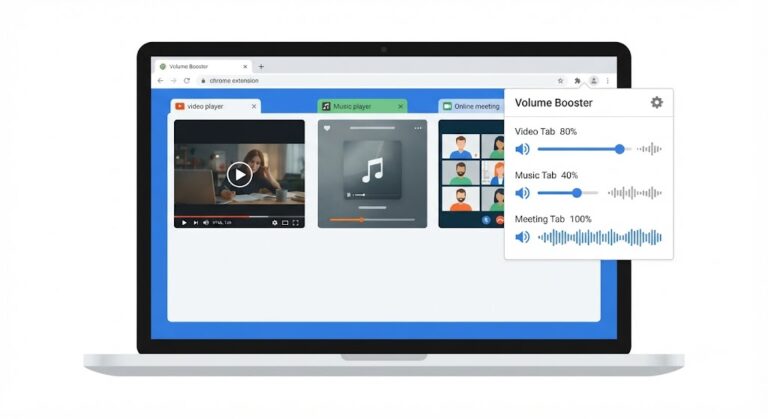
Because Volume Booster works on a per‑tab basis, you can set the movie tab to 250% while keeping your music or notification tabs at a normal level. This targeted amplification helps dialogue cut through without blasting everything else.
Read more about safe volume practices in our safe listening guidelines.
How Does Volume Booster Help You Hear Movie Dialogue More Clearly?
Volume Booster is a lightweight Chrome extension that gives you direct control over any HTML5 audio or video playing in your browser. It doesn’t alter the audio mix or apply voice‑enhancing filters — but by letting you push the volume far beyond the default 100% limit, it makes quiet dialogue naturally more prominent.
Here’s what happens after you install the extension and click its icon while watching a movie:
- The extension detects the active tab’s media elements — whether it’s a Netflix stream, a YouTube video, or a web‑based player.
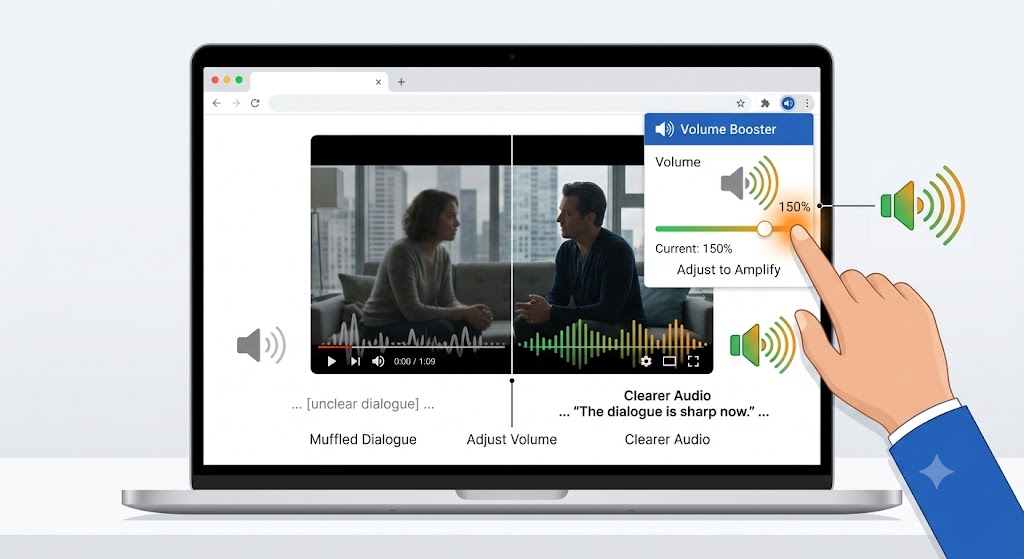
- You see a large volume slider and a percentage display. The current level starts at whatever the site’s player is set to, often 100%.
- Dragging the slider upward immediately amplifies the audio output. The change is instant; there’s no buffering or delay.
- The amplified audio plays through your regular speakers or headphones, but the original media file remains untouched. Volume Booster simply overrides the volume attribute inside the tab’s audio pipeline.
All processing happens locally inside Chrome. The extension does not record, capture, or upload any audio. It makes no external network requests, requires no account, and stores no data — perfect for a privacy‑first workflow. Because the boost is applied per tab, you can turn up only the movie while leaving other tabs completely unaffected.
If you want a detailed explanation of how volume boosting works under the hood, check our article on audio gain.
What Are the Best Browser and System Settings for Clearer Dialogue?
Before you rely entirely on extra volume, a few system‑side tweaks can lay the groundwork for clearer speech. Combine these with Volume Booster for the cleanest result.
- Set your output sample rate correctly: In your operating system’s sound settings, make sure the default format matches your content (e.g., 48 kHz for video). Mismatched sample rates can cause subtle distortion.
- Turn off audio ducking: On Windows, communication settings can lower other sounds when the system detects voice activity. Disable this so your movie volume doesn’t dip unexpectedly.
- Use the browser’s mute‑per‑tab control: Chrome lets you mute individual tabs. If you have background music or notification sounds, mute those tabs entirely so the boosted movie tab has full acoustic focus.
- Keep the Volume Booster slider realistic: While you can push to 600% or higher, aim for the lowest level that makes dialogue clear. This avoids pushing your speakers into distortion and protects your hearing.
Once your system is clean, Volume Booster becomes a fine‑tuning tool rather than a brute‑force amplifier. Together, they give you a film‑watching experience where you never miss a line.
Does Increasing Volume Degrade Audio Quality or Harm Speakers?
This is a common worry, and the answer depends on how you use the boost. Volume Booster itself does not introduce distortion — it simply scales the digital audio signal. However, sending an overly hot signal to tiny laptop speakers or low‑quality headphones can cause clipping, which sounds like crackling or harshness.
To stay in the safe zone:
- Increase volume gradually. If you hear any crackling or fuzziness, back down a few percent. That’s the point where your speakers are being over‑driven, not a flaw in the extension.
- Use external speakers or headphones with decent drivers. They handle higher levels with less distortion, letting you boost dialogue without damaging the hardware.
- Remember that volume is cumulative: if your system volume is already at 80% and you push the tab to 300%, the combined output may exceed what your speakers can handle. Keep the system volume moderate and let Volume Booster handle the final lift.
For a thorough walkthrough of safe amplification practices, read how to safely increase volume without speaker damage.
How Real Viewers Fix Muffled Dialogue with Volume Booster
Here’s how adjusting per‑tab volume solves common muffled‑dialogue situations — no audio engineering degree required.
Example 1: Late‑Night Netflix on a Laptop
- Situation: Watching a drama where actors whisper half their lines. Laptop speakers are thin, and raising the system volume makes the music too loud.
- Action: Set the Netflix player to 100%, then open Volume Booster and drag the slider to 250%. The dialogue becomes audible; music stays at a tolerable level because it’s already loud in the mix.
- Result: No more rewinding to catch what was said. The per‑tab boost keeps the rest of the system at normal volume, so notifications don’t startle.
Example 2: Language Learning with a Foreign Film
- Situation: A student streams a French movie to improve listening skills. Fast, colloquial speech is lost in the background score when played through a small desktop speaker.
- Action: Uses Volume Booster to push the tab to 320%. The extra gain makes syllables clearer, especially consonants that define word boundaries. The student also mutes all other tabs to avoid distractions.
- Result: Vocabulary recognition improves because every phoneme is now above the noise floor. The extension’s local processing means no audio leaves the device — important when handling educational materials.
Example 3: Watching a Live‑Streamed Panel Discussion
- Situation: A remote worker follows a tech conference stream where the audio engineer has not balanced mic levels evenly. Some speakers are loud, others almost inaudible.
- Action: Boosts the stream tab to 180%, then uses the extension’s Reset button to instantly drop back to 100% during loud segments. The large slider makes quick adjustments easy without hunting through settings.
- Result: Consistent intelligibility throughout the event. No need to download extra software or fiddle with system EQ — the fix stays inside Chrome.
Frequently Asked Questions
Can Volume Booster extract dialogue from background noise?
No. Volume Booster raises the overall volume of the entire audio track, not specific frequency ranges. However, because dialogue is usually mixed in the midrange and our ears are sensitive to that range, even a uniform gain boost often makes speech noticeably clearer relative to ambient noise in the mix.
Why doesn’t Chrome’s volume slider go past 100%?
Chrome’s built‑in volume control is tied to the HTML5 media element’s volume property, which accepts values only from 0.0 to 1.0 (0% to 100%). Volume Booster works around this by intercepting and scaling that property before the audio reaches your speakers. Learn more about these limits in our post on why browsers cap audio at 100%.
Will boosting volume in one Chrome tab affect system sounds or other apps?
No. Volume Booster adjusts only the active tab’s media. Your system volume, notifications, and audio from other applications remain completely independent. This per‑tab isolation is one of the key privacy‑first benefits of local browser processing.
Is Volume Booster safe to use with headphones?
Yes, provided you follow safe listening practices. Start at a moderate boost and increase slowly. If you feel discomfort, reduce the level. The extension itself introduces no harmful signals; the risk is simply from high volume, the same as any audio source. See our safe listening guidelines for more.
Does Volume Booster work on streaming sites like Netflix, Disney+, and Prime Video?
Yes. Volume Booster works on any website that uses standard HTML5 audio or video elements. That includes YouTube, Netflix, Disney+, HBO Max, Hulu, Spotify Web, Twitch, and most embedded media players. If you can watch it in Chrome, you can boost its volume.
Do I need an account or internet connection to use Volume Booster?
No account, no login, and no internet connection are required beyond the initial installation from the Chrome Web Store. The extension runs entirely offline on your device. It never phones home, collects data, or stores anything remotely. This is a core part of the product’s privacy‑first design.
Hear Every Word — Without Rebuilding Your Home Theater
When movie dialogue sounds muffled, the root cause is rarely your ears — it’s the chain from studio mix to browser output. By understanding how downmixing, dynamic range, and speaker limitations affect speech, you can take targeted action instead of frustration.
Key takeaways:
- Dialogue gets lost because of cinema‑style mixing and stereo downmixing, not because the recording is broken.
- Volume Booster lets you lift the overall volume beyond Chrome’s 100% cap, bringing quiet speech into focus without any audio uploads or cloud processing.
- Combining a clean system setup with per‑tab volume control gives you clear, comfortable movie dialogue even on basic laptop speakers.
Because Volume Booster runs locally inside Chrome, you can try it right now with zero privacy risk. Open a movie, click the extension icon, and slide the volume up until the dialogue is crisp. Then explore related posts like how to improve speech clarity while watching videos and how to enhance dialogue in movies and shows to build a complete, privacy‑respecting audio workflow.