Safe Listening Guidelines for Browser Audio Volume
Turning up the sound feels instant, but your ears pay the long‑term price. Safe listening guidelines for browser audio volume give you a practical framework to enjoy louder, clearer sound without hidden damage. Volume Booster lets you go beyond Chrome’s default limit — but every extra decibel is a choice. This guide shows you how to make that choice safely, using a privacy‑first extension that processes everything locally on your device.
- Why safe listening guidelines matter when you boost browser audio
- How gradual volume control and smart gain usage prevent hearing strain
- What to watch for when using Volume Booster with speakers, headphones, or earbuds
- When to reset to default and let your ears recover during long listening sessions

What Are Safe Listening Guidelines and Why Do They Matter for Browser Audio?
Safe listening guidelines are evidence‑based recommendations that help you avoid noise‑induced hearing loss while enjoying digital audio. They set limits on sound exposure — how loud, for how long — and apply to any source, including browser‑based music, videos, podcasts, and calls.
In a browser, you often combine several risk factors: open‑back headphones, long meetings, quiet laptop speakers cranked to maximum, or a volume booster that pushes the audio signal beyond Chrome’s 100% mark. Without deliberate limits, hearing damage can creep in before you notice any warning signs.
Volume Booster is designed to give you fine, real‑time control. But that power demands responsibility. By following simple safe listening rules while you adjust the slider, you protect your ears for the long term — and you get better audio, not just louder audio.
Learn more about how browsers cap audio at 100% volume and why a careful boost can actually improve intelligibility without dangerous peaks.
How Does Volume Booster Help You Apply Safe Listening Guidelines?
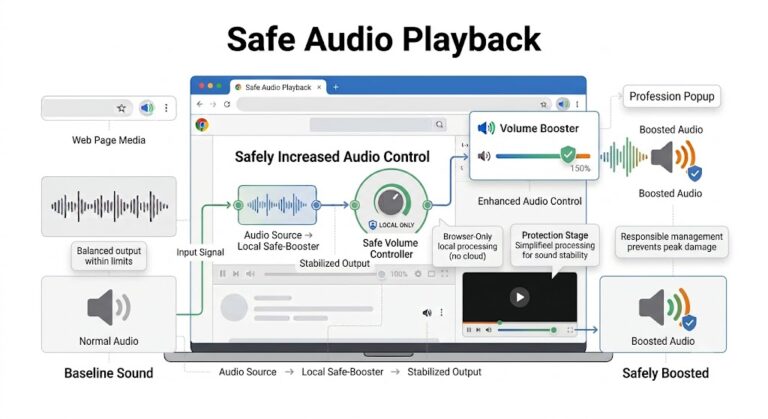
Volume Booster gives you three key tools that directly support safe listening: a precise volume slider, a one‑click reset button, and fully local audio processing. These tools let you find the lowest comfortable boost instead of guessing with a system‑wide setting.
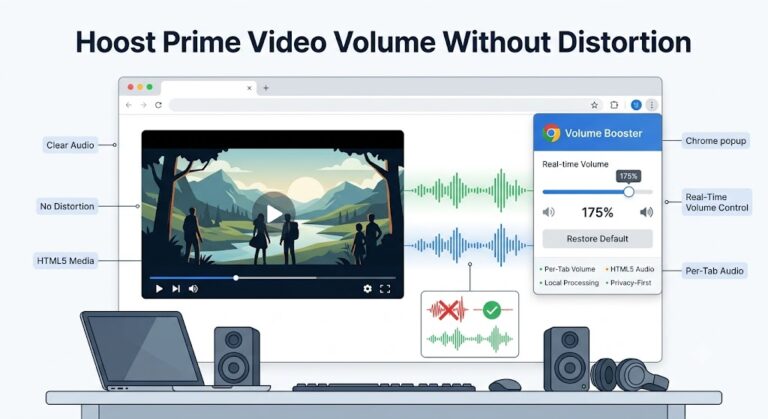
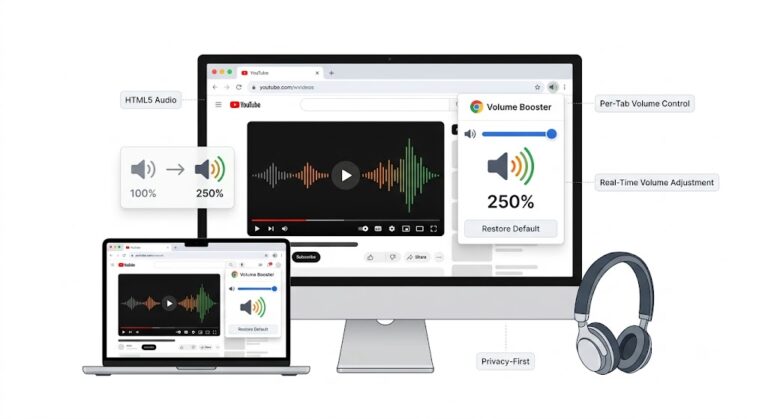
When you open the extension popup on a tab playing HTML5 audio or video, you see:
- Real‑time volume percentage display — so you always know exactly where you are on the scale from 0% to well above 100%.
- A large, responsive slider — small, gradual adjustments reduce the temptation to blast the volume. You can nudge it by 1% increments.
- Reset button — instantly returns audio to the default browser level. This is your “ear break” button; after a loud passage, one click restores a safe baseline.
Because the extension processes audio directly on the active tab via Chrome’s HTML5 media APIs, there’s no delay and no external processing. The sound change is immediate, so you can test and listen in real time — a critical part of self‑regulating your exposure.
Combine the slider with the safe listening principle of lower is better: start at default, increase slowly until speech or music becomes clear, then stop. Never treat the maximum setting as a target. This is how you safely increase volume without speaker damage or ear fatigue.
What Is a Safe Volume Level for Browser Audio?
There is no single “safe” number that fits every device, because the actual sound pressure level reaching your ears depends on your headphones, speakers, and ambient noise. However, occupational safety guidelines give us a practical rule: if you stay below 80–85 decibels (dB) of real‑world output, you can listen for hours without damage.
In Volume Booster terms, you can translate that to a behavioral rule rather than a magic percentage:
- Set your system volume to around 60–70% — this is where most built‑in speakers and standard headphones produce comfortable output without distortion.
- Open the Volume Booster popup and start at the default (100%) level.
- Gradually increase only if the audio is still too quiet. Stop as soon as dialogue becomes clear or music sounds full, not when it feels “powerful.”
- If you ever feel a ringing, fullness, or need to raise your voice to talk over the audio, you’re too loud — hit the reset button immediately.
Remember that audio gain (the boost Volume Booster applies) amplifies the entire signal. If the original source already has loud peaks, even a modest gain increase can push you into risky territory. That’s why per‑tab control is so valuable: you adjust only the quiet tab, not every sound in your browser.
Also, pay attention to exposure time. The 80–85 dB guideline assumes 8 hours. For every 3 dB increase above that, cut your safe listening time in half. A 6 dB boost (not uncommon with a volume booster) could drop safe time to just 2 hours. Use the slider sparingly and take regular quiet breaks.
How Can You Protect Your Hearing While Using Volume Booster?
Hearing protection is a habit, not a one‑time setting. Volume Booster’s simple interface makes it easy to build those habits into every listening session.
Practical protective steps you can take right now:
- Use the lowest necessary boost. Increase only until you can comfortably hear, not more. Even a 20% boost can make a quiet lecture audible without crossing safety thresholds.
- Activate the reset button after loud content. Did a video end with a sudden loud outro? Reset to 100% immediately. The button is always visible at the top of the popup.
- Check your environment. If you’re boosting because of background noise, consider moving to a quieter spot or using closed‑back headphones instead of turning up the volume.
- Monitor listening duration. Volume Booster doesn’t track time, but you should. After 45–60 minutes of boosted listening, reset to default and give your ears a 5‑minute rest.
- Prefer the active tab indicator. Volume Booster only affects the tab you’re on. This prevents accidental boosts on multiple tabs, which could sum to a dangerously loud overall mix if you switch between them quickly.
Because all processing happens locally on your device — no analytics, no cloud — there’s no privacy trade‑off in following these guidelines. You get pure, private audio control. Read more about browser audio amplification and how local gain processing preserves both safety and privacy.
How Real Users Apply Safe Listening Guidelines with Volume Booster
Here’s how safe listening looks in everyday browser scenarios, using only the features that Volume Booster actually provides.
Example 1: The Remote Worker on Back‑to‑Back Video Calls
- Situation: Using a browser‑based meeting tool. Colleagues’ volumes vary wildly — some whisper, others boom. The user wants to avoid constantly reaching for system volume.
- Action: Opens Volume Booster on the meeting tab. At default, quiet speakers are hard to understand. Gradually increases to 120% — just enough to make soft voices clear. She keeps the slider visible and resets to 100% between calls.
- Result: No more straining to hear, no sudden loud blasts. After 3 hours of calls, she feels no ear fatigue. The per‑tab boost meant game audio on another tab stayed untouched.
- Takeaway: A small, targeted boost on the only tab that needs it is safer than maxing out system volume for everything.
Example 2: The Student Watching a Quiet Lecture Recording
- Situation: Online lecture audio peaks at a whisper. Even with laptop speakers at 90%, the content is unintelligible.
- Action: On the lecture tab, opens Volume Booster. Starts at default 100%, then slowly moves the slider while watching the percentage display. Settles at 140%, where the professor’s voice is clear without distortion. After the lecture, immediately clicks reset.
- Result: The student hears every word, takes notes without stress, and resets to a safe level before switching to music. The entire session stays within a safe 85 dB equivalent because the boost was applied to a very weak source signal.
- Takeaway: Boosting volume on a naturally quiet track is often safer than amplifying a loud source; the extension’s reset button makes the session‑end safe habit effortless.
Example 3: The Podcast Listener Using Bluetooth Earbuds
- Situation: Listening to a podcast via a web player while commuting. Bluetooth earbud volume is already high, but the episode sounds distant because of poor mastering.
- Action: Reduces earbud hardware volume to 50% (to avoid double amplification), then opens Volume Booster on the podcast tab. Increases to 130% — the combined output stays moderate. Each time a loud ad break starts, she hits the reset button for a few seconds.
- Result: Clear podcast audio, no loudness shock, and overall exposure stays below the 80‑dB guideline. She learns that hardware volume + extension boost is a balancing act: lower one, raise the other, never both at max.
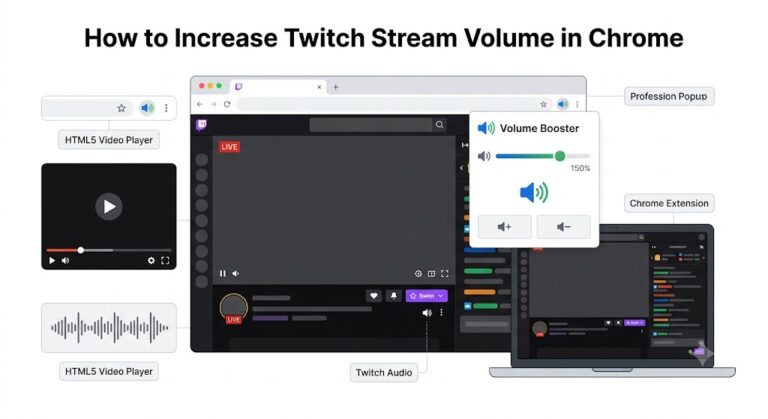
- Takeaway: Safe listening with an extension isn’t about avoiding the tool — it’s about coordinating all volume controls so no single point overloads your ears. For more on this, see how to increase stream volume safely in Chrome (the same rules apply across all media).
When Should You Reset Volume to Default to Follow Safe Listening Guidelines?
The reset button isn’t just a convenience — it’s a deliberate safeguard. Reset to default (100%) every time you:
- Finish a specific media session: movie ends, podcast episode wraps, meeting is over.
- Switch to a tab where you don’t know the volume level: starting a new YouTube video, entering a webinar, opening a voice message.
- Notice any ringing, muffled hearing, or ear discomfort: even if brief. This is your earliest warning sign.
- Remove headphones or switch from earbuds to speakers: output devices differ wildly in sensitivity; a safe boost on earbuds may be dangerously loud on desktop monitors.
Making reset a habit turns Volume Booster from a “set and forget” knob into an active safety partner. Because the extension stores no profiles or presets, you always start fresh on each tab — a deliberate design that supports safe, mindful listening. Read more about why volume boosting extensions that force you to consciously choose a boost are healthier than ones that lock in a permanent level.
Frequently Asked Questions
Can boosting volume above 100% damage my ears?
It can if you’re not careful. The risk isn’t the percentage itself — it’s the actual sound pressure level reaching your eardrum. If you boost a quiet source modestly while keeping overall system volume moderate, you stay safe. But boosting an already loud signal above 100% may push you into dangerous territory quickly. Always follow the guideline: boost only what’s needed and reset often.
Will Volume Booster damage my laptop speakers or headphones?
Volume Booster increases the digital audio signal before it reaches your hardware. If your speakers are already struggling at 100% system volume, adding extension boost can cause distortion, crackling, or even physical damage over time. To protect your gear, keep system volume at a reasonable level and use the extension only to lift quiet sources, not to push hardware beyond its limits. See how to increase volume without speaker damage for more.
Does Volume Booster use any kind of hearing protection or automatic limiter?
No. Volume Booster gives you full manual control. There’s no dynamic compression, no automatic volume reduction, and no equalizer. That’s why understanding and applying these safe listening guidelines yourself is so important. The extension trusts you to use the slider responsibly, and it processes audio locally to keep your privacy intact — no cloud, no listening analysis.
How does the active tab detection support safe listening?
Volume Booster only controls audio on the tab you’re currently viewing. This prevents accidental over-amplification on background tabs (like auto-playing ads) that could startle you or sum to a painful level. When you switch tabs, the extension instantly updates to the new tab’s media, so you never lose control over what’s being boosted.
Are there any privacy risks when I follow safe listening guidelines with this extension?
No. Volume Booster processes all audio entirely inside your browser. It never records, uploads, or analyzes sound. No accounts, no telemetry, no user profiling. Safe listening is a personal practice; the extension remains a silent, local tool that doesn’t monitor what you hear or how long you listen.
Can I use Volume Booster with the browser’s built‑in volume limiter?
Yes. If your operating system or headphones have a max volume limit, the extension works alongside it. The final output is a combination of all volume stages. However, be aware that the extension can still increase perceived loudness even if the hardware level is capped, so the same ear‑protection rules apply.
Listening Louder Doesn’t Mean Listening Safer — Until You Make It So
Safe listening guidelines for browser audio volume aren’t complicated: boost only what you need, take breaks, and stay aware of total exposure. Volume Booster gives you the precision to apply those guidelines with every click — an immediate slider, a transparent percentage, and a reset button always within reach.
Key takeaways from this guide:
- Start from the default level and increase gradually; never treat maximum boost as a goal.
- Use the reset button as your regular “ear break” — after meetings, after episodes, after any loud passage.
- Combine hardware and extension volume wisely: lower one when you raise the other.
- Rely on Volume Booster’s local processing and per‑tab control to apply safe listening without compromising privacy.
Because the extension runs entirely on your device, your listening habits stay yours alone. There’s no tracking, no syncing, no hidden monitoring. You are in full control — of both the volume and the health of your ears.
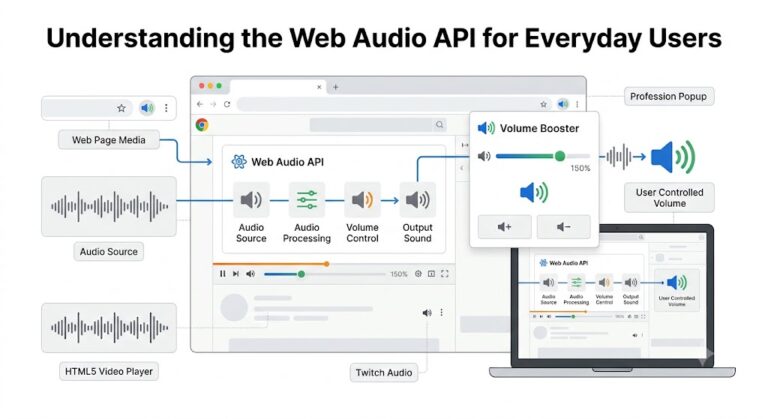
Open a quiet YouTube lecture, place the Volume Booster slider at 100%, and push it up only until the words are crisp. Then close the popup, learn something new, and reset when you’re done. Your future self — and your hearing — will thank you. For a deeper technical look at how browser amplification works without extra risk, explore Web Audio API and volume control in Chrome — the same foundations that Volume Booster uses behind the scenes.