Safely Increase Volume Without Speaker Damage
Quiet audio forces you to crank every slider to max — but pushing hardware past its limits risks permanent speaker damage. Safely increase volume without speaker damage by understanding where volume actually comes from in Chrome, how browser‑side gain works, and why per‑tab control gives you precision that system volume alone never can. Everything runs locally inside your browser; no audio ever leaves your device.
- Why browser volume and system volume are two completely separate stages
- How the Volume Booster slider applies clean gain without touching your hardware
- What clipping and distortion actually mean for your laptop speakers, headphones, and external monitors
- When per‑tab control prevents the "everything loud" trap that stresses your drivers
What Does It Mean to Safely Increase Volume in a Browser?
Most people think volume is one thing — a single number that goes up or down. In reality, your audio travels through multiple independent volume stages before reaching your ears. The media player has a level. The browser tab has a level. The operating system has a level. Your speakers or headphones have their own amplification. Each stage can introduce distortion if pushed too hard.
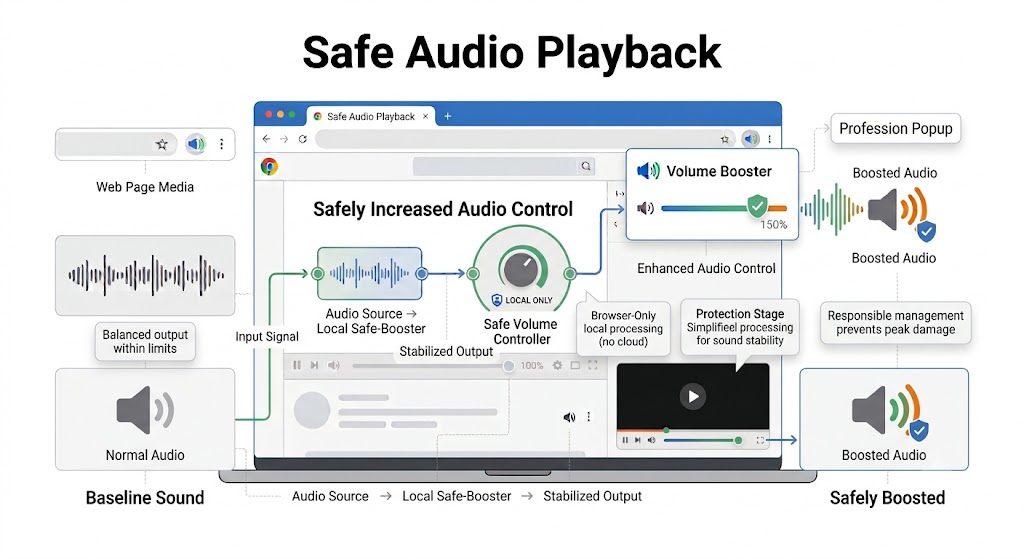
When you safely increase volume without speaker damage, you're adding clean gain at the earliest possible stage — inside the browser — while keeping your hardware amplification within its designed range. This approach gives you perceptible loudness without forcing your speakers to work beyond their physical limits.
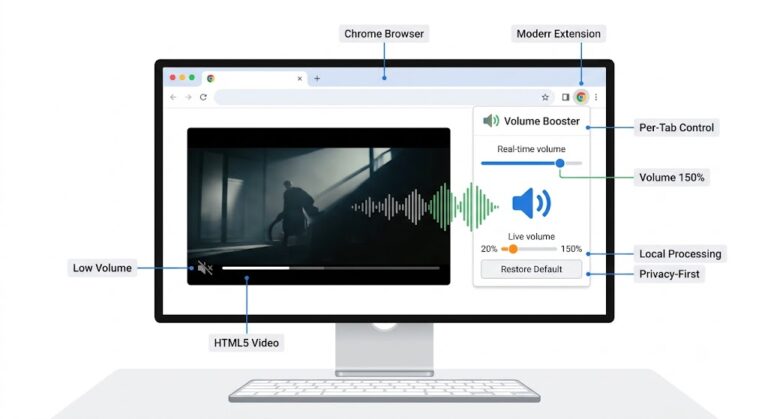
Volume Booster operates exclusively at the browser tab level. It never touches your system volume slider, never overdrives your sound card, and never sends amplified signals that could clip your output device. The extension works within Chrome's audio pipeline, applying gain before the signal ever reaches your operating system's mixer.
Read more about why browsers cap audio at 100% volume to understand the built-in limitation that makes a booster necessary in the first place.
How Does Volume Booster Process Audio Without Risking Hardware?
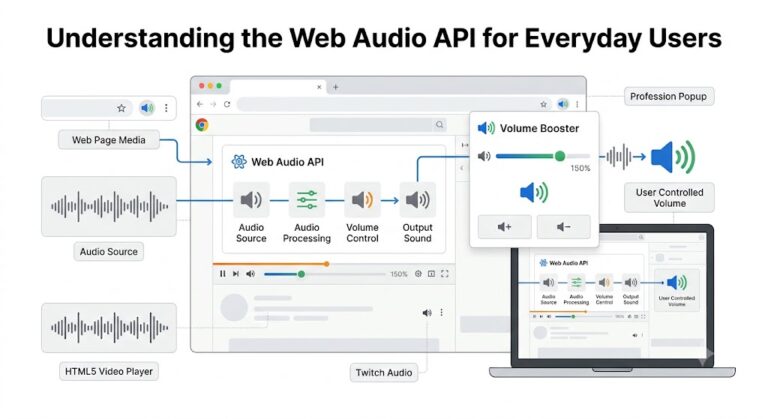
The extension uses Chrome's native media APIs to intercept audio from HTML5 elements — the <audio> and <video> tags that power YouTube, Spotify Web Player, Netflix, Twitch, and nearly every modern streaming site. It then applies a gain adjustment directly within the browser's audio graph.
Here's the step‑by‑step flow:
- When you open a tab playing media, the extension's content script detects active HTML5 audio or video elements. Detection runs locally inside your browser sandbox — no external requests, no cloud analysis.
- You adjust the volume slider in the popup. The extension communicates your desired gain value to the active tab using Chrome's secure messaging APIs, fully compliant with Manifest V3 architecture.
- Inside that tab, a lightweight audio processor applies the gain adjustment in real time. The processing uses browser‑native capabilities — no third‑party libraries, no external code, no audio manipulation outside Chrome's sandbox.
- Your system volume and hardware amplification remain untouched. The boosted signal still passes through your normal audio chain at the same master level, meaning your speakers receive a signal within their expected range.
What the extension never does: it doesn't access your microphone, doesn't record audio, doesn't modify system files, doesn't install drivers, and doesn't bypass Chrome's security model. Every operation stays inside the browser's protected environment.
For a deeper technical dive, see how the Web Audio API enables browser‑side volume processing and what audio gain actually means in digital signal terms.
Why Do Some Videos and Streams Sound Dangerously Quiet?
Before you reach for a volume booster, it helps to understand why audio is quiet in the first place. The cause determines whether boosting is safe or risky.
Common reasons for low browser audio:
- Poorly mixed source material: Many online videos, podcasts, and webinars are recorded at low levels. The creator exported the file with weak normalization, and no amount of system volume fixes the underlying signal.
- Browser audio caps: Chrome limits per‑tab volume to 100% of the media element's range. Even with your system volume at maximum, quiet source audio stays quiet. This is a deliberate browser design choice, not a bug.
- Streaming platform compression: Services like Netflix, Disney+, and Prime Video apply dynamic range compression that can squash quiet dialogue scenes while keeping explosions loud. You end up riding the volume knob constantly.
- Bluetooth headphone attenuation: Some wireless headphones apply their own volume curve separate from the OS. A video that sounds fine on wired earbuds can become whisper‑quiet over Bluetooth.
- Multiple audio paths: If you have a video call in one tab and media in another, Chrome's automatic audio focus can duck or lower one source unexpectedly.
In all these cases, the problem is before your speakers. Boosting at the browser level addresses the root cause. Cranking system volume or hardware amplification only amplifies the problem — and introduces distortion risk.
Learn more about HTML5 audio and video volume limits in Chrome to see exactly where the ceiling sits.
What Is the Safe Way to Use the Volume Booster Slider?
The Volume Booster popup gives you one primary control: a large, precise slider paired with a real‑time percentage indicator. Using it safely comes down to understanding what the numbers mean and how they interact with your existing audio setup.
Here's the recommended approach:
- Start at 100% (default): The extension opens with the slider at 100%, which represents unity gain — no boost, no cut. Your audio plays exactly as the website delivers it. This is your reference point.
- Increment gradually: Move the slider to 120%, listen for a few seconds, then try 140%. Small steps let your ears adjust and help you catch distortion early. The human ear compresses perception of loudness, so jumping straight to 200% can sound fine initially but mask clipping.
- Watch for the distortion threshold: Every audio source has a different ceiling. A professionally mixed music track might handle 180% cleanly. A poorly recorded webinar might crackle at 130%. The slider itself doesn't know the source quality — your ears are the judge.
- Use the Reset button freely: The popup includes a dedicated Reset control that instantly returns the tab to 100% gain. If you push too far and hear fuzz or harshness, one click brings you back to baseline. No penalty, no lingering settings.
- Adjust per tab, not globally: The extension controls volume for the active tab only. A boost on YouTube doesn't affect your Slack notifications or a podcast in another tab. This isolation prevents accidental over‑amplification across your entire browsing session.
The percentage display updates in real time as you drag. At 150%, the extension is applying 1.5× gain to the audio signal. At 200%, 2× gain. These numbers represent digital multiplication, not physical wattage — they're safe within the digital domain as long as the signal doesn't exceed 0 dBFS (the digital ceiling where clipping begins).
For more on the mechanics behind the slider, read how gain nodes work in browser audio processing.
How Can You Tell If You're Pushing Volume Too Far?
Digital audio has a hard ceiling. When a signal tries to exceed it, the waveform gets chopped — the tops and bottoms flatten into a square shape. This is clipping, and it's the primary danger when boosting volume. Clipping doesn't just sound bad; over time, those squared‑off waveforms can stress speaker cones, particularly the delicate tweeters in laptops and inexpensive headphones.
Signs you've pushed past safe gain levels:
- Harshness or "crunch" in the highs: Cymbals, sibilant vocals, and high‑frequency effects turn gritty. This is the most immediate clipping indicator.
- Loss of bass definition: Low frequencies start to blur or buzz rather than thump cleanly. Sub‑bass may disappear entirely as the waveform flattens.
- Listener fatigue sets in quickly: Distorted audio tires your ears faster than clean audio at the same perceived loudness. If a 20‑minute video feels exhausting, distortion is likely present even if you don't consciously hear it.
- Your speakers rattle or buzz at moderate levels: Physical vibration that wasn't there at 100% suggests the boosted signal is pushing drivers into excursion ranges they weren't designed for.
- Dialogue becomes harder to understand: Clipping shreds the transient details that make speech intelligible. If you're boosting for clarity but getting the opposite result, back off the slider.
The fix is simple: lower the Volume Booster slider by 10–20% increments until the distortion disappears. Then, if you still need more perceived loudness, try adjusting your system volume slightly rather than piling more browser‑side gain onto an already‑clipped signal. The two stages work together — browser gain for clean source amplification, system volume for final output level.
Does Per-Tab Volume Control Help Protect Speakers?
Yes — and the reason is practical, not theoretical. When you boost system volume globally, every sound source gets louder: notifications, autoplay ads, system alerts, video calls. A sudden loud sound at high system volume can spike far beyond what your speakers handle comfortably. Per‑tab control isolates the boost to the media you choose to amplify.
Volume Booster's per‑tab design means:
- You boost only the quiet YouTube lecture, not the email notification that chimes two minutes later.
- A Netflix tab at 160% doesn't bleed gain into a Zoom call happening in another tab. Each tab's audio path stays independent.
- If you close the boosted tab, the gain disappears with it. There's no persistent "loud mode" waiting to surprise you when you open the next video.
- The extension's active‑tab detection automatically targets whichever tab you're viewing. Switch tabs, and the popup reflects the new tab's volume — no accidental cross‑contamination.
This isolation is particularly valuable for users who keep many tabs open simultaneously. A common failure mode with system‑wide audio boosters is the "everything loud" scenario, where one quiet source prompts a boost that then blasts everything else. Per‑tab control eliminates that cascade entirely.
See how volume boosting extensions compare to understand why per‑tab architecture matters for safety and usability.
How Real Users Safely Increase Volume in Everyday Browsing
Here's how the safe boosting principles apply in genuine, repeatable situations.
Example 1: The Online Student Watching a Quiet Lecture Recording
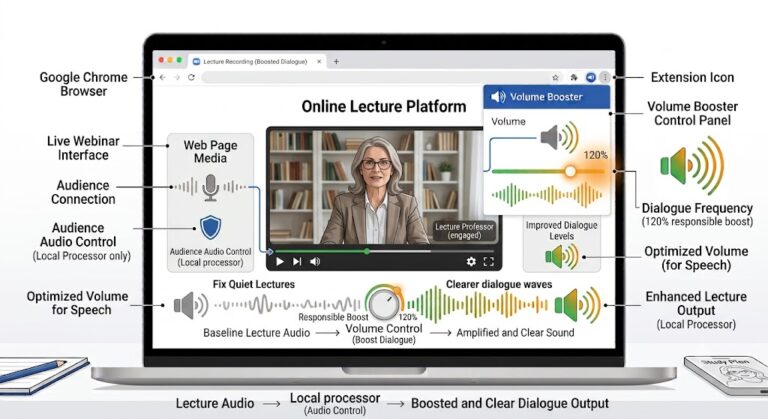
- Situation: A university lecture uploaded at low microphone gain. Even with laptop speakers at 80% system volume, the professor's voice is barely audible. The student keeps rewinding to catch missed words.
- Action: She opens the Volume Booster popup, checks that the active tab shows the lecture page, and slides to 155%. The browser applies clean gain. System volume stays at 80%. She listens for any rasp in the voice — there's none. The Reset button sits visible in case she overshoots.
- Result: The lecture is clear and intelligible. Because the boost happens inside Chrome, her laptop speakers operate at their normal 80% level — well within their safe range. No hardware stress, no distortion. After class, she clicks Reset and moves to a music tab at default volume.
Example 2: The Remote Worker on a Video Call with Quiet Participants
- Situation: A team call in Google Meet has three participants with mismatched microphone levels. Two are loud and clear; one is barely audible. Turning up system volume makes the loud participants uncomfortable.
- Action: The worker uses Volume Booster on the Meet tab only, nudging the slider to 130%. The quiet participant becomes audible while the louder ones remain at a comfortable level — because the boost applies to the entire tab's output, not individual voices. It's a compromise, but a safe one. System volume stays at a moderate 55%.
- Result: The worker participates fully without asking colleagues to adjust their mics repeatedly. No hardware risk because the total output level through the speakers never exceeds what 55% system volume would normally produce. The gain is digital, the output is analog‑safe.
Example 3: The Movie Watcher Struggling with Dialogue on a Streaming Platform
- Situation: Watching a drama on Prime Video where dialogue sits low in the mix but the orchestral score is massive. System volume balancing doesn't help — turning up for speech means the next music swell is painfully loud.
- Action: She boosts the Prime Video tab to 140% in Volume Booster. This lifts the entire audio track evenly. Then she uses her laptop's built‑in volume keys to set a comfortable peak level during a loud scene. The combination — moderate browser boost plus moderate system volume — gives her audible dialogue without explosive climaxes.
- Result: She watches the entire film without touching a single control. The boost is clean — no audible clipping on the orchestral passages because she tested the loudest scene first. Her external USB speakers run at a safe 45% system volume, well within their rated power handling.
What Speaker Types Need Extra Caution When Boosting Volume?
Not all audio hardware is equally forgiving. Understanding your output device helps you set safer boost limits.
- Laptop built‑in speakers: These are the most fragile. Tiny drivers in thin chassis have minimal excursion capability and no proper enclosures. Distortion arrives quickly, and prolonged clipped playback can physically tear the cone surrounds. Keep boosts modest — 120–140% is often the practical ceiling before audible stress appears.
- Budget wired earbuds: Small dynamic drivers can handle moderate boosts but lack the damping to control excursion at high gain. Harshness in the upper mids is your early warning sign. Stay below 150% unless the source material is exceptionally quiet and clean.
- Bluetooth headphones: These add complexity because the headphone's internal amp and DAC apply their own processing. A browser boost that sounds clean on the digital side may still clip the headphone's input stage. Start at 115–125% and evaluate. For more on wireless specifics, see browser audio amplification across different setups.
- External desktop speakers: Powered monitors and larger bookshelf speakers generally have more headroom. They can accept higher browser‑side gain without distorting, provided the system volume is reasonable. However, the amplifier in powered speakers can still clip if the combined gain staging pushes too hard.
- Studio monitors and audio interfaces: These professional setups have the most headroom and often include hardware clip indicators. If you use an audio interface, watch its meters — not just the browser slider — to ensure the boosted signal isn't hitting red.
The universal rule: your ears are the final safety check. Any harshness, buzzing, or fatigue means reduce the boost immediately, regardless of what the percentage number says.
Frequently Asked Questions
Can boosting browser volume actually break my laptop speakers?
Direct physical damage from browser‑side boosting alone is unlikely — the digital gain happens before the signal reaches your hardware. However, if you combine extreme browser boost (200%+) with maximum system volume on fragile laptop speakers, the combined signal can push drivers beyond their mechanical limits over time. The safe approach: use moderate browser boost and moderate system volume together rather than maxing out either one.
Does Volume Booster work on all websites?
Volume Booster works on any site that uses standard HTML5 <audio> or <video> elements. This covers YouTube, Netflix, Spotify Web Player, Disney+, Prime Video, Twitch, Vimeo, most podcast players, and virtually all modern streaming platforms. Sites that use proprietary non‑HTML5 players (rare, older Flash‑based relics) are not supported. For platform‑specific tips, see guides on fixing low volume on Netflix in Chrome and improving Disney+ audio quality.
What's the difference between the Volume Booster slider and my system volume?
The Volume Booster slider adjusts digital gain inside the browser tab before audio reaches your operating system. Your system volume controls the final output level your sound card sends to your speakers or headphones. Think of it like two water valves in series: the first (browser gain) increases water pressure in the pipe, while the second (system volume) controls how much flows out the tap. Both matter for safety.
Will using Volume Booster drain my laptop battery faster?
The extension is designed for minimal CPU usage. Audio gain processing is computationally lightweight — applying a multiplication factor to an audio buffer is one of the simplest operations a processor can perform. In practice, the battery impact is negligible compared to the media playback itself. The extension doesn't run background processes when you're not actively playing audio.
Does the extension collect or send my audio anywhere?
No. Volume Booster operates entirely inside your Chrome browser. Audio processing happens locally on your device. No audio is recorded, uploaded, analyzed, or transmitted. The extension makes zero external network requests. There are no accounts, no analytics, and no telemetry. Every byte of audio stays on your machine. This is a core design principle, not a marketing claim.
Can I boost volume for multiple tabs simultaneously?
The extension controls volume for the active tab — the one you're currently viewing. Each tab's boost setting is independent. If you set YouTube to 140% and switch to a podcast tab, the podcast plays at its own volume level (defaulting to 100% until adjusted). This per‑tab isolation prevents unintended amplification and is a deliberate safety feature. For details on the underlying mechanism, see how tab‑specific volume works on the Spotify Web Player.
Safe Volume Boosting Is About Control, Not Maximum Power
When you safely increase volume without speaker damage, the goal isn't raw loudness — it's restoring audibility to poorly mixed, quietly recorded, or browser‑capped audio while keeping your hardware well within its comfort zone. The Volume Booster extension gives you that control through a simple slider, per‑tab isolation, and fully local processing.
Key takeaways:
- Browser‑side gain operates before the signal hits your system volume and hardware — use it to fix quiet sources, not to overpower your speakers.
- Increment boosts gradually and listen for clipping indicators: harshness, buzzing, or ear fatigue. The Reset button is always one click away.
- Per‑tab control prevents the cascade where one quiet tab forces a global volume increase that blasts everything else.
- Different speaker types have different headroom. Laptop speakers need the most caution; studio monitors can handle more, but no hardware is indestructible.
- Volume Booster never records, uploads, or analyzes your audio. The entire tool runs inside Chrome, offline, with no external dependencies.
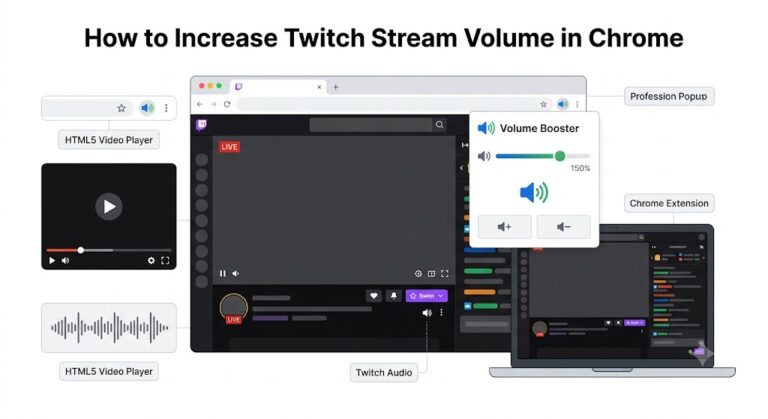
Start by opening a quiet video, clicking the Volume Booster icon, and sliding to 120%. Listen. Adjust. Reset if needed. The extension doesn't force you into any particular setting — it gives you a clean, safe control surface and trusts you to use it wisely. For more on how browser‑side amplification works across different streaming platforms, explore our guides on increasing Twitch stream volume and the full Volume Booster blog.