How to Amplify Spotify Web Player Volume
You've cranked the Spotify Web Player volume slider to 100%, pushed your laptop speakers to the max, and the song still feels quiet. Learning how to amplify Spotify Web Player volume beyond Chrome's built-in cap gives you the extra loudness you need — without installing bloated software, creating accounts, or compromising your privacy. Everything runs locally inside your browser.
- Why the Spotify Web Player volume ceiling exists and what actually limits your audio
- How the Volume Booster extension raises audio above Chrome's default maximum safely
- What happens during local audio processing — no uploads, no recordings, no external servers
- When to adjust the volume slider for podcasts, music, and video content on Spotify
Why Is Spotify Web Player Volume So Low in Chrome?
If you regularly listen through the Spotify Web Player, you've likely noticed that the volume sometimes feels capped — even when every slider sits at maximum. This isn't a bug. It's a combination of how Chrome handles HTML5 audio and how streaming platforms encode their media.
Chrome applies a per-tab volume ceiling tied to the operating system's master audio mixer. When Spotify streams at a lower gain level — common with highly dynamic music tracks or spoken-word podcasts — the browser's default ceiling can leave you wanting more. Add in quiet laptop speakers or wireless earbuds with conservative output, and the listening experience suffers.
Other factors that contribute to low Spotify Web Player volume:
- Streaming audio normalization: Spotify applies loudness normalization to create consistent playback across tracks. This can lower the peak volume of individual songs.
- System audio limitations: Windows, macOS, and ChromeOS each manage audio gain differently. A quiet Spotify tab in Chrome often reflects the OS sound settings, not the tab itself.
- Bluetooth headphone compression: Some wireless earbuds and headphones use audio codecs that reduce gain to preserve battery life or maintain connection stability.
- No per-tab amplification: Chrome provides no built-in way to boost a single tab's audio above 100%. The volume mixer inside Chrome is a simple attenuator — it can only lower volume, never raise it above the source level.
Understanding these limits is the first step. The solution is a tool that works within Chrome's own audio pipeline to amplify sound before it reaches your speakers — precisely what a privacy-first volume booster does.
How Can You Increase Spotify Web Player Volume Beyond Chrome's Limit?
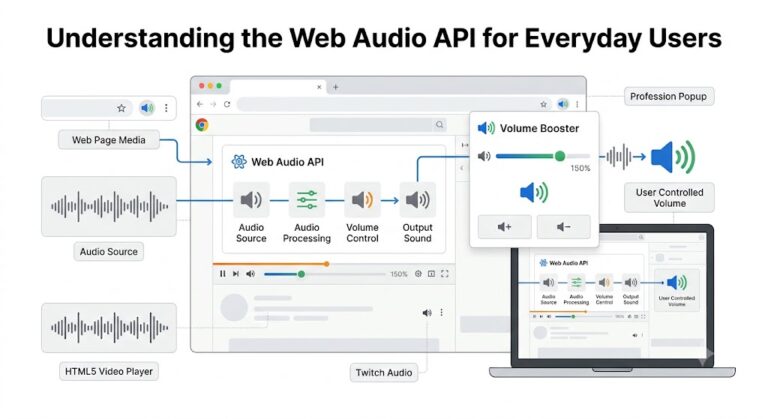
The most practical, lightweight way to amplify Spotify Web Player volume is through a Chrome extension that processes audio locally on your device. Instead of routing sound through external software or adjusting hidden OS settings, the extension intercepts the HTML5 audio stream within Chrome and applies a gain boost before playback reaches your speakers.
Here's the workflow when you use the Volume Booster extension with Spotify Web Player:
- Open open.spotify.com and start playing any track, album, or podcast episode. The extension automatically detects the active HTML5 media element on the page.
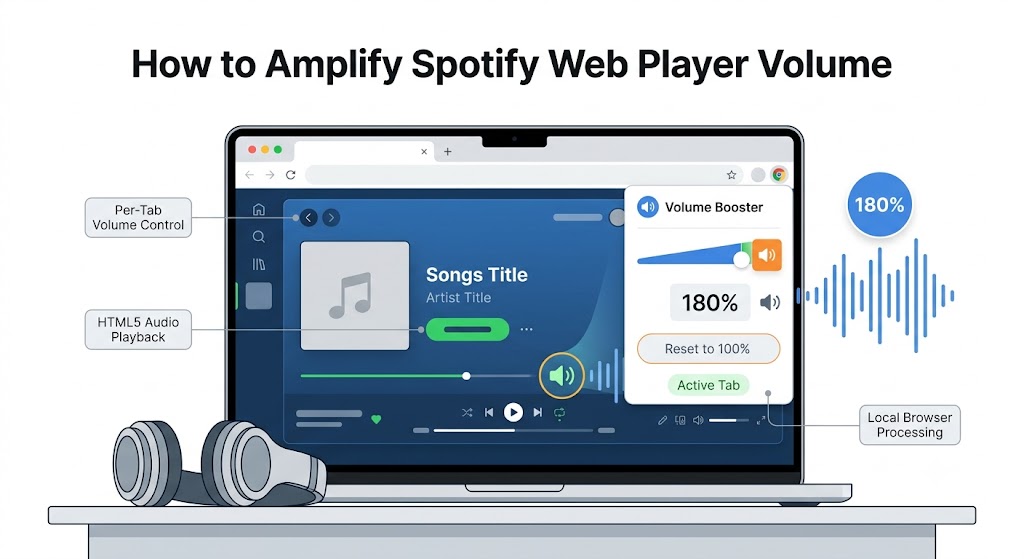
- Click the Volume Booster icon in Chrome's toolbar. The popup appears with a large, accessible volume slider showing the current amplification level for the active Spotify tab.
- Drag the slider above 100%. The extension applies gain locally — in real time — without any delay, buffering, or audio artifacts when used within reasonable limits.
- Listen to the immediate volume increase. If you ever want to return to Spotify's original output, click the Reset button or slide back to 100%.
Everything happens inside Chrome's sandboxed extension environment. The audio never leaves your browser. No account is required. No external server processes your sound. This approach respects both your privacy and Spotify's terms of service, as it doesn't modify, record, or redistribute any copyrighted content.
For a deeper look at how browser audio amplification works, read how to increase browser volume beyond the default limit and understand the technical foundation behind safe audio boosting.
Does Amplifying Spotify Web Player Volume Affect Audio Quality?
This is one of the most common concerns — and the answer depends entirely on how much you amplify and how the extension handles gain. When done correctly, a moderate boost delivers louder playback without noticeable quality loss. Pushing amplification to extreme levels, however, can introduce clipping and distortion.
What happens under the hood:
- Gain application: The Volume Booster extension multiplies the audio signal's amplitude by a factor determined by your slider position. At 150%, the signal is 1.5 times louder than the original. At 200%, it's doubled.
- Clipping threshold: Digital audio has a hard ceiling — 0 dBFS. When amplified audio peaks exceed this limit, the waveform clips, producing harsh distortion. The extension does not magically prevent clipping, but using moderate settings (typically up to 200%–250%) keeps most Spotify content clean.
- Dynamic range preservation: Unlike aggressive system-wide "loudness" toggles that compress audio, a simple gain boost preserves the original dynamic relationship between quiet and loud passages. You hear the music as intended — just louder.
- Frequency response: A gain-only boost does not alter EQ, bass, or treble. The tonal balance of your Spotify tracks remains identical to the source.
Practical guidance: start at 120%–150% for everyday listening. Reserve higher settings for exceptionally quiet tracks, podcasts with low recording levels, or when using low-output headphones. If you hear crackling or fuzz, back the slider down slightly — that's the clipping point for that specific audio.
Since the extension processes audio locally with no external dependencies, you can experiment freely until you find the sweet spot for your particular hardware and Spotify content. Learn more about safe amplification practices at why browser audio sounds too quiet and how to fix it.
How Does the Volume Booster Extension Process Spotify Audio Locally?
Privacy is not an afterthought — it's the foundation. The Volume Booster extension never uploads, records, stores, or analyzes your Spotify audio. Every millisecond of processing stays locked inside your Chrome browser.
The internal processing chain:
- Media detection: A lightweight content script identifies the HTML5
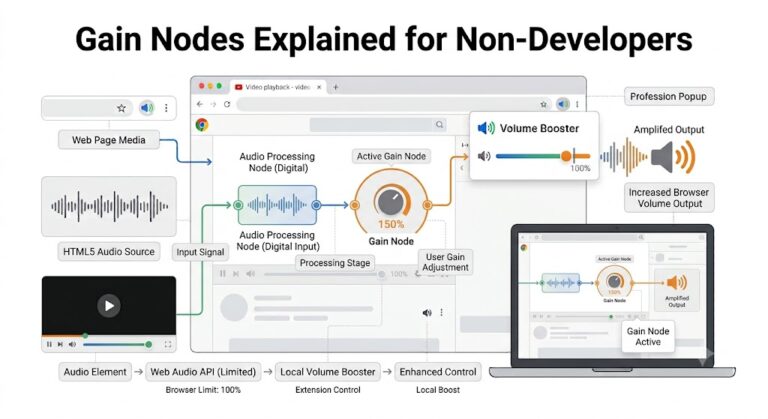
<audio>or<video>element that Spotify Web Player uses to stream music. No page content is scanned beyond standard media element detection. - Gain node insertion: The extension connects to the media element's audio graph and inserts a gain node — a standard Web Audio API component that adjusts volume. This is the same technology used in professional audio software, now running inside your browser tab.
- Real-time multiplication: When you move the slider, the extension updates the gain node's value instantly. The change applies to the live audio stream with imperceptible latency — typically under 10 milliseconds.
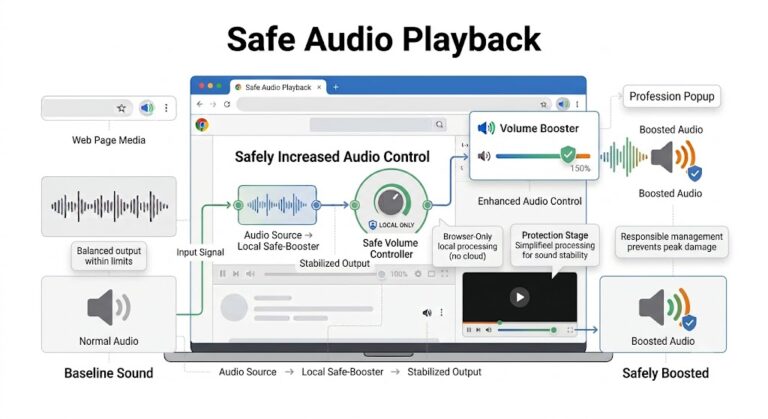
- Local execution only: All computation occurs within Chrome's V8 JavaScript engine and the browser's native audio stack. No network requests are made for audio processing. No telemetry, analytics, or user profiling exists in the extension.
This architecture aligns with Manifest V3 — Chrome's latest extension standard — which enforces stricter privacy and performance rules. The extension uses a service worker for background coordination and content scripts for tab-specific audio access, all within Google's approved extension APIs.
For a broader overview of how the extension works across different streaming platforms, see the Chrome Volume Booster overview.
How Do You Use the Volume Booster Extension with Spotify Web Player?
The interface is intentionally minimal. You won't find buried menus, confusing toggles, or feature bloat. The extension focuses on one task: giving you precise control over Spotify Web Player volume in the active tab.
Every control explained:
- Volume slider: A large, draggable slider inside the popup. It ranges from 0% to a maximum boost level. The current percentage is displayed numerically, so you always know exactly how much amplification is applied. Drag right to increase, left to decrease.
- Reset button: One click returns the slider to 100% — Spotify's original, unamplified level. This is useful when switching from a quiet podcast to a louder music track, or when handing headphones to someone else.
- Active tab detection: The popup automatically identifies which tab is currently playing audio. If Spotify is active in one tab and YouTube in another, the extension targets the tab you're focused on. Switch to Spotify, open the popup, and the slider controls that tab.
- Volume percentage display: The numeric readout next to the slider shows the current amplification level. This makes it easy to return to a preferred setting across sessions.
Best practices for daily use:
- Keep the extension pinned to your Chrome toolbar for one-click access during Spotify listening sessions.
- After each listening session, consider resetting to 100% so the next track or playlist starts at a neutral baseline.
- If you frequently switch between Spotify and other media sites like YouTube or Netflix, check the active tab indicator in the popup to confirm you're adjusting the right source.
- Use small, incremental slider adjustments — a jump from 100% to 180% is often more than enough for most quiet tracks.
What Are the Best Volume Settings for Different Spotify Listening Scenarios?
There's no single "best" amplification level — the right setting depends on what you're listening to, the hardware you're using, and your listening environment. Below are practical, tested scenarios that reflect real-world usage.
Scenario 1: The Late-Night Podcast Listener
- Situation: You're listening to a spoken-word podcast on Spotify Web Player through basic laptop speakers. The host's voice sounds distant, and dialogue-heavy segments are hard to follow at comfortable room volume.
- Setup: Chrome on a mid-range Windows laptop. Internal speakers. Spotify Web Player open with a podcast episode playing.
- Action: Open the Volume Booster popup. Gradually raise the slider to 140%–160%. The host's voice gains presence without introducing noticeable background hiss. The reset button stays visible in case the next auto-played episode is mastered louder.
- Result: Dialogue becomes crisp and intelligible. You stop straining to catch words. The amplification stays within safe limits, so no clipping occurs even during occasional laughter or applause peaks.
- Takeaway: Podcasts — especially independently produced ones — often have lower recording levels than commercial music. A moderate 130%–170% boost compensates without degrading speech clarity.
Scenario 2: The Music Enthusiast with Bluetooth Earbuds
- Situation: You're streaming a playlist through wireless earbuds connected to a Chromebook. Even with the earbuds' onboard volume maxed out, the music feels slightly subdued — particularly acoustic tracks with wide dynamic range.
- Setup: ChromeOS device. Bluetooth earbuds with no companion app EQ. Spotify Web Player streaming at "Very High" quality.
- Action: Set the Volume Booster slider to 125%–150%. The gain boost lifts quiet acoustic passages without pushing louder choruses into distortion. Because the boost is pure gain with no compression, the track's natural dynamics remain intact.
- Result: The music breathes. You hear fingerpicking details and reverb tails that were previously buried. Battery life on the earbuds remains unaffected since the amplification happens inside Chrome, not on the headphone hardware.
- Takeaway: Bluetooth earbuds with conservative default output benefit greatly from a gentle, consistent gain boost. No need to install manufacturer-specific audio software or system-wide equalizers.
Scenario 3: The Student Switching Between Spotify and Online Lectures
- Situation: A university student uses Spotify Web Player for background music while studying, then switches to recorded lectures hosted on the university portal. The lectures are significantly quieter than the music, forcing constant manual volume adjustments across tabs.
- Setup: Windows laptop. Wired over-ear headphones. Chrome with two active tabs: Spotify and the university lecture platform.
- Action: While on the lecture tab, boost to 180%–200% for clear voice reproduction. When switching back to Spotify for a break, click Reset to return to 100%, then fine-tune to 110%–120% if needed. The extension's active tab detection ensures each tab gets its own independent adjustment.
- Result: No more startling volume jumps between tabs. The student controls each source independently, reducing ear fatigue during long study sessions. The per-tab approach means Spotify and lecture audio never interfere with each other.
- Takeaway: Per-tab volume control transforms multi-source browsing. You're no longer at the mercy of inconsistent recording levels across different websites. Explore related fixes for streaming platforms at how to fix low volume on Netflix in Chrome.
What Should You Know About Spotify Web Player and Chrome Audio Safety?
Amplifying audio is safe for both your browser and your hearing — provided you follow basic precautions. The Volume Booster extension does not push audio beyond what your system can technically reproduce, but your ears have limits that software cannot detect.
Key safety considerations:
- Start low, increase gradually: Begin at 110%–120% and work upward. Sudden jumps to 300% can produce uncomfortably loud output through sensitive headphones.
- Monitor listening duration: Louder volumes increase listening fatigue over time. If you find yourself constantly pushing above 200%, consider checking your system's master volume or headphone hardware first.
- Respect the reset button: After a high-boost listening session, reset the slider to 100%. This prevents the next unexpected tab from blasting audio at an amplified level.
- Hardware protection: Chrome's audio pipeline includes built-in safeguards against extreme gain that could theoretically damage speakers. The extension works within these bounds — it does not bypass OS-level limiters.
- No permanent changes: The extension applies gain in real time to the active audio stream. It does not modify files, alter Spotify's streaming data, or leave any residual effects on your system after you close the tab.
Because everything runs locally, you can also rest assured that your listening habits remain completely private. No data about which Spotify tracks you amplify, how often you use the slider, or what volume levels you prefer ever leaves your device. Read more about the privacy-first approach at the Volume Booster homepage.
Frequently Asked Questions About Spotify Web Player Volume
Does the Volume Booster extension work with Spotify's web equalizer settings?
Yes. The extension applies gain independently of Spotify's built-in equalizer. If you've set a custom EQ curve in Spotify's settings, the Volume Booster amplifies the already-EQ'd signal. There's no conflict — the two adjustments stack naturally, with the extension acting as the final gain stage before output.
Will amplifying Spotify Web Player volume drain my laptop battery faster?
Negligibly. The extension performs a simple multiplication operation on the audio signal, which uses minimal CPU resources — far less than video playback or complex web applications. There's no increase in network activity, disk usage, or GPU load. On most devices, the battery impact is imperceptible.
Can I set different volume levels for different Spotify playlists?
The extension provides per-tab control, not per-playlist or per-track automation. Since all Spotify content plays within the same tab, the slider setting applies to everything playing in that tab. If a particular playlist is consistently quieter, you can set a comfortable boost and leave it there for the entire session.
Does this work if I use Spotify Web Player in a Chrome incognito window?
Yes, provided you've allowed the Volume Booster extension to run in incognito mode. You can enable this in Chrome's extension management page (chrome://extensions) by checking "Allow in incognito" for Volume Booster. The extension processes audio the same way — locally and privately — regardless of browsing mode.
What if Spotify Web Player volume is still too quiet after boosting?
If you've pushed the extension to its maximum and the audio still feels quiet, the bottleneck is likely at the system or hardware level. Check: (1) your operating system's master volume mixer — Chrome may be lowered there; (2) your headphone or speaker volume controls; (3) any system-wide audio enhancements that might be attenuating output. The extension amplifies within Chrome's pipeline — it cannot override OS-level muting or hardware volume limits.
Is this extension compatible with other streaming services I use alongside Spotify?
Absolutely. The Volume Booster works with any website that uses HTML5 audio or video elements. This includes YouTube, Netflix, Disney+, Prime Video, and most web-based music platforms. For platform-specific guidance, check out boosting YouTube volume above maximum and amplifying Prime Video volume without distortion.
Enjoy Louder, Clearer Spotify Web Player Audio — Without Compromising Privacy
Quiet audio doesn't have to ruin a great track, an engaging podcast, or a carefully curated playlist. By understanding why Spotify Web Player volume can feel limited — and how a lightweight, local-only Chrome extension safely amplifies sound — you regain full control over your listening experience.
Key takeaways from this guide:
- Chrome's built-in volume ceiling, Spotify's audio normalization, and hardware limitations all contribute to perceived low volume — but the fix is simple and local.
- The Volume Booster extension inserts a gain node directly into the HTML5 audio stream, amplifying sound in real time with no external processing, no accounts, and no data collection.
- Moderate amplification — typically 120% to 180% — delivers clean, distortion-free results for most Spotify content, from whisper-quiet podcasts to dynamic orchestral pieces.
- Per-tab control means you can boost Spotify independently of other tabs, making multi-source browsing sessions seamless and comfortable.
- Everything runs inside your browser. No audio is ever uploaded, recorded, analyzed, or shared. Your listening stays entirely private.
If Spotify Web Player volume has been a persistent frustration, the solution is already in your browser — lightweight, privacy-respecting, and ready the moment you click the extension icon. Start with a small boost, trust your ears, and discover how much more enjoyable streaming becomes when you're no longer fighting the volume ceiling. Then explore additional audio improvements like enhancing Disney+ audio quality in your browser or visit the Volume Booster blog for more practical guides.