A Beginner’s Guide to Volume Boosting Extensions
Quiet videos, muffled podcasts, and barely audible video calls can ruin your browsing experience. Volume boosting extensions solve this by letting you push Chrome’s audio beyond its built‑in 100% limit — all without uploading a single byte of audio. I built Volume Booster to be the privacy‑first answer: no accounts, no cloud, no tracking, just local audio processing that works instantly.
- Why Chrome’s default 100% volume often isn’t enough
- How a volume boosting extension amplifies HTML5 audio and video safely
- What happens inside the browser when you adjust the slider — gain nodes, per‑tab control, zero external calls
- When to reach for a booster during online classes, streaming, or video conferences

What Are Volume Boosting Extensions?
A volume boosting extension is a small browser add‑on that increases the loudness of audio playing in Chrome tabs. Unlike your system volume control, which only maxes out at the operating system’s limit, these extensions can push the browser’s audio signal further — often several times higher — without touching your OS settings.
Think of it as an extra volume knob that sits between the website and your speakers. When a YouTube lecture is still too quiet even with everything turned up to 11, a volume boosting extension steps in to make the sound truly audible.
I designed Volume Booster to be the simplest version of that knob. It focuses on one thing: giving you fine‑grained control over every tab’s volume, right from a popup. No bloat, no gimmicks — just a slider, a percentage display, and a reset button. And because all processing happens inside Chrome using the Web Audio API, nothing ever leaves your device.
Many users don’t realize that browsers cap audio at 100% by design. A volume boosting extension bypasses that ceiling on a per‑tab basis, restoring clarity to quiet streams and soft dialogue.
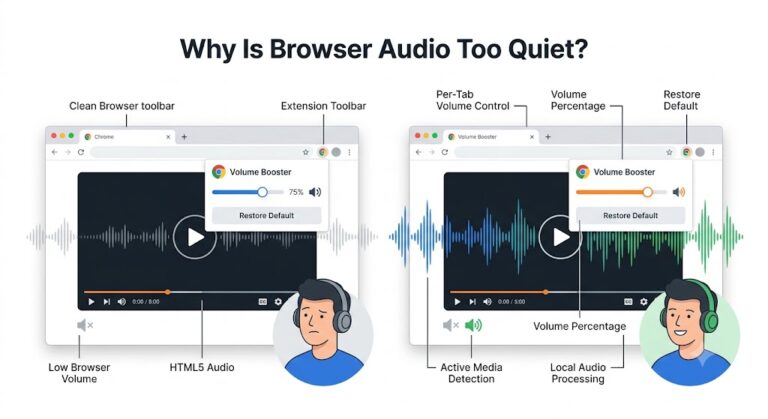
Why Is Browser Audio Often Too Quiet?
It’s not your imagination — some websites genuinely sound softer than others, even when your laptop speakers are at full blast. This can happen for several reasons:
- Low source volume: The original recording or stream was mastered quietly. Many online courses, indie podcasts, and user‑generated videos fall into this category.
- Browser‑imposed limits: Chrome and other browsers don’t let a single tab exceed 100% of its internal volume scale. If the content is already quiet, that ceiling leaves no headroom.
- Hardware constraints: Built‑in laptop speakers or budget headphones simply don’t have enough power. Boosting the signal before it reaches the speakers can make a noticeable difference.
- Audio mixing issues: Some streaming services — especially older web players — apply dynamic compression or normalization that inadvertently lowers the perceived loudness.
When you hit all these walls, a volume boosting extension becomes the logical next step. Instead of straining to hear, you amplify the audio where it originates — inside the browser tab. If you’ve ever had to lean in to catch dialogue on Netflix, you’ll appreciate how a simple boost can fix the problem without distorting the sound.
For a deeper dive into why these limits exist, read how HTML5 audio and video volume limits work in Chrome.
How Do Volume Boosting Extensions Work in Chrome?
Inside every Chromium‑based browser, HTML5 media elements — <audio> and <video> tags — are the standard way websites play sound. A volume boosting extension hooks into these elements on the fly and manipulates their audio signal using the Web Audio API.
Here’s the exact chain of events when you move the volume slider in Volume Booster:
- Media detection: The extension scans the active tab for any HTML5 audio or video. Detection happens through a lightweight content script that identifies media nodes — all locally, without analyzing the content itself.
- Gain node insertion: Once a media element is found, the extension creates an AudioContext and routes the media through a gain node. A gain node is essentially a volume multiplier that sits in the audio processing graph.
- Volume adjustment: When you drag the slider, the gain node’s
gain.valueis updated in real time. A value of 1.0 equals 100% (no change), while 2.0 doubles the amplitude. Volume Booster maps these values to a user‑friendly percentage display. - Instant output: Because all processing happens on the same thread, the volume change is immediate — no lag, no buffering. Your ears hear the result as soon as you release the slider.
Every step runs inside Chrome’s sandboxed extension environment under Manifest V3. No external servers, no audio recordings, no analytics. The extension merely asks for the “activeTab” permission so it can see the current page’s media elements when you click the popup. For a complete explanation of gain and amplification, see what audio gain means in browser contexts.
Because each tab gets its own gain node, you can boost a podcast in one tab while leaving a video call at normal volume in another. This per‑tab isolation is one of the most practical features for power users.
How Can You Safely Increase Volume Beyond 100%?
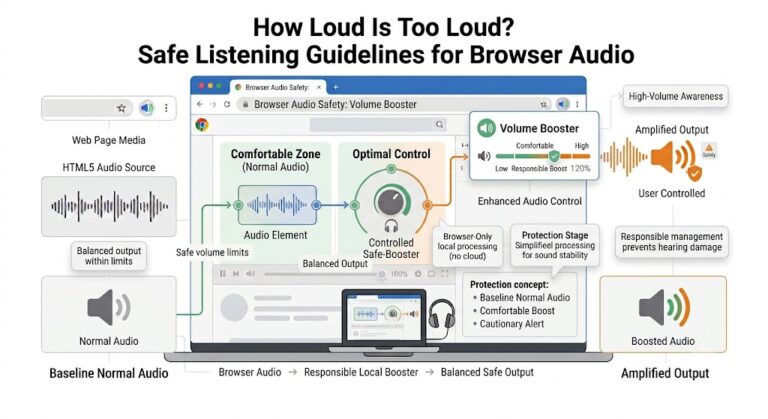
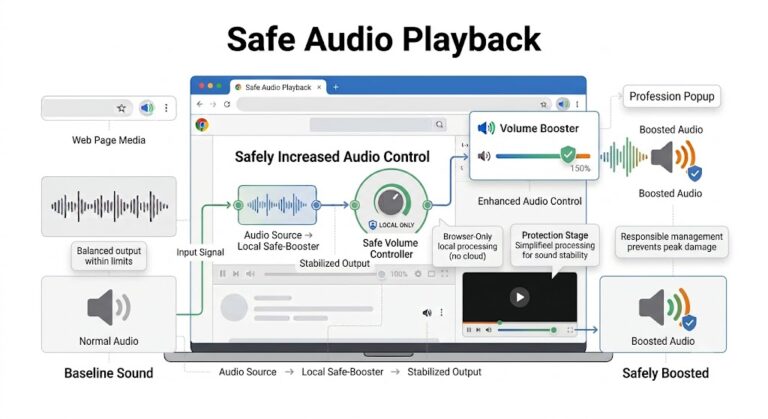
Pushing audio past the 100% mark is perfectly safe for your hardware — as long as you respect a few common‑sense limits. A volume boosting extension does not send more electrical power to your speakers; it simply scales the digital waveform before it reaches your sound card. Distortion, not damage, is the main concern.
When I built Volume Booster, I kept these safeguards in mind:
- Gradual slider: The large, smooth slider lets you increase volume in tiny steps. You can creep up from 100% to 150% and stop the moment you hear clipping.
- Reset button: A single click instantly returns the active tab to 100% (gain = 1.0). If you ever overdo it, recovery is immediate.
- Percentage feedback: The numeric display shows exactly how much you’re amplifying. You’ll never accidentally set 300% without realizing it.
- No permanent changes: Refreshing the tab removes the gain node, restoring original audio. The extension never saves boost levels permanently unless you explicitly choose to keep them.
Best practice: start with small increases — 120%, then 150% — and listen for harshness or crackling. If the audio begins to clip, back off slightly. For most quiet sources, a 150–200% boost is enough to reach comfortable listening levels without sacrificing clarity. If you want to understand the technical side, the Web Audio API documentation explains how browsers handle gain without introducing hardware risk.
When Should You Use a Volume Boosting Extension?
Volume boosting extensions aren’t just for broken audio — they shine in everyday scenarios where you need more volume flexibility than Chrome provides by default. Here are the most common situations where I personally reach for Volume Booster:
- Online learning: Recorded university lectures or training videos often have low recording levels. Boosting the audio can mean the difference between squinting at subtitles and absorbing the material naturally.
- Streaming movies and shows: Dialogue‑heavy films on Netflix, Prime Video, or Disney+ sometimes bury voices under music. Per‑tab amplification lifts dialogue without touching system settings. Check out our guides for fixing low volume on Netflix and boosting Prime Video without distortion.
- Music and podcasts: Web players like Spotify or web‑based radio apps can feel underwhelming through laptop speakers. A boost gives the track more presence. See how to improve Spotify web player volume.
- Live streams and video conferences: Twitch streams or remote meetings often suffer from microphone inconsistencies. Boosting a quiet presenter in one tab while keeping notifications at normal volume in another is a huge quality‑of‑life improvement. Read our tips on increasing Twitch stream volume.
- Accessibility needs: If you have mild hearing loss or simply prefer louder playback, a volume boosting extension offers a lightweight assist without changing global system audio settings.
In each case, the ability to boost volume per tab — and return to default instantly — makes a volume boosting extension far more convenient than fiddling with your speaker knob every time you switch activities.
How Does Volume Booster Protect Your Privacy While Boosting?
When you install any extension that touches audio, a reasonable question pops up: “Is this thing listening to me?” With Volume Booster, the answer is an emphatic no. The entire architecture was built on the principle that audio processing should never leave the browser.
Here’s what that means in practice:
- No audio uploads: The extension never captures, records, or transmits any audio stream. It only manipulates the gain parameter of existing media nodes — a purely mathematical operation.
- No user accounts: There’s no sign‑up, no cloud sync, no profile. The extension functions exactly the same whether you’re logged into Chrome or not.
- No tracking or analytics: Volume Booster contains zero telemetry code. It doesn’t know what websites you visit, what videos you watch, or how often you boost. The popup slider is the only interface that matters.
- Minimal permissions: It requests only “activeTab,” which grants temporary access to the current tab when you click the extension icon. No background network access, no reading of browsing history.
- Local storage only: If you choose to save a default boost level, that tiny preference is stored in Chrome’s local extension storage — on your device, not in a remote database.
I built Volume Booster because I was frustrated with audio tools that demanded invasive permissions. The extension is intentionally simple: it boosts audio, then gets out of the way. Privacy isn’t a feature — it’s the foundation.
Practical Examples of Volume Boosting Extensions in Action
Here’s how real users put a volume boosting extension to work every day — and what happens under the hood.
Example 1: The Online Student Catching Up on Lectures
- Situation: A university portal hosts recorded lectures with audio levels so low that even maxed‑out laptop speakers can’t make them intelligible.
- User action: Opens the lecture in a Chrome tab, clicks the Volume Booster icon, and slowly drags the slider to 180%. The percentage display confirms the exact boost.
- Extension processing: The content script detects the
<video>element, creates a gain node, and sets its gain to 1.8. The audio waveform is amplified before reaching the speakers. - Result: The professor’s voice becomes clear and audible. No distortion because the original recording had enough headroom. The student resets the volume with one click when moving on to other tabs.
Example 2: The Movie Fan Frustrated by Quiet Dialogue
- Situation: Watching a drama on Disney+ where background music overwhelms dialogue. System volume is at 100%, yet conversations are still hard to follow.
- User action: Boosts the streaming tab to 140% using the popup slider. Leaves other tabs (email, social media) at their default 100%.
- Extension processing: Only the Disney+ tab’s media is routed through a gain node. The other tabs’ audio paths remain untouched, so a notification ping doesn’t blast out at 140%.
- Result: Dialogue becomes distinct, and the viewing experience improves dramatically without installing a separate equalizer or altering the browser’s master volume. For more tips, see improving Disney+ audio quality in your browser.
Example 3: The Remote Worker in a Noisy Environment
- Situation: A colleague’s microphone is so quiet during a web‑based video call that engine noise from outside drowns out every other word.
- User action: Clicks the Volume Booster popup on the meeting tab, adjusts volume to 200%, and immediately hears the colleague clearly through headphones.
- Extension processing: The gain node multiplies the incoming audio stream’s amplitude. No audio is recorded or analyzed — the boost happens in real time, with zero latency.
- Result: The meeting becomes productive again. When the call ends, a quick tap on the Reset button returns everything to normal, ready for the next task.
Frequently Asked Questions
Will a volume boosting extension damage my speakers or headphones?
No. The extension only amplifies the digital audio signal inside Chrome. It does not increase the electrical power delivered to your hardware. Distortion from clipping is possible at extreme boost levels, but that’s a quality issue, not a hardware risk. Backing off the slider eliminates any distortion instantly.
Why does the audio sound distorted when I boost too high?
Digital audio has a maximum amplitude ceiling. When you push the signal beyond that limit, the peaks get “clipped” off, creating harsh, crackly distortion. The trick is to find the sweet spot — usually between 150% and 250% — where loudness improves without noticeable clipping. The real‑time slider makes this easy to dial in.
Does Volume Booster work on every website?
It works on any site that uses standard HTML5 <audio> or <video> elements. Most modern streaming services, social media platforms, and web players rely on these tags. Sites that use Flash or custom proprietary players (rare nowadays) may not be supported, but Chrome itself has mostly phased those out.
Can I set a permanent boost level for all tabs?
Volume Booster focuses on per‑tab control, which I find safer and more flexible. You boost only the tab that needs it. If you want a consistent boost for every tab, you can manually apply it each time — the slider is always two clicks away. I deliberately avoided global defaults to prevent accidental loud surprises when opening a new site.
Does the extension keep a record of my boosted tabs or listening habits?
No. Volume Booster stores absolutely no history. It doesn’t log which tabs you boost, what media you play, or for how long. The only optional setting saved locally is a preferred default gain level, and even that stays entirely on your device.
How is Volume Booster different from other volume boosting extensions?
Most alternatives add equalizers, bass boosts, and cloud‑based “enhancements.” I kept Volume Booster deliberately minimalist: one slider, one reset button, zero data collection. It loads instantly, uses minimal CPU, and never makes a single external request. If privacy and simplicity matter to you, this is the tool.
Take Control of Your Browser Audio, Effortlessly
Volume boosting extensions solve a real, everyday problem: audio that’s too quiet even when everything is turned up. By understanding how they work — from gain nodes to local processing — you can make smarter choices about which tool to trust and how to use it safely.
Key takeaways:
- A volume boosting extension amplifies HTML5 audio inside the browser tab, completely independently of your system volume.
- All processing in Volume Booster happens locally, with no uploads, no accounts, and no tracking.
- Per‑tab control lets you boost exactly the content that needs it — a lecture, a movie, a call — without affecting anything else.
- A smooth slider, instant reset, and clear percentage display give you precise, distortion‑free control.
Because the extension leaves no footprint and demands no trust you haven’t verified, you can try it with zero risk. Boost a quiet tab, hear the difference immediately, and reset when you’re done. Then explore how to boost Prime Video without distortion or improve Disney+ audio to see Volume Booster in action with your favorite services. Once you experience what a truly private audio boost feels like, you’ll wonder why you ever tolerated quiet tabs.
Start by clicking the Volume Booster icon on any tab that sounds too soft. The slider is waiting.